How to Reset Windows 11 Settings App

Trouble with the Windows 11 Settings app? Here’s how to reset or repair it.
Right-click the Settings app on the Start menu, select App settings, scroll down, and click the Reset button twice to confirm. This will restore the app to its default state.
What is the 🪟 Windows 11 Settings App?
The Windows 11 Settings app is your main hub for managing your computer’s features and preferences, replacing the older Control Panel.
Why use the Settings app? It gives you a more organized way to change your computer settings.
When Should You Reset the Settings App?
You should reset the Windows 11 Settings app when it stops working correctly, won’t open, or behaves unexpectedly.
What happens when you reset the Settings app? It erases all your saved preferences and returns everything to factory defaults. This usually fixes common problems.
How to Reset the 🪟 Windows 11 Settings App
- Open the Start menu and right-click the Settings app.
You can reset the Windows 11 Settings app if it’s not working right or causing problems.
- Select App settings from the menu.
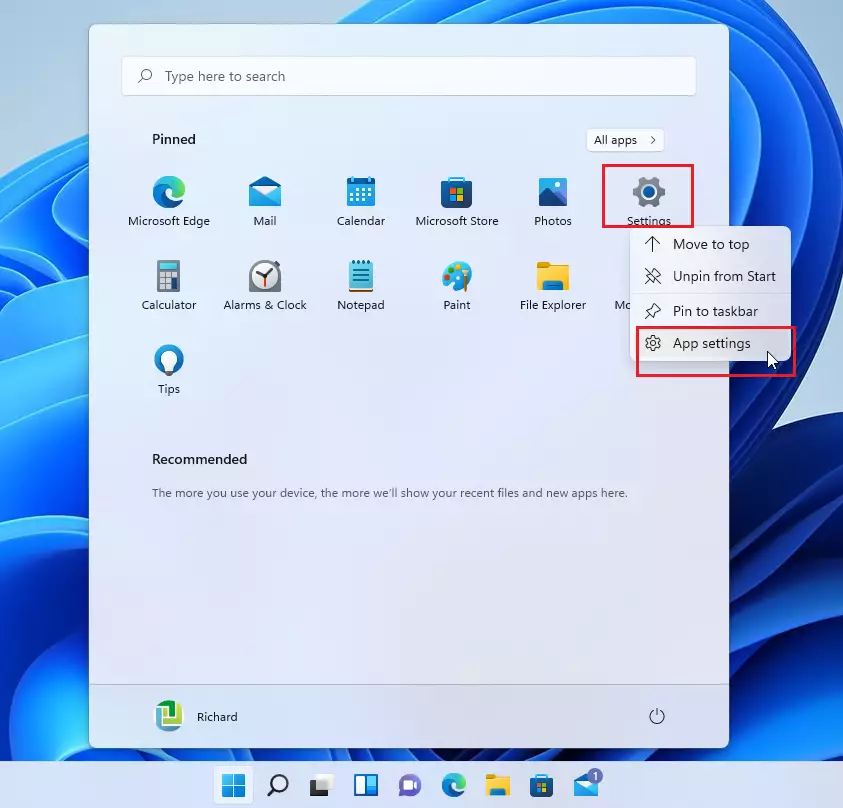
You can reset the Windows 11 Settings app if it’s not working right or causing problems.
- A new window will open. Scroll down until you see the Reset button.
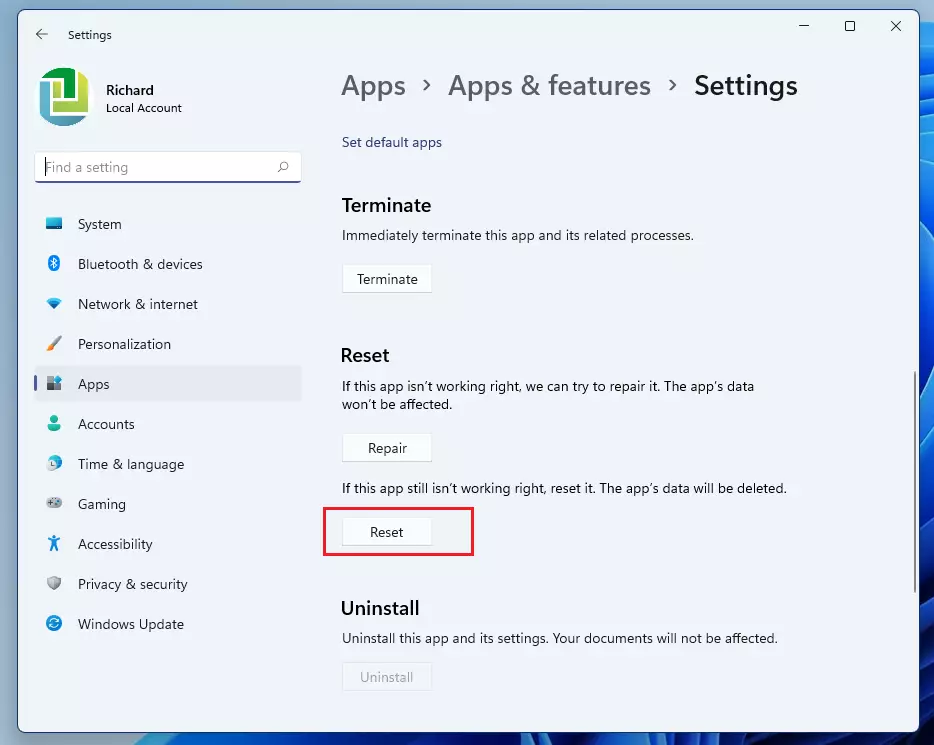
You can reset the Windows 11 Settings app if it’s not working right or causing problems.
- Click the Reset button. A message will appear saying “This will permanently delete the app’s data on this device, including your preferences and sign-in details.”
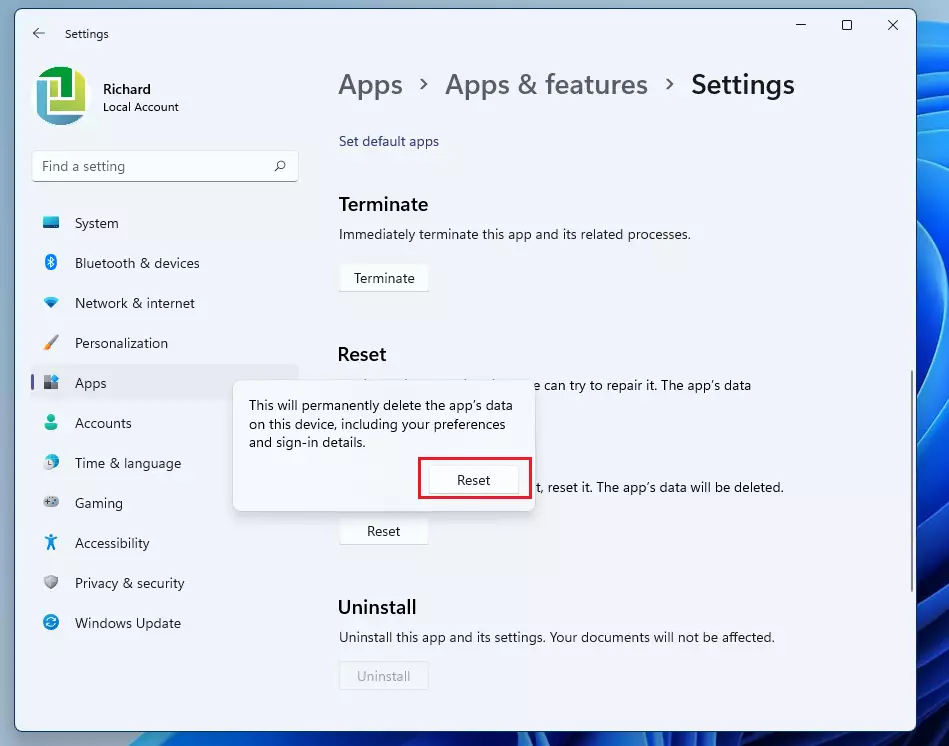
You can reset the Windows 11 Settings app if it’s not working right or causing problems.
- Click Reset again to confirm.
That’s it! Your Settings app is now reset.
Try Repairing First
Before resetting, you can try repairing the Settings app instead. Repair is less drastic than reset. If the Repair option doesn’t work, then reset the app.
Summary
Resetting the Windows 11 Settings app is a useful fix for when the app isn’t working right, returning it to its original state.
Was this guide helpful?

About the Author
Richard
Tech Writer, IT Professional
Richard, a writer for Geek Rewind, is a tech enthusiast who loves breaking down complex IT topics into simple, easy-to-understand ideas. With years of hands-on experience in system administration and enterprise IT operations, he’s developed a knack for offering practical tips and solutions. Richard aims to make technology more accessible and actionable. He's deeply committed to the Geek Rewind community, always ready to answer questions and engage in discussions.


[…] Next, open the Windows Settings app. […]
[…] First, open the Windows Settings app. […]
[…] First, open the Windows Settings app. […]
[…] First, open the Windows Settings app. […]
[…] First, open the Windows Settings app. […]
[…] First, open the Windows Settings app. […]
[…] First, open the Windows Settings app. […]
[…] First, open the Windows Settings app. […]
[…] First, open the Windows Settings app. […]
[…] First, open the Windows Settings app. […]
[…] One way to locate a printer’s shared name is to use the Settings app. […]
[…] with a brightness slider that appears in Quick Settings. You can also find the brightness slider in Windows Settings app by clicking the Start menu ==> […]
[…] you have set up a PIN and wish to change it to something else, you can do that easily from the Windows Settings app. You can only change your PIN if you know the current PIN or can sign into Windows with your […]
[…] you can log in with your local password or Microsoft account, sign in and go to the Widows Settings app to reset your […]
[…] You can now exit the Settings app. […]
[…] you can only assign one app at a time, changing the assigned app requires that you go to the Windows Settings app and change it there. You can change the kiosk app anytime you […]
[…] Windows 11 has a centralized location for the majority of its settings. As a result, everything can be done, from system configurations to creating new users and updating Windows from its Settings app. […]
[…] Windows 11 has a centralized location for the majority of its settings. As a result, everything can be done, from system configurations to creating new users and updating Windows from its Settings app. […]
[…] mentioned above, Windows allows users to reset touchpad and gestures settings to defaults from the Windows Setting app. This allows you to reset all settings after you’ve made some changes and want to start […]
[…] allows users to change these settings from the Settings app. If you have a mouse connected to your laptop and would instead use it, turning off the touchpad […]
[…] Find system memory details from the Settings app. […]
[…] First, open the Windows Settings app. […]
[…] First, open the Windows Settings app. […]
[…] Next, open the Windows Settings app. […]
[…] Open the Windows Settings app. […]
[…] First, open the Windows Settings app. […]
[…] First, open the Windows Settings app. […]
[…] First, open the Windows Settings app. […]
[…] First, open the Windows Settings app. […]
[…] First, open the Windows Settings app. […]
[…] First, open the Windows Settings app. […]
[…] First, open the Windows Settings app. […]
[…] First, open the Windows Settings app. […]
[…] First, open the Windows Settings app. […]
[…] First, open the Windows Settings app. […]
[…] open the Windows Settings […]
[…] are multiple ways one can change the mouse wheel scroll in Windows. For example, one can use the Windows Settings app, the classic Control Panel mouse applet, or the Windows registry […]
[…] can also use the Settings app to launch the sticker’s editor. Go to Start > Settings > Personalization > […]
[…] way to uninstall updates in Windows 11 is to use the Windows Settings […]
[…] First, open the Windows Settings app. […]
[…] First, open the Windows Settings app. […]
[…] First, open the Windows Settings app. […]
[…] That should do it! You can now close the Windows settings app. […]
[…] That should do it! You can now close the Windows settings app. […]
[…] That should do it! You can now close the Windows settings app. […]
[…] To change this setting, open the Windows Settings app. […]
[…] way to connect to a wireless display is by using the Settings app in Windows […]
[…] Another way one can control startup apps is via the Windows Settings app. […]
[…] allows you to install a preferred language for features like Settings and File […]
[…] First, open the Windows Settings app. […]
[…] First, open the Windows Settings app. […]
[…] in Windows 11. Then, one had to use the classic Control Panel app. Now, users can use the Windows Settings app to change what happens when the power button is […]
[…] First, open the Windows Settings app. […]
[…] lets you change the screen and sleep settings from the Settings app. In some environments, this feature is disabled, preventing users from changing their screen and […]
[…] First, open the Windows Settings app. […]
[…] First, open the Windows Settings app. […]
[…] First, open the Windows Settings app. […]
[…] First, open the Windows Settings app. […]
[…] users can use the Windows Settings app, to connect their Xbox Wireless Controller via […]
[…] First, open the Windows Settings app. […]
[…] First, open the Windows Settings app. […]
[…] First, open the Windows Settings app. […]
[…] First, open the Windows Settings app. […]
[…] To do that, first, open the Windows Settings app. […]
[…] First, open the Windows Settings app. […]
[…] First, open the Windows Settings app. […]
[…] Here’s how to do it in Windows Settings app. […]
[…] same information above can be accessed via the Windows Settings […]
[…] open the Windows Settings […]
[…] way to find out the Windows version installed on their computer is to use the Windows Settings […]
[…] on the Start menu button and click Settings to open the Windows Settings app. You can also use a keyboard shortcut (Windows key + I) to launch the Settings […]
[…] quickest way to change or adjust your display DPI scaling level is to use the Windows Settings […]
[…] Windows 11, one can use the Windows Settings app, Computer Management, the Command Prompt, and Windows PowerShell […]
[…] First, open the Windows Settings app. […]
[…] When you are ready, open the Windows Settings app. […]
[…] Another way to view the impact of startup on a Windows computer is to use the Settings app. […]
[…] To do that, open the Windows Settings app. […]
[…] 11 has a Settings app that lets you configure many settings for your device. For example, you can change the time zone, […]
[…] open the Windows Settings app. You can access the Settings app by clicking on the Start button and selecting […]
[…] That should do it! You can close the Settings app. […]
[…] To get started, click the Start menu -> Settings to open the Windows Settings app. […]
[…] You can find details of user accounts in the Settings app. […]
[…] can disable or enable it using Windows Settings app, and the steps below show you […]
[…] you can quickly disable the accent color decorations around windows borders and title bars using Windows Settings […]
[…] is enabled by default. However, you can quickly turn it off or re-enable it from Windows Settings app, and the steps below show you how to do […]
[…] to a drive, or if you’ve got a drive that doesn’t yet have a drive letter, you can use Windows Settings app or Disk Management tool to change […]
[…] That should do it! You can now close the Windows settings app. […]
[…] That should do it! You can now close the Windows settings app. […]
[…] That should do it! You can now close the Windows settings app. […]
[…] First, open the Windows Settings app. […]
[…] First, open the Windows Settings app. […]
[…] You can now close the Settings app. […]
[…] You can close the Windows Settings app. […]
[…] Windows 11 has a centralized location for the majority of its settings. Everything can be done, from system configurations to creating new users and updating Windows from its Settings app. […]
[…] Windows 11 has a centralized location for the majority of its settings. As a result, everything can be done, from system configurations to creating new users and updating Windows from its Settings app. […]
[…] Windows 11 has a centralized location for the majority of its settings. As a result, everything can be done, from system configurations to creating new users and updating Windows from its Settings app. […]
[…] Windows 11 has a centralized location for the majority of its settings. As a result, everything can be done, from system configurations to creating new users and updating Windows from its Settings app. […]
[…] Windows 11 has a centralized location for the majority of its settings. As a result, everything can be done, from system configurations to creating new users and updating Windows from its Settings app. […]
[…] Windows 11 has a centralized location for the majority of its settings. As a result, everything can be done, from system configurations to creating new users and updating Windows from its Settings app. […]
[…] Windows 11 has a centralized location for the majority of its settings. As a result, everything can be done, from system configurations to creating new users and updating Windows from its Settings app. […]
[…] Windows 11 has a centralized location for the majority of its settings. As a result, everything can be done, from system configurations to creating new users and updating Windows from its Settings app. […]
[…] Windows 11 has a centralized location for the majority of its settings. As a result, everything can be done, from system configurations to creating new users and updating Windows from its Settings app. […]
[…] Windows 11 has a centralized location for the majority of its settings. From system configurations to creating new users and updating Windows, all can be done from the System Settings pane. […]
[…] next time you want to pair the same device, you no longer need to navigate the Settings App and find their peripheral to pair. Instead, you can pair the device from the fly-out […]
[…] with PowerShell in Windows 11. Windows allows users to change or reset passwords from the Windows Settings app or Control […]
[…] First, open the Windows Settings app. […]
[…] First, open the Windows Settings app. […]
[…] First, open the Windows Settings app. […]
[…] First, open the Windows Settings app. […]
[…] First, open the Windows Settings app. […]
[…] First, open the Windows Settings app. […]
[…] First, open the Windows Settings app. […]
[…] First, open the Windows Settings app. […]
[…] First, open the Windows Settings app. […]
[…] To allow users to access your PC via Remote Desktop, you must add them to the necessary group. Below is how to do that using the Windows Settings app. […]
[…] open the Windows Settings […]
[…] way to find out the build of Windows installed on their computer is to use the Windows Settings […]
[…] First, open the Windows Settings app. […]
[…] To do that, click on the Start menu, and select the Settings app. […]
[…] can close the Windows Settings app to complete the […]
[…] Windows 11 has a centralized location for the majority of its settings. As a result, everything can be done, from system configurations to creating new users and updating Windows from its Settings app. […]
[…] Windows 11 has a centralized location for the majority of its settings. As a result, everything can be done, from system configurations to creating new users and updating Windows from its Settings app. […]
[…] First, open the Windows Settings app. […]
[…] settings in Windows 11. Then, one had to use the classic Control Panel app. Now, users can use the Windows Settings app to change what happens when the lid on the laptop is […]
[…] First, open the Windows Settings app. […]
[…] First, open the Windows Settings app. […]
[…] open the Windows Settings app. You can also use the keyboard shortcut (Windows key + I) to launch the Settings […]
[…] To do that, select Start and select Windows Settings app. […]
[…] Next, go to Windows Settings app. […]
[…] That should do it! You can now close the Windows Settings app. […]
[…] Windows 11 has a centralized location for the majority of its settings. As a result, everything can be done, from system configurations to creating new users and updating Windows from its Settings app. […]
[…] Windows 11 has a centralized location for the majority of its settings. As a result, everything can be done, from system configurations to creating new users and updating Windows from its Settings app. […]
[…] First, open the Windows Settings app. […]
[…] First, open the Windows Settings app. […]
[…] First, open the Windows Settings app. […]
[…] First, open the Windows Settings app. […]
[…] First, open the Windows Settings app. […]
[…] First, open the Windows Settings app. […]
[…] First, open the Windows Settings app. […]
[…] Another way to enable or disable the Phone Link app automatically, starting with Windows, is using the Settings app. […]
[…] First, open the Windows Settings app. […]
[…] First, open the Windows Settings app. […]
[…] First, open the Windows Settings app. […]
[…] First, open the Windows Settings app. […]
[…] Windows 11 has a centralized location for the majority of its settings. As a result, everything can be done, from system configurations to creating new users and updating Windows from its Settings app. […]
[…] First, open the Windows Settings app. […]
[…] First, open the Windows Settings app. […]
[…] First, open the Windows Settings app. […]
[…] First, open the Windows Settings app. […]
[…] you can access the Amazon Appstore app settings from the Windows Settings […]
[…] To do that, first, open the Windows Settings app. […]
[…] another way to terminate or stop WSA processes is via the Windows Settings app. To do that, click on the Start menu and select […]
[…] First, open the Windows Settings app. […]
[…] open the Windows Settings […]
[…] First, open the Windows Settings app. […]
[…] open the Settings app. You can also press the (Windows key + I) keyboard shortcut to launch the […]
[…] are steps to set or change the PowerShell execution policies via the System Settings app, Windows PowerShell app, and Windows Registry […]
[…] First, open the Wi-Fi connection properties panel. You can do that by clicking on the Start menu and selecting Settings. […]
[…] First, open the Windows Settings app. […]
[…] First, open the Windows Settings app. […]
[…] First, open the Windows Settings app. […]
[…] First, open the Windows Settings app. […]
[…] First, open the Windows Settings app. […]
[…] First, open the Windows Settings app. […]
[…] First, open the Windows Settings app. […]
[…] First, open the Windows Settings app. […]
[…] First, open the Windows Settings app. […]
[…] First, open the Windows Settings app. […]
[…] First, open the Windows Settings app. […]
[…] First, open the Windows Settings app. […]
[…] menu positioned at the center of the screen. This new menu includes shortcuts to all your apps, settings, and files. Additionally, you can customize it to determine which folder shortcuts appear at the […]
[…] First, open the Windows Settings app. […]
[…] First, open the Windows Settings app. […]
[…] First, open the Windows Settings app. […]
[…] First, open the Windows Settings app. […]
[…] First, open the Windows Settings app. […]
[…] First, open the Windows Settings app. […]
[…] First, open the Windows Settings app. […]
[…] First, open the Windows Settings app. […]
[…] First, open the Windows Settings app. […]
[…] First, open the Windows Settings app. […]
[…] First, open the Windows Settings app. […]
[…] go to the Windows Settings app. To get to the Settings app, you can use the Windows key + I shortcut or click […]
[…] First, open the Windows Settings app. […]
[…] Windows 11 has a centralized location for the majority of its settings. From system configurations to creating new users and updating Windows, all can be done from the System Settings pane. […]
[…] allow users to install additional languages to support Windows features like Settings and File […]
[…] Windows 11 has a centralized location for the majority of its settings. As a result, everything can be done, from system configurations to creating new users and updating Windows from its Settings app. […]
[…] Alternatively, one can turn on or off live content using the steps and going to the Settings app. […]
[…] Windows 11 has a centralized location for the majority of its settings. As a result, everything can be done, from system configurations to creating new users and updating Windows from its Settings app. […]
[…] That should do it! You can now close the Windows settings app. […]
[…] That should do it! You can now close the Windows settings app. […]
[…] That should do it! You can now close the Windows settings app. […]
[…] First, open the Windows Settings app. […]
[…] First, open the Windows Settings app. […]
[…] First, open the Windows Settings app. […]
[…] First, open the Windows Settings app. […]
[…] First, open the Windows Settings app. […]
[…] You can do that by clicking on the Start menu and selecting Settings. Or press the keyboard shortcut (Windows key + I) to launch the Settings app. […]
[…] First, open the Windows Settings app. […]
[…] First, open the Windows Settings app. […]
[…] First, open the Windows Settings app. […]
[…] For more tips and detailed guides, you can visit Geek Rewind. […]
[…] How to Open Settings in Windows 11 […]
[…] For more tips on keeping Windows 11 running smoothly, check out this guide to resetting the Settings app. […]
[…] If you want to learn more about Windows 11 tips, check out this Windows 11 Settings guide. […]
[…] 11 has a new Start menu right in the middle of your screen. It shows all your apps, Settings, and files. You can also choose which folders you want quick access to at the bottom of the Start […]
[…] Open the Settings AppClick on the Start menu (the Windows icon on the bottom left) and select Settings.Or press Windows key + I on your keyboard to open Settings quickly. Learn more about Windows Settings […]
[…] How to Reset the Settings App in Windows 11 […]
[…] Open Settings:Click the Start menu (the Windows icon at the bottom-left corner of your screen) and choose Settings. OR press Windows key + I on your keyboard to open Settings quickly. Learn more about Windows Settings […]
[…] the Settings […]
[…] the Settings […]
[…] For more Windows 11 tips, check out this helpful guide. […]
[…] For extra help with Windows Settings, see this guide: How to Open and Use Windows Settings […]
[…] Want to learn more about Windows 11 tips? Check out this guide on using Windows Settings. […]
[…] the Settings app by clicking the Start menu and selecting Settings, or press Windows key + I on your […]
[…] Learn more about Windows Settings app […]
[…] Open Windows Settings: Click the Start menu button (the Windows icon in the bottom-left corner of your screen), then click Settings. Or, press Windows key + I on your keyboard to open Settings quickly. Learn more about Windows Settings […]
[…] the Settings app. You can do this […]
[…] the Settings app by clicking the Start menu and then Settings. Or press Windows key + I on your […]
[…] the Settings app. To open Settings, click the Start menu and choose Settings, or press Windows key + I on your […]
[…] the Settings app. You can do this […]
[…] Open Windows Settings Click the Start menu and select Settings, or press Windows key + I on your keyboard to open the Settings app. Learn more about opening Settings […]
[…] For more tips on customizing Windows 11, check out how to change your display language or how to reset the Settings app. […]
[…] If you want to learn more about Windows 11 settings, check out this guide to resetting the Settings app. […]
[…] jobs after accessing the print queue via the notification area or the Windows Settings app. One of the most frustrating things is when a job won’t print or gets stuck in the printing […]
[…] That should do it! You can now close the Windows settings app. […]
[…] That should do it! You can now close the Windows settings app. […]
[…] That should do it! You can now close the Windows settings app. […]
[…] one can use Windows Settings app to turn it on or […]
[…] the Windows Settings app. You can do this by clicking on the Start menu and selecting Settings. Or press the keyboard […]
[…] option to write with your fingertip in this handwriting panel. You can do this either inside the Settings app or by changing a setting in the Windows Registry Editor. When fingertip writing is off, you can […]
[…] the lights on your compatible devices. You can adjust them one by one or all at once through the Windows Settings app. Once your devices are connected, they appear as cards at the top of the settings page. You can […]
[…] First, open the Windows Settings app. […]
[…] First, open the Windows Settings app. […]
[…] open the Windows Settings […]
[…] the Settings app on your PC. You can click the Start menu and select Settings, or press Windows key + I on your […]
[…] Click the Start menu and select Settings. Or use the keyboard shortcut (Windows key + I) to open the Settings app. […]
[…] able to see it on the Wi-Fi connection panel from the Quick Settings window. You will have to go to Windows Settings to edit the connection […]
[…] to view and cancel print jobs after accessing the print queue via the notification area or the Windows Settings app. You can find our previous post on viewing the print queue here: How to view a print queue in […]
[…] 11 makes it easy to find technical info through its Settings Settings app […]
[…] you can view these rules directly in your system settings. You can also use the Windows Settings app to manage these […]
[…] the Windows Settings app. You can do this by pressing the Windows key + I on your […]
[…] the Windows Settings app. You can click the Start menu and select Settings, or press the Windows key + I on your […]
[…] can choose to turn this feature on or off using the Settings app or the Windows Registry Editor. Why would you do this? You might want to prevent accidental marks […]
[…] the Windows Settings app. You can find this in your Start menu or by pressing the Windows key + I on your keyboard to […]
[…] the Windows Settings app by clicking Start and choosing Settings, or press the Windows key + I on your keyboard to open […]
[…] the Windows Settings app. You can do this by clicking the Start menu or pressing the Windows key + I on your keyboard to […]
[…] the Windows Settings app by clicking the Start menu and selecting Settings, or by pressing the Windows key + I on your […]
[…] More on resetting or opening settings here: How to Reset the Settings App in Windows 11 […]
[…] can manage this through the main Windows Settings app […]
[…] If you have finished enabling or installing Windows Mixed Reality, you can remove the software using the Settings app. […]
[…] open the Windows Settings app. You can click the Start menu and select Settings. You can also press the Windows key + I to […]
[…] the Windows Settings app. You can click the Start menu or press the Windows key + I to open Settings […]
[…] the Windows Settings app. You can find this in your Start menu or press the Windows key + I to open Settings […]
[…] the Windows Settings app. You can find this in the Start menu or by pressing the Windows key + I on your keyboard to […]
[…] the Windows Settings app. You can find this by clicking the Start menu and selecting Settings, or by pressing the […]
[…] the Windows Settings app. You can click the Start menu and select Settings, or press the Windows key + I on your […]