How to Enable Tablet-Optimized Taskbar in Windows 11

You enable the tablet-optimized taskbar in Windows 11 to make your 2-in-1 device easier to use with touch.
This special taskbar automatically adjusts its size for touchscreens, providing more space between icons and a better touch experience. It’s designed for convertible laptops and devices that support posture sensing, specifically when you detach the keyboard.
When your keyboard is detached, Windows 11 intelligently transitions the taskbar to a larger, touch-friendly layout. This makes tapping icons and menus much simpler with your fingers or a pen.
The tablet-optimized taskbar shrinks when you reconnect the keyboard, returning to a more compact view for mouse and keyboard use. This ensures optimal usability whether you’re in desktop or tablet mode.
Go to Settings > Personalization > Taskbar > Taskbar behaviors and check “Optimize taskbar for touch interactions when this device is used as a tablet.” This setting automatically expands the taskbar when you detach or fold your keyboard to improve touch usability.
Enable via Windows Settings
This is the easiest way to change your taskbar settings.
- Open the Windows Settings app. Press the Windows key + I on your keyboard.
- Click on Personalization in the left menu.
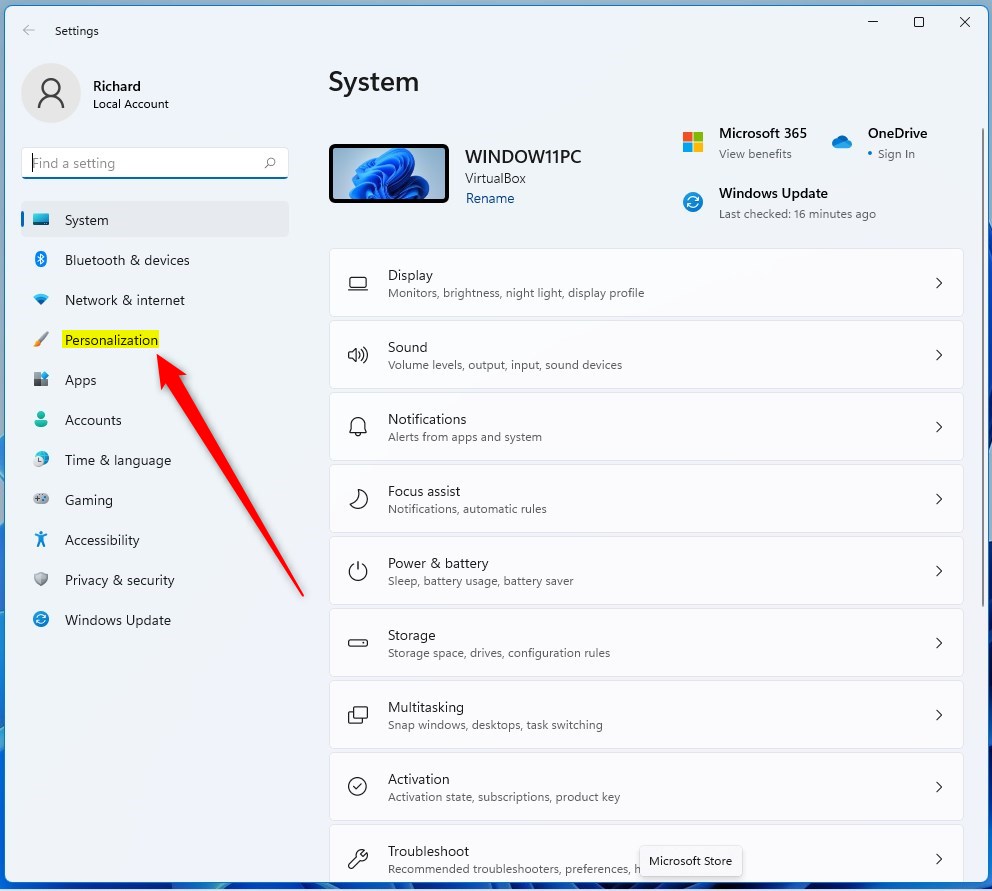
windows 11 personalization tile setting - Click on the Taskbar tile on the right side.
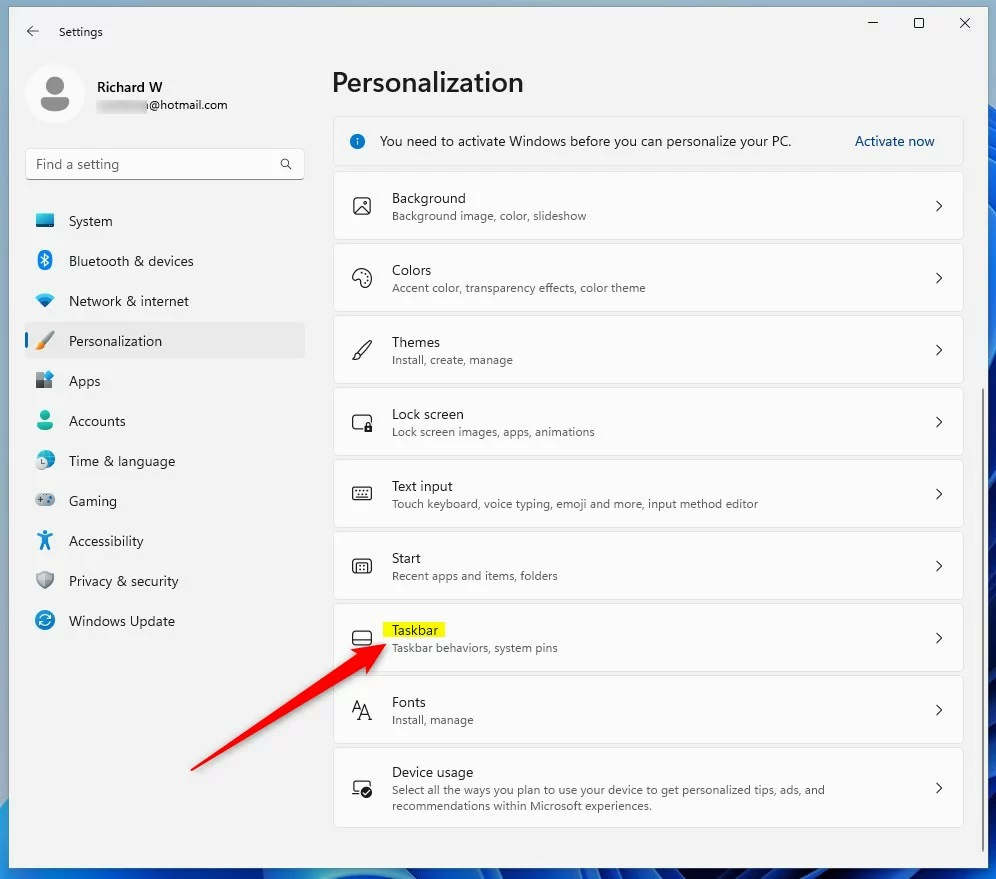
windows 11 personalization taskbar tile - Click Taskbar behaviors to show more options.
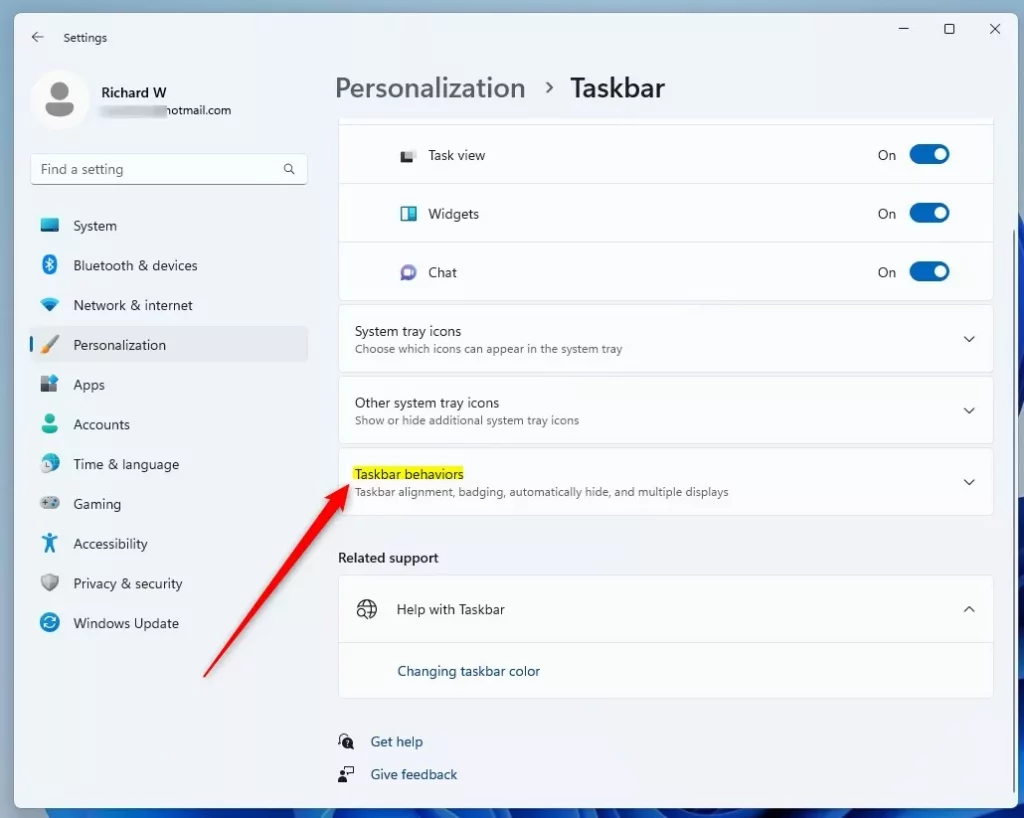
windows taskbar behaviors tile - Find the box that says “Optimize taskbar for touch interactions when this device is used as a tablet.” Check the box to turn it on.
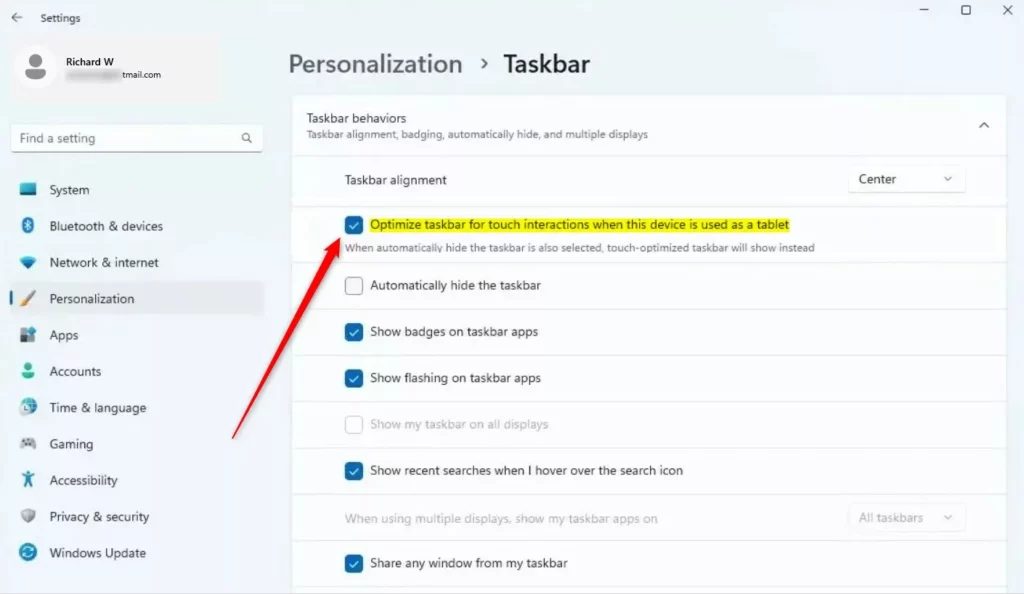
optimize taskbar for touch interactions when this device is used as a tablet updated
Understanding Automatic Mode Switching
Windows 11 uses hardware posture detection to know if your device is a laptop or a tablet. If you have a convertible laptop, the system senses when you fold the keyboard back. It then triggers the tablet-optimized taskbar automatically. This is part of the Windows 11 touch experience designed to make your device more versatile.
Enable via Registry Editor
Warning: This step requires admin privileges. Be careful, as changing registry settings can affect your system.
- Open the Windows Registry by searching for “regedit” in the Start menu.
- Go to this path:
HKEY_CURRENT_USER\Software\Microsoft\Windows\CurrentVersion\Explorer\Advanced
windows registry advanced key - Right-click in the empty space on the right side. Select New, then DWORD (32-bit) Value.
- Name this new item
ExpandableTaskbar. - Double-click
ExpandableTaskbar. Change the “Value data” to1to turn it on, or0to turn it off.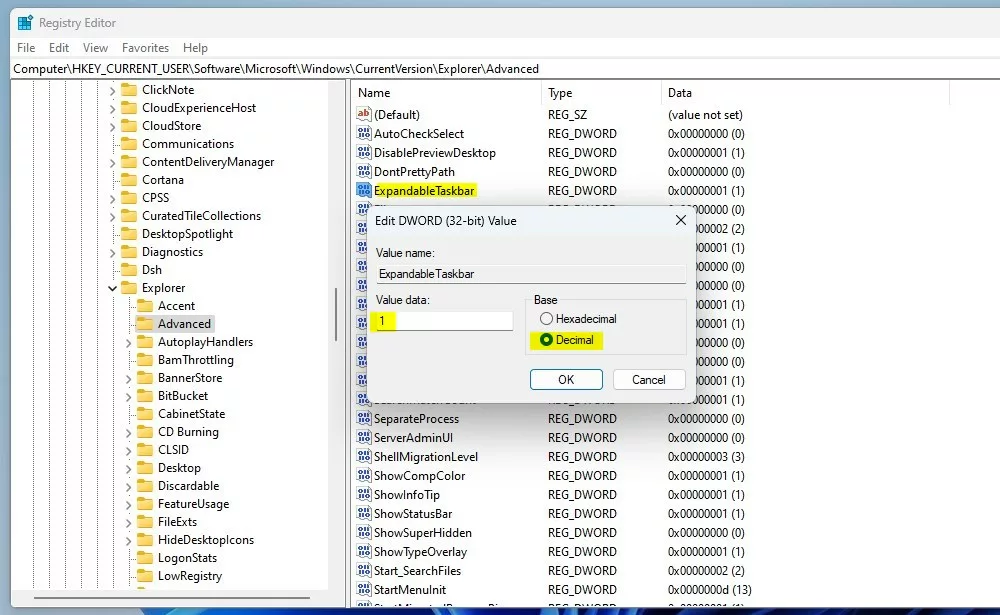
windows registry ExpandableTaskbar value data
Summary
The tablet-optimized taskbar is a helpful tool for touch users. It improves the Windows 11 touch experience by adding spacing to icons. You can control this behavior through the Settings app or the Registry Editor. For more technical details, visit the official Microsoft Learn documentation.
Why does my taskbar change size automatically?
Your taskbar changes size because Windows 11 detects your device’s physical posture. When you detach the keyboard or fold it back, the system switches to tablet mode to improve touch accuracy. This automatic switching ensures the interface is always optimized for the way you are currently using your hardware.
Can I disable the tablet-optimized taskbar in 🪟 Windows 11?
Yes, you can disable it. Simply go to Settings, select Personalization, then Taskbar, and click Taskbar behaviors. Uncheck the box labeled “Optimize taskbar for touch interactions when this device is used as a tablet.” This forces the taskbar to remain in its standard desktop layout regardless of your device posture.
Does the tablet-optimized taskbar work on non-touch screens?
No, this feature is specifically designed for devices with touch screens. If your computer does not have a touch-capable display, the option to optimize the taskbar for touch will not appear in your settings. Windows 11 hides these settings to prevent confusion on standard desktop monitors and non-touch laptops.
Was this guide helpful?

About the Author
Richard
Tech Writer, IT Professional
Richard, a writer for Geek Rewind, is a tech enthusiast who loves breaking down complex IT topics into simple, easy-to-understand ideas. With years of hands-on experience in system administration and enterprise IT operations, he’s developed a knack for offering practical tips and solutions. Richard aims to make technology more accessible and actionable. He's deeply committed to the Geek Rewind community, always ready to answer questions and engage in discussions.



No comments yet — be the first to share your thoughts!