How to Open and Edit Windows 11 Registry

You open and edit the Windows 11 Registry using the built-in Registry Editor application to modify system settings and configurations.
The Registry is a hierarchical database that stores low-level settings for the Microsoft Windows operating system and for applications that opt to use the registry. It acts as the central nervous system for your PC, controlling everything from appearance to advanced system functions.
You might need to access the Registry to troubleshoot persistent issues, unlock hidden Windows 11 features, or fine-tune performance. For instance, a specific tweak might involve changing a value under `🗝️HKEY_CURRENT_USER\Control Panel\Desktop`.
Remember, the Registry is incredibly powerful and can destabilize your system if you edit incorrect entries. Always create a backup of your Registry before making any changes to ensure you can restore your PC if something goes wrong.
Open Registry Editor by searching for it in the Start menu. Navigate to the desired key using the folder structure or the address bar. Double-click a value to edit it, or select it and press Del to remove it.
How to open the Registry Editor
You can open the Registry Editor on Windows 11 by typing ‘Registry Editor’ into the Start menu search bar and selecting the app from the results.
- Click the Start menu.
- Type Registry Editor in the search bar.
- Click the Registry Editor app from the results.
The editor window will open. It will look like a set of folders on the left side of your screen.
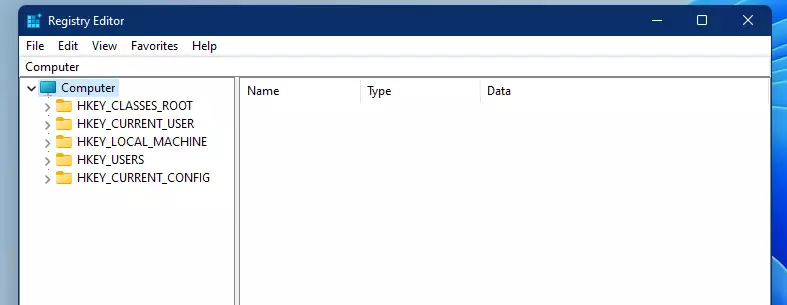
How to browse the registry
Browsing the Windows 11 registry means looking through its folders to find the settings you need, or you can paste a direct path into the bar at the top to jump right there.
For example, you can copy and paste this path into the navigation bar and press Enter:
Computer\HKEY_LOCAL_MACHINE\SOFTWARE\Microsoft\Windows NT\CurrentVersion\SoftwareProtectionPlatform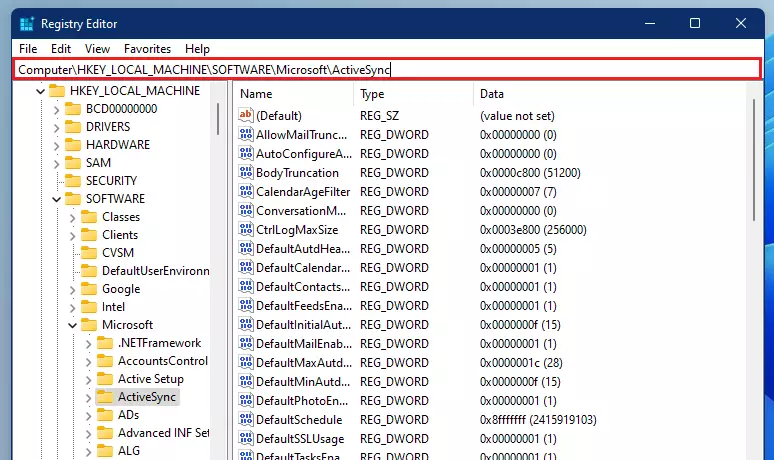
Inside these folders, you will see lists of values. These are the actual settings that control your computer.
How to edit or delete a value
Note: This step requires administrator privileges.
- To edit: Double-click the name of the setting you want to change. A box will pop up where you can type your new value.
- To delete: Click the item name once to highlight it, then press the DELETE key on your keyboard.
Summary
Editing the Windows 11 registry lets you change system settings to fix problems or customize your PC, but it’s important to back up your registry first because mistakes can cause serious issues.
Was this guide helpful?
0% of readers found this helpful (1 votes)

About the Author
Richard
Tech Writer, IT Professional
Richard, a writer for Geek Rewind, is a tech enthusiast who loves breaking down complex IT topics into simple, easy-to-understand ideas. With years of hands-on experience in system administration and enterprise IT operations, he’s developed a knack for offering practical tips and solutions. Richard aims to make technology more accessible and actionable. He's deeply committed to the Geek Rewind community, always ready to answer questions and engage in discussions.



No comments yet — be the first to share your thoughts!