How to Silence or Play a Sound Notification for each app in Windows 11

Windows 11 lets you control app notification sounds, allowing you to mute alerts for specific programs.
This means you can stop certain apps from playing sounds when they send a notification, focusing only on sounds from important apps.
You can adjust these settings in the Windows 11 Settings app to personalize your notification experience.
For example, you might want to silence the constant pings from a social media app but still hear alerts from your email.
Go to Settings > System > Notifications, then find and click the app you want to adjust. Toggle the “Play a sound” switch to Off to silence its notifications. Ensure the switch is On if you want to hear alerts from that app.
Step 1Open Your Windows Settings
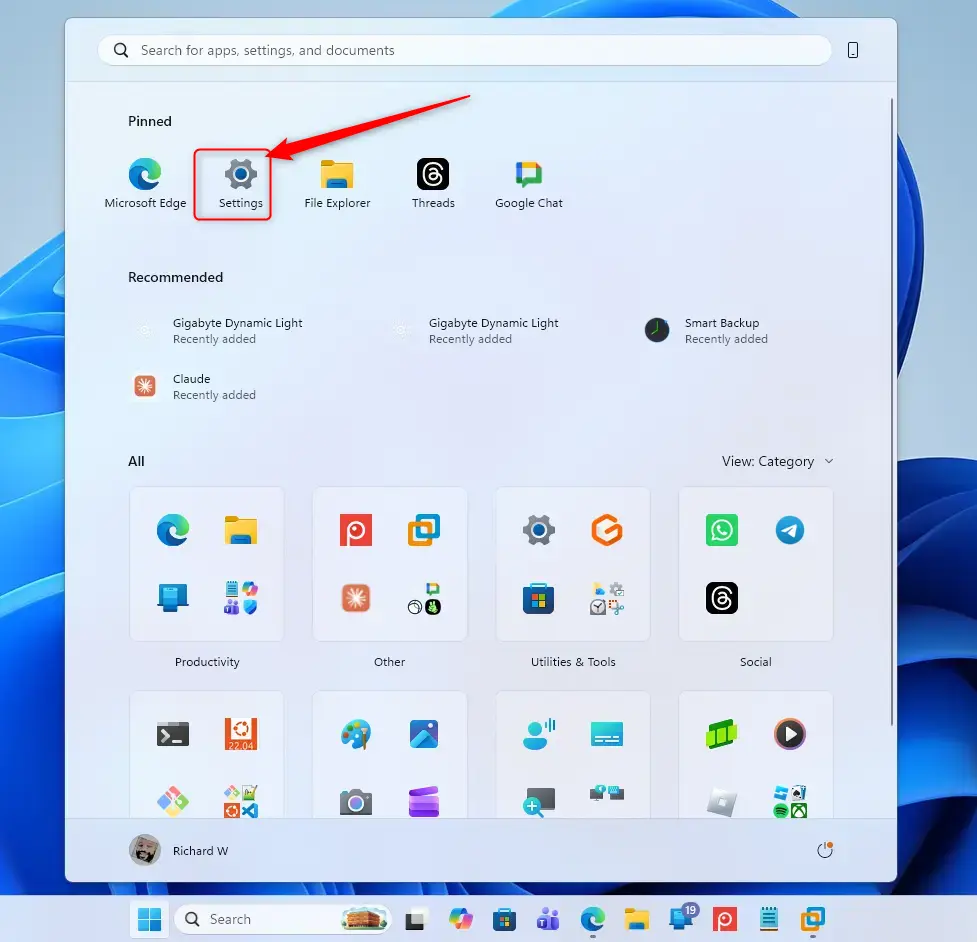
You can open your Windows 11 Settings by clicking the Start button and then the gear icon, or by pressing the Windows key and I at the same time.
- Click the Start button. It’s in the bottom-left corner, usually a Windows logo.
- Click the Settings gear icon. It appears in the Start menu. You can also press the
Windows key + Ikeys on your keyboard together. This is a quick way to open Settings.
Step 2Go to Notifications
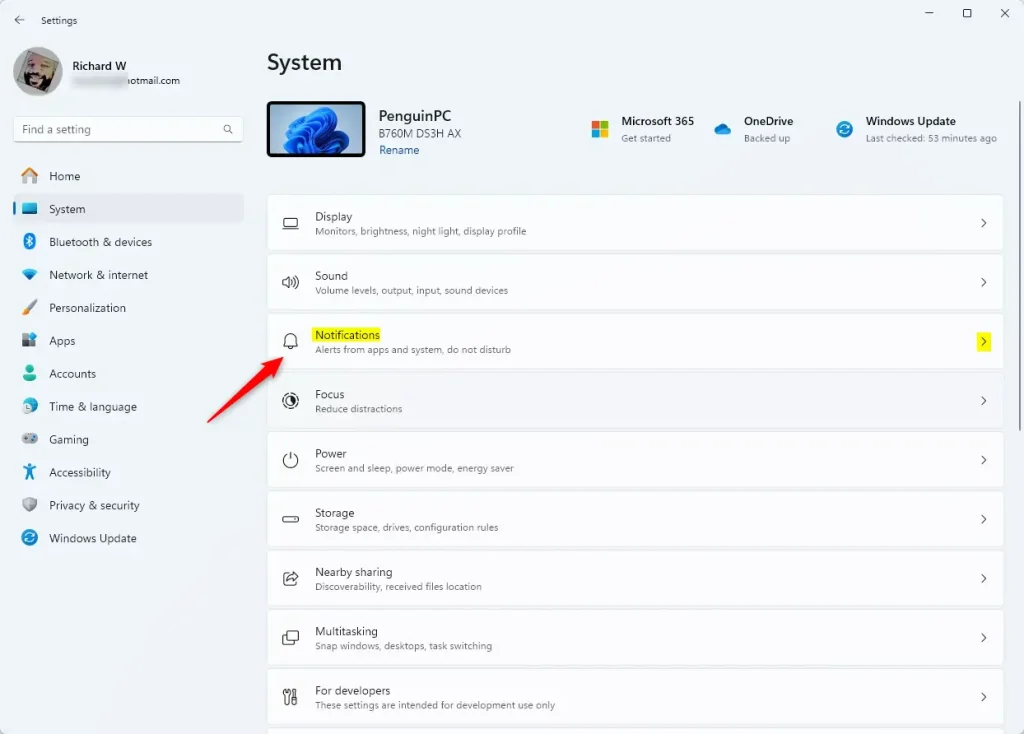
The Settings window has many options. We need the ones for alerts.
- Click on System. This is in the list on the left side.
- Click on Notifications. This is in the main area on the right. This is where you’ll manage all your notifications.
Step 3Find the App You Want to Change
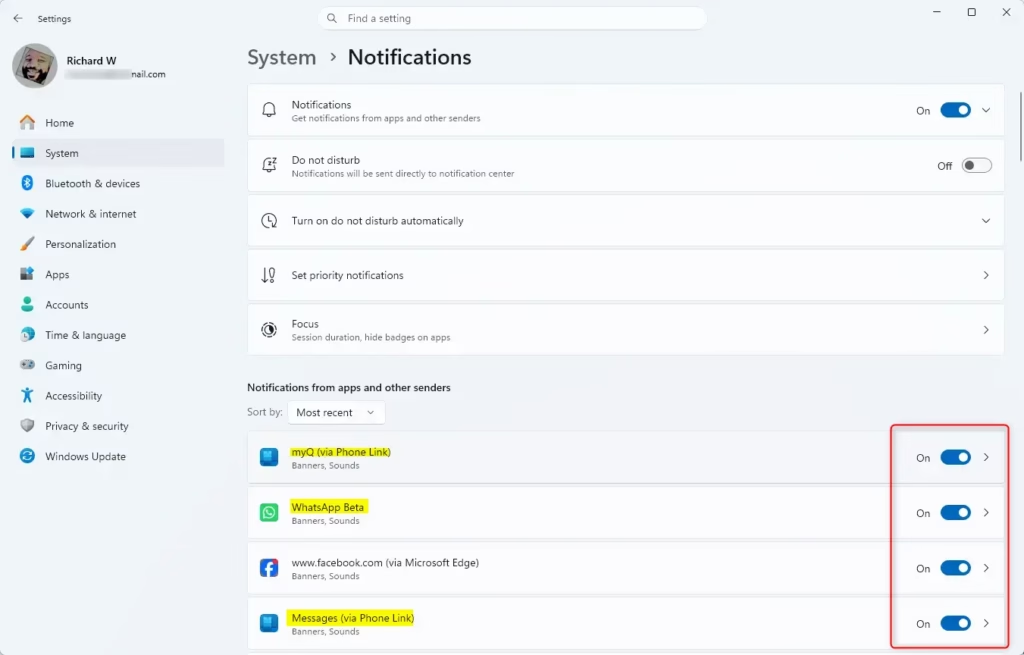
To change notification sounds for a specific app in Windows 11, you’ll need to find it in the list of apps that send alerts.
- Scroll down to Notifications from apps and other senders. You’ll see apps that recently sent alerts. If your app isn’t there, scroll down.
- Click on the app’s name. Find the app (like Mail, Calendar, or another program) and click it. This shows the settings just for that app.
Step 4Turn Off the Notification Sound
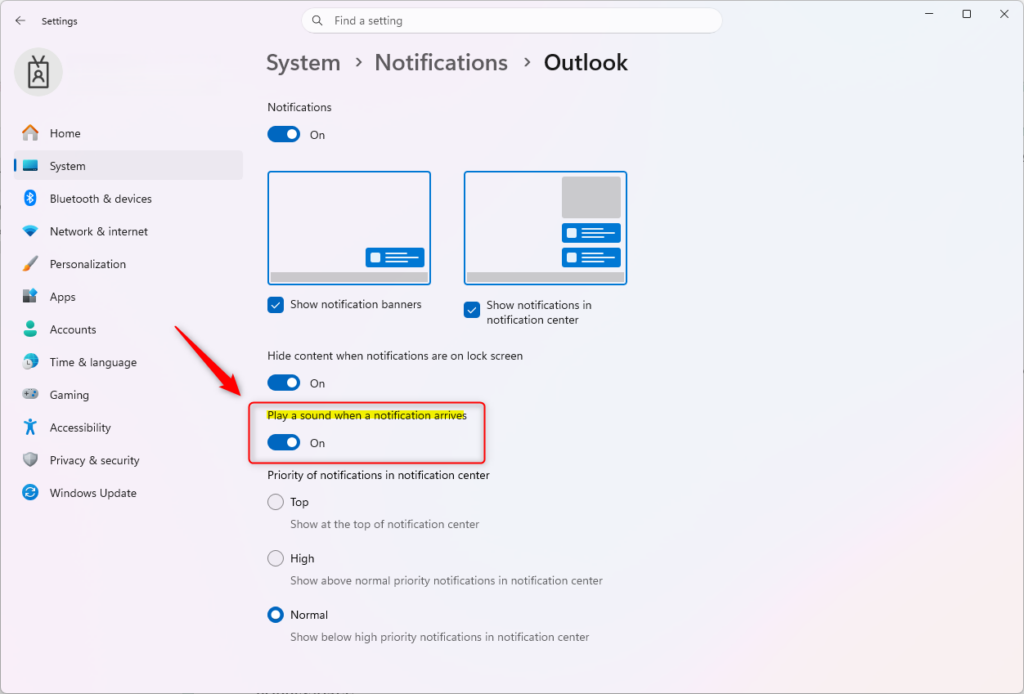
You can easily turn off the notification sound for any app in Windows 11 by finding the ‘Play a sound’ option within its notification settings and toggling the switch to Off.
- Look for the option Play a sound. Inside the app’s settings, you’ll see switches. Find the one that says “Play a sound” or something similar.
- Toggle the switch. To stop sounds for this app’s notifications, click the switch next to “Play a sound” to turn it Off. If you want sounds, make sure it’s On.
Reference:
Summary
Controlling notification sounds for individual apps in Windows 11 is simple; just go to Settings, then System, then Notifications, pick the app, and toggle the ‘Play a sound’ option to manage distractions.
Was this guide helpful?

About the Author
Richard
Tech Writer, IT Professional
Richard, a writer for Geek Rewind, is a tech enthusiast who loves breaking down complex IT topics into simple, easy-to-understand ideas. With years of hands-on experience in system administration and enterprise IT operations, he’s developed a knack for offering practical tips and solutions. Richard aims to make technology more accessible and actionable. He's deeply committed to the Geek Rewind community, always ready to answer questions and engage in discussions.
📚 Related Tutorials


No comments yet — be the first to share your thoughts!