How to Access Settings in Windows 11

You access Settings in Windows 11 by pressing the Windows key + I on your keyboard.
The Settings app is the central control panel for managing every aspect of your Windows 11 experience. It’s where you personalize your display, manage network connections, adjust privacy options, and control system updates.
This shortcut is crucial for quickly making changes, especially since the latest Windows 11 23H2 update introduced new features. Knowing this direct method saves you time by bypassing complex menus.
Efficiently customize your PC’s behavior and features by mastering this essential shortcut.
Press Windows key + I to open the Settings app. Alternatively, click the Start button and then the gear icon, or right-click the Start button and select Settings. Quick Settings can also be accessed by pressing Windows key + A.
The Fastest Ways to Access Settings in 🪟 Windows 11
Method 1Use the Keyboard Shortcut
This is the quickest way. Press the Windows key + I on your keyboard. The Settings app opens instantly.
Method 2Use the Start Menu
Click the Start button. Look for the gear-shaped icon. Click it to open Settings.
Method 3Use the Power User Menu
Right-click the Start button. A menu appears. Select Settings from the list.
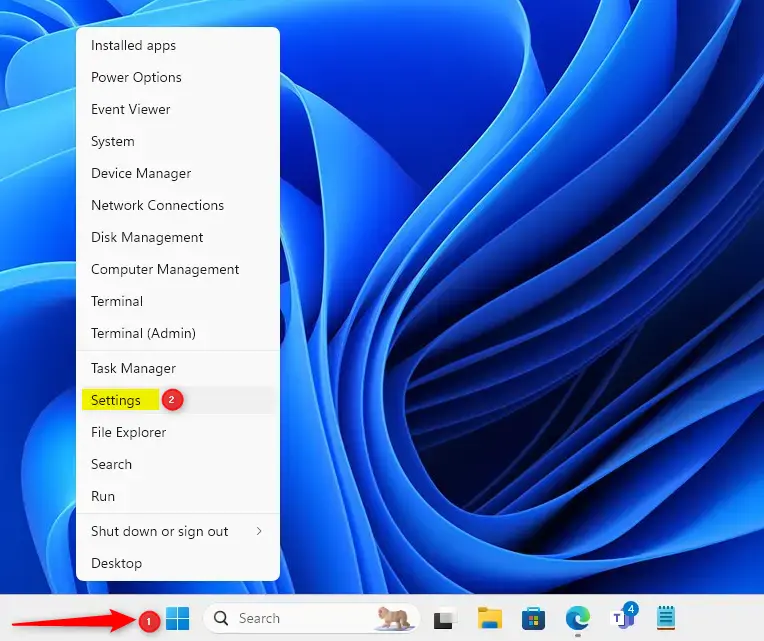
Method 4Use Quick Settings
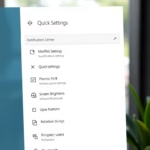
Press Windows key + A to open Quick Settings. This opens a small menu in the bottom right corner of your screen. Click the “All settings” button to open the full Settings app.
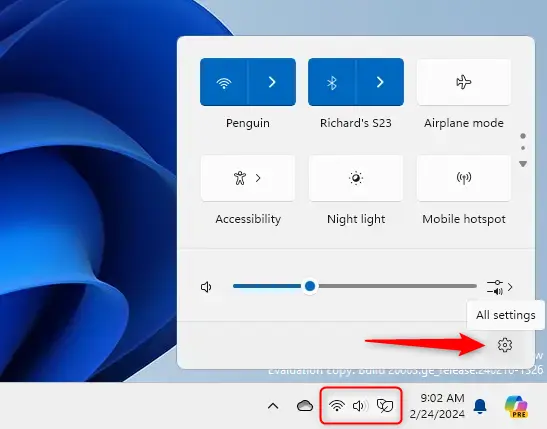
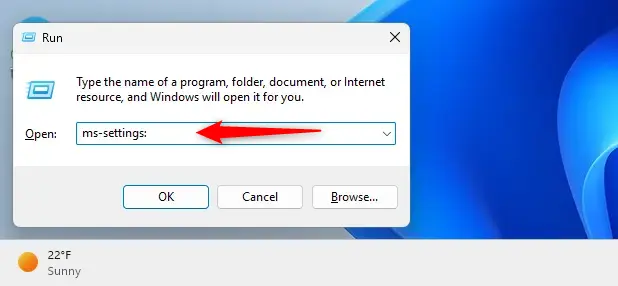
Method 5Use the Run Box
Press Windows key + R on your keyboard. A small box appears. Type ms-settings: and then press Enter. Settings opens right away.
Method 6Use Windows Terminal
Open Windows Terminal. You can do this using PowerShell or the Command Prompt. Type this command: start ms-settings: Press Enter. The Settings app launches.
Understanding Settings Hierarchy and Navigation
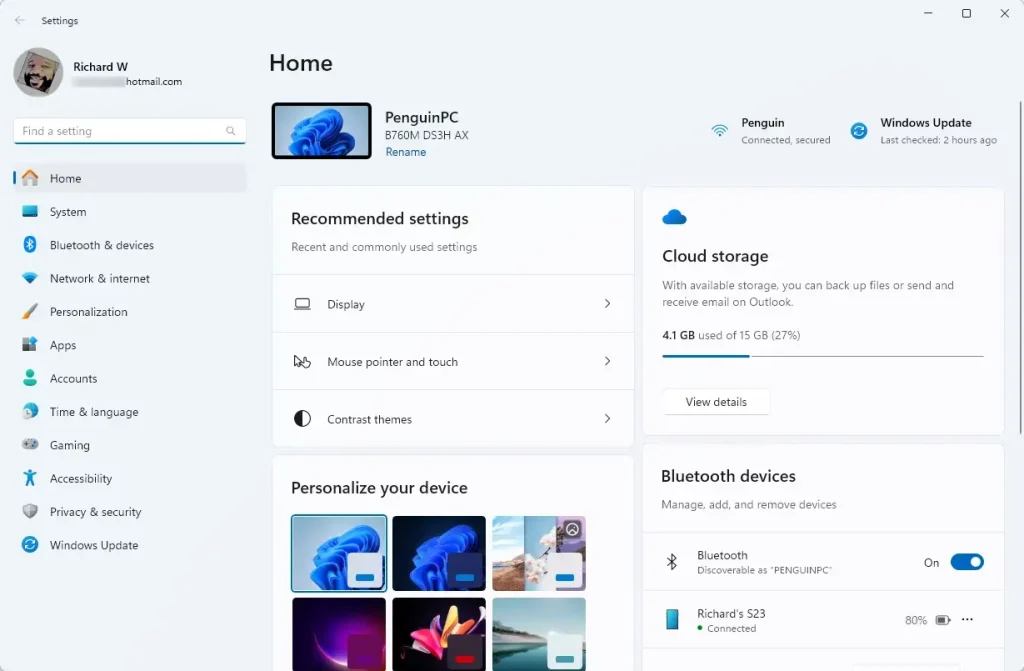
Windows 11 uses a sidebar navigation system. This sidebar stays on the left side of the window. It helps you jump between main categories like System, Bluetooth, and Personalization. If you get lost, click the Home icon at the top of the sidebar to return to the main dashboard.
Troubleshooting: What to Do If Settings Crashes
If your Windows 11 Settings app crashes or won’t open, try searching for the specific setting you need first.
Get-AppxPackage *windows.immersivecontrolpanel* | Reset-AppxPackage
This command re-registers the app and often fixes launch issues.
Power User Tips: ms-settings URI Schemes
Windows 11 uses special codes called URI schemes to open specific pages. You can use these to create desktop shortcuts. Right-click your desktop, select New > Shortcut, and paste a command like ms-settings:display. This creates a direct link to your display settings.
Summary
You can easily access Windows 11 Settings using keyboard shortcuts like Windows key + I, the Start menu, or special commands.
Why does 🪟 Windows 11 have multiple settings menus?
Windows 11 maintains a transition between the modern Settings app and the classic Control Panel. While Settings handles most daily tasks, the Control Panel remains for legacy system tools and advanced administrative configurations that have not yet been migrated to the new interface.
How do I search for settings I can’t find?
The Settings app includes a search bar at the top left of the window. Type a keyword, such as “brightness” or “network,” and Windows will filter the results to show you the relevant pages. This is the fastest way to navigate deep menus.
Was this guide helpful?
100% of readers found this helpful (2 votes)

About the Author
Richard
Tech Writer, IT Professional
Richard, a writer for Geek Rewind, is a tech enthusiast who loves breaking down complex IT topics into simple, easy-to-understand ideas. With years of hands-on experience in system administration and enterprise IT operations, he’s developed a knack for offering practical tips and solutions. Richard aims to make technology more accessible and actionable. He's deeply committed to the Geek Rewind community, always ready to answer questions and engage in discussions.

[…] First, open the Windows Settings app. […]
[…] First, open the Windows Settings app. […]
[…] First, open the Windows Settings app. […]
[…] First, open the Windows Settings app. […]
[…] First, open the Windows Settings app. […]
[…] First, open the Windows Settings app. […]
[…] First, open the Windows Settings app. […]
[…] open the Settings […]
[…] First, open the Settings app. […]
[…] First, open the Windows Settings app. […]
[…] First, open the Windows Settings app. […]
[…] First, open the Windows Settings app. […]
[…] First, open the Windows Settings app. […]
[…] First, open the Windows Settings app. […]
[…] First, open the Windows Settings app. […]
[…] First, open the Windows Settings app. […]
[…] open the Settings […]
[…] First, open the Windows Settings app. […]
[…] First, open the Settings app. […]
[…] First, open the Settings app. […]
[…] open the Windows 11 Settings app using the search function or pressing the Windows logo key + […]
[…] First, open the Windows Settings app. […]
[…] First, open the Windows Settings app. […]
[…] First, open the Windows Settings app. […]
[…] you can view these devices directly from the Windows Settings app. Use the steps below to access devices linked to your Microsoft account from Windows […]
[…] First, open the Windows Settings app. […]
[…] First, open the Windows Settings app. […]
[…] First, open the Windows Settings app. […]
[…] First, open the Windows Settings app. […]
[…] First, open the Windows Settings app. […]
[…] First, open the Windows Settings app. […]
[…] First, open the Windows Settings app. […]
[…] First, open the Windows Settings app. […]
[…] First, open the Windows Settings app. […]
[…] First, open the Windows Settings app. […]
[…] First, open the Windows Settings app. […]
[…] First, open the Windows Settings app. […]
[…] First, open the Windows Settings app. […]
[…] First, open the Windows Settings app. […]
[…] First, open the Windows Settings app. […]
[…] First, open the Windows Settings app. […]
[…] First, open the Windows Settings app. […]
[…] First, open the Windows Settings app. […]
[…] First, open the Windows Settings app. […]
[…] check the evaluation expiration date for your Insider Preview build, use the Settings app in Windows […]
[…] name in Windows refers to the full name of an account shown on the Sign-in screen, Start Menu, and Settings. This name can differ from the username used to sign in to the […]
[…] First, open the Windows Settings app. […]
[…] First, open the Windows Settings app. […]
[…] First, open the Windows Settings app. […]
[…] First, open the Settings app. […]
[…] First, open the Windows Settings app. […]
[…] First, open the Windows Settings app. […]
[…] First, open the Windows Settings app. […]
[…] First, open the Windows Settings app. […]
[…] First, open the Windows Settings app. […]
[…] First, open the Windows Settings app. […]
[…] First, open the Windows Settings app. […]
[…] has a built-in search feature that lets users search and find help content, apps, files, folders, settings, and quick answers from the web like weather reports, stock prices, currency converter, and much […]
[…] First, open the Windows Settings app. […]
[…] First, open the Settings app. […]
[…] open the Windows Settings […]
[…] First, open the Windows Settings app. […]
[…] First, open the Windows Settings app. […]
[…] First, open the Windows Settings app. […]
[…] First, open the Windows Settings app. […]
[…] First, open the Windows Settings app. […]
[…] First, open the Windows Settings app. […]
[…] First, open the Windows Settings app. […]
[…] Once enabled, open the Windows Settings app. […]
[…] Once enabled, open the Windows Settings app. […]
[…] To get started, first, open the Windows Settings app. […]
[…] For more step-by-step guides, visit how to use the Settings app in Windows 11. […]
[…] For more tips on using Windows 11, visit this easy guide. […]
[…] For more tips on using Windows 11, visit the Windows Settings guide. […]
[…] Open Windows Settings: Click the Start button and then the gear icon, or press Windows + I on your keyboard. More about opening Settings […]
[…] Open Windows Settings:You can do this by clicking the Start menu button (the Windows icon at the bottom-left corner) and then clicking Settings, or simply press Windows key + I on your keyboard. Learn more about opening Settings […]
[…] Learn more about opening Settings […]
[…] the Settings app on your PC. You can do this by clicking the Start menu and selecting Settings, or by pressing the […]
[…] Open the Settings app: Click the Start menu (the Windows icon on the bottom-left), then click Settings. Or press Windows key + I on your keyboard to open Settings right away. Learn more about opening Settings […]
[…] the Settings app. You can do this by clicking the Start menu and then Settings, or just press Windows key + I on […]
[…] the Windows Settings app. You can do this […]
[…] Open Windows Settings: Click the Start menu (the Windows icon at the bottom left), then click Settings. Or, press Windows key + I on your keyboard to open Settings directly. Learn more about opening Settings. […]
[…] Open the Settings app: […]
[…] Settings: Click the Start menu and choose Settings, or press Windows key + I on your keyboard. Learn more about opening Settings. Click System in […]
[…] Learn more about accessing Settings here: Open Settings in Windows 11. […]
[…] Open the Settings app: Click the Start menu (the Windows icon in the bottom-left corner), then click Settings. Or, press the keyboard shortcut Windows key + I to open Settings quickly. Learn more about opening Settings. […]
[…] We hope this guide helped you customize your touchscreen settings! If you want to learn more about Windows 11 tips, check out this guide on using the Settings app. […]
[…] How to Open the Settings App in Windows 11 […]
[…] the Windows Settings app. You can do this by clicking the Start button and selecting the gear icon, or by pressing Windows […]
[…] First, open the Settings app. […]
[…] Open the Windows Settings app: Click the Start menu button. Then click Settings. Or press Windows key + I on your keyboard. Learn more about opening Settings. […]
[…] the Windows Settings app. Click the Start button. Choose Settings. Or press Windows key + I on your […]
[…] Open Windows Settings: Click the Start menu (the Windows icon at the bottom left), then click Settings. Or press Windows key + I on your keyboard to open Settings quickly. Learn more about opening Settings […]
[…] Learn more about opening Settings […]
[…] More info on opening Settings: How to Access Settings in Windows 11 […]
[…] Open Settings: Click the Start menu (Windows icon at the bottom left) and select Settings, or press Windows key + I on your keyboard. Learn more about opening Settings […]
[…] in Windows 11. Then, one had to use the classic Control Panel app. Now, users can use the Windows Settings app to change what happens when the sleep button is […]
[…] First, open the Windows Settings app. […]
[…] Click the Start menu and select Settings. Or use the keyboard shortcut (Windows key + I) to open the Settings app. […]