How to Check Windows 11 Insider Build Expiration Date

This article explains how to check when your Windows 11 Insider Preview Build will expire.
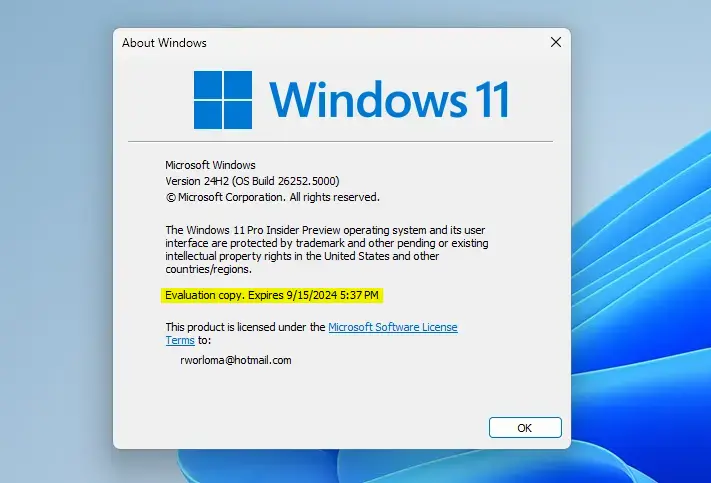
Open Settings, navigate to System, then About, and look for “Evaluation expires on” under Windows specifications. Alternatively, press Windows key + R, type winver, and press Enter to view the expiration date in the pop-up window.
What is 🪟 Windows 11 Insider Preview Build?
Windows 11 Insider Preview Build is a special early version of Windows 11 that lets you try out new features before anyone else.
Why would you want this? Because you get to see what’s coming next in Windows and help shape it.
Why Check Your Expiration Date?
Insider builds don’t last forever. They expire after a certain time. If you don’t update your build before it expires, Windows will stop working properly. You’ll get notifications to update, so pay attention to them.
How to Check Your Expiration Date
Method 1Use the Settings App
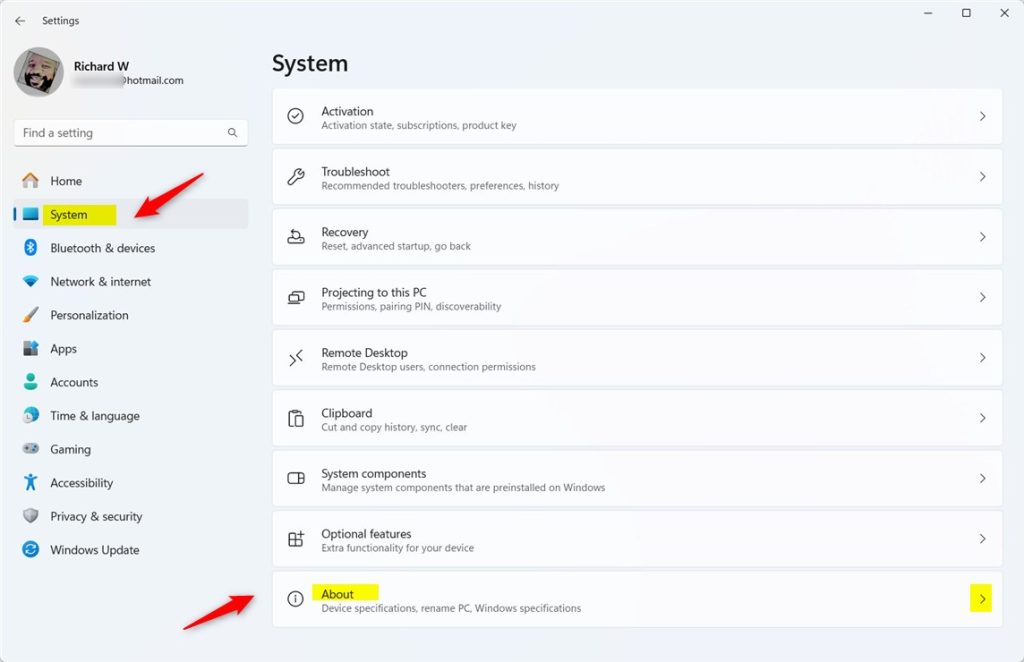
- Open the Settings app. Click the Start menu and select Settings. Or press the Windows key + I together.
- Click System on the left side.
System in the Settings app - Select About.
Windows 11 System About settings showing evaluation expiration date - Look for “Evaluation expires on” under Windows specifications. This shows your expiration date and time.
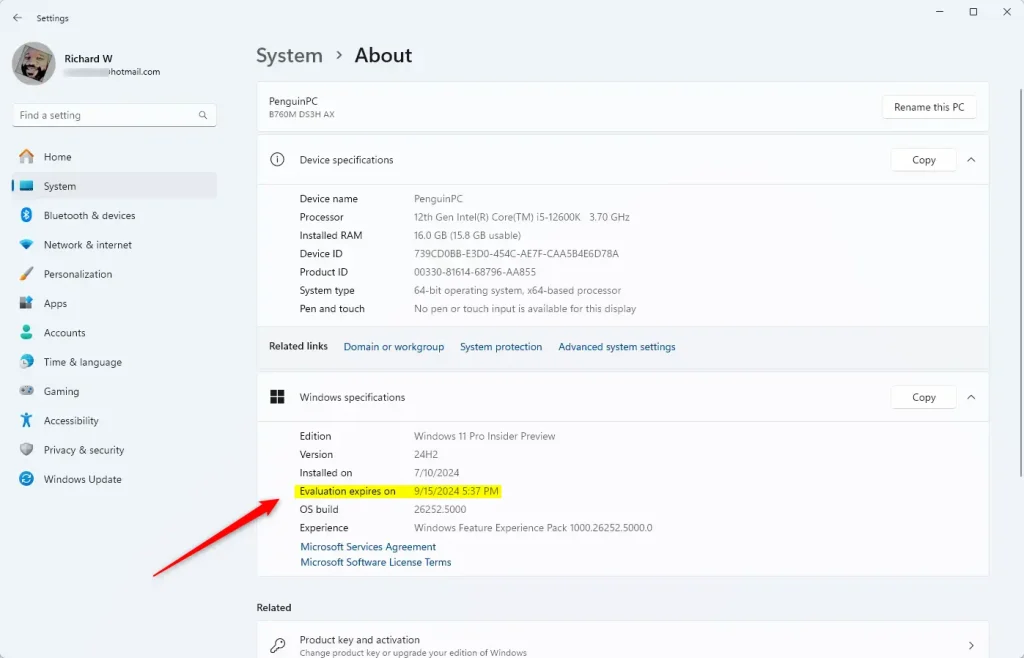
Windows 11 evaluation expiration date in About
Method 2Use the Winver Command
- Press Windows key + R to open the Run window.
- Type this command:
winver
What Happens When Your Build Expires?
When your Insider build expires, Windows may stop updating and working properly. You’ll see notifications telling you to update. Update your build right away to keep Windows running smoothly.
Summary
Windows 11 Insider Preview builds are early versions of Windows that eventually expire, but you can easily check your Windows 11 Insider Build expiration date using your PC’s settings or a simple command.
You can check when yours expires in two ways. Use the Settings app and go to System > About to find “Evaluation expires on.” Or use the winver command through the Run window.
Keep an eye on your expiration date. Update your build before it expires so Windows keeps working well. Watch for update notifications and act on them quickly.
Reference
Which 🪟 Windows 11 builds are end of life?
Overview
How do I update from an expiring insider preview build?
If your device is on an expiring build, you'll start getting notifications letting you know that you need to update. Go to Settings > Update & Security > Windows Update and select Check for Updates to get the latest update available in your channel.
Was this guide helpful?

About the Author
Richard
Tech Writer, IT Professional
Richard, a writer for Geek Rewind, is a tech enthusiast who loves breaking down complex IT topics into simple, easy-to-understand ideas. With years of hands-on experience in system administration and enterprise IT operations, he’s developed a knack for offering practical tips and solutions. Richard aims to make technology more accessible and actionable. He's deeply committed to the Geek Rewind community, always ready to answer questions and engage in discussions.



No comments yet — be the first to share your thoughts!