How to Create a Passkey for a Website in Windows 11

You create a passkey for a website in Windows 11 by leveraging Windows Hello during a site’s sign-up or login flow.
A passkey is a passwordless sign-in method that uses secure cryptographic keys stored on your device, eliminating the need for traditional passwords.
This allows you to log in using your Windows Hello PIN, facial recognition, or fingerprint scanner for enhanced security and speed.
Windows 11 often prompts you to save a newly created passkey automatically, and you can also choose to store them on your mobile device or a physical security key.
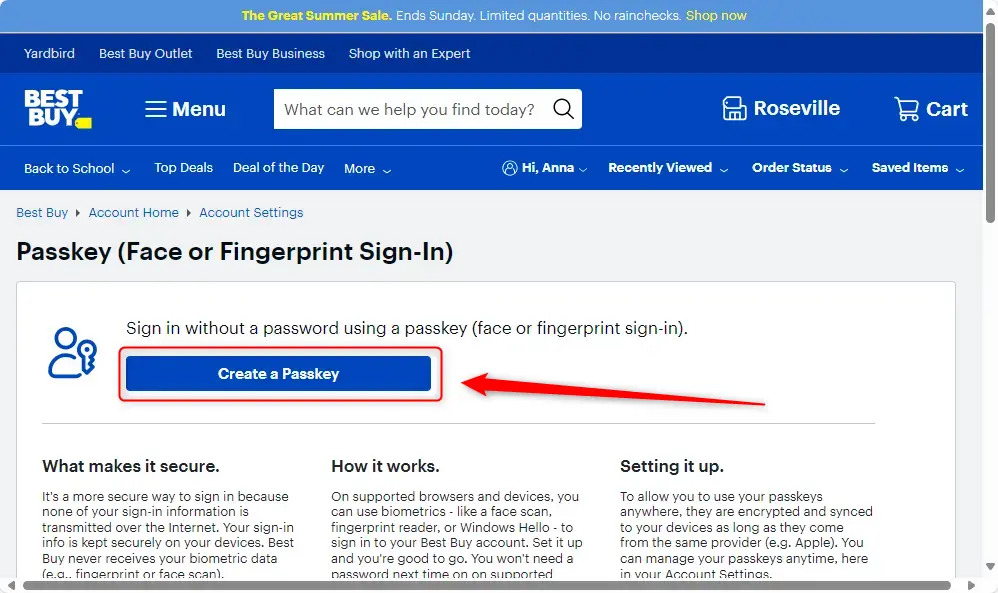
Create a passkey in Windows 11 by logging into a supporting website, navigating to account settings, and clicking “Create a Passkey”. You’ll then confirm your identity with your Windows Hello PIN, facial recognition, or fingerprint.
Why use a passkey?
Why bother with passkeys? They’re a much safer alternative to traditional passwords that hackers can steal or guess. Since passkeys rely on your device’s own security features, like your fingerprint or PIN, they’re significantly harder for attackers to crack.
What happens when you are done?
Once you finish these steps, you’ll no longer need to remember complex passwords for that website. Instead, you’ll use your Windows Hello PIN or fingerprint to sign in.
How to create a passkey
Creating a passkey in Windows 11 is straightforward once you’re signed into a website that supports them, and you’ve set up Windows Hello.
Click the Create a Passkey button. Keep in mind that the button might have a slightly different name on different websites.
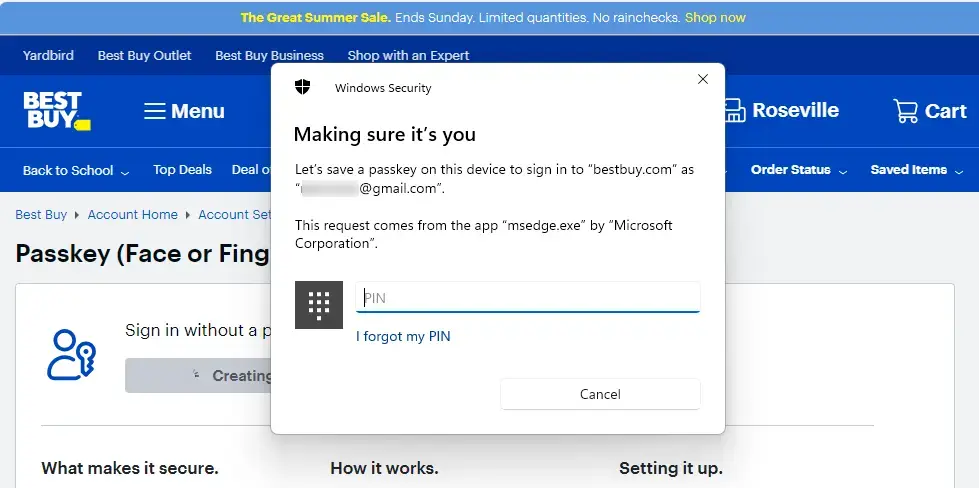
Note: This step requires you to have Windows Hello already set up on your computer. You will be asked to enter your Windows Hello PIN to confirm your identity.
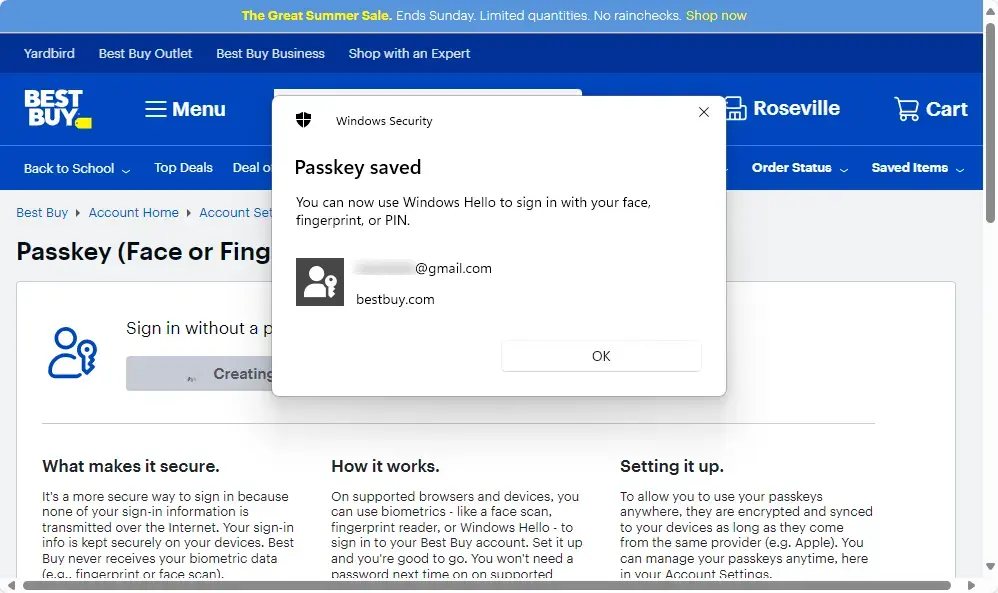
Click the OK button to finish the setup.
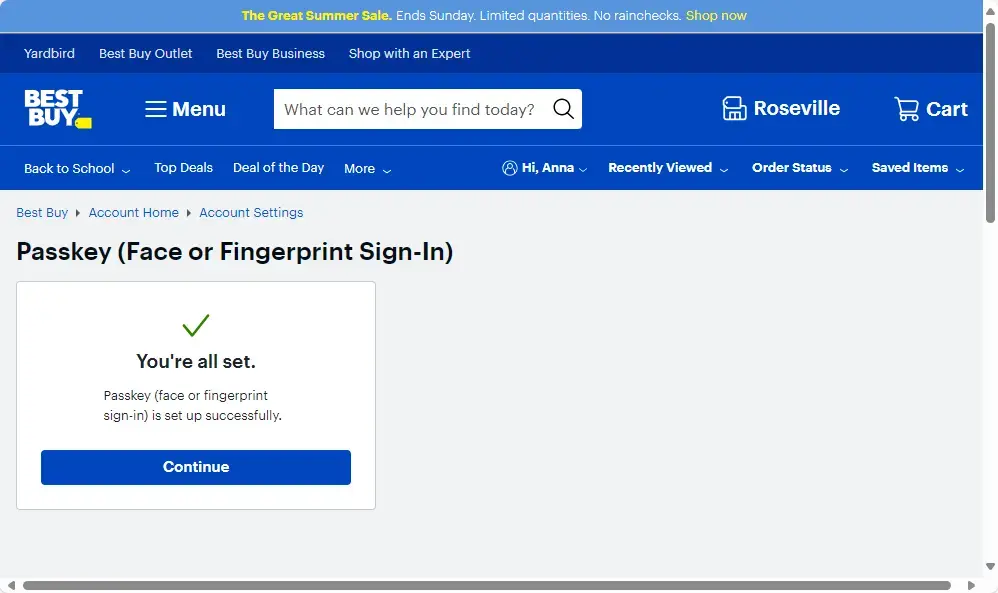
You are all set! You can now use this method to sign in to the website.
For more information, see this reference: Microsoft.com
Summary
Passkeys provide a secure way to log in using your device’s built-in protection. By following these steps, you’re swapping vulnerable passwords for a fast login using your biometrics. Always check if a website supports passkeys in your account settings before you begin.
Where are my passkeys on 🪟 Windows 11?
Manage where your Windows passkeys are saved In the Settings app on your Windows device, select Accounts > Passkeys > Advanced options. You can enable or disable the passkey services available on your Windows device by toggling them on or off.
How to stop 🪟 Windows 11 from asking for passkey?
Account pass key in your Microsoft. Account helps you to sign in without password. As you can see in the screen you can quickly sign into Microsoft. Account using pass key and pass key is basically
Was this guide helpful?

About the Author
Richard
Tech Writer, IT Professional
Richard, a writer for Geek Rewind, is a tech enthusiast who loves breaking down complex IT topics into simple, easy-to-understand ideas. With years of hands-on experience in system administration and enterprise IT operations, he’s developed a knack for offering practical tips and solutions. Richard aims to make technology more accessible and actionable. He's deeply committed to the Geek Rewind community, always ready to answer questions and engage in discussions.




No comments yet — be the first to share your thoughts!