Tired of Typing Passwords? Let’s Make Your Microsoft Account Passwordless!

You can make your Microsoft account passwordless by enabling sign-in using Windows Hello or a Microsoft Authenticator app. This eliminates the need to remember and type traditional passwords for Windows 10/11 and other Microsoft services.
Going passwordless offers enhanced security and a faster sign-in experience. For example, you can set up facial recognition or a fingerprint scan through Windows Hello.
Follow these steps to ditch password stress and sign in securely with modern authentication methods.
Enable passwordless sign-in through your Microsoft account’s security settings. Use the Microsoft Authenticator app on your phone to approve sign-ins with a tap, or set up Windows Hello with facial recognition or fingerprint. This enhances security and speeds up access.
Step 1Get Ready with the Microsoft Authenticator App
The Microsoft Authenticator app is your key to a passwordless Microsoft account, acting as a secure way to prove it’s really you signing in without typing a password.
What does it do? It adds an extra security check to your Microsoft account. More importantly for going passwordless, it lets you approve sign-in requests from your phone with a quick tap, instead of typing a password. It’s like giving a virtual nod to confirm you’re the one trying to log in.
Download and Set Up the Authenticator App
- Grab the app: Go to your smartphone’s app store (Google Play Store for Android or the App Store for iOS) and search for “Microsoft Authenticator.” Download and install it.
- Open the app: Once installed, launch the Microsoft Authenticator app.
- Add your account: Tap the option to add an account. You’ll likely see choices like “Personal account,” “Work or school account,” or “Other account.” For your main Microsoft account (the one you use for Outlook, Xbox, OneDrive, etc.), select “Personal account.”
- Link it to your Microsoft account: The app will guide you to link it to your Microsoft account. This often means signing into your Microsoft account within the Authenticator app. Follow the on-screen prompts. You might need to scan a QR code or enter a code shown on your computer screen.
To get started with a passwordless Microsoft account, first download and set up the Microsoft Authenticator app on your smartphone from your device’s app store.
Step 2Turn On Passwordless Sign-In
Once your Microsoft Authenticator app is ready, you can now turn on passwordless sign-in for your Microsoft account, making logins more secure than using a traditional password.
This is where the real change happens. When you remove your password, you’re requiring more secure, modern methods for sign-in. This significantly reduces the risk of your account being compromised by stolen or phished passwords. It’s a significant security upgrade, and turning it on is quite simple.
How to Go Passwordless
- Sign in to your Microsoft account: Open a web browser on your computer and go to the Microsoft account sign-in page. Enter your email address and current password. You can usually find this by searching for “Microsoft account sign in” or going to
account.microsoft.com. - Navigate to security settings: Once logged in, look for a section called “Security” or “Security & privacy.” Click it to see your account’s security options.
- Find the “Manage how I sign in: In the security settings, under Additional security, you should see an option labeled “Passwordless” or something like “Turn on passwordless sign-in.” Click this.
- Start the process: You’ll be asked to begin. Click the button that says “Turn on ” or “Get started.”
- Verify your identity: Microsoft needs to confirm it’s really you making this change. You’ll likely be asked to verify your identity using the Microsoft Authenticator app. A notification will be sent to your phone. Open the app and approve the request.
- Confirm the change: After approving on your phone, follow the final prompts on your computer to confirm you want to make your account passwordless.
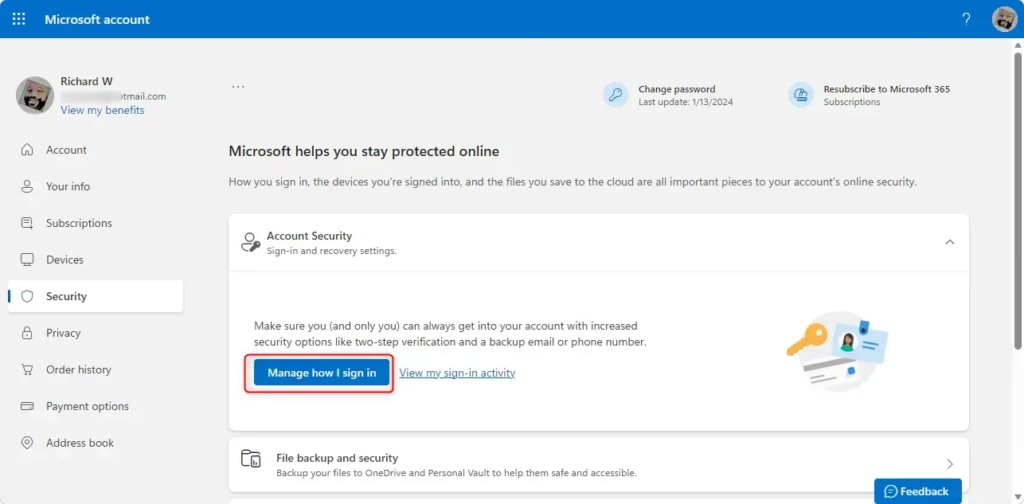
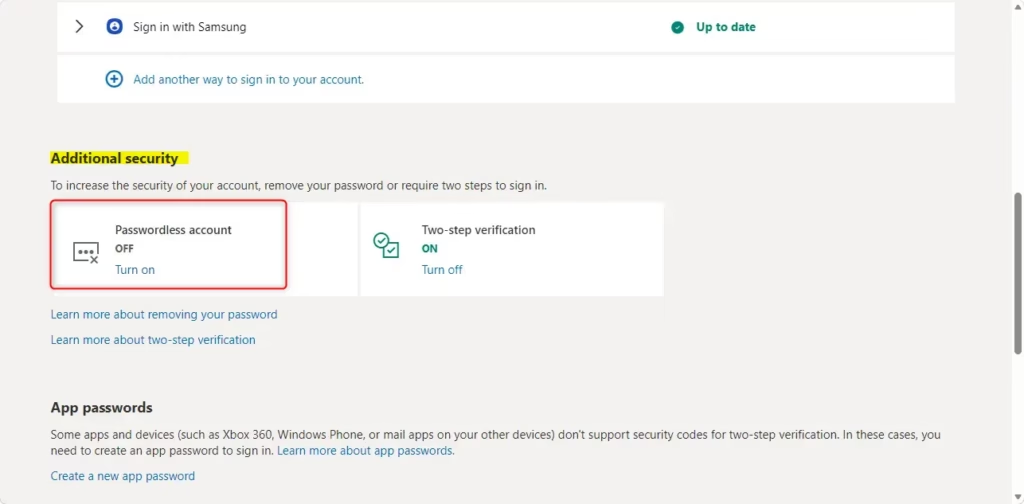
To go passwordless with your Microsoft account, start by signing in through your web browser using your email and current password, then navigate to your security settings.
Step 3Understand How You’ll Sign In Now
If you’re going passwordless, you’ll sign in using secure, modern methods instead of typing a password, so it’s good to understand these new sign-in options.
Microsoft offers several ways to prove who you are without a password, and you’ll likely have a mix of these set up. Having backups is good – if one method has a problem, you have others.
Your New Sign-In Options
- Microsoft Authenticator App: This is the most common method. When you try to sign in, you’ll get a notification on your phone through the Authenticator app. Just tap “Approve” to sign in. It’s very fast and secure.
- Windows Hello: If you use Windows 10 or 11 on a compatible device, you might have Windows Hello set up. This lets you sign in using your fingerprint, face recognition, or a PIN you set up for your Windows login. When signing into your Microsoft account on that device, you’ll be asked to use your Windows Hello option.
- Outlook for Android: Like the Authenticator app, the Outlook mobile app can also be set up to approve sign-in requests for your Microsoft account.
- Physical Security Keys: These are small USB devices (or NFC/ Bluetooth devices) you can use to sign in. Plug them in or tap them when asked, and they provide very strong security.
- SMS Codes (Less Recommended): Microsoft is moving away from SMS codes for security reasons (they can be intercepted). They might still be an option for some accounts as a backup. You’d get a code via text message to enter on the sign-in screen. However, relying only on this is less secure than other methods.
Your new sign-in options for a passwordless Microsoft account include the Microsoft Authenticator app, where you approve sign-ins from your phone, and Windows Hello for compatible devices.
Summary
This guide helps you switch your Microsoft account to passwordless sign-in by setting up the Authenticator app and then enabling the feature in your security settings for easier, more secure logins.
How do I enable passwordless sign in for Microsoft accounts?
To enable passwordless sign-in, download and set up the Microsoft Authenticator app. Once configured, you can approve sign-in requests directly from your phone with a simple tap, eliminating the need to type your password for Microsoft services.
How to make Windows login passwordless?
To make your Windows login passwordless, you'll need to set up the Microsoft Authenticator app. After linking it to your Microsoft account, you can then use the app to approve sign-in requests on your Windows device, bypassing the traditional password entry.
Why won't Microsoft let me sign in without a passkey?
Microsoft may not let you sign in without a passkey if passwordless sign-in isn't fully set up or enabled for your account. Ensure you've completed the setup with the Microsoft Authenticator app and followed all prompts to link it securely.
Is a passwordless Microsoft account better?
Yes, a passwordless Microsoft account is generally better for security and convenience. It reduces the risk of phishing and brute-force attacks associated with traditional passwords and offers a quicker, more streamlined sign-in experience using the Authenticator app.
Was this guide helpful?

About the Author
Richard
Tech Writer, IT Professional
Richard, a writer for Geek Rewind, is a tech enthusiast who loves breaking down complex IT topics into simple, easy-to-understand ideas. With years of hands-on experience in system administration and enterprise IT operations, he’s developed a knack for offering practical tips and solutions. Richard aims to make technology more accessible and actionable. He's deeply committed to the Geek Rewind community, always ready to answer questions and engage in discussions.



No comments yet — be the first to share your thoughts!