How to Start Voice Typing in Windows 11

You start voice typing in Windows 11 using the built-in Voice Typing feature, activated by the Windows key + H shortcut.
Voice Typing is Windows’ built-in tool that turns what you say into text right on your computer. This feature, which has been around since Windows 10, gives you a hands-free way to write documents, emails, and more.
To begin, press the Windows key + H. The Voice Typing interface will appear, and you can immediately start speaking. Your computer will listen and transcribe your words into the active text field.
Press Windows key + H to activate Voice Typing. Ensure your microphone is working and your cursor is in a text field. Wait for the “Listening…” message before you start speaking.
Getting Started with Voice Typing
Before we start talking to your computer, let’s go over a few quick checks to make sure voice typing works smoothly.
What You Need
To use voice typing in Windows 11, you just need a good internet connection and a working microphone, either built-in or external.
- An Internet Connection: Voice typing uses online services to understand your speech. So, you need a good internet connection.
- A Working Microphone: Your computer needs to hear you. Make sure your microphone is plugged in and working. It can be built-in or an external one.
- Your Cursor in a Text Box: Voice typing needs to know where to put your words. Click inside any place where you can type. This could be a document, email, search bar, or chat window.
How to Turn On Voice Typing
You can quickly turn on voice typing in Windows 11 by pressing the Windows key and the ‘H’ key together.
Windows 11 has two quick ways to start Voice Typing.
Using a Keyboard Shortcut
This is the fastest way if you use a keyboard. Pressing the Windows key and the ‘H’ key together opens the Voice Typing window. The Windows key has a picture of a window on it.
Tip: Remember this shortcut! You’ll use it a lot once you see how helpful Voice Typing is.
Using the Touch Keyboard Button
If you use a touchscreen or prefer the on-screen keyboard, you can use this method. Look for the Microphone button on the touch keyboard. Tap it to open the Voice Typing menu.
Warning: Make sure your touch keyboard is turned on and visible. You can usually enable it by right-clicking on the taskbar—that’s the bar at the bottom of your screen—and selecting “Show touch keyboard button.”
Once you activate Voice Typing using either method, a small window will pop up, usually at the top of your screen. You’ll see a microphone icon and likely a “Listening…” message. This indicates your computer is ready to hear you. It’s best to wait for this message before you start speaking so you don’t miss anything.
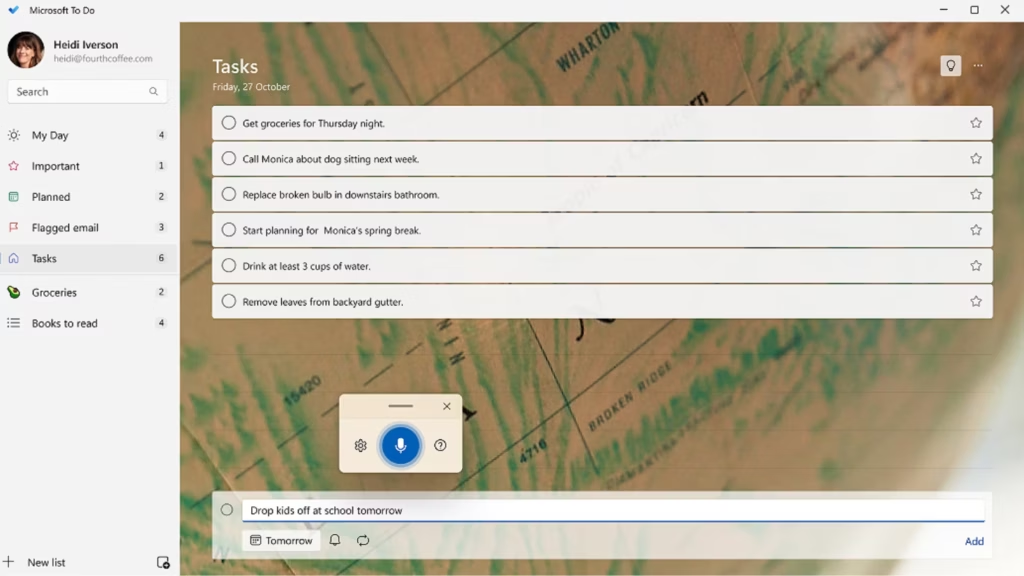
Understanding the “Listening…” Message
The “Listening…” message in Windows 11 voice typing means your microphone is active and ready to capture your speech.
Reference:
Summary
Windows 11 voice typing lets you speak text instead of typing, requiring an internet connection, microphone, and cursor in a text field to begin.
How do I turn on voice typing on 🪟 Windows 11?
To turn on voice typing in Windows 11, press the Windows key + H. This shortcut activates the built-in Voice Typing feature, allowing you to dictate text directly into any text field on your PC. Ensure your microphone is connected and you have an internet connection.
How do I activate voice-activated typing?
Activate voice-activated typing in Windows 11 by pressing the Windows key + H. This command brings up the Voice Typing interface, ready to transcribe your speech into text. Make sure your microphone is functioning and that you are online for optimal performance.
Is Windows voice typing any good?
Windows voice typing is a capable, built-in dictation tool that converts speech to text effectively, especially with a good internet connection and a clear microphone. While it may not match specialized dictation software, it’s a convenient and free option for everyday tasks like writing emails or documents.
How do I activate voice typing on my PC?
To activate voice typing on your PC running Windows 11, simply press the Windows key + H simultaneously. This shortcut will launch the Voice Typing overlay, enabling you to start dictating text into any active text box. A stable internet connection and a working microphone are essential.
Was this guide helpful?

About the Author
Richard
Tech Writer, IT Professional
Richard, a writer for Geek Rewind, is a tech enthusiast who loves breaking down complex IT topics into simple, easy-to-understand ideas. With years of hands-on experience in system administration and enterprise IT operations, he’s developed a knack for offering practical tips and solutions. Richard aims to make technology more accessible and actionable. He's deeply committed to the Geek Rewind community, always ready to answer questions and engage in discussions.



No comments yet — be the first to share your thoughts!