How to Check Online Service Experience Packs on Windows 11

Here’s how to check if ‘Online Service Experience Packs’ are installed on your Windows 11 PC.
Open Settings, navigate to Windows Update, and click “Update history.” Expand “Other Updates” to find and view the list of installed Online Service Experience Packs.
What Are Online Service Experience Packs?
Online Service Experience Packs are like special add-ons for Windows 11 that give your computer new features and improvements, helping it get updates faster from Microsoft’s cloud.
Online Service Experience Packs work like Windows Feature Experience Packs. But there’s a key difference. Windows Feature Experience Packs make broad improvements across many parts of Windows. Online Service Experience Packs focus on improving one specific area. For example, they might improve your “Your Microsoft account settings” page.
Why Check If These Packs Are Installed?
Knowing which updates are installed means you’ll better understand your computer’s capabilities and can get a head start on troubleshooting if issues pop up.
How to Check If Online Service Experience Packs Are Installed
You can easily check if Online Service Experience Packs are installed on your Windows 11 computer using the Settings app by looking through your update history.
- Open the Settings app.
- Select Windows Update.
- Click the “Update history” tile to open it.
- Expand the “Other Updates” tile.
- Look at the update list to see if Online Service Experience Packs are there.
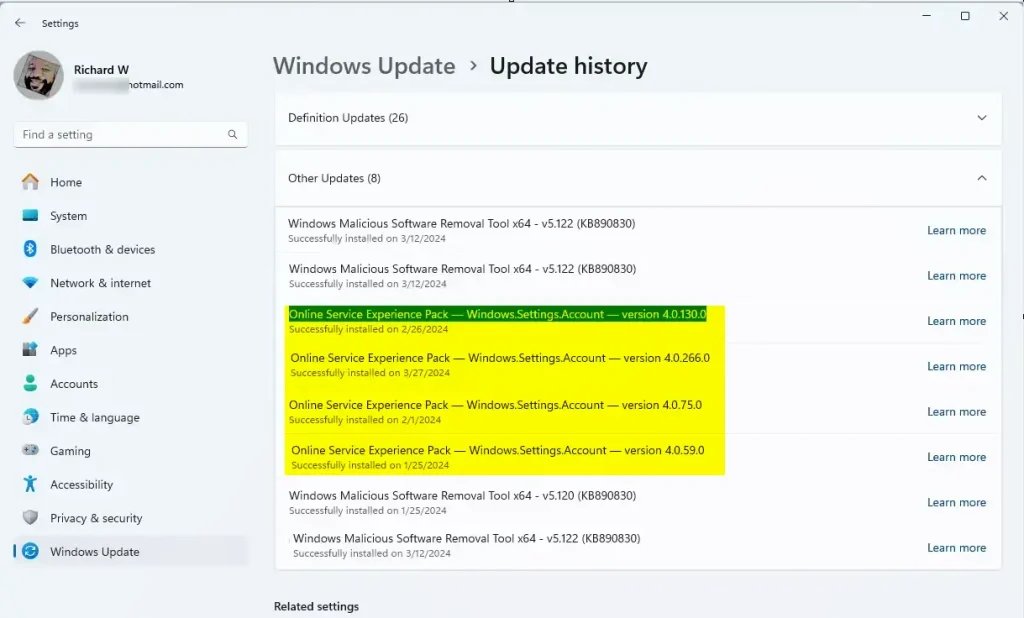
That’s all you need to do!
What Happens When These Packs Are Installed?
Once installed, these packs give your Windows 11 computer new features and improvements. You may notice better performance or new options in specific areas of Windows.
Need More Help?
For more detailed information, visit the official Microsoft support page on “Online Service Experience Packs” at Microsoft support.
Summary
Online Service Experience Packs are updates that add new features and improvements to Windows 11, and you can check if they’re installed by going to Settings, then Windows Update, and looking under ‘Other Updates’ in your update history.
What is an online service experience pack?
These Online Service Experience Packs work in a similar manner as the Windows Feature Experience Packs do. It enables us to quickly make updates to specific areas outside of a major Windows update.
Was this guide helpful?

About the Author
Richard
Tech Writer, IT Professional
Richard, a writer for Geek Rewind, is a tech enthusiast who loves breaking down complex IT topics into simple, easy-to-understand ideas. With years of hands-on experience in system administration and enterprise IT operations, he’s developed a knack for offering practical tips and solutions. Richard aims to make technology more accessible and actionable. He's deeply committed to the Geek Rewind community, always ready to answer questions and engage in discussions.




No comments yet — be the first to share your thoughts!