How to Create Microsoft Account Aliases

Microsoft account aliases are additional email addresses or phone numbers that link to your primary Microsoft account, acting as alternative ways to sign in.
These aliases streamline how you access Microsoft services, from Outlook.com to Xbox, keeping all your associated data unified.
For example, you can set up a specific alias, such as an Outlook.com address, for a new Xbox Game Pass subscription to manage it separately.
Using aliases helps you organize your digital life by creating distinct identities for different purposes, like a professional alias for work-related sign-ins.
They also provide a valuable backup; if you forget your main login, you can use an alias to regain access to your account.
Go to the Microsoft account management page and click “Add email” or “Add phone number.” Enter your desired alias and click “Add alias.” You can then manage your primary alias in the “Manage how you sign in” section.
How to Add an Alias
You can easily add a Microsoft account alias, which is just another email address or phone number you can use to sign in to your Microsoft account.
- Go to the official Microsoft account management page.
- Click the Add email link. If you prefer to use a phone number, select Add phone number instead.
- Type in your new email address or phone number.
- Click the Add alias button to save it.

If the name is already taken, you will see an error message. If it is available, it will be added to your account immediately.
Managing Your Primary Alias
Your primary Microsoft account alias is the main email or phone number people see and the one you use to sign in across your devices.
- Go to the Manage how you sign in section.
- Find your preferred alias in the list.
- Click Make primary next to that address.
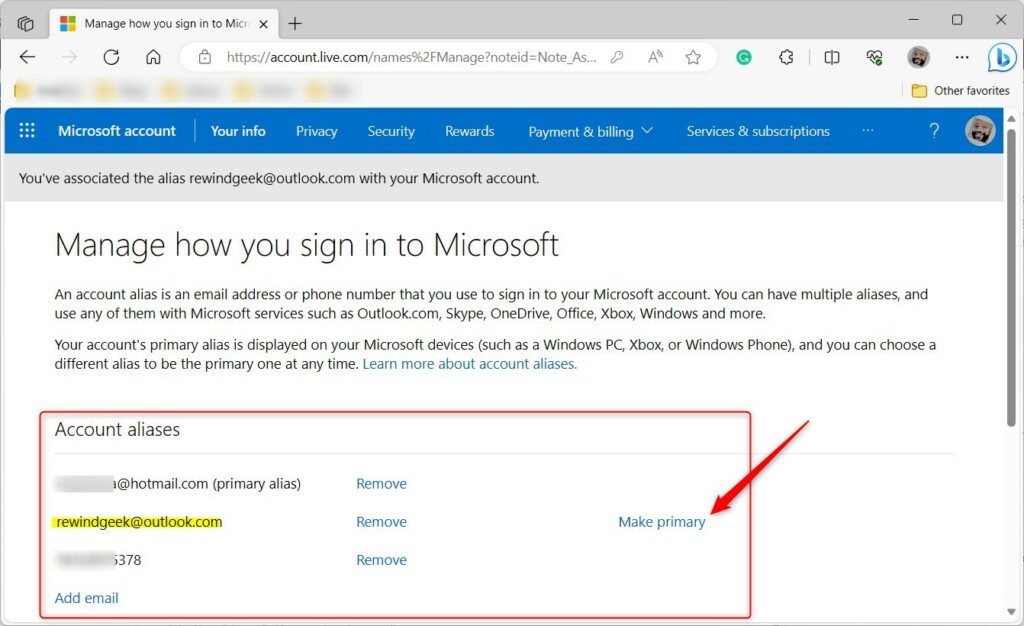
Heads up: You can only change your primary alias twice each week.
Business vs. Personal Accounts
Microsoft account aliases work differently for personal and business accounts. Personal accounts let you add aliases easily, but business accounts often require an administrator to manage them through the Microsoft 365 Admin Center.
Troubleshooting and Security
If you’re having trouble with Microsoft account aliases, check that you’re not using a restricted domain and ensure your account syncs correctly in Windows Settings. Remember, removing a Microsoft domain alias is permanent.
Summary
Managing Microsoft account aliases helps you organize how you sign in. Whether you need a fresh start or a way to consolidate multiple identities, aliases offer the flexibility you need. Always remember that removing a primary Microsoft alias is permanent. For more details, visit the official Microsoft support page.
Can I use an existing email address as an alias?
Yes, you can add an existing email address from another provider (like Gmail or Yahoo) as an alias. However, you cannot use an email address that is already associated with another Microsoft account. Once added, you can use it to sign in to your Microsoft services.
Does deleting an alias delete the email account?
If you remove a Microsoft-provided alias (like @outlook.com), it is permanently deleted and cannot be recovered. If you remove a third-party email alias, you simply lose the ability to sign in with that address, but the original email account remains active elsewhere.
How many aliases can I have on one Microsoft account?
You can have up to 10 aliases on a single Microsoft account at any given time. If you reach this limit, you must remove an existing alias before you can add a new one. This helps prevent account clutter and maintains security.
Was this guide helpful?

About the Author
Richard
Tech Writer, IT Professional
Richard, a writer for Geek Rewind, is a tech enthusiast who loves breaking down complex IT topics into simple, easy-to-understand ideas. With years of hands-on experience in system administration and enterprise IT operations, he’s developed a knack for offering practical tips and solutions. Richard aims to make technology more accessible and actionable. He's deeply committed to the Geek Rewind community, always ready to answer questions and engage in discussions.




[…] can create account aliases with their Microsoft accounts. Multiple aliases can be created, and you can select any of them for sending and receiving email. […]
[…] in to Copilot with your Microsoft account if you have not […]