How to Enable Windows Updates in Windows 11 Soon as Possible

You enable Windows Updates in Windows 11 by configuring the “Active Hours” and “Get me up to date” settings to ensure your PC receives the latest features and security patches promptly.
Windows 11 automatically downloads and installs updates to keep your system secure and running smoothly. However, you can influence how quickly you receive non-security feature updates.
By default, Windows 11 might defer some feature updates. Your PC can receive these important enhancements sooner by ensuring the “Get me up to date” option is enabled in the Windows Update settings.
This feature prioritizes your device for new feature releases as soon as Microsoft makes them available, ensuring you benefit from the latest improvements without delay.
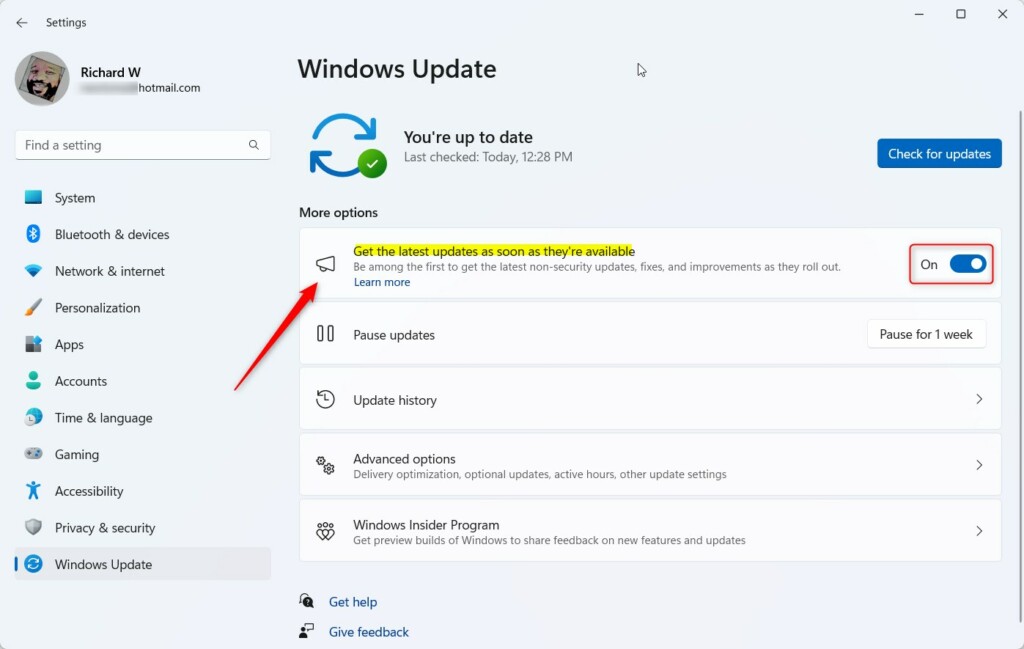
Enable Windows Updates by going to Settings > Windows Update and toggling “Get the latest updates as soon as they’re available” to On. This ensures your PC receives new features and security patches promptly.
Prerequisites
Before you begin, ensure you have a stable internet connection and at least 20GB of free disk space. If you are on a metered connection, Windows may delay large updates to save data.
Method 1Using the Settings App
This is the easiest way to change your update preferences.
- Open the Windows Settings app by pressing the Windows key + I.
- Click on the Windows Update button located on the left side of the menu.
- On the right side, find the tile labeled “Get the latest updates as soon as they’re available.”
- Toggle the switch to On to enable it .
Method 2Using the Windows Registry (Admin Required)
Note: This method requires admin privileges. Editing the registry can be risky. Be careful.
- Open the Windows Registry by typing regedit in the Start menu.
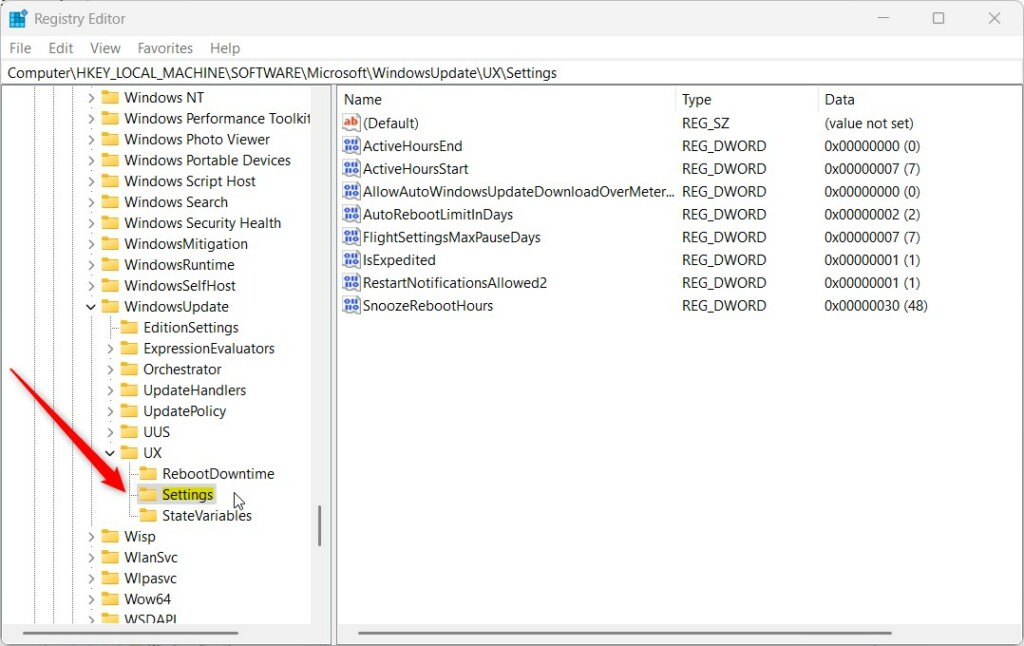
- Navigate to:
HKEY_LOCAL_MACHINE\SOFTWARE\Microsoft\WindowsUpdate\UX\Settings - Right-click in the empty space and select New -> DWORD (32-bit) Value.
- Name it
IsContinuousInnovationOptedInand set the value to1.
Advanced Troubleshooting
If your updates are failing, try the official Windows Update Troubleshooter. You can also clear the update cache by deleting files in C:\Windows\SoftwareDistribution\Download. Admin privileges are required to modify this folder.
Force Updates via PowerShell
If you need to force an update, open PowerShell as an administrator and run the following command:
Install-Module PSWindowsUpdate
Get-WindowsUpdate -Install -AcceptAll
Summary
You can control how your computer receives updates in Windows 11. By turning on the “Get the latest updates” feature, you ensure your device gets new enhancements immediately. If you encounter errors, use the Troubleshooter or PowerShell to force the process. Always keep your system updated to maintain security.
Related Topics
Why are my Windows updates stuck at 0%?
Updates often get stuck due to a corrupted cache or a hung background service. Try restarting the Windows Update service (wuauserv) in the Services app or run the Windows Update Troubleshooter to reset the connection to Microsoft servers and clear pending download errors.
Can I disable automatic updates permanently?
While you can pause updates for up to five weeks in Settings, Microsoft does not recommend disabling them permanently. Security updates are vital for protecting your PC from vulnerabilities. Using Group Policy (gpedit.msc) to disable them is only recommended for enterprise environments.
Was this guide helpful?

About the Author
Richard
Tech Writer, IT Professional
Richard, a writer for Geek Rewind, is a tech enthusiast who loves breaking down complex IT topics into simple, easy-to-understand ideas. With years of hands-on experience in system administration and enterprise IT operations, he’s developed a knack for offering practical tips and solutions. Richard aims to make technology more accessible and actionable. He's deeply committed to the Geek Rewind community, always ready to answer questions and engage in discussions.



No comments yet — be the first to share your thoughts!