How to Schedule Windows Update Restarts in Windows 11

Windows Update is your computer’s built-in bodyguard, automatically installing crucial security fixes. Sometimes, these updates need a quick restart to get fully installed. Nobody wants their computer to restart when they’re in the middle of something important.
The good news is you can pick when that restart happens. This keeps you in control.
Schedule your Windows Update restarts by going to Settings, then Windows Update, and clicking Schedule restart. Choose a day and time that works best for you to avoid interruptions. Your computer will then restart automatically at your selected time.
How to Schedule a Restart
You can schedule a Windows update restart for a time that works best for you directly from the Windows Update settings.
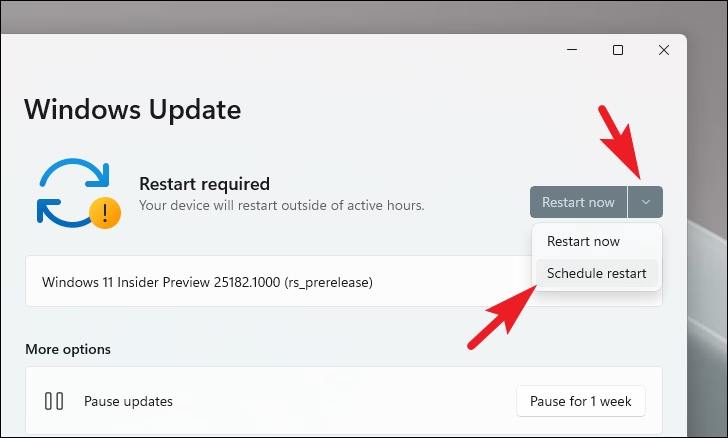
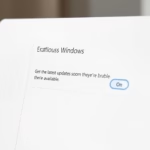
When updates are ready, you might see a prompt asking you to pick a time. Here’s what that looks like:
If you miss that message, don’t worry. Just head to:
- Click the Start menu.
- Click Settings.
- Select Windows Update on the left menu.
- Click Schedule restart.
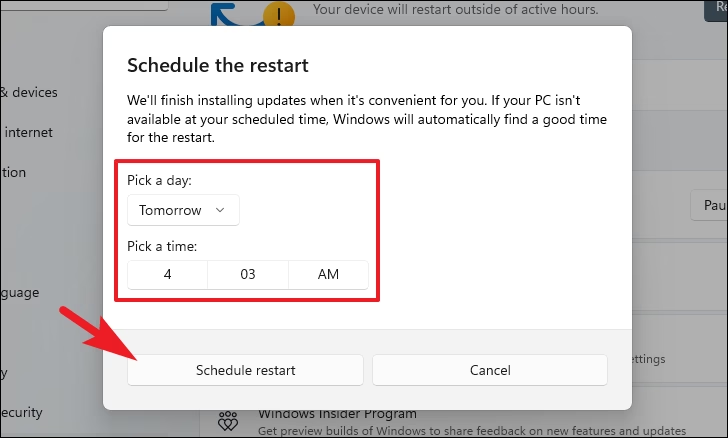
- Choose the day and time for the restart. Pick a time when you are not using your computer.
- Click Schedule restart to save your settings.
Note: You’ll need administrator permission to change system update settings.
Why Schedule Restarts?
Scheduling restarts means your computer stays secure without unexpectedly interrupting your workflow. It’s all about preventing those unwelcome restarts when you’re deep into an important task.
What Happens When Done?
Your computer will wait until the time you picked. It will then restart automatically to finish the updates. Remember to save your work before that time arrives.
Want to learn more about updating Windows 11? Check out this helpful guide: How to Update Windows 11.
Summary
Taking control of when Windows 11 restarts for updates is quite simple. Go to your Settings, click Windows Update, and select Schedule restart. Pick a time that is convenient for you. This ensures your computer stays updated without interrupting your day.
How do I schedule a Windows Update restart?
To schedule a Windows Update restart and control when you get notified, you can adjust the auto-restart warning settings.
Can you schedule a restart on Windows?
You can also manage restarts through the Task Scheduler. Press the Windows key + R, type `taskschd.msc`, and hit Enter. Once Task Scheduler opens, find your reboot task in the Task Scheduler Library. From there, you can right-click it to adjust its schedule, timing, or actions.
Was this guide helpful?
100% of readers found this helpful (2 votes)

About the Author
Richard
Tech Writer, IT Professional
Richard, a writer for Geek Rewind, is a tech enthusiast who loves breaking down complex IT topics into simple, easy-to-understand ideas. With years of hands-on experience in system administration and enterprise IT operations, he’s developed a knack for offering practical tips and solutions. Richard aims to make technology more accessible and actionable. He's deeply committed to the Geek Rewind community, always ready to answer questions and engage in discussions.

No comments yet — be the first to share your thoughts!