How to Check for App Updates Using Windows Update in Windows 11

Want to make sure your apps on Windows 11 are up to date? This guide shows you how using Windows Update.
Open Settings, go to Apps, and then click App updates. Click the “Check for updates” button to see if any of your apps have pending updates that Windows can download and install.
What’s New?
Windows 11 now has a new way to handle app updates, making things smoother and less disruptive for you.
In Windows 11, you can now see all your app updates in one place. Navigate to Settings > Apps > App Updates to find them.
How Does This Work?
Your apps ask Windows when updates are ready, and the system installs them quietly in the background, usually when you’re not using your PC.
- Apps ask the system for updates.
- The system checks for updates and installs them when you’re not using your computer.
- Apps still get their updates from their regular sources.
- Apps tell the system how the updates are going. You can see this in Settings.
Who Can Use This?
This new app update feature in Windows 11 is rolling out gradually, so you might see it if you’re in the Windows Insider program.
If you’re part of the Windows Insider program on the Dev or Beta channel, you might see this feature already.
For those who like to explore ahead of the curve, advanced users can enable this feature early with a tool called ViVeTool.
How to Check for App Updates in 🪟 Windows 11
- Open Settings. Press
Win + Ion your keyboard to open it fast. - In the left menu, click Apps.
- On the right side, click App updates.
To check for Windows 11 app updates, open Settings by pressing ⊞ Win+I, then go to Apps and click on App updates.
- Click the Check for updates button to see if your apps need updates.
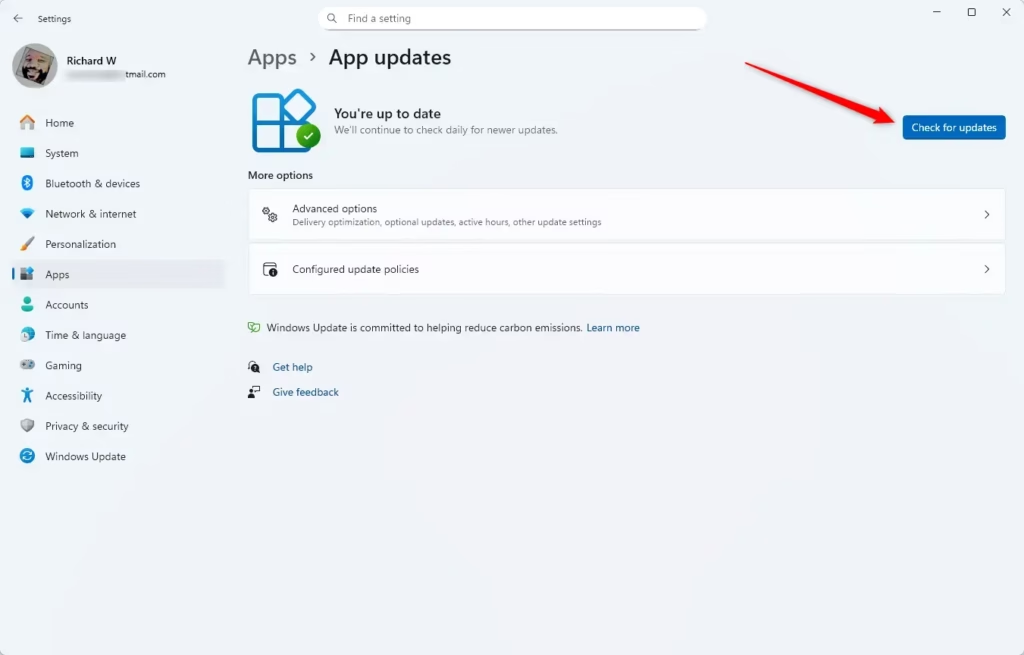
If there are updates, Windows will download and install them for you.
Summary
Checking for Windows 11 app updates is now simpler, with all updates found in one place within Settings, and more apps will support this soon.
- Simpler Updates: Windows is making app updates smoother and easier.
- One Place to Check: You can find app updates in Settings > Apps > App Updates.
- Better Communication: Apps talk to Windows to tell you about updates.
- More Apps Soon: More apps will use this feature over time.
- Early Access: Advanced users can try new update features early with special tools.
Keep your apps up to date. This gives you the best experience and new features!
Was this guide helpful?

About the Author
Richard
Tech Writer, IT Professional
Richard, a writer for Geek Rewind, is a tech enthusiast who loves breaking down complex IT topics into simple, easy-to-understand ideas. With years of hands-on experience in system administration and enterprise IT operations, he’s developed a knack for offering practical tips and solutions. Richard aims to make technology more accessible and actionable. He's deeply committed to the Geek Rewind community, always ready to answer questions and engage in discussions.



No comments yet — be the first to share your thoughts!