How to Check for Windows 11 Updates

This guide shows you how to manually find and install updates on your Windows 11 computer.
Open Settings (Windows key + I), click Windows Update, and then click Check for updates. If updates are found, click Download & install. Restart your computer when prompted to complete the installation.
Why update 🪟 Windows 11?
Updating your computer keeps it running smoothly. It fixes bugs and provides important security tools to protect your files from hackers. Keeping your system up to date ensures your machine stays fast and safe.
What happens when done?
Once you finish the update process, your computer will have the latest features and security patches. You may need to restart your computer to finish the installation. After the restart, your system will be fully updated.
How to check for updates
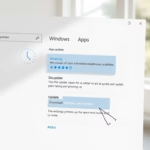
- Open your Settings app (press the Windows key + I on your keyboard).
- Click on Windows Update on the left menu.
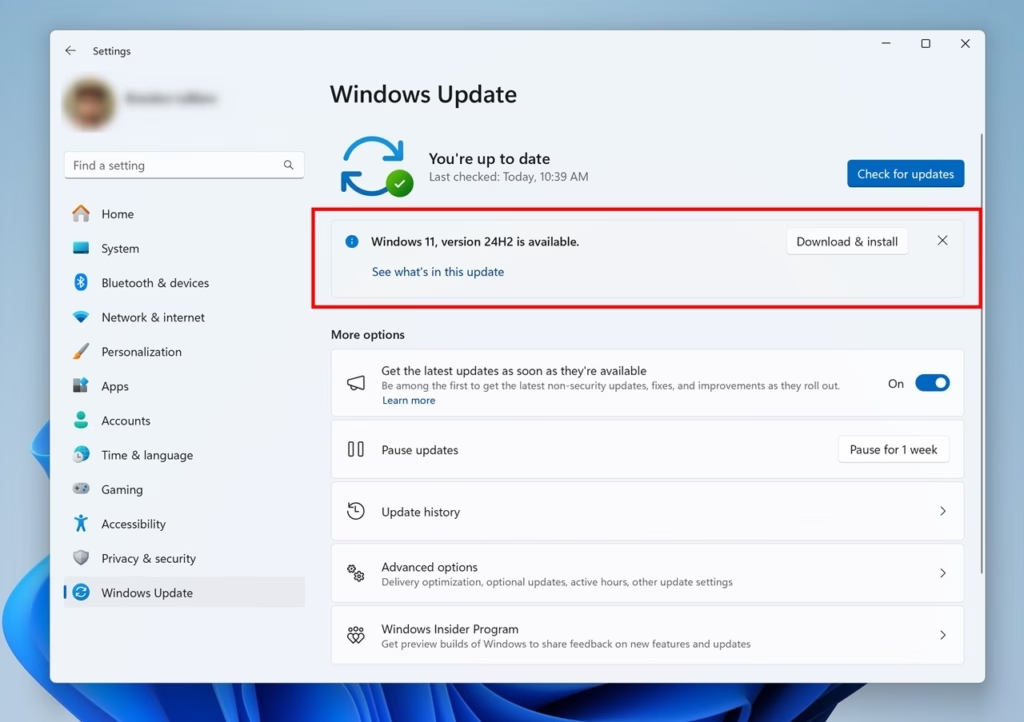
- Click the Check for updates button on the right side.
Checking for Windows 11 updates is simple. Open your Settings app by pressing the Windows key and ‘I’ together, then click on ‘Windows Update’ in the menu. Finally, hit the ‘Check for updates’ button to see if any new software or security updates are available for your PC.
Note: Installing updates usually requires admin privileges. If you are using a standard account, you may be asked to provide an administrator password.
Understanding update types
Windows 11 sends different kinds of updates to keep your computer safe and running well. These include regular monthly updates for security and fixes, optional previews for new features, and emergency updates for urgent problems.
If you prefer using a command, you can run this string in your terminal:
cmd /s /c USOClient StartInteractiveScan & start ms-settings:windowsupdate
Installing updates
If your computer finds new updates, it might start downloading them automatically. For some updates, you will need to click the Download & install button to start the process.
Restarting your computer
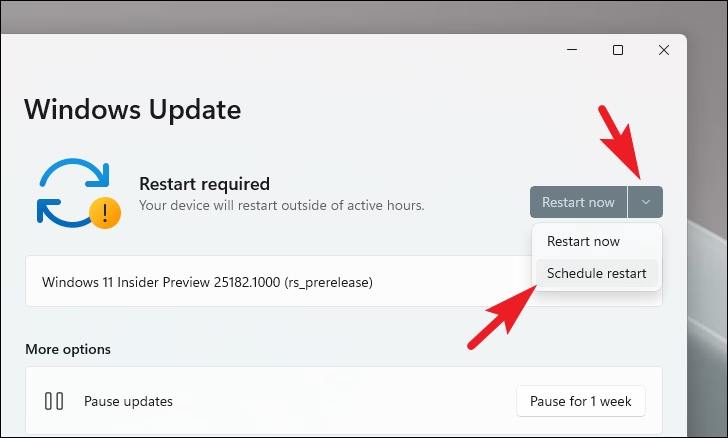
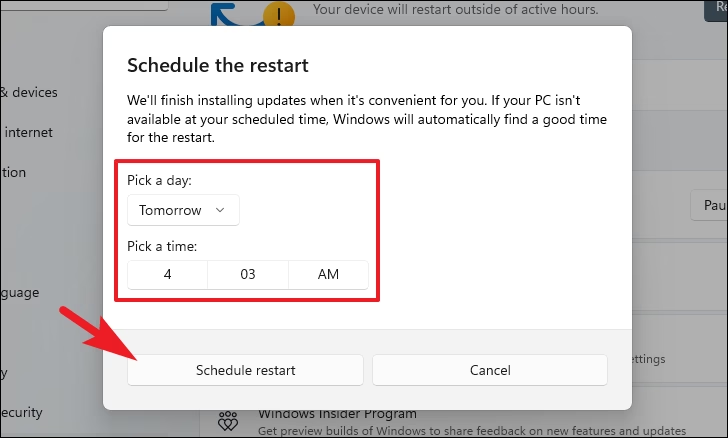
After installing some Windows 11 updates, your computer needs to restart to finish the job. You can let Windows restart on its own when you’re not using it, choose to ‘Restart Now’ right away, or pick a time that’s best for you.
- Automatic: Windows will restart on its own when you are not using the computer.
- Restart Now: Click the Restart now button in your settings or on the notification pop-up.
- Schedule: You can pick a specific time for the restart to happen.
Upgrade vs. Update
An update (or cumulative update) improves your current version of Windows 11 with security patches and bug fixes. An upgrade moves you to a new version of Windows, such as moving from Windows 10 to 11, or installing a major annual feature update.
System Requirements
To run Windows 11, your PC must meet specific hardware standards. This includes having TPM 2.0 enabled and Secure Boot active in your BIOS. If your PC does not meet these requirements, you cannot officially install or update to the latest Windows 11 build version.
Troubleshooting Update Errors
If you encounter errors when trying to update Windows 11, like an update getting stuck, try restarting your computer first. You can also use the built-in Windows Update Troubleshooter found in your settings to automatically fix common problems.
Comparison Table: Automatic vs. Manual Updates
| Method | Pros | Cons |
|---|---|---|
| Automatic | Set and forget; keeps you secure. | May restart at inconvenient times. |
| Manual | Full control over timing. | Requires user to remember to check. |
Summary
Keeping your Windows 11 system updated is important for security and performance. You can easily check for and install the latest updates through the Windows Update section in your settings, ensuring your device stays protected and runs at its best.
How do I fix 🪟 Windows 11 update stuck at 0%?
If your Windows 11 update is stuck at 0%, the first step is to restart your computer. If that doesn’t help, running the Windows Update Troubleshooter in your settings can often fix the issue by clearing temporary files and resetting update components.
Can I update to 🪟 Windows 11 without a Microsoft account?
Yes, you can update your current Windows 11 installation without needing a Microsoft account. While a Microsoft account is often required for new installs or upgrades from Windows 10, you can usually create a local account instead during setup.
How long does a 🪟 Windows 11 update take?
The time required depends on your internet speed and your computer hardware. Small monthly quality updates usually take 5 to 15 minutes. Large feature updates can take anywhere from 30 minutes to over an hour. Ensure your laptop is plugged into power to prevent it from shutting down during the installation.
Was this guide helpful?

About the Author
Richard
Tech Writer, IT Professional
Richard, a writer for Geek Rewind, is a tech enthusiast who loves breaking down complex IT topics into simple, easy-to-understand ideas. With years of hands-on experience in system administration and enterprise IT operations, he’s developed a knack for offering practical tips and solutions. Richard aims to make technology more accessible and actionable. He's deeply committed to the Geek Rewind community, always ready to answer questions and engage in discussions.


[…] users steps to turn on or off” Get me up to date” settings in Windows 11. By default, Windows automatically downloads the latest updates and schedule an install if everything works […]
[…] post describes the steps to schedule a restart after Windows Update has finished downloading and installing updates for your computer in Windows […]
[…] default, Windows Updates is turned on and enabled to download and install the latest updates automatically to keep Windows […]
[…] default, Windows Update is configured to automatically connect to Microsoft’s internet servers and search for and […]
[…] How to update Windows 11 […]
[…] How to update Windows 11 […]
[…] computer. Instead, one can take multiple steps, including installing virus protection software, updating Windows, and installing software from trusted sources. All these steps can help prevent your computer from […]
[…] If your device doesn’t have the latest updates, check our post on how to update Windows 11. […]
[…] Check for Windows updates: How to update Windows 11 […]
[…] to know: Windows 11 usually updates your drivers automatically through Windows Update. But if you want to check or update them yourself, here’s […]
[…] If you want to learn more about updating Windows 11, check out this helpful guide: How to Update Windows 11. […]
[…] Learn more about updating Windows 11 here: How to update Windows 11 […]
[…] You cannot entirely disable Windows Update but you can pause the service for up to 20 years. This effectively stops new updates until you are ready to resume updates and check for updates manually. […]
[…] default, Windows Update helps get the latest fixes and security improvements. Often, Windows installs these drivers on its […]
[…] How to Check for Windows 11 Updates […]