How to Install or Update Audio Drivers in Windows 11

This guide helps you update or install audio drivers on Windows 11.
Update audio drivers via Device Manager by right-clicking Start, selecting Device Manager, expanding Sound, video, and game controllers, right-clicking your audio device, and choosing Update driver. You can also check Windows Update under Advanced options for Optional updates.
Quick Fix Checklist
- Check if your speakers are muted or unplugged.
- Restart the Windows Audio Service.
- Run the Windows Audio Troubleshooter.
- Check for Optional Updates in Windows Update.
- Reinstall the driver via Device Manager.
Why Update Audio Drivers?
Audio drivers act as a translator between your computer’s hardware and your software. If these drivers are outdated, you may experience crackling sounds, low volume, or no sound at all. Updating them keeps your system running smoothly.
What Happens When Done?
Your audio device will communicate better with Windows. This often fixes playback errors and improves overall sound quality. It ensures your hardware works correctly with the latest apps.
Restarting the Windows Audio Service
Sometimes the driver is fine, but the service that runs it has stopped. Note: This process requires administrator privileges.
1. Press the Windows key + R, type services.msc, and hit Enter.
2. Scroll down to find Windows Audio.
3. Right-click it and select Restart.
4. Do the same for Windows Audio Endpoint Builder.
Install Audio Drivers via Optional Updates
Windows Update often hides driver updates. If you have sound issues, check here first.
1. Click Start > Settings.
2. Go to Windows Update > Advanced options.
3. Click Optional updates.
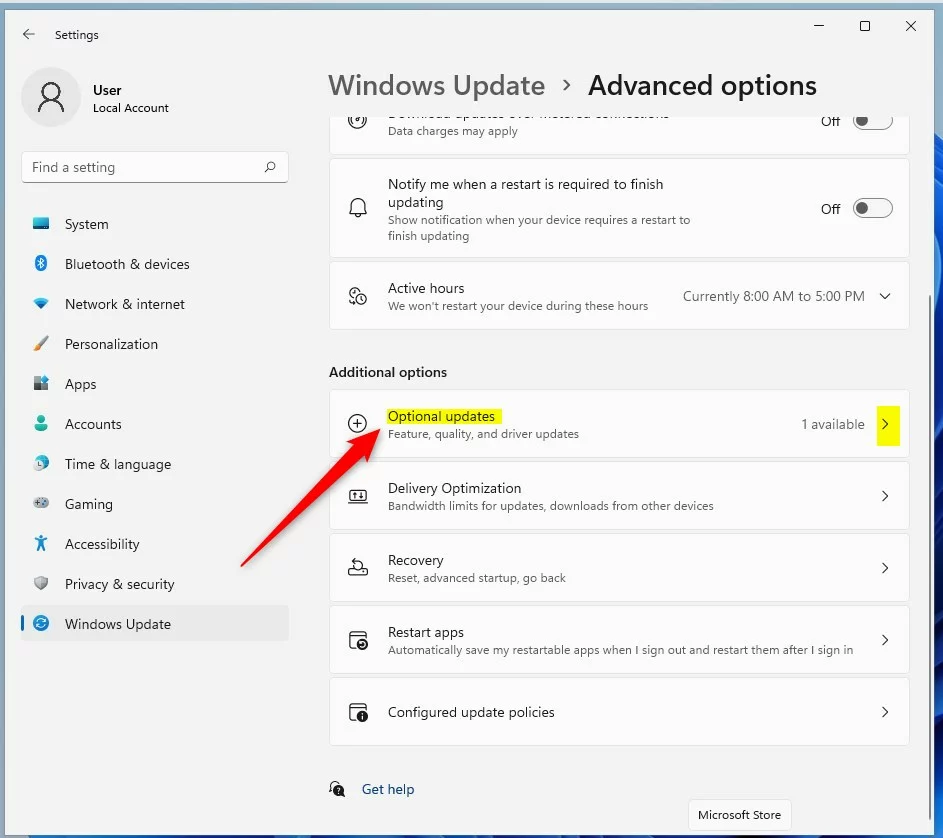
If an audio driver appears, select it and click Download & install.
Install or Update Audio Drivers via Device Manager
Note: This process requires administrator privileges.
1. Right-click Start and select Device Manager.
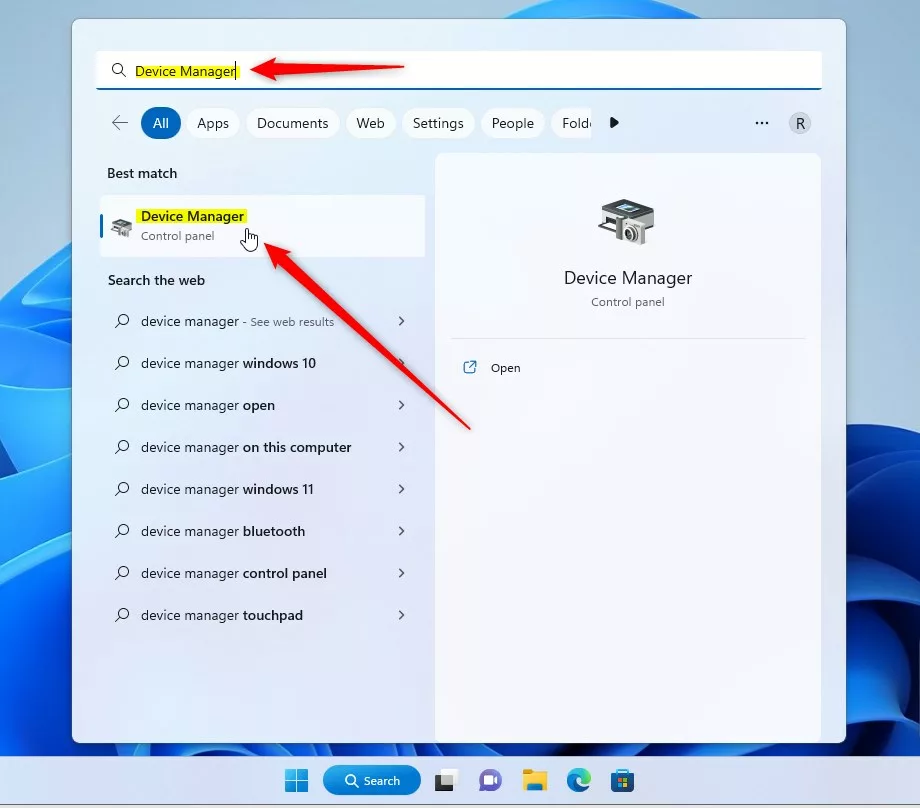
2. Expand Sound, video, and game controllers.
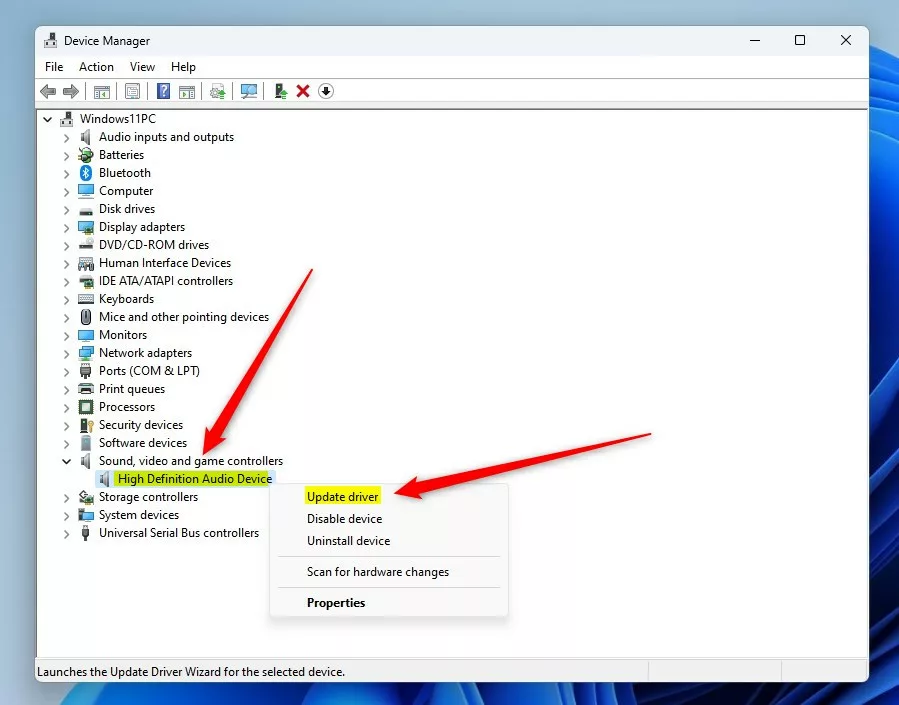
3. Right-click your device (e.g., Realtek High Definition Audio) and select Update driver.
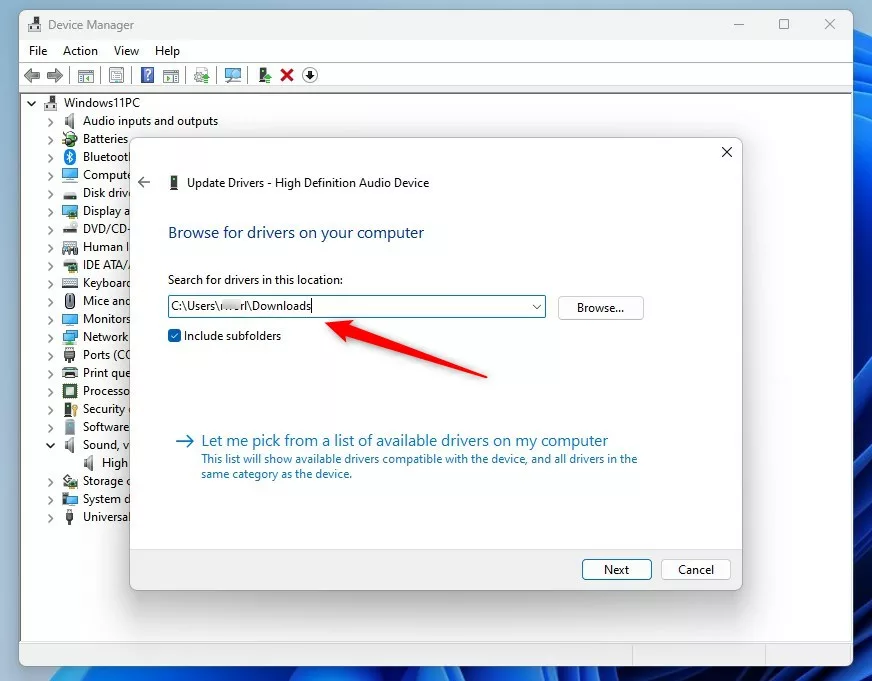
4. Choose Browse my computer for drivers to use a file from an OEM support page.
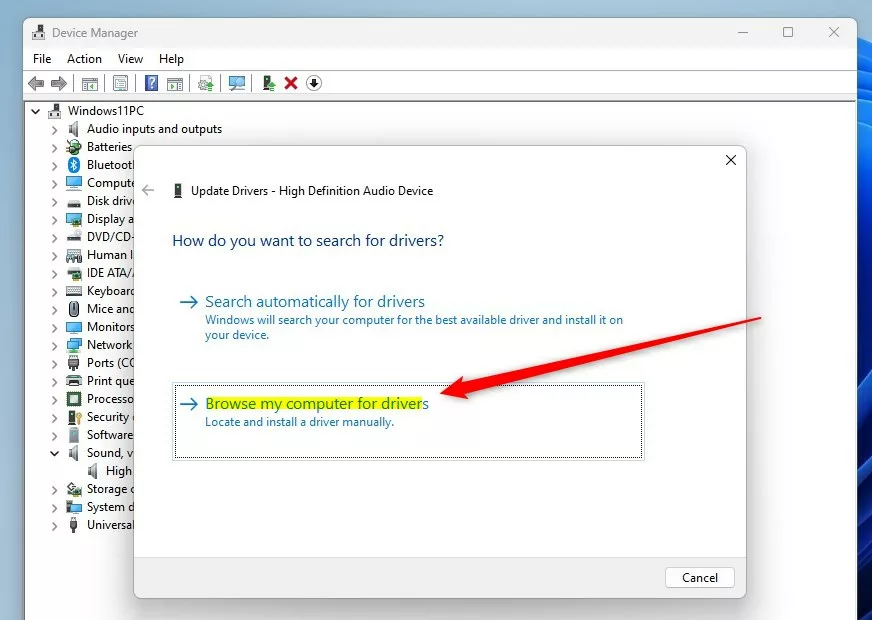
5. Click Browse to locate your downloaded file.
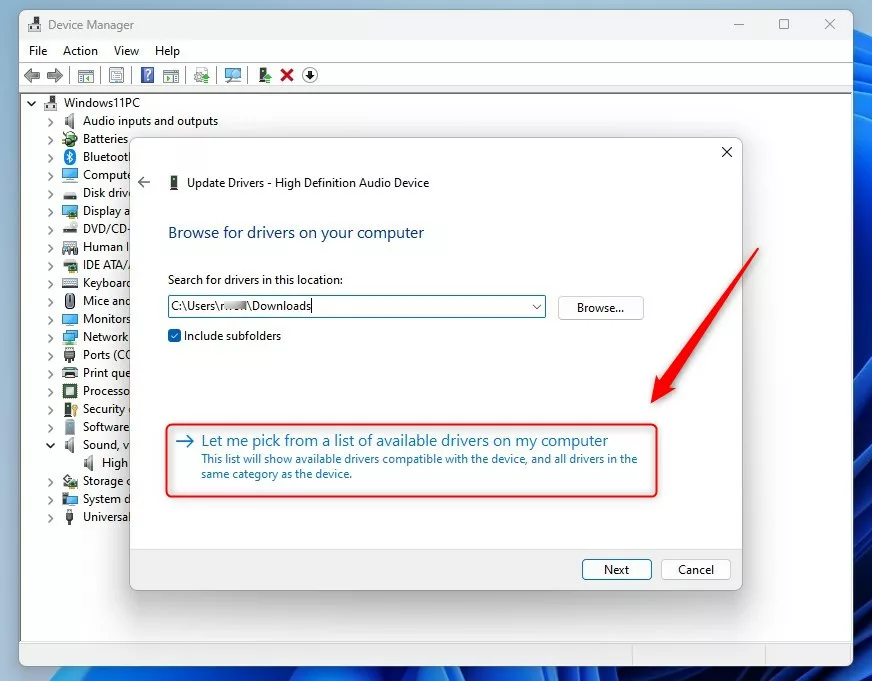
6. If you don’t have a file, select Let me pick from a list of available drivers on my computer to see system-stored drivers like those in 📁C:\Windows\System32.
Troubleshooting Failed Installations
If you see Device Manager error code 10, the device failed to start. Try uninstalling the device and restarting your PC. Windows will attempt to reinstall the driver automatically upon reboot.
Manufacturer-Specific Drivers
Should you use Windows Update or the manufacturer? Windows Update is easier, but manufacturer websites (like Dell, HP, or Lenovo) often provide specific audio enhancements that generic drivers lack. Always check your PC manufacturer’s support page first if you have unique audio issues.
Summary
Updating your audio driver solves most sound problems. Use Optional updates for convenience or Device Manager for manual control. If sound fails, restart the Windows Audio Service or check the manufacturer’s website for the latest software. Always restart your computer to finalize changes.
Why is my audio driver not showing up in Device Manager?
If your audio driver is missing, the hardware might be disabled in your BIOS or physically disconnected. Try clicking the View menu in Device Manager and selecting Show hidden devices. If it still does not appear, your hardware may have failed or requires a chipset driver update from your manufacturer.
What is the difference between High Definition Audio and Realtek drivers?
High Definition Audio is a generic driver provided by Microsoft that offers basic functionality. Realtek drivers are specific to your hardware, providing advanced features like audio enhancements, equalizer settings, and better compatibility with your motherboard’s specific sound chip. Always prefer the manufacturer-specific driver for the best performance.
Was this guide helpful?

About the Author
Richard
Tech Writer, IT Professional
Richard, a writer for Geek Rewind, is a tech enthusiast who loves breaking down complex IT topics into simple, easy-to-understand ideas. With years of hands-on experience in system administration and enterprise IT operations, he’s developed a knack for offering practical tips and solutions. Richard aims to make technology more accessible and actionable. He's deeply committed to the Geek Rewind community, always ready to answer questions and engage in discussions.



No comments yet — be the first to share your thoughts!