How to Manage Sound Notifications in Outlook on Windows 11

You manage sound notifications in the new Outlook app for Windows 11 to control audible alerts for incoming emails.
This feature lets you decide if Outlook plays a sound for new messages or stays silent, helping you focus without missing vital information.
The latest Outlook version for Windows 11, which became generally available in late 2023, gives you precise control over these alerts.
You can turn sounds on to get immediate notification of important emails or turn them off to avoid constant beeps that can disrupt your workflow.
Manage Outlook sound notifications by opening Settings, clicking General, then Notifications. Toggle the “Play sound” switch for the Mail tile to On or Off to control audible alerts for new emails. Click Save to apply changes.
How to change sound settings in Outlook
Changing your Outlook sound settings lets you pick which alerts make noise, so you can focus on important emails without getting distracted by every little ping.
- Open the Outlook app from your Start menu or taskbar.
Open Outlook app in Windows 11 - Click the Settings gear icon located in the top right corner.
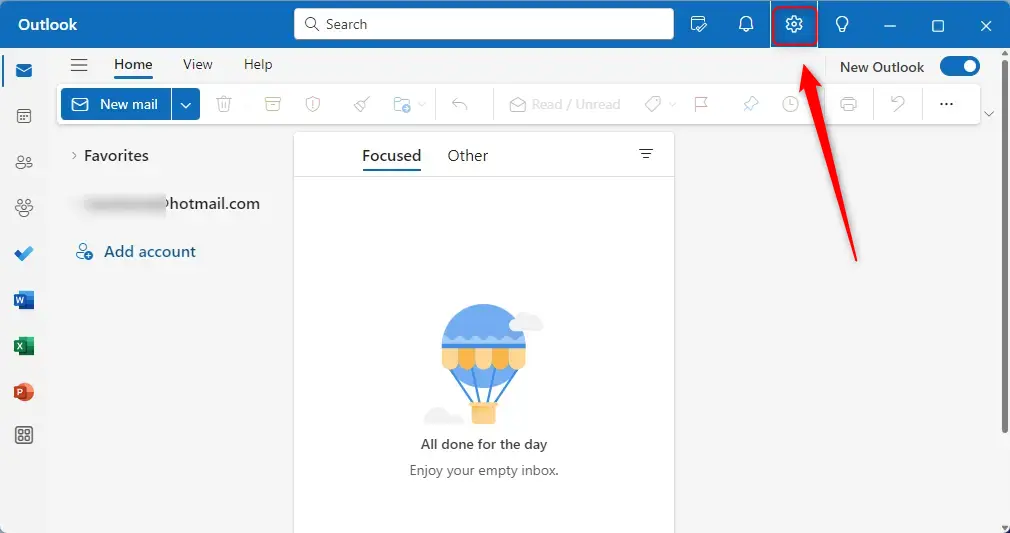
Outlook settings button in the app - In the menu on the left, click General and then select Notifications.
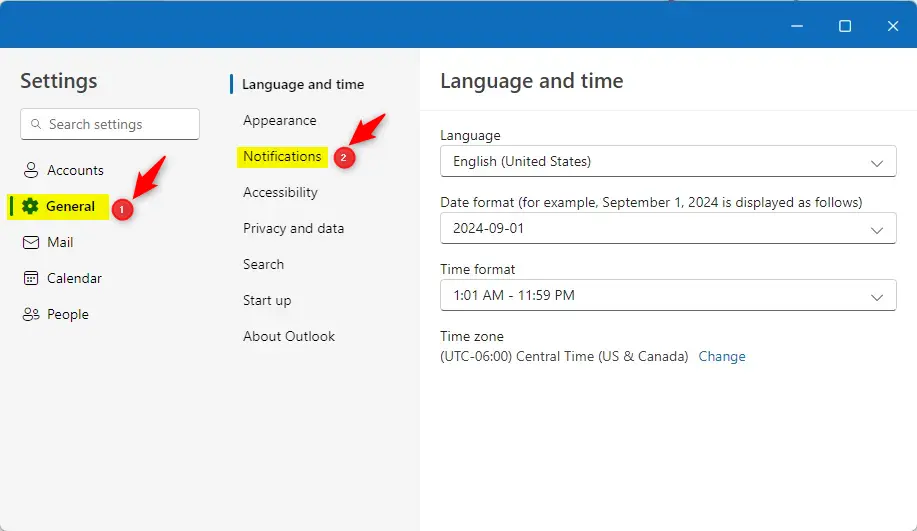
Outlook Genenal Notifications setitngs pane - Ensure that Notifications in Outlook is turned on. (This assumes you have Notification in Outlook enabled in your system settings). If you have trouble, check your Windows Notification settings, ensure Windows Focus settings are off, and verify that Battery Saver is off.
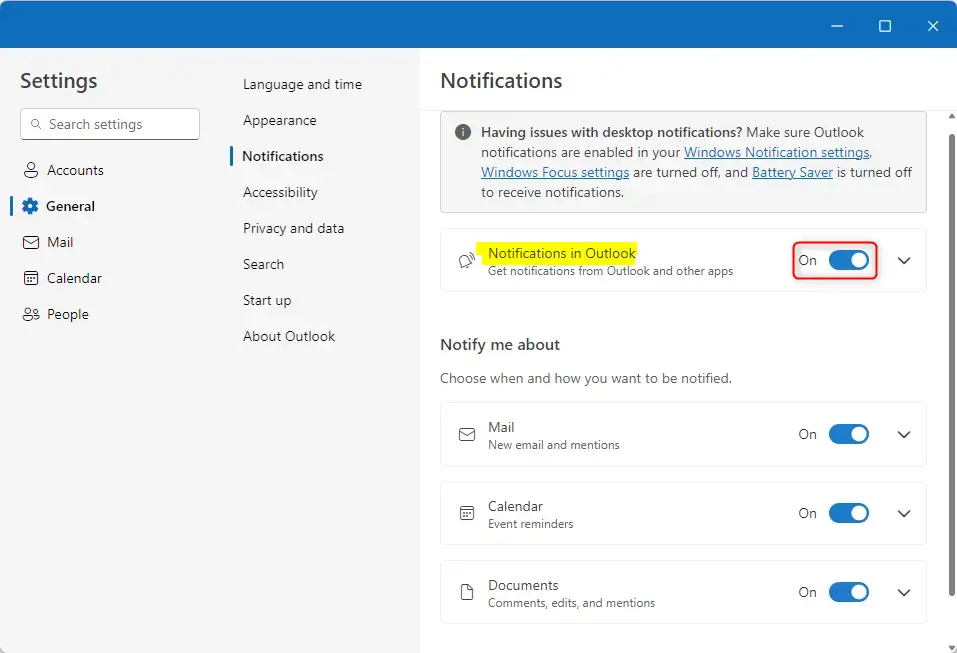
Notifications in Outlook - To stop or start alerts for new emails and mentions, find the Mail tile and toggle the switch to On or Off.
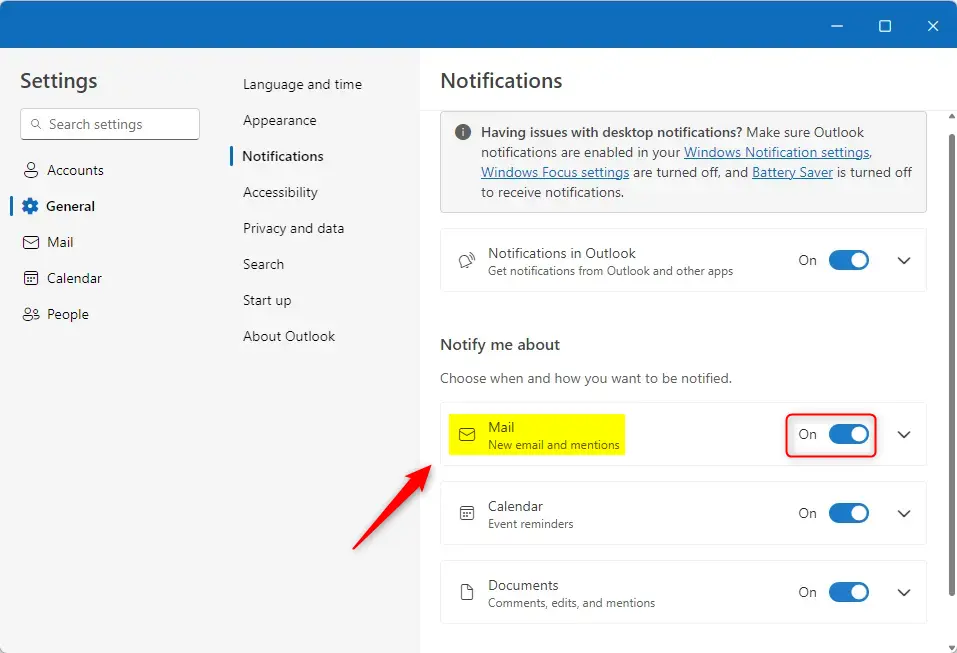
Mail tile in Outlook Settings - To specifically control the sound, make sure Outlook and Mail notifications are enabled. Click the down-arrow on the Mail tile.
- Find the Play sound tile and toggle the switch to On or Off.
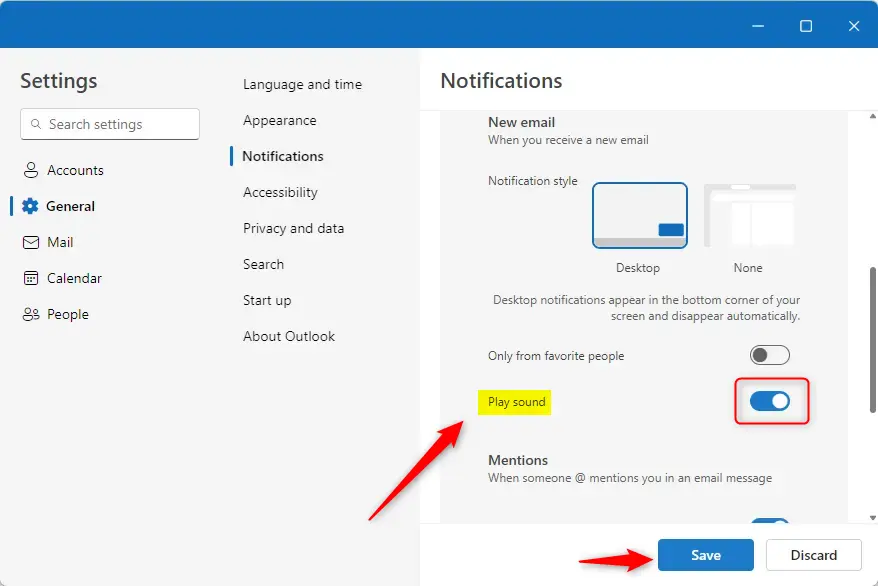
Play sound for incoming emails in Outlook - Click Save if the button appears to apply your changes.
Note: These steps do not require administrator privileges to perform.
Summary
Managing your sound notifications in the new Outlook app is simple, letting you decide if you want sounds for emails and mentions.
How to change notification sounds in new Outlook?
To change mail or calendar sounds, open Settings. Under Mail or Calendar, tap Notifications > Sound, and select desired sound for Mail Notifications or Calendar Notifications.
Was this guide helpful?

About the Author
Richard
Tech Writer, IT Professional
Richard, a writer for Geek Rewind, is a tech enthusiast who loves breaking down complex IT topics into simple, easy-to-understand ideas. With years of hands-on experience in system administration and enterprise IT operations, he’s developed a knack for offering practical tips and solutions. Richard aims to make technology more accessible and actionable. He's deeply committed to the Geek Rewind community, always ready to answer questions and engage in discussions.




[…] alerts for notifications, turn on or off notifications when Outlook is closed, turn on or off incoming email alert sounds, customizing Calendar alerts, and […]