How to Enable or Disable Email Sound Alerts in Outlook

You enable or disable email sound alerts in the new Outlook app for Windows 11 by adjusting the notification settings directly within the app’s interface.
These sound alerts notify you audibly whenever a new email arrives, offering a distinct chime to grab your attention. Conversely, disabling them silences these audio cues, promoting a quieter, more focused work environment.
You can personalize this feature to suit your workflow, ensuring you either stay immediately informed about incoming messages or minimize distractions. For instance, many users choose to disable sounds during important meetings or focused work sessions.
Once you configure these settings, the new Outlook app on Windows 11 will adhere to your chosen preference, playing a sound upon arrival or staying silent as long as the app is open.
Open Outlook, click the Settings gear, then General, and Notifications. Check “Allow notifications to play sounds” to enable sounds, or uncheck it to disable them. Ensure system notifications for Outlook are also enabled.
How to change notification sounds in Outlook
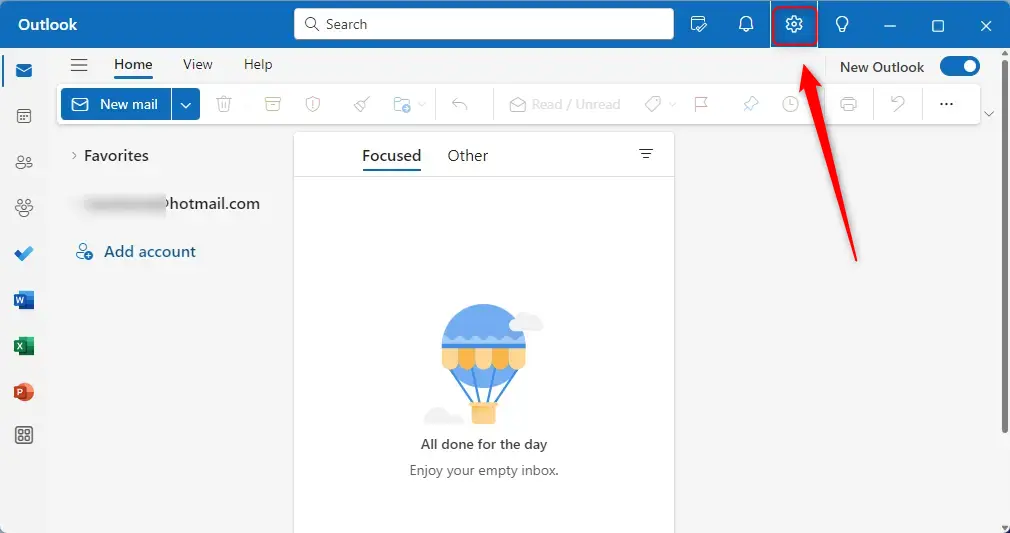
You can change the sound Outlook makes for new emails by opening the app and clicking the Settings gear icon in the top right corner.
Click the Settings gear icon at the top right of the window.
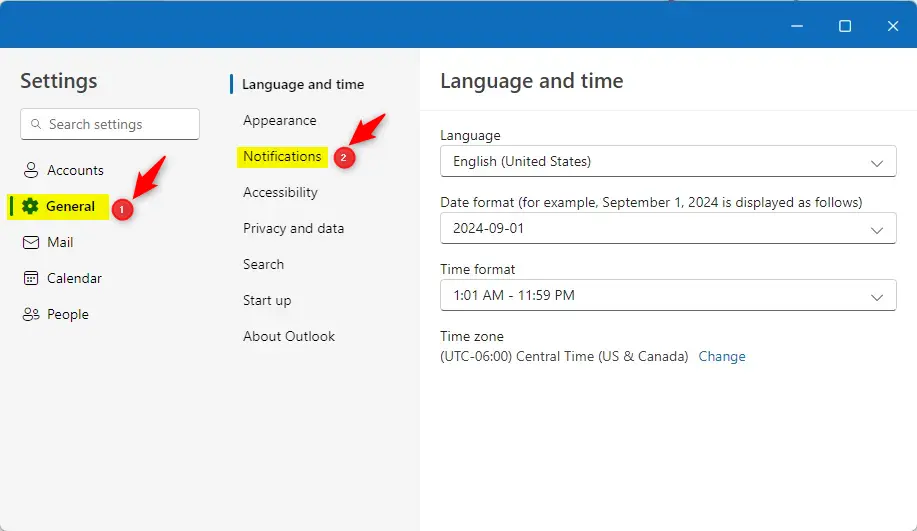
In the sidebar, click General and then select Notifications. You’ll find the Notifications section there.
Look for the section labeled Notifications in the Outlook. Keep in mind that Outlook Notifications must be enabled for these settings to apply.
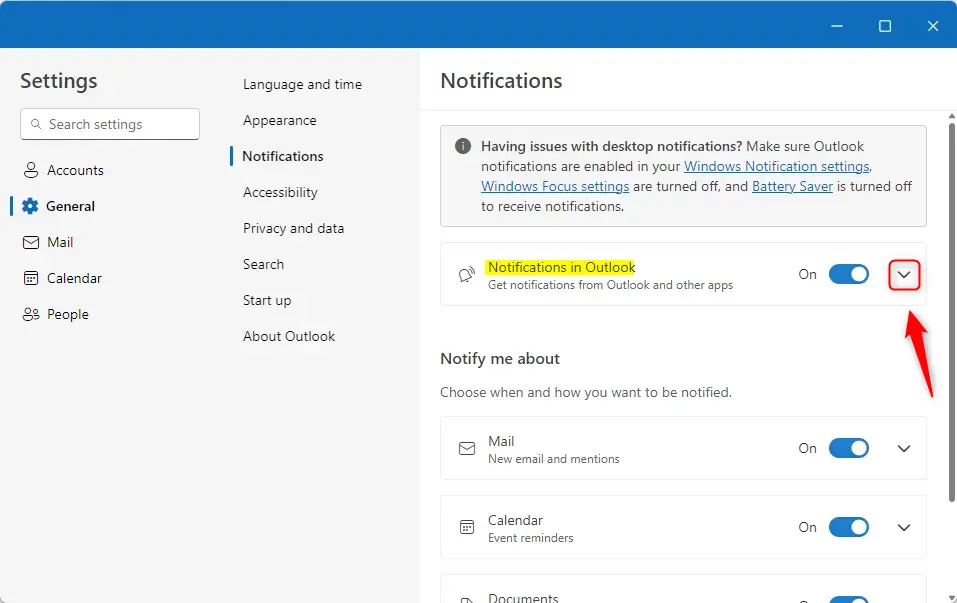
Click the arrow to reveal more options. Check the box for Allow notifications to play sounds to turn the sound on. Uncheck it to turn the sound off.
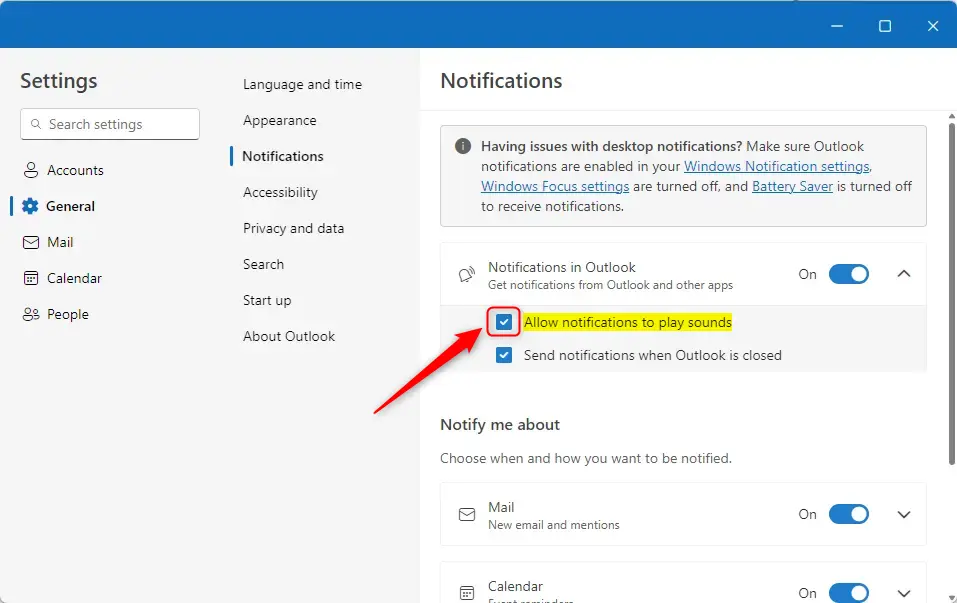
If you still do not hear sounds, check your system settings to ensure Outlook notifications are enabled in your Windows Notification settings, that Windows Focus settings are turned off, and that Battery Saver is turned off.
Summary
- Configuring sounds helps you personalize your Outlook experience.
- Turning sounds on keeps you updated on incoming mail.
- Turning sounds off helps you stay focused by removing distractions.
- If sounds do not work, check your Windows system notification settings.
Was this guide helpful?

About the Author
Richard
Tech Writer, IT Professional
Richard, a writer for Geek Rewind, is a tech enthusiast who loves breaking down complex IT topics into simple, easy-to-understand ideas. With years of hands-on experience in system administration and enterprise IT operations, he’s developed a knack for offering practical tips and solutions. Richard aims to make technology more accessible and actionable. He's deeply committed to the Geek Rewind community, always ready to answer questions and engage in discussions.



[…] history, add or remove events from emails to your Calendar, switch to dark mode, link preview, sound alerts for notifications, turn on or off notifications when Outlook is closed, turn on or off incoming email alert […]
[…] or remove events from emails to your Calendar, switch to dark mode, link preview, sound alerts for notifications, turn on or off notifications when Outlook is closed, alerts for emails and mentions, […]
[…] or removing events from emails to your Calendar, switching to dark mode, link preview, sound alerts for notifications, turn on or off notifications when Outlook is closed, turn on or off incoming email alert […]