How to Change the Outlook Reading Pane in Windows 11

You can change the Outlook Reading Pane in Windows 11 to customize your email preview experience.
The Reading Pane is the dedicated area that instantly displays your email content after you click on a message in your inbox, eliminating the need to open each message separately.
In the latest version of Outlook for Windows, this useful pane is positioned on the right by default. However, you have the flexibility to move it to the bottom of your message list or disable it completely.
For instance, if you’re working on a laptop with a smaller screen, relocating the Reading Pane to the bottom can significantly enhance the readability of your message list, making inbox management much smoother.
How to Change the Outlook Reading Pane
Changing your Outlook reading pane in Windows 11 is simple and lets you see your emails how you like.
Here’s how to quickly change your view:
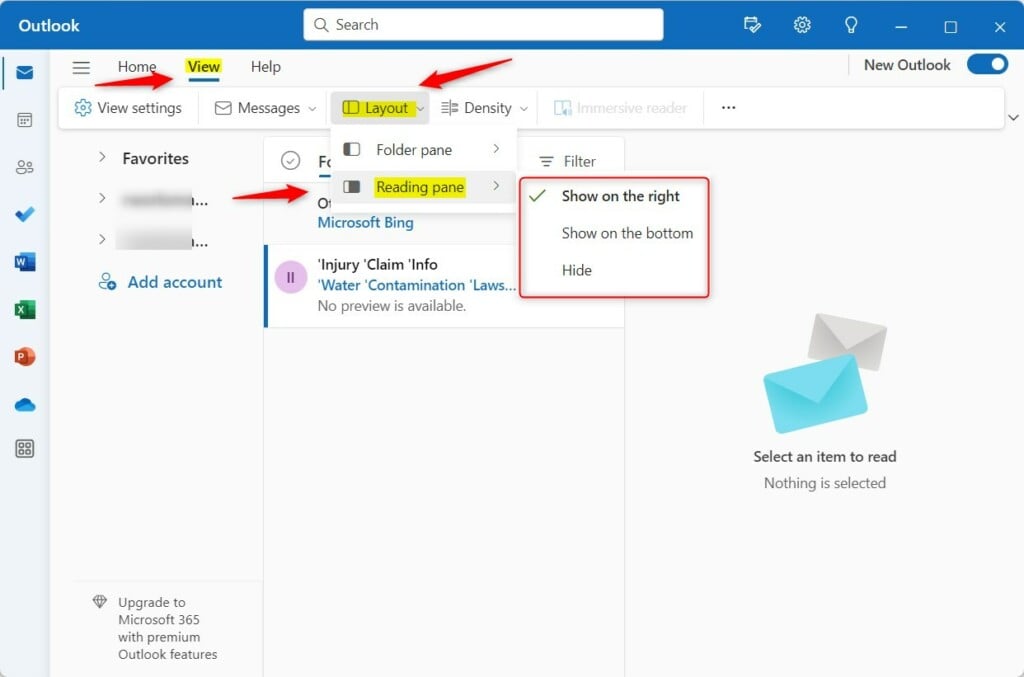
Simplified ribbon: Click View -> Layout -> Reading pane:
- Show on the right
- Show on the bottom
- Hide
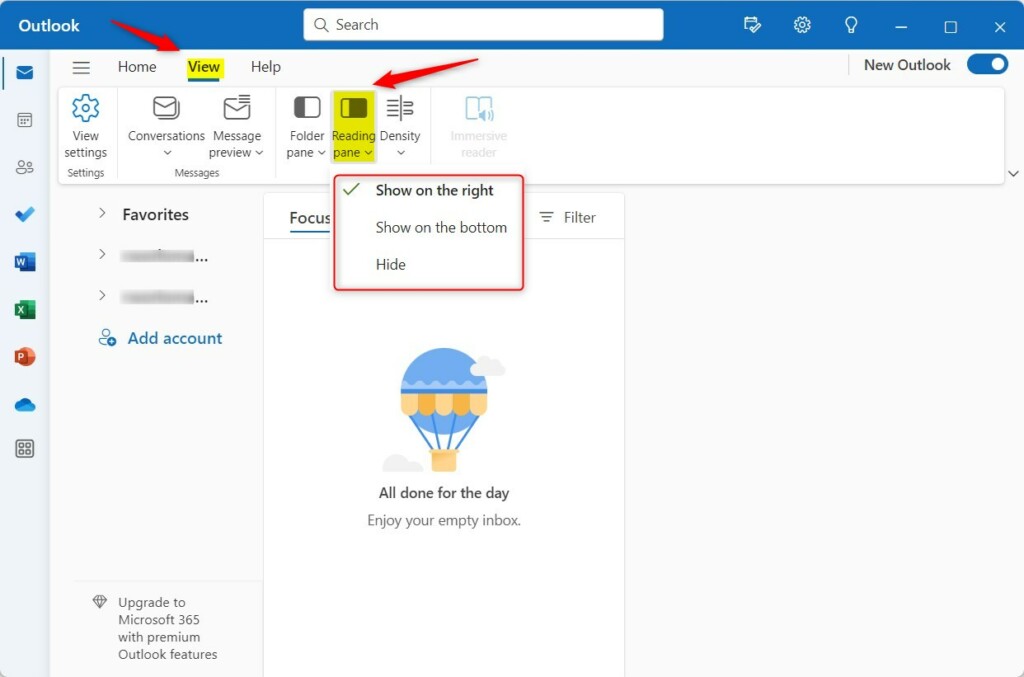
Classic ribbon: Click View -> Reading pane:
- Show on the right
- Show on the bottom
- Hide
Advanced Outlook View Settings
Beyond just changing the reading pane’s position, you can explore advanced Outlook view settings to make your inbox work better for you.
Mark as Read Settings
To stop emails from being marked as read instantly, go to Settings > Mail > Message handling. Here, you can choose to mark items as read only when you open them in a new window or after a specific time delay. This prevents accidental read status changes while browsing.
Troubleshooting Reading Pane Issues
If your Outlook reading pane settings keep resetting or aren’t saving correctly, there are a few common troubleshooting steps you can try.
Summary
This guide showed you how to adjust the reading pane in the new Outlook app, helping you customize your workspace for a smoother email routine.
How do I turn off the Reading Pane entirely?
To turn off the Reading Pane, navigate to the View tab in the ribbon, select Reading Pane, and choose the Hide option. This will display your inbox in a list format, requiring you to double-click an email to open it in a separate window, which is great for focus.
Can I preview attachments without opening them?
Yes, you can preview attachments without opening them by using the Reading Pane in Outlook.
Was this guide helpful?

About the Author
Richard
Tech Writer, IT Professional
Richard, a writer for Geek Rewind, is a tech enthusiast who loves breaking down complex IT topics into simple, easy-to-understand ideas. With years of hands-on experience in system administration and enterprise IT operations, he’s developed a knack for offering practical tips and solutions. Richard aims to make technology more accessible and actionable. He's deeply committed to the Geek Rewind community, always ready to answer questions and engage in discussions.




[…] management, email forwarding, setting default From address, backing up your mailbox, changing the reading pane, and […]
[…] forwarding, setting default From address, backing up your mailbox, changing the reading pane, opening a new window for a message, language translations, turning text predictions […]
[…] management, email forwarding, setting default From address, backing up your mailbox, changing the reading pane, opening a new window for a message, language translations, turning text predictions on or […]
[…] management, email forwarding, setting default From address, backing up your mailbox, changing the reading pane, opening a new window for a message, language translations, turning text predictions on or […]
[…] management, email forwarding, setting default From address, backing up your mailbox, changing the reading pane, opening a new window for a message, language translations, turning text predictions on or […]
[…] forwarding, setting default From address, backing up your mailbox, changing the reading pane, opening a new window for a message, language translations, turning text predictions […]
[…] management, email forwarding, setting default From address, backing up your mailbox, changing the reading pane, opening a new window for a message, language translations, turning text predictions on or […]