How to Change Display Language in Outlook for Windows 11

You change your Outlook display language in Windows 11 directly through Outlook’s settings.
The display language dictates what language you see for all menus, buttons, and commands within the Outlook application. This tutorial covers how to adjust this setting in both the new Outlook for Windows and the classic versions of Outlook for Microsoft 365.
For instance, you can switch from English to Spanish or French for a more personalized experience. Remember, this change only affects Outlook and does not alter your main Windows 11 system language.
Open Outlook, click the Settings gear, and go to General, then Language and time. Select your preferred display language from the dropdown and check the box to rename default folders. Restart Outlook for the changes to take effect.
Why Change Your Outlook Display Language?
Changing your Outlook display language in Windows 11 makes the app easier to read and write in, helping you feel more comfortable when sending and receiving emails.
What Happens When You Change Language?
When you update your language settings, the Outlook interface, menus, and buttons will switch to your chosen language. If you decide to rename your default folders, your Inbox, Sent Items, and Trash folders will be updated to match the local naming conventions of that language.
How to Change the Language in New Outlook
Follow these steps to update your interface settings:
Step 1Open Outlook on 🪟 Windows 11
Open the new Outlook app on your computer. Click Start, type Outlook, and press Enter.
Step 2 Open Settings
Click the Settings gear icon in the top right corner.

Step 3Go to Language Settings
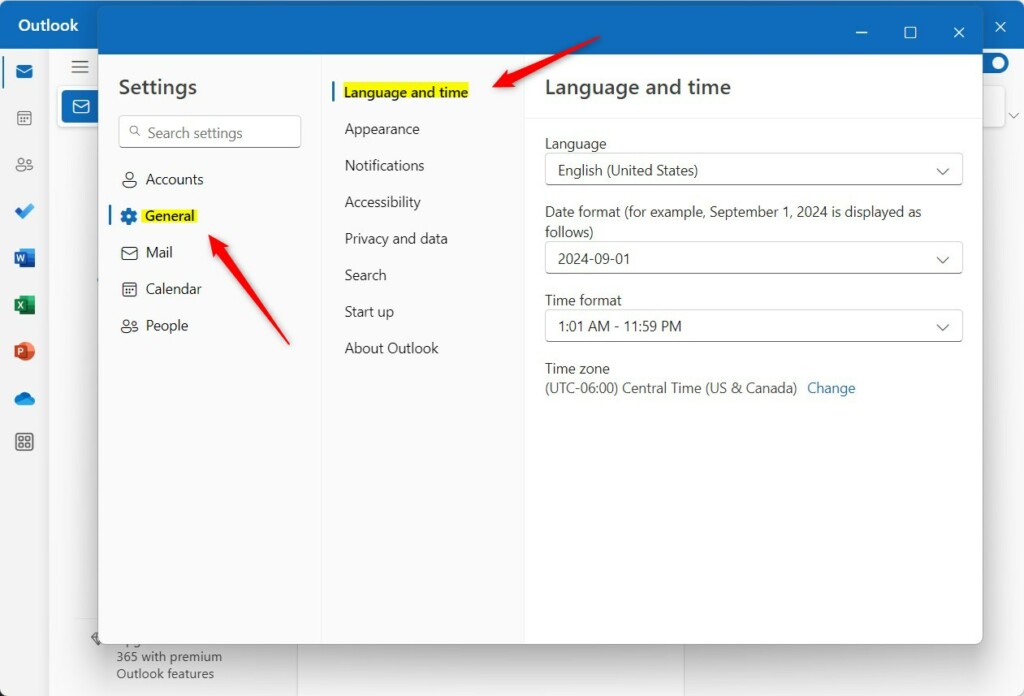
Select General on the left, then click Language and time.
Step 4Select Your New Language
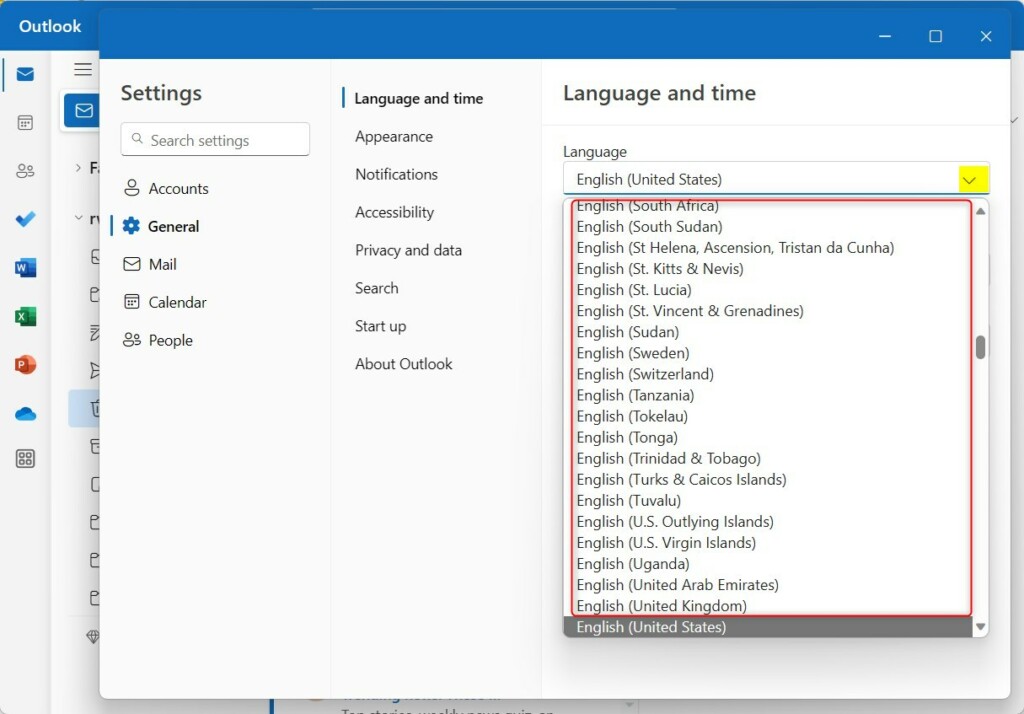
Use the Language dropdown menu to pick your preferred display language.
Step 5Rename Default Folders
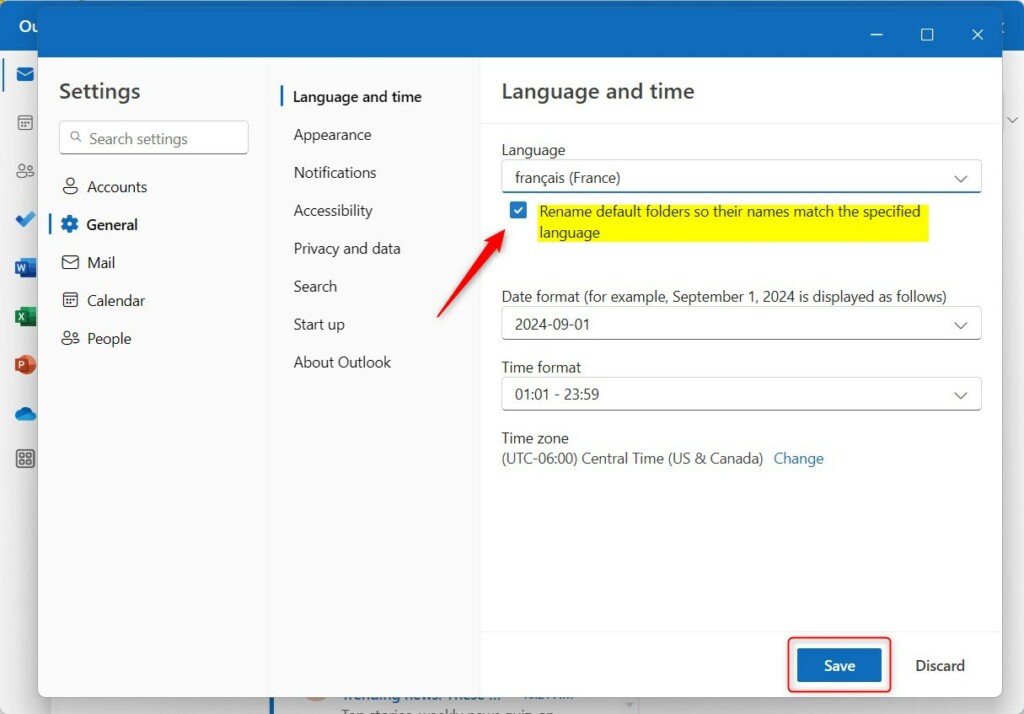
Check the box “Rename default folders so their names match the specified language”. This ensures your folder structure is localized.
Classic Outlook vs. New Outlook
Your Outlook language settings can work differently depending on whether you’re using the Classic or New version of the app on Windows 11.
Troubleshooting Language Display Issues
If your language doesn’t change, take a look at your Windows 11 System Region Settings. Sometimes, the operating system’s language settings can take priority over app settings. Make sure your Office Proofing Tools are also installed if you want spell check to align with your display language.
Summary
Changing your language in Outlook can improve your workflow and make the app more accessible. Whether you’re using the new Outlook or the classic version, you can adjust your display and folder names through the settings menu. Remember to restart the app to finalize your changes.
Why do my folder names remain in the original language?
Your Outlook folder names might stay in their original language if you didn’t select the option to rename them when you changed the display language in Windows 11.
Can I have different languages for spell check and display?
Yes, you can. Outlook allows you to set a display language for the interface while choosing a different language for your proofing tools. You can manage these separately under the Language settings menu by adding specific proofing languages to your Microsoft 365 account settings.
Was this guide helpful?

About the Author
Richard
Tech Writer, IT Professional
Richard, a writer for Geek Rewind, is a tech enthusiast who loves breaking down complex IT topics into simple, easy-to-understand ideas. With years of hands-on experience in system administration and enterprise IT operations, he’s developed a knack for offering practical tips and solutions. Richard aims to make technology more accessible and actionable. He's deeply committed to the Geek Rewind community, always ready to answer questions and engage in discussions.



No comments yet — be the first to share your thoughts!