
You can arrange your Favorites alphabetically in Microsoft Edge to keep your saved websites organized.
Microsoft Edge uses “Favorites” to let you quickly access your most visited websites, much like traditional bookmarks. When your list grows long, finding a specific site can become a chore.
This guide shows you how to sort your Microsoft Edge Favorites alphabetically, making it easier to locate any saved link. You can achieve this in just a few simple steps, significantly improving your browsing efficiency.
To arrange your Microsoft Edge Favorites alphabetically, open the Favorites page by clicking the star icon, then the three dots, and selecting “Open favorites page.” Right-click on an empty space on the page and choose “Sort by name.
Step 1Go to Your Favorites in Microsoft Edge
First, you need to find where all your saved links are kept. Think of this like opening your digital organizer.
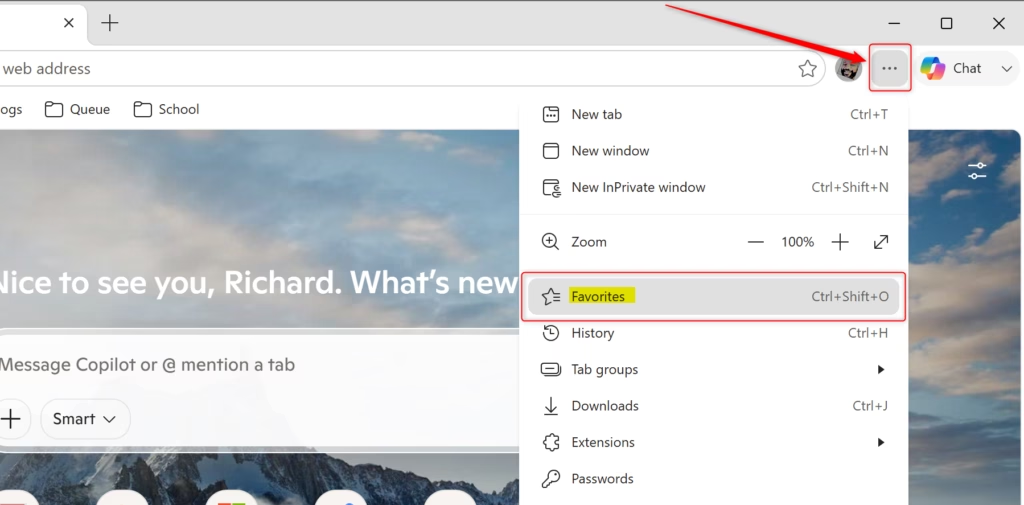
- Find the “Favorites” button. Look in the top-right corner of your Microsoft Edge window. You’ll see a few icons. One usually looks like a star. Click this star.
- If you don’t see the star: Click the three dots (the “Settings and more” menu). Look for “Favorites” in the list. You can also press
Ctrl + Shift + Oon your keyboard. - Click the star icon. A side panel will appear. It shows your Favorites bar and any folders you’ve made. This is where we start organizing.

Step 2Open the Full Favorites Page for Better Organizing
The side panel is good for quick access. But for bigger organizing jobs, you’ll want the full Favorites page. This gives you a better view of everything.
- Find the “More options” button. In the Favorites panel that popped out, look for another set of three dots. This is the “More options” menu for your favorites.
- Choose “Open favorites page.” Clicking this will open a new tab just for managing your saved websites. It’s like looking at the whole map before you start moving things.
Step 3How to Sort Favorites Alphabetically
Now, let’s sort your links by name! Sorting alphabetically makes finding things much faster, so you won’t have to search through a messy list anymore.
- Right-click on the Favorites page. Once you are on the full Favorites page (the one in the new tab), find an empty spot. This could be between your favorite links or folders. Do not right-click *on* a link or folder. Click in the empty space where they are shown.
- Choose “Sort by name” from the menu. A small menu will show up. Find the option that says “Sort by name” and click it. Edge will instantly arrange your top favorites and the items inside any open folders in alphabetical order.
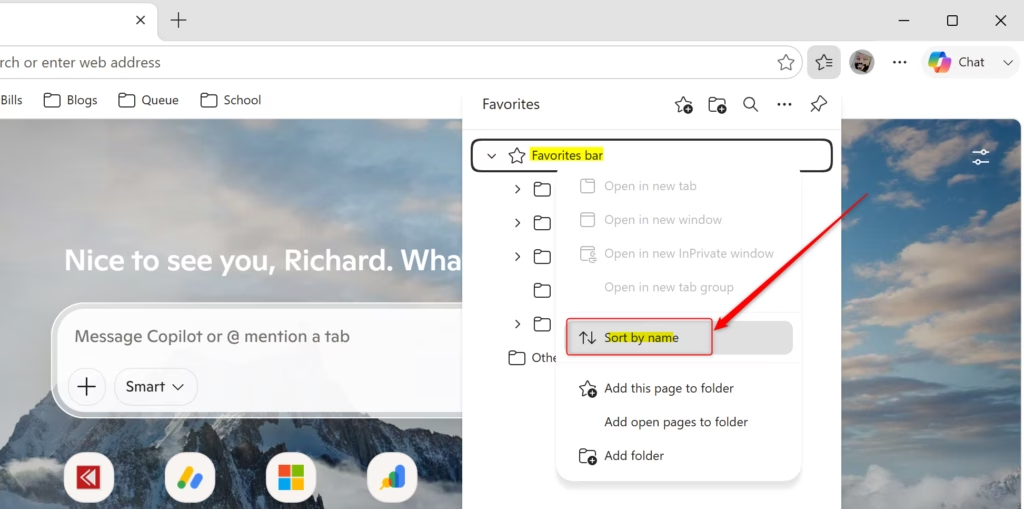
What happens: When you choose “Sort by name,” Edge sorts all the websites and folders shown on the main Favorites page alphabetically, from A to Z. If you have folders, the folders themselves will be sorted alphabetically. Then, the items *inside* each folder will also be sorted alphabetically.
Check your folders: Remember, this sorting action only works for items directly on the main Favorites page. If you have folders inside other folders, you might need to open those inner folders and sort them again if you want their contents alphabetized too. Edge typically sorts what’s inside folders when you open them, but it’s always a good idea to take a quick look.
Reference:
https://support.microsoft.com/en-us/edge/organize-favorites-in-microsoft-edge
Summary
Why organize favorites? Your list of saved websites can become hard to manage over time. Sorting them alphabetically makes it simple to find the sites you use most often.
What happens when you sort? When you choose “Sort by name,” Microsoft Edge arranges all your saved websites and folders alphabetically on the main Favorites page. It also sorts the items inside any folders you open.
Was this guide helpful?

About the Author
Richard
Tech Writer, IT Professional
Richard, a writer for Geek Rewind, is a tech enthusiast who loves breaking down complex IT topics into simple, easy-to-understand ideas. With years of hands-on experience in system administration and enterprise IT operations, he’s developed a knack for offering practical tips and solutions. Richard aims to make technology more accessible and actionable. He's deeply committed to the Geek Rewind community, always ready to answer questions and engage in discussions.
📚 Related Tutorials



No comments yet — be the first to share your thoughts!