
You enable or disable the Favorites bar in Microsoft Edge by adjusting a setting within the browser’s Appearance menu.
The Favorites bar, which is also called the bookmarks bar, lets you quickly access your most-visited websites directly from the top of your browser window. You can choose to have it always visible, hidden completely, or displayed only on new tabs.
This tutorial shows you exactly how to find and change this setting. You’ll typically access it via the “Settings and more” menu (the three dots icon) and then navigating to Appearance.
Adjust the “Favorites” dropdown in Edge’s Appearance settings under “Other appearance settings” to “Always,” “Never,” or “Only on new tabs.” This controls whether your Favorites bar is visible.
Step 1Find the Settings Menu
You can change your edge favorites bar by first opening Microsoft Edge and finding the settings menu.
- Open Microsoft Edge. You’ll see the browser window.
- Look at the top right corner of the browser window. Find the button that looks like three little dots. This is the “Settings and more” button. Click it!
- A menu will appear. In this menu, you’ll see an option called “Settings”. Click on that.
Step 2Go to Appearance Settings
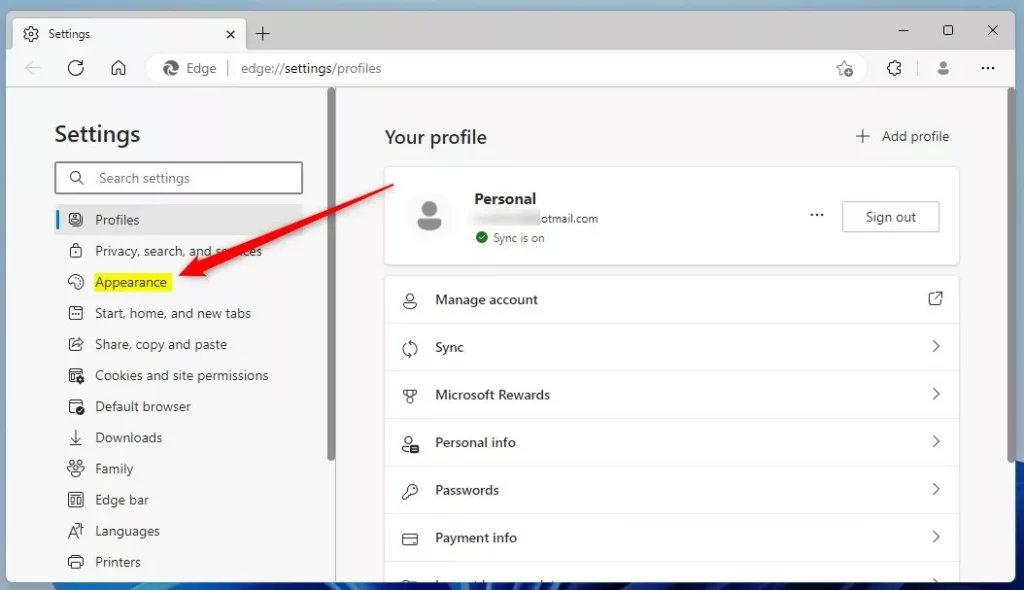
Once you’re in the Edge settings, look to the left side of the window for the ‘Appearance’ option to change how your browser looks.
- Once you’re on the main Settings page, look at the left side of the window. You’ll see a list of categories. Find the one called “Appearance”. Click it.
Step 3Change Your Toolbar Settings
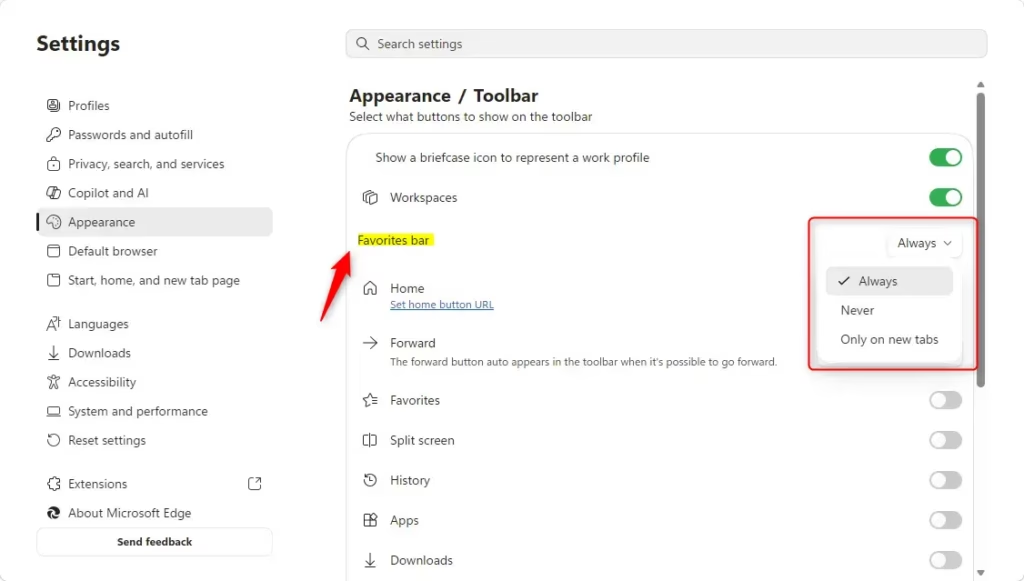
In the Appearance settings, scroll down to find ‘Other appearance settings’ where you can change the toolbar options for your edge favorites bar.
- Scroll down in the Appearance settings until you see a section called “Other appearance settings”. It might be a bit further down, so keep scrolling.
- Under “Other appearance settings,” find the option for “Toolbar”. Next to it, there’s a dropdown menu labeled “Favorites”. This is what we need!
- Click on the “Favorites” dropdown menu. You’ll see three options:
- Always: Choose this if you want your Favorites bar to show all the time, on any page. Click this to turn it on for good.
- Never: This will hide your Favorites bar completely. If you like a cleaner look and don’t use your favorites much, pick this.
- Only on new tabs: This is a good middle option. Your Favorites bar will only appear when you open a new tab. It keeps your main browsing windows tidy but still gives you quick access when you need it.
Step 4Check Your Favorites Bar
After you close the settings, look just below the address bar to see if your edge favorites bar is visible.
- Close the Settings tab or window. You should be back to your normal Edge browsing window.
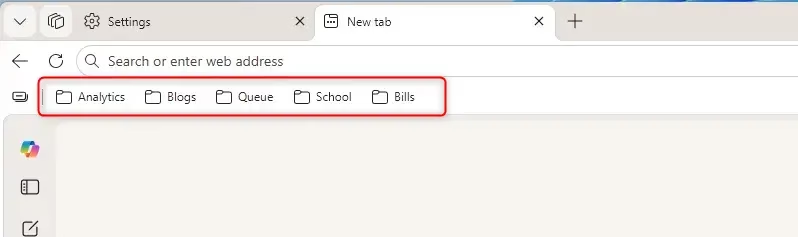
- Look at the top of your browser window, just below the address bar. If you chose “Always” or “Only on new tabs,” you should now see your Favorites bar! If you chose “Never,” it will stay hidden.
Reference:
Summary
Changing your edge favorites bar visibility helps you quickly get to your favorite websites or hide it to keep your browser looking cleaner.
What happens when done? Once you’ve followed these steps, your Favorites bar will appear, disappear, or show only on new tabs, based on your choice. This makes your browsing experience more personalized and efficient.
Where is the Favorites bar in Microsoft Edge?
The Favorites bar, which is also called the bookmarks bar, appears at the top of your Microsoft Edge browser window, just below the address bar. It provides quick access to your saved websites.
How do I turn on the favourites bar in Edge?
To turn on the Favorites bar in Microsoft Edge, open Settings, navigate to Appearance, and toggle the 'Show the favorites bar' option to 'On'. This will make your saved bookmarks visible directly below the address bar.
How do I get the favorites bar back?
To get the Favorites bar back in Microsoft Edge, go to Settings, then Appearance. Find the 'Show the favorites bar' option and ensure it is toggled to the 'On' position. This will restore its visibility.
How to get rid of favourites bar on Edge?
To remove the Favorites bar from Microsoft Edge, open Settings, go to the Appearance section, and toggle the 'Show the favorites bar' option to 'Off'. This will hide the bar from your browser window.
Was this guide helpful?

About the Author
Richard
Tech Writer, IT Professional
Richard, a writer for Geek Rewind, is a tech enthusiast who loves breaking down complex IT topics into simple, easy-to-understand ideas. With years of hands-on experience in system administration and enterprise IT operations, he’s developed a knack for offering practical tips and solutions. Richard aims to make technology more accessible and actionable. He's deeply committed to the Geek Rewind community, always ready to answer questions and engage in discussions.

No comments yet — be the first to share your thoughts!