How to import your favorites and passwords in Microsoft Edge from other browsers

You can bring your favorites and passwords into Microsoft Edge from browsers like Chrome, Firefox, and Internet Explorer using Edge’s built-in import tool.
This process lets you quickly transfer your saved browsing data, so you don’t have to manually re-add every website and password. Microsoft Edge supports importing data from up to 12 months ago.
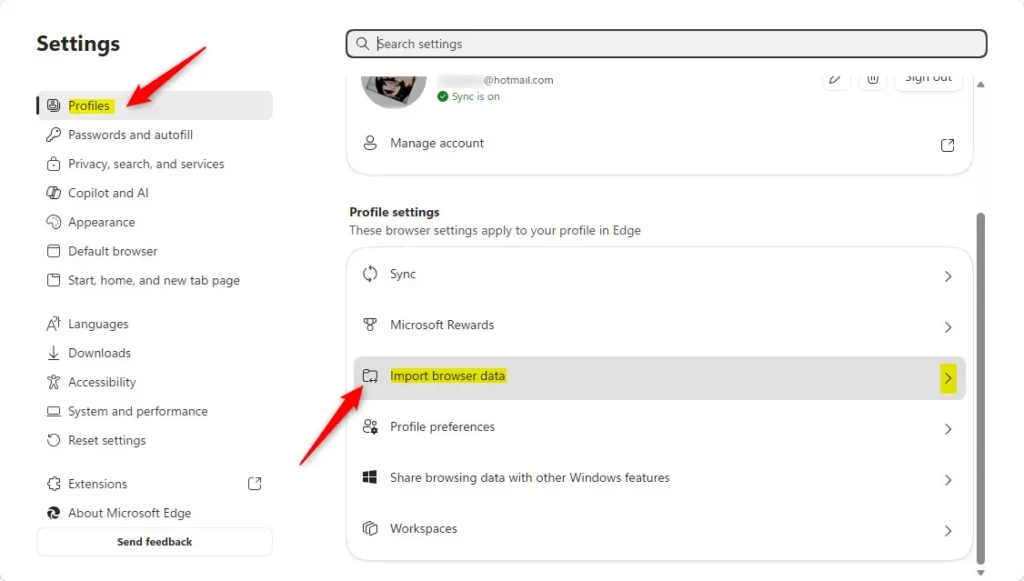
To start, open Microsoft Edge and navigate to Settings. From there, select “Profiles” and then “Import browser data.” You will then see options to choose which browser you’re importing from and what specific data (favorites, passwords, history, etc.) you want to transfer.
Open Microsoft Edge, go to Settings, then Profiles, and select Import browser data. Choose the browser you want to import from and select the data, such as favorites and passwords, to transfer. Click Import to begin the process.
Moving Your Digital Stuff
Moving your favorite websites and passwords to Microsoft Edge is like packing for a move, and Edge makes it easy to transfer this digital stuff directly from other browsers.
How to Bring Favorites and Passwords from Chrome or Internet Explorer
Microsoft Edge makes it simple to import your saved passwords and favorite websites from Chrome or Internet Explorer, bringing all your important browsing data into one place with just a few clicks.
- Open Microsoft Edge. Find the Edge browser icon (it’s blue and green) and open it.
- Go to Settings. Click the three dots in the top-right corner. This is the “Settings and more” menu. Click on it, then choose Settings.
Quick Tip: You can also typeedge://settings/into the address bar and press Enter. - Find the Import Section. On the left side of the Settings menu, scroll down and click on Profiles. Then, click on Import browser data.
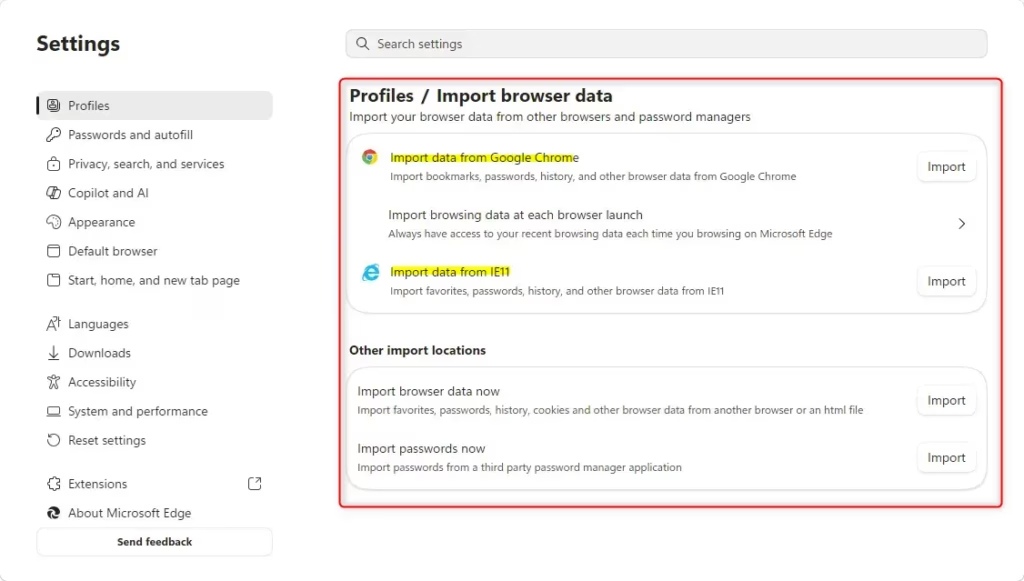
- Choose Where to Import From. You’ll see “Import browser data.” Below that, choose the browser you want to import from. If it’s Chrome, click the Import data from Google Chrome button. If it’s Internet Explorer, click the Import data from IE11 button.
- Select What to Move. A box will pop up. Choose what you want to bring over: your Favorites (bookmarks), History, Passwords, or Settings. Check the boxes for the items you want. If you only want bookmarks, just check that box!
Be careful: Only import what you need. Old, unused bookmarks or passwords can make your new browser messy. - Start the Import. Click the blue Import button at the bottom of the box. Edge will move your data.
- Done! A message will say the import is finished. Click Done. Your imported favorites will likely be in a new folder on your Favorites bar, often named “Imported” or the name of the browser you imported from. Your passwords will be in Edge’s password manager.
What if I have a data file?
If you have your browser data saved in a file, Microsoft Edge can also import your favorites and passwords from it, using a similar process to importing directly from another browser.
Why do this?
Moving your favorites and passwords means you don’t have to find all your favorite websites again or remember every password. Everything you need is in your new browser, ready to go.
What happens when done?
After you import, your bookmarks will appear in a new folder in Edge. Your saved passwords will be available when you visit websites. You can start browsing right away with your old information in your new browser.
Summary
This guide explains how to import your favorite websites and passwords into Microsoft Edge from other browsers like Chrome or Internet Explorer, or even from a data file, ensuring a smooth transition.
How do I import passwords from Microsoft Edge?
To import passwords into Microsoft Edge, navigate to Settings > Profiles > Import browser data. Select the browser you wish to import from (e.g., Chrome, Firefox) and choose 'Passwords' as the data to transfer. Click 'Import' to complete the process.
How do I transfer my Microsoft Edge passwords to a new computer?
To transfer your Microsoft Edge passwords to a new computer, you'll need to export them first. Go to Settings > Profiles > Passwords. Click the three dots next to 'Saved passwords' and select 'Export passwords'. Then, import this file into Edge on your new computer.
How do I import Edge bookmarks and passwords to another computer?
To import Edge bookmarks and passwords to another computer, export them from your current computer via Settings > Profiles > Import browser data. Choose to export favorites and passwords. Then, on the new computer, use the import tool in Edge to bring in the exported file.
Can I import saved passwords from Edge to Chrome?
Yes, you can import saved passwords from Microsoft Edge to Chrome. First, export your passwords from Edge by going to Settings > Profiles > Passwords and selecting 'Export passwords'. Then, open Chrome, go to its password manager, and choose the option to import passwords from the exported file.
Was this guide helpful?

About the Author
Richard
Tech Writer, IT Professional
Richard, a writer for Geek Rewind, is a tech enthusiast who loves breaking down complex IT topics into simple, easy-to-understand ideas. With years of hands-on experience in system administration and enterprise IT operations, he’s developed a knack for offering practical tips and solutions. Richard aims to make technology more accessible and actionable. He's deeply committed to the Geek Rewind community, always ready to answer questions and engage in discussions.


No comments yet — be the first to share your thoughts!