How to Import Your Favorites and Passwords from a File in Microsoft Edge

You can import your favorites and passwords from a file into Microsoft Edge to consolidate your browsing data.
Importing means transferring your saved website links (favorites, also called bookmarks) and login credentials (your passwords) from another browser or a data file directly into Microsoft Edge.
This process doesn’t require advanced technical skills, so you can move your essential online information. Edge supports importing data from HTML files containing your bookmarks and CSV files for passwords. This capability is particularly useful when switching to Edge or consolidating your digital life onto one browser, ensuring you don’t lose valuable saved data.
Go to Settings, then Profiles, then Import browser data. Select ‘Favorites or bookmarks HTML file’ or ‘Passwords CSV file’ from the dropdown, click ‘Choose file’, select your file, and click ‘Open’.
Importing Your Favorites and Passwords from a File
You can easily import your favorite websites and saved passwords into Microsoft Edge directly from a file, which is perfect if you’re switching browsers or already have your data saved.
Step 1Open Microsoft Edge and Go to Settings
Open Microsoft Edge and click the three dots in the top-right corner to open the menu, then select ‘Settings’ to access the main settings page for your browser.
A menu will drop down. Look for the option called ‘Settings’. Click on ‘Settings’ to open the main settings page for Edge.
Step 2Find the Import Browser Data Section
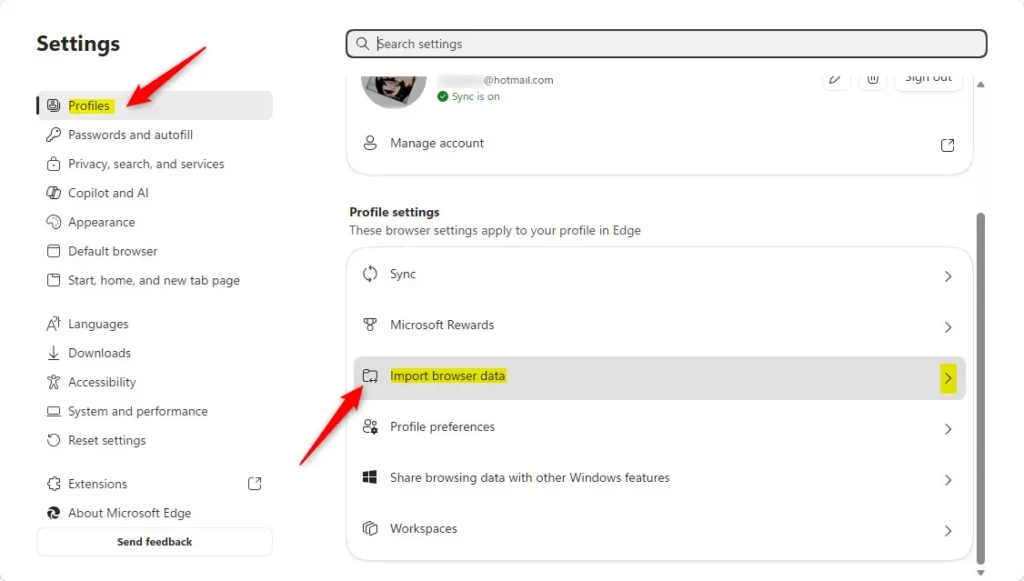
In Edge’s settings, click ‘Profiles’ on the left side, then choose ‘Import browser data’ to find the section for bringing in your information from other browsers.
This opens a new area in your settings designed for moving data. Don’t worry if there seem to be many options; we’ll focus on what you need.
Step 3Choose to Import from a File
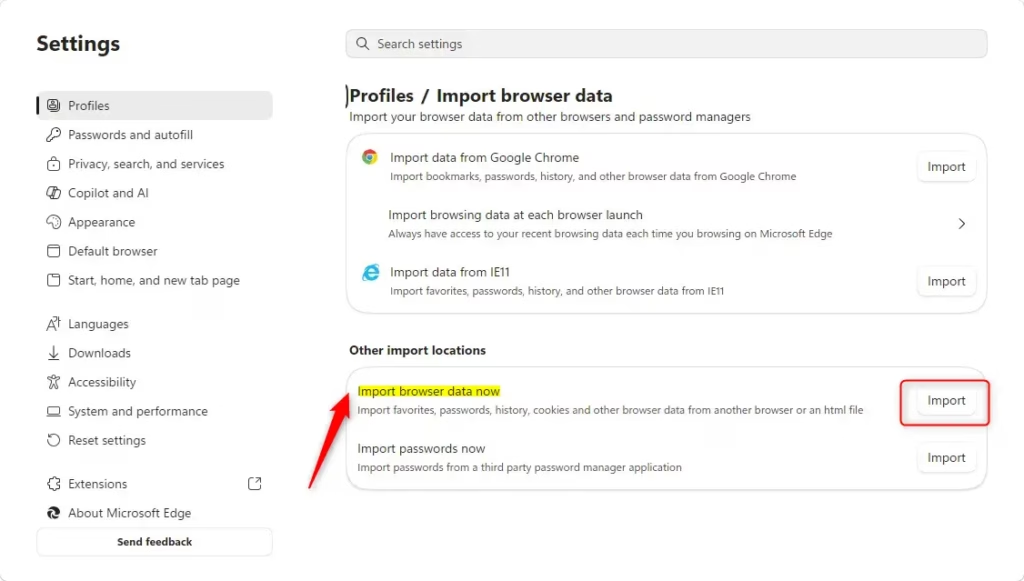
To import your edge passwords or other data, look for the option to import from a file, often under ‘Other import locations’, and click the button to start the process.
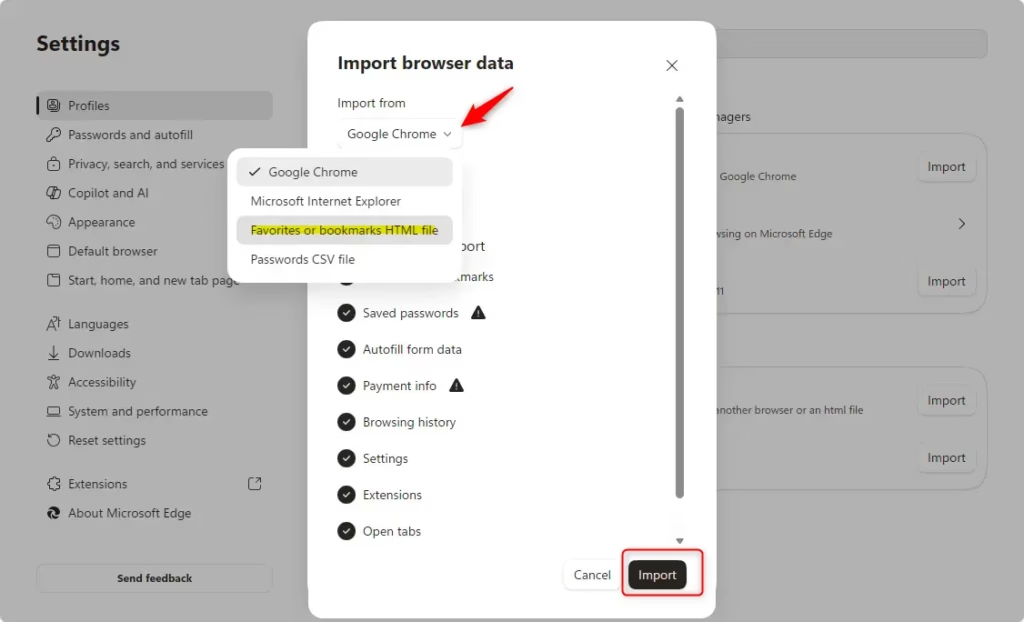
A new set of choices will appear. Here, you tell Edge what kind of file you have. You will see a dropdown menu, usually labeled ‘Import from’. Use this to choose if you are importing favorites, passwords, or other types of data.
Step 4Select Your Favorites or Passwords File
Choose ‘Passwords CSV file’ from the dropdown if you’re importing your passwords, then click ‘Choose file’ to open your computer’s file explorer and find the correct file.
After you choose the type, you will see a ‘Choose file’ button. Click this button. Your computer’s file explorer will open, letting you look through your files. Find the file you saved from your old browser or wherever you created it.
Click on the correct HTML file for your favorites or the CSV file for your passwords. Then, click the ‘Open’ button in the file explorer window. Edge will then start reading and importing the information from that file.
Step 5Confirm and Finish the Import
After you select your file and click ‘Open’, Microsoft Edge will import your data, showing an ‘Import successful’ message before you click ‘Done’ to finish.
When you see that message, click the ‘Done’ button. Your imported favorites will now be in Microsoft Edge. They’ll often appear in a new folder on your Favorites bar, possibly named ‘Imported’ or the name of the browser you imported from. This makes them simple to find and organize.
If you imported passwords, they will be added to your saved passwords in Microsoft Edge. You can manage them in Edge’s password settings.
Managing Your Imported Passwords
You can manage your saved edge passwords by going to Settings > Profiles > Passwords, where you can easily view, edit, or delete any passwords you’ve imported.
Here, you will see a list of all your saved passwords. You can search for specific ones, change saved details, or delete any you don’t need anymore. It’s a good idea to check your imported passwords to make sure they all came over correctly and to remove any old or repeated ones.
Reference:
https://support.microsoft.com/en-us/edge/import-your-favorites-and-passwords-in-microsoft-edge
Summary
Importing your favorites and passwords into Microsoft Edge brings all your important online information together, making it your main browser with favorites in a new folder and passwords ready to use.
What happens when done? Your saved websites will appear in a new folder in Edge’s favorites, and your passwords will be saved and ready to use for logging into websites. You can then organize these items to your liking.
How do I import passwords from Microsoft Edge?
To import passwords into Microsoft Edge, go to Settings, then Profiles, and select ‘Import browser data’. Choose ‘Passwords’ and select ‘CSV file’ as the source. Click ‘Choose file’ to select your CSV file containing the passwords and then click ‘Open’.
How do I transfer my Microsoft Edge passwords to a new computer?
To transfer your Microsoft Edge passwords to a new computer, first export them from your current computer as a CSV file via Edge’s settings (Profiles > Import browser data > Passwords > Choose file). Then, import this CSV file into Edge on your new computer using the same process.
How do I import Edge bookmarks and passwords to another computer?
To import Edge bookmarks and passwords to another computer, export them from your current PC as an HTML file (for bookmarks) and a CSV file (for passwords) via Edge settings. Then, on the new computer, use the ‘Import browser data’ option in Edge settings to import these files.
Can I import saved passwords from Edge to Chrome?
Yes, you can import saved passwords from Microsoft Edge to Chrome. First, export your passwords from Edge as a CSV file. Then, open Chrome, go to Settings, select ‘Autofill and passwords’, click ‘Password Manager’, and choose ‘Import’ to upload your CSV file.
Was this guide helpful?

About the Author
Richard
Tech Writer, IT Professional
Richard, a writer for Geek Rewind, is a tech enthusiast who loves breaking down complex IT topics into simple, easy-to-understand ideas. With years of hands-on experience in system administration and enterprise IT operations, he’s developed a knack for offering practical tips and solutions. Richard aims to make technology more accessible and actionable. He's deeply committed to the Geek Rewind community, always ready to answer questions and engage in discussions.



No comments yet — be the first to share your thoughts!