How to Turn on Internet Explorer Mode in Microsoft Edge

Need to access older websites or apps that don’t work in modern browsers? Here’s how to turn on Internet Explorer Mode in Microsoft Edge.
Internet Explorer Mode is a built-in feature in Microsoft Edge. It uses the Internet Explorer 11 rendering engine (the technology that displays web pages), so you can open specific websites as if you were still using the older browser.
This is especially useful for older internal company tools or websites that may not work correctly in modern browsers. You can even tell Edge to automatically open certain URLs in this compatibility mode, ensuring you can still get to those essential resources without needing to install the discontinued Internet Explorer 11.
Open Microsoft Edge, go to Settings, then Default browser, and select “Allow” for “Allow sites to be reloaded in Internet Explorer mode.” Restart Edge for the changes to take effect.
Why You Might Need Internet Explorer Mode
You might need Internet Explorer mode in Edge if you’re trying to visit an old company website or use an older software program that doesn’t work with modern browsers.
Turning On Internet Explorer Mode in Microsoft Edge
First, you need to allow Internet Explorer mode in your Microsoft Edge settings. This tells Edge you want the option to open some pages using IE’s original method. It’s a setting that unlocks a powerful feature.
Open Microsoft Edge and Go to Settings
Start by opening Microsoft Edge. Look for the three dots (…) in the top-right corner of the browser window. Click these dots to open the menu. Then, choose “Settings.”
Go to the Default Browser Section
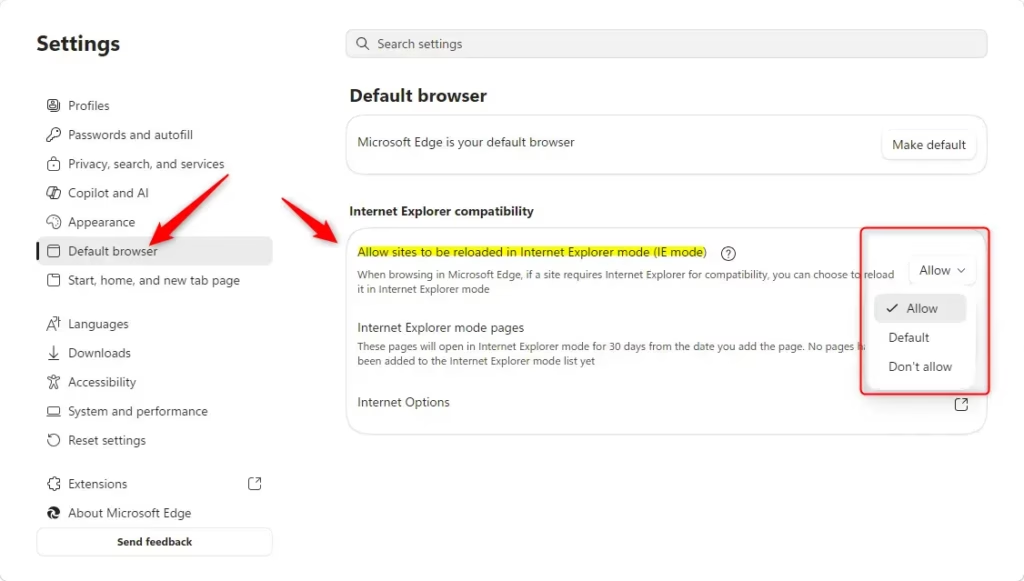
In the Settings menu, you’ll see a list on the left side. Click on “Default browser.” This is where you control how Edge works with other browsers and how it handles compatibility.
Allow Sites to Reload in Internet Explorer Mode
Now, find the section called “Internet Explorer compatibility.” You’ll see a dropdown menu that says “Allow sites to be reloaded in Internet Explorer mode.” Click this menu and choose “Allow.” This is the crucial step to turn on the feature.
Restart Microsoft Edge
To make the changes work, you need to close and reopen Microsoft Edge. Close all Edge windows. Then, open the browser again. You’ll know the setting is active when you see the option to reload pages in IE mode later.
How to Open a Specific Website in Internet Explorer Mode
After you turn on Internet Explorer mode in your settings, you can start using it for the websites that need it. There are a few ways to do this, depending on if you use a personal computer or a work device.
For Personal Devices or When IE Mode is Fully Enabled
You can easily turn on Internet Explorer mode in Edge for specific websites on your personal computer if your company hasn’t blocked it.
Navigate to the Website
Open Microsoft Edge and go to the exact web address (URL) of the site you need to see in Internet Explorer mode. Make sure the page has finished loading.
Access Edge’s Settings Menu
Click the three dots (…) in the top-right corner of the Edge window to open the main menu.
Find the “Reload in Internet Explorer Mode” Option
In the menu that appears, you should now see an option that says “Reload in Internet Explorer mode.” Click it.
Important Note: If you’re using a very new version of Edge (version 141 or newer), the steps are a bit different. Go to Settings, then ‘Default browser.’ Under ‘Internet Explorer compatibility,’ look for ‘Internet Explorer mode pages.’ Click ‘Add’ and type the web address (URL) you want to open in IE mode. After adding it, reload the page, and it should open correctly.
Tip: If you are using an older version of Edge (92 or earlier), the option might be under “More tools” before you see “Reload in Internet Explorer Mode.”
Confirm the Website is Loading Correctly
The page will reload. You should now see a small IE icon in the address bar. This shows it is running in Internet Explorer mode. Check the site to make sure everything works as it should.
For Enterprise Devices or When Your Organization Manages IE Mode
On a work computer, your IT department usually manages Internet Explorer mode in Edge, automatically opening a list of approved sites.
Navigate to the Website
Go to the website your company has set up for IE mode. You usually don’t need to do anything special yourself.
Look for the “Reload in Internet Explorer Mode” Option
Once the page loads, click the three dots (…) in the top-right corner of Edge. You should see the “Reload in Internet Explorer mode” option. If you don’t see it, and the site isn’t working, it might not be on your company’s approved list. Or, your company’s rules might not let sites not on the list run in IE mode. In this case, you need to talk to your IT department.
Warning: As mentioned before, if your computer is managed by your company, the setting “Allow sites to be reloaded in Internet Explorer mode” might be greyed out. The “Reload in Internet Explorer mode” option will only show up if your company has set rules to allow it. This could be through the Enterprise Site List or by letting unlisted sites run in IE mode.
Exiting Internet Explorer Mode
When you’re done with a website that was running in Internet Explorer mode, you’ll want to go back to normal browsing. It’s usually pretty simple.
Look for the Information Bar
When a site is in IE mode, you will usually see a message bar at the top of the browser window. It might say something like, “This site is running in Internet Explorer mode.”
Click “Leave”
To stop using Internet Explorer mode for a tab in Edge, simply click the “Leave” button that shows up on the message bar.
Tip: If you don’t see the “Leave” button, you can always close the tab that is in IE mode. Then, open a new tab in Microsoft Edge. The new tab will be in standard Edge mode automatically.
Reference:
https://support.microsoft.com/en-us/edge/internet-explorer-mode-in-microsoft-edge
Summary
Internet Explorer mode in Edge helps you access older websites that don’t work with new browsers, and you can turn it on in Edge settings under ‘Default browser’.
How do I go to Internet Explorer mode in Edge?
To use Internet Explorer mode in Edge, first go to Edge settings and find ‘Default browser,’ then under ‘Internet Explorer compatibility,’ select ‘Allow’ for ‘Allow sites to be reloaded in Internet Explorer mode.’
How to permanently enable IE mode in Edge?
To permanently enable IE mode in Edge, go to Settings > Default browser. Under ‘Internet Explorer compatibility’, choose ‘Allow’ for ‘Allow sites to be reloaded in Internet Explorer mode’. You can then add specific websites to the list that will always open in IE mode automatically.
Why is Edge in Internet Explorer mode?
Edge is in Internet Explorer mode to ensure compatibility with older websites or internal applications that were designed for the legacy Internet Explorer browser. This mode emulates the IE11 rendering engine, allowing these outdated resources to function correctly within the modern Microsoft Edge browser.
How to get out of Internet Explorer mode in Edge?
You can get out of Internet Explorer mode in Edge by simply closing the tab that’s in IE mode, or by disabling the feature entirely in Edge settings.
Was this guide helpful?

About the Author
Richard
Tech Writer, IT Professional
Richard, a writer for Geek Rewind, is a tech enthusiast who loves breaking down complex IT topics into simple, easy-to-understand ideas. With years of hands-on experience in system administration and enterprise IT operations, he’s developed a knack for offering practical tips and solutions. Richard aims to make technology more accessible and actionable. He's deeply committed to the Geek Rewind community, always ready to answer questions and engage in discussions.



No comments yet — be the first to share your thoughts!