
You can reset Microsoft Edge to its default settings on Windows 11 by navigating through the browser’s settings menu.
Resetting Microsoft Edge returns its settings to their original state. This clears out accumulated data and problematic configurations (settings that aren’t working right) that can cause slowdowns or crashes. This process works well to troubleshoot issues like persistent unwanted ads or browser hijacking malware.
When you reset Edge, it clears your browsing cache, cookies, and disables installed extensions. This can fix a lot of bugs that slow down your browser, like Edge running unexpectedly slow on Windows 11. While it will remove your open tabs and extensions, it keeps your bookmarks and passwords safe if you’re signed into your Microsoft account.
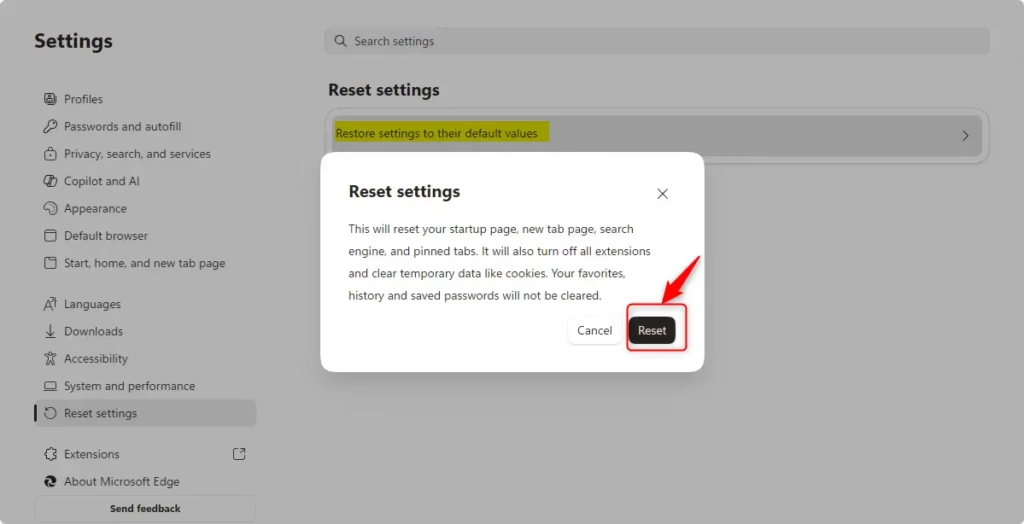
Open Microsoft Edge, go to Settings, then Reset settings, and select Restore settings to their default values. Click Reset to confirm. This clears cache, cookies, and disables extensions, restoring Edge to its original state.
How to Back Up Your Edge Profile Before a Hard Reset
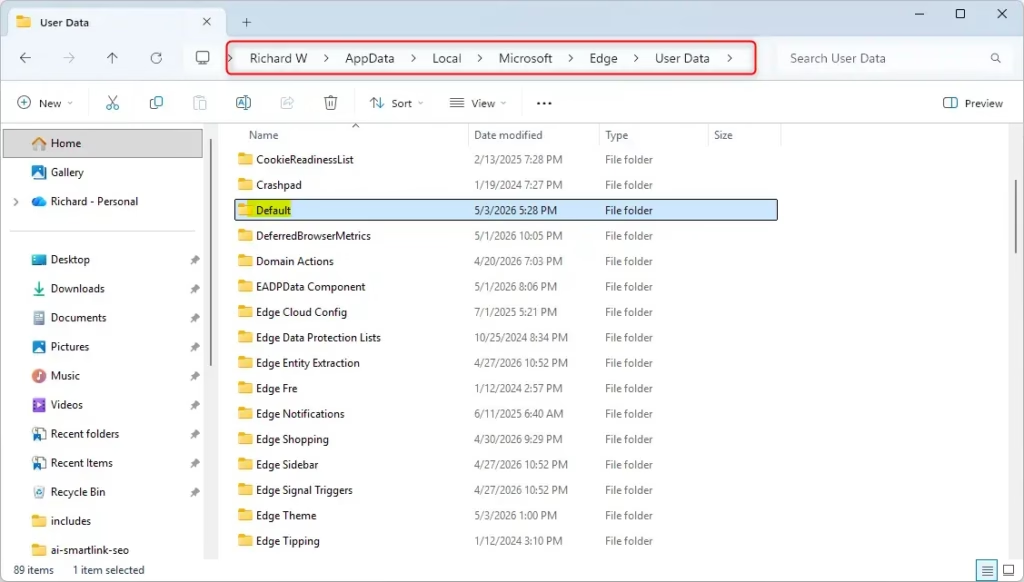
Pro Tip: Back up your data before performing a hard reset. Go to %localappdata%\Microsoft\Edge\User Data in your file explorer. Copy the Default folder to a safe place like your desktop. This ensures you have a backup if something goes wrong.
How to Reset Microsoft Edge to Default Settings: The Standard Method
This is generally the safest way to fix most problems.
- Open Microsoft Edge.
- Click the three dots (…) in the top-right corner.
- Go to Settings.
- Click Reset settings on the left.
- Select Restore settings to their default values.
- Click Reset to confirm.
Hard Reset by Deleting Local Data
If the normal reset options don’t fix Microsoft Edge, you can do a hard reset by deleting its local data folder.
- Close all Edge windows.
- Press Windows Key + R.
- Type
%localappdata%\Microsoft\Edge\User Dataand press Enter. - Find the Default folder and delete it.
- Open Edge again to let it create a fresh folder.
Resetting via PowerShell and Command Line
For advanced users, PowerShell (a command-line tool for advanced users) can be used to clear browser data. Requires Administrator Privileges:
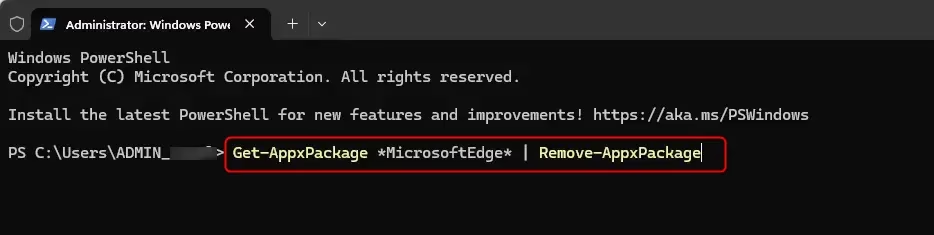
- Right-click the Start button and select Terminal (Admin).
- Type
Get-AppxPackage *MicrosoftEdge* | Remove-AppxPackageand press Enter. - Restart your computer to reinstall the browser.
Repairing Edge via Windows Settings
Repairing Edge via Windows Settings: Windows 11 includes a built-in repair tool. Requires Administrator Privileges:
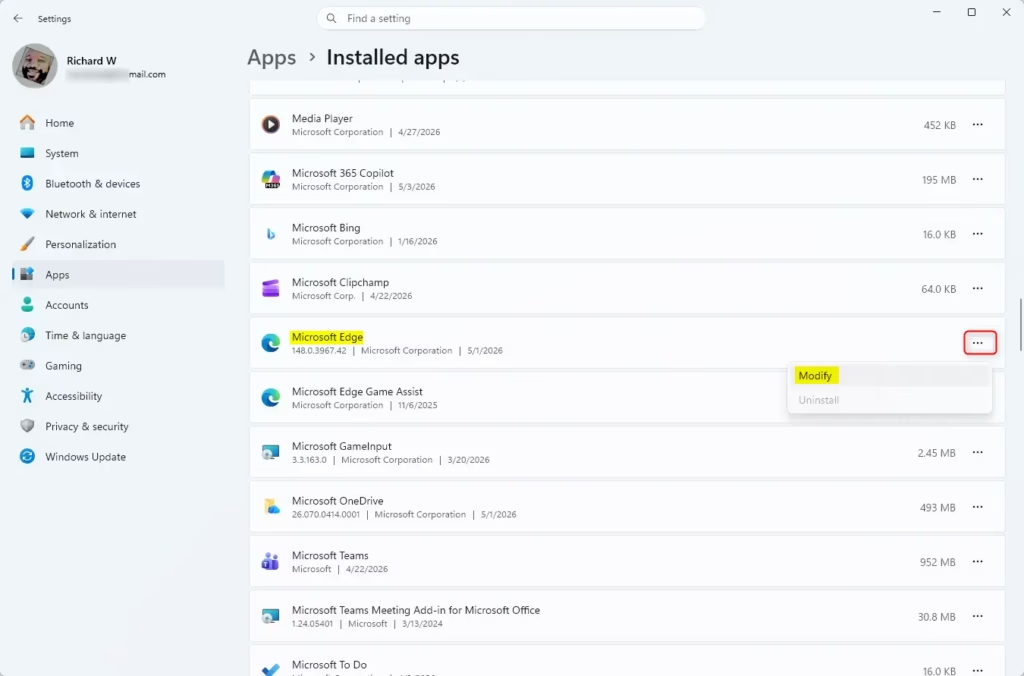
- Go to Settings > Apps > Installed apps.
- Find Microsoft Edge.
- Click the three dots and select Modify.
- Click Repair.
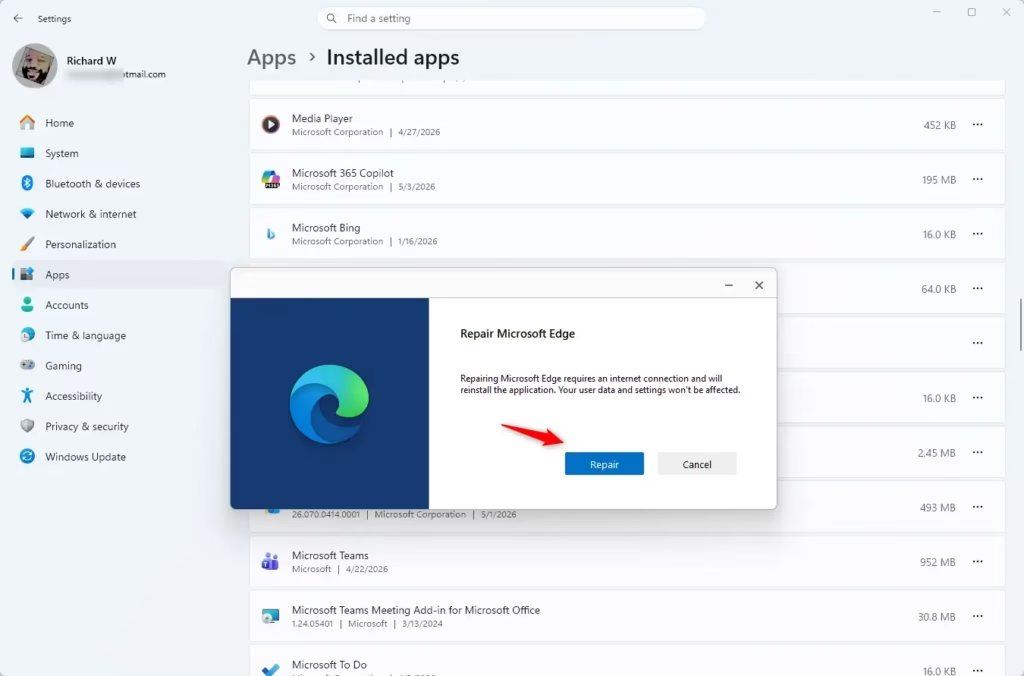
Checking for Registry-Level Hijacks
Checking for Registry-Level Hijacks: If your settings are locked, you should check the registry (a database of settings for Windows). Requires Administrator Privileges:
- Press Windows Key + R, type
regedit, and hit Enter. - Go to
HKEY_LOCAL_MACHINE\SOFTWARE\Policies\Microsoft\Edge. - Delete any suspicious entries.
Does resetting Edge remove my saved passwords?
No. If you are signed into your Microsoft account and have sync enabled, your passwords are saved in the cloud. Once you sign back in after the reset, your passwords will automatically sync back to your browser. If you are not signed in, please export them first.
Why does Edge keep reverting to old settings after a reset?
This often happens because your Microsoft account syncs your old settings back to the browser as soon as you sign in. To fix this, turn off sync before resetting, or check for malicious extensions and registry policies that might be forcing the browser to keep old, unwanted configurations.
Summary
Resetting Microsoft Edge can fix problems by clearing out old or bad data, and you can do this using the browser’s reset button, Windows’ repair tool, or by manually deleting the User Data folder.
Was this guide helpful?
0% of readers found this helpful (3 votes)

About the Author
Richard
Tech Writer, IT Professional
Richard, a writer for Geek Rewind, is a tech enthusiast who loves breaking down complex IT topics into simple, easy-to-understand ideas. With years of hands-on experience in system administration and enterprise IT operations, he’s developed a knack for offering practical tips and solutions. Richard aims to make technology more accessible and actionable. He's deeply committed to the Geek Rewind community, always ready to answer questions and engage in discussions.




No comments yet — be the first to share your thoughts!