
Many people using Windows 11 find that Microsoft Edge runs slowly. This makes browsing the web annoying. Websites take a long time to load. Videos might freeze or skip. Some browser tabs might stop responding. This sluggishness can make even basic web browsing feel like a chore.
The good news? Most of these slowdowns are fixable. You don’t need to be a tech wizard or buy any new software. Below are ten ways to fix it. Some are simple, like restarting Edge. Others are a bit more involved, like clearing out old temporary files. Start with the first fix and try the others if needed until your browser runs faster.
Restart Microsoft Edge completely by closing all windows and reopening it. Update Edge to the latest version via the “Help and feedback” > “About Microsoft Edge” menu. Disable unused extensions from the “Extensions” menu to free up resources.
Why Does Microsoft Edge Slow Down?
Microsoft Edge might be running slow because you have too many browser add-ons installed, or because old temporary files and cookies are cluttering up your computer.
- Too many add-ons: Browser add-ons are small programs that add features. They run in the background and use your computer’s memory and power. Having too many can slow down your computer and Edge.
- Old temporary files and cookies: Edge saves temporary files (called cache) to make websites load faster. Over time, this cache can become very large or get corrupted. Bad cookies can also cause issues.
- Graphics settings: Your computer uses graphics power to show web pages. Sometimes, this feature can cause problems and actually slow things down instead of speeding them up.
- Too many open tabs: Every open tab uses memory. If you have many tabs open, your computer has to work much harder.
- Outdated browser version: Microsoft regularly releases updates for Edge. These updates fix problems, improve speed, and fix security issues. Using an old version means you miss out on these improvements.
- Tracking prevention settings: This feature helps protect your privacy by blocking websites from tracking you. However, if it’s set too strictly, it can slow down how quickly pages load.
Now that you know what might be causing the problem, let’s fix it.
Solution 1: Restart Microsoft Edge Completely
Completely restarting Microsoft Edge is a quick fix that often solves speed problems by clearing its memory.
How to restart Edge:
- Close all Edge windows. Make sure they are fully closed, not just minimized.
- Wait for five seconds.
- Click the Windows Start button.
- Type “Microsoft Edge” in the search bar.
- Click the Edge icon to open it again.
After restarting, try visiting a few websites to see if your browsing speed has improved.
Solution 2: Update Microsoft Edge to the Latest Version
Keeping Microsoft Edge updated is key because new versions often fix speed issues and make the browser work better overall.
How to update Edge:
- Open Microsoft Edge.
- Click the three dots (Menu) in the top-right corner.
- Select “Help and feedback.”
- Click “About Microsoft Edge.”
Edge will automatically check for updates and install them. You might need to restart Edge after the update.
The version number will be shown on this page. After updating, check the version number again to make sure it has changed.
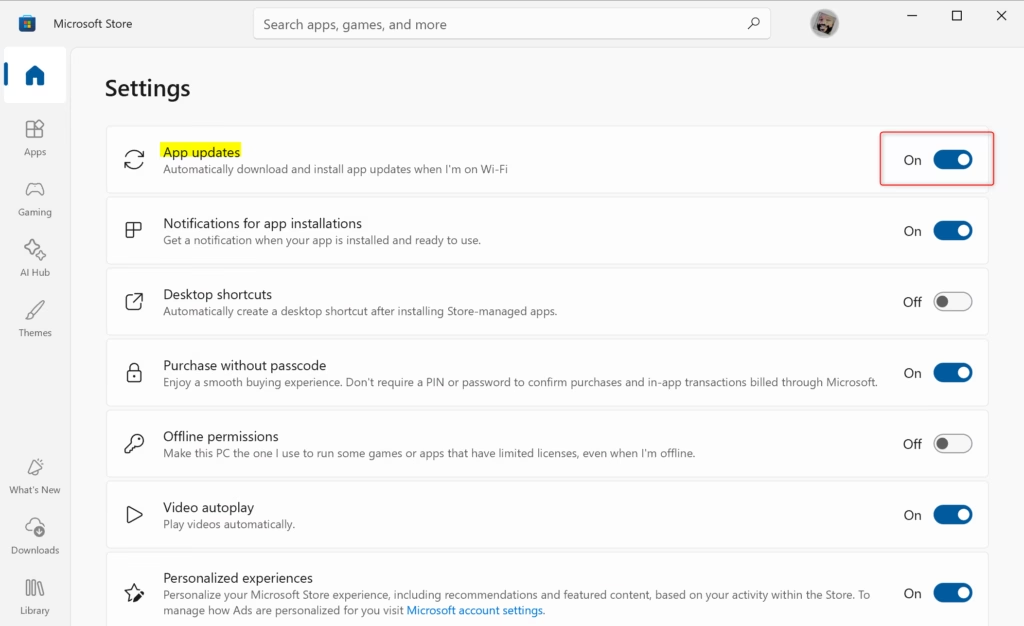
You can also update Edge through the Microsoft Store app if the manual method doesn’t work:
- Click the Windows Start button.
- Type “Microsoft Store” and open it.
- Click your profile icon in the top-right corner.
- Select “App settings.”
- Turn on “Update apps automatically.”
Alternatively, search for “Microsoft Edge” in the Store and click the “Update” button if it’s available.
Solution 3: Disable Extensions That You Don’t Use
You can speed up Microsoft Edge by turning off extensions you don’t use, as these add-ons use your computer’s power in the background.
How to manage extensions in Edge:
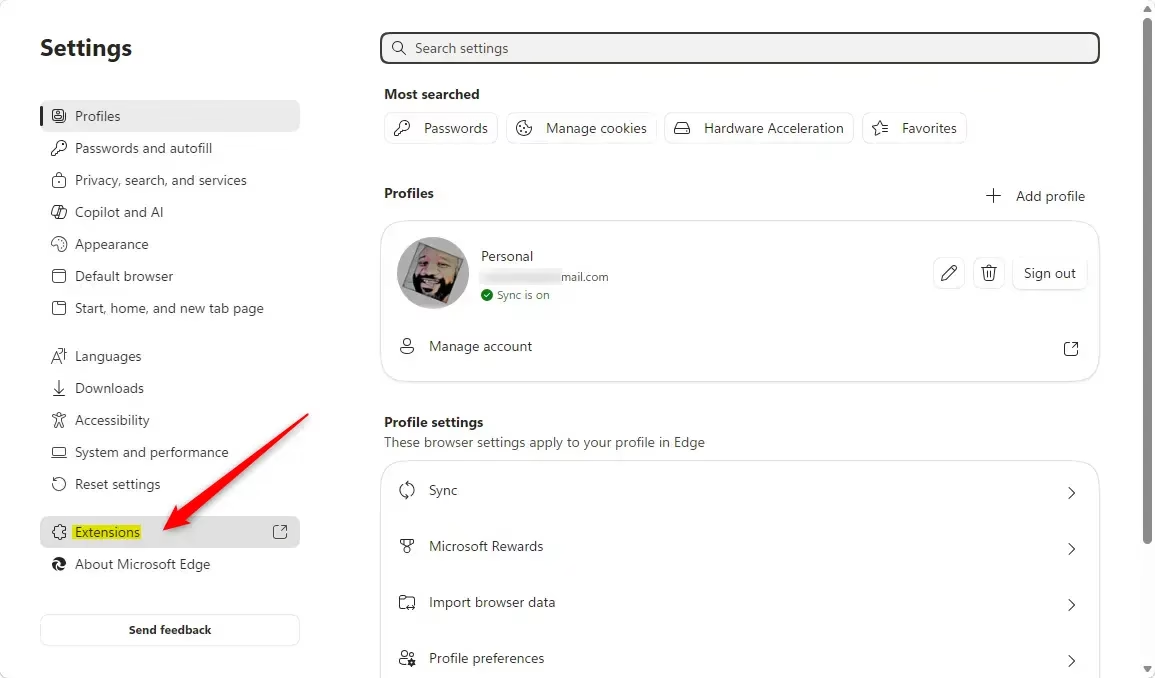
- Open Microsoft Edge.
- Click the three dots (Menu) in the top-right corner.
- Select “Extensions.”
- Click “Manage extensions.”
You will see a list of all your installed add-ons. For any add-on you don’t use regularly, click the switch next to it to turn it off. You can turn them back on later if you need them.
Try turning off add-ons one by one. After disabling an add-on, check your browsing speed. If the speed improves, you’ve found the problem add-on. If disabling an add-on doesn’t change anything, turn it back on and try the next one.
Some common add-ons that can cause slowness are:
- Antivirus add-ons (they check every webpage).
- VPN add-ons (they send your internet traffic through an encrypted connection).
- Multiple ad blockers running at the same time.
- Password managers (though good ones are usually efficient).
- Price comparison tools (they check product prices on shopping sites).
A good rule is: if you haven’t used an add-on in a month, turn it off. You can always turn it back on if you change your mind.
Solution 4: Clear Cache and Cookies
Clearing out old cache and cookies in Microsoft Edge can fix slowdowns caused by bad files and also free up space on your computer.
How to clear cache and cookies:
- Open Microsoft Edge.
- Press Ctrl+Shift+Del on your keyboard. This opens the “Clear browsing data” window.
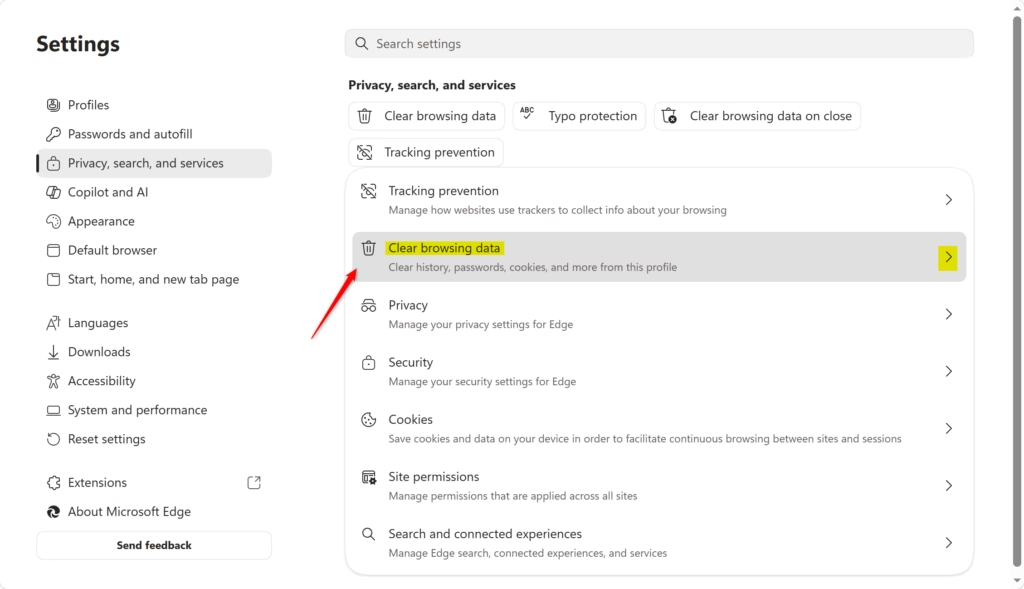
- Alternatively, click the three dots (Menu), then select “Settings.”
- Click “Privacy, search, and services” on the left side.
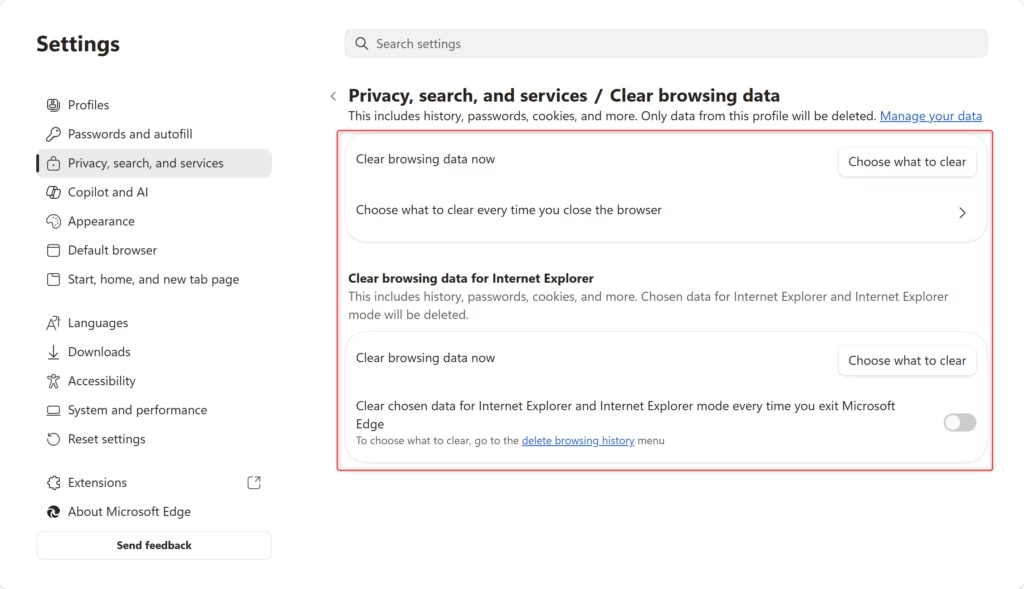
- Under “Clear browsing data,” click “Choose what to clear.”
- A small window will appear.
- Check the boxes for “Cookies and other site data” and “Cached images and files.”
- In the “Time range” dropdown menu, select “All time” to clear everything.
- Click “Clear now.”
Websites might load a little slower the first time you visit them after clearing, as Edge needs to download the files again. However, subsequent visits will be faster. Your overall browsing speed should improve within a day or two.
Important: Clearing cookies will sign you out of most websites. You will need to log back into sites like your email, social media, and banking sites. This is normal.
Solution 5: Disable Graphics Acceleration
You can try turning off graphics acceleration in Microsoft Edge if it’s slow; this makes your computer’s main processor handle graphics instead of the graphics card.
How to disable graphics acceleration in Edge:
- Open Microsoft Edge.
- Click the three dots (Menu) in the top-right corner.
- Select “Settings.”
- Click “System and performance” on the left side.
- Scroll down and find the “Graphics acceleration” toggle.
- Click the toggle to turn it OFF. It should turn gray.
Restart Edge for the change to take effect.
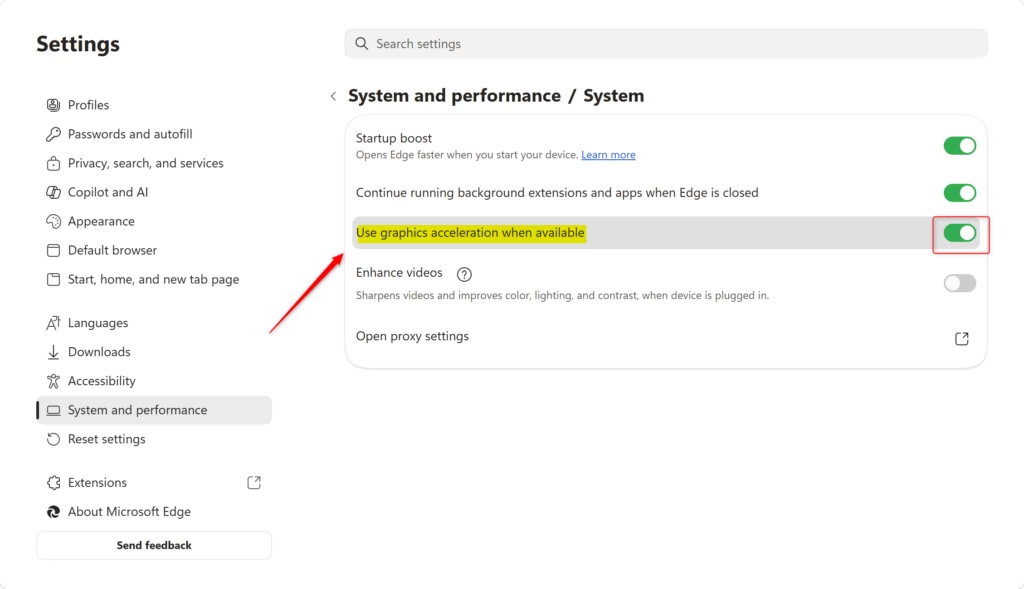
Test your browsing speed after turning off graphics acceleration. If Edge feels faster, leave it off. If you don’t see any improvement after a few hours, turn it back on and try the next solution.
Solution 6: Enable Efficiency Mode
Turning on Efficiency Mode in Microsoft Edge stops it from using too many computer resources, which helps other apps run better and makes your system feel faster.
How to enable Efficiency Mode:
- Open Microsoft Edge.
- Click the three dots (Menu) in the top-right corner.
- Select “Settings.”
- Click “System and performance” on the left side.
- Find “Efficiency mode” and click the toggle to turn it ON. It should turn blue.
You can also set it to turn on automatically when your battery level gets low.
Close and restart Edge.
You might not notice a big difference in browsing speed, but the benefit is that your computer will perform better overall, especially when it’s handling many tasks.
Solution 7: Disable Preloading the New Tab Page
Stopping Microsoft Edge from preloading new tabs can free up computer power and memory that it uses in the background, helping your tasks run faster.
How to disable preloading:
- Open Microsoft Edge.
- Click the three dots (Menu) in the top-right corner.
- Select “Settings.”
- Click “Start, home, and new tabs” on the left side.
- Scroll down and find “Preload new tab page for a faster experience.”
- Click the toggle to turn it OFF. It should turn gray.
Close and restart Edge.
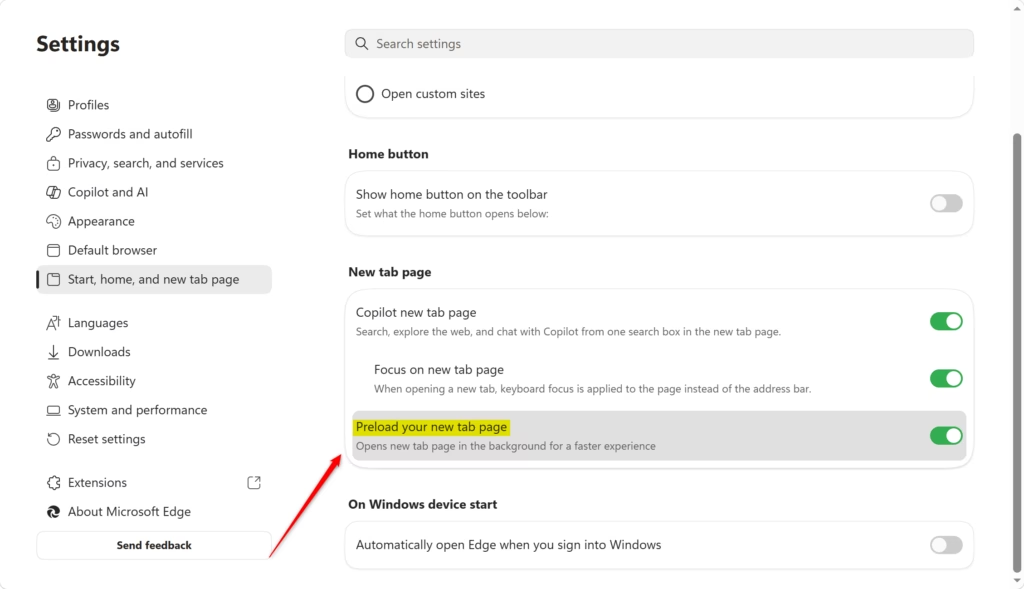
This is a small change, but when combined with other fixes, it can contribute to a noticeably faster browsing experience.
Solution 8: Switch Tracking Prevention to Basic
Changing Microsoft Edge’s tracking prevention to Basic can make pages load faster because it blocks fewer trackers than the Strict setting.
How to change tracking prevention:
- Open Microsoft Edge.
- Click the three dots (Menu) in the top-right corner.
- Select “Settings.”
- Click “Privacy, search, and services” on the left side.
- Under “Tracking prevention,” you will see three options: Balanced, Basic, and Strict.
- Click the “Basic” option. It should show as selected.
Close and restart Edge.
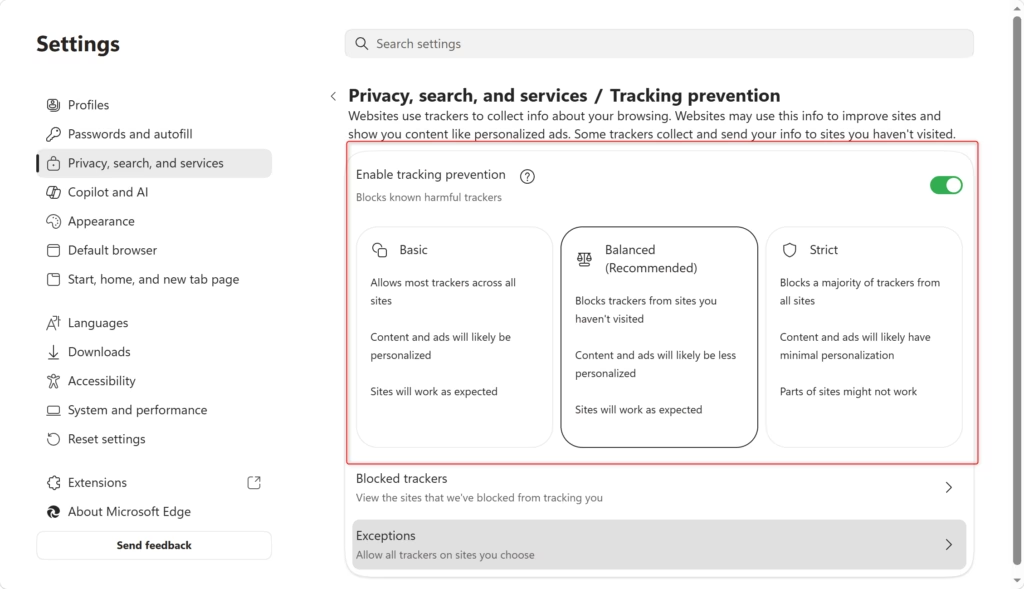
If some websites don’t load correctly when set to Basic, you can try switching to Balanced. If you need the highest level of privacy and don’t mind potential slowness, you can stay on Strict. The best setting depends on what’s most important to you.
Solution 9: Reset DNS and Clear Network Cache
Resetting your computer’s DNS and clearing its network cache can fix Microsoft Edge slowdowns that aren’t browser issues, but problems with how your computer finds websites.
Your computer keeps a list of website names and their corresponding internet addresses (that’s what DNS is). Over time, errors in this list can slow things down. Flushing this list clears it out, forcing your computer to get fresh address information.
How to clear DNS cache in Windows 11:
- Right-click the Windows Start button.
- Select “Windows Terminal (Admin).” This requires administrator privileges.
- Type the following command exactly:
- Press Enter.
You should see a message saying, “Successfully flushed the DNS Resolver Cache.”
Close the terminal window.
Restart Microsoft Edge.
If you don’t see “Windows Terminal (Admin),” you can use Command Prompt instead. Right-click the Windows Start button and look for “Command Prompt (Admin).” The word “Admin” means you have permission to make system changes.
- Right-click the Windows Start button.
- Type “Command Prompt” in the search box.
- Right-click on “Command Prompt” and select “Run as administrator.” This requires administrator privileges.
- Type the same command:
- Press Enter.
Close the window.
Solution 10: Reset Edge Settings to Default
Resetting Microsoft Edge settings back to how they were when you first installed it can fix slowdowns caused by custom settings that aren’t working right.
How to reset Edge:
- Open Microsoft Edge.
- Click the three dots (Menu) in the top-right corner.
- Select “Settings.”
- Click “Reset settings” on the left side.
- Click “Restore settings to their default values.”
- A confirmation pop-up will appear asking if you are sure.
- Click “Reset” to confirm.
Edge will restart automatically.
After the reset, Edge will look like a fresh installation. Your homepage and startup pages will change, and your theme might change. But performance often improves greatly. You can re-customize the settings afterward if you wish.
Advanced Solution: Check for Malware and Browser Hijackers
If your Microsoft Edge is still slow, you should check for malware or browser hijackers, as hidden harmful software can use up your computer’s resources.
How to scan for malware:
- Click the Windows Start button.
- Type “Windows Defender” or “Windows Security.”
- Click “Windows Security” to open it.
- Click “Virus & threat protection” on the left side.
- Click “Scan options.”
- Select “Full scan.”
- Click “Scan now.”
This scan can take anywhere from 30 minutes to a few hours, depending on how much data you have on your computer.
If threats are found, Windows Security will usually remove them automatically.
Restart your computer when prompted.
If Windows Defender doesn’t find anything, but you still suspect malware, you can download a program like Malwarebytes to help clean your computer.
Summary
If Microsoft Edge is running slowly on Windows 11, try restarting it, updating, disabling extensions, clearing cache, and adjusting settings like graphics acceleration or Efficiency Mode.
Was this guide helpful?

About the Author
Richard
Tech Writer, IT Professional
Richard, a writer for Geek Rewind, is a tech enthusiast who loves breaking down complex IT topics into simple, easy-to-understand ideas. With years of hands-on experience in system administration and enterprise IT operations, he’s developed a knack for offering practical tips and solutions. Richard aims to make technology more accessible and actionable. He's deeply committed to the Geek Rewind community, always ready to answer questions and engage in discussions.



No comments yet — be the first to share your thoughts!