How to Manage Microsoft Store App Updates in Windows 11

This article explains how to manage Microsoft Store app updates. You will learn how to turn automatic updates on or off and how to fix common problems.
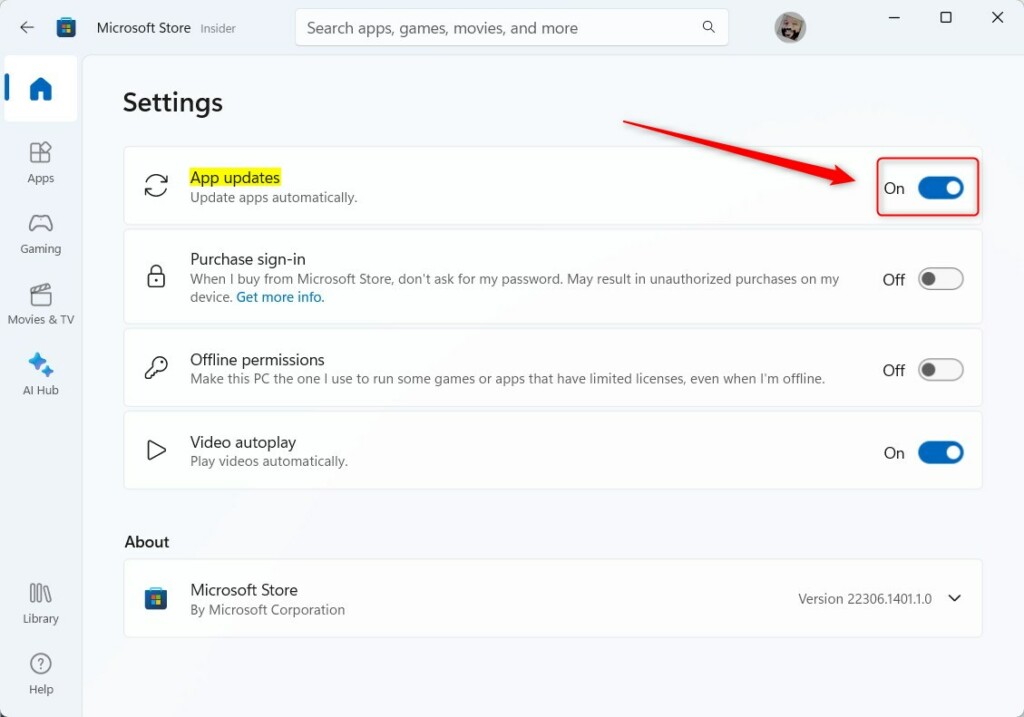
Turn automatic updates off in Microsoft Store settings by clicking your profile, selecting Settings, and toggling App updates. If updates fail, run wsreset.exe from the Run dialog to clear the cache.
Why Update Your Apps?
Updates fix bugs and security holes. They keep your computer safe. Why bother? Because outdated software is a hacker’s playground. When you update, your apps run better and stay secure.
What Are Microsoft Store Apps?
These are apps downloaded from the official Microsoft Store. They differ from traditional programs that use .exe files. By default, they update automatically. Some apps, however, use their own internal update systems instead of the Store.
Method 1Turn Off Updates in the Microsoft Store App
Here’s how to control updates directly in the Microsoft Store app.
- Open the Microsoft Store app.
- Click your profile picture in the top right.
- Select Settings.
- Click App updates.
- Toggle the switch to On or Off.
Troubleshooting Failed Updates
If your apps won’t update, try these steps to fix the Microsoft Store cache and common errors.
1Use the WSReset Command
The WSReset.exe tool clears the store cache without deleting your apps. This often fixes stuck updates.
- Press the Windows Key + R on your keyboard.
- Type
wsreset.exeand press Enter. - A blank window will appear. Wait for it to close automatically. The Store will then open.
2Run the Windows Update Troubleshooter
If the store still fails, use the official Windows Update Troubleshooter. This tool scans for issues with system services, like BITS (Background Intelligent Transfer Service), which handles background downloads.
Method 2Use the Group Policy Editor (Admin Only)
Stopping Microsoft Store app updates is possible using the Group Policy Editor if you have administrator rights, letting you manage updates for all users on your PC.
This method is for users comfortable with advanced settings and who need to manage updates for everyone on the PC.
- Press Windows Key + R, type
gpedit.msc, and press Enter. - Go to:
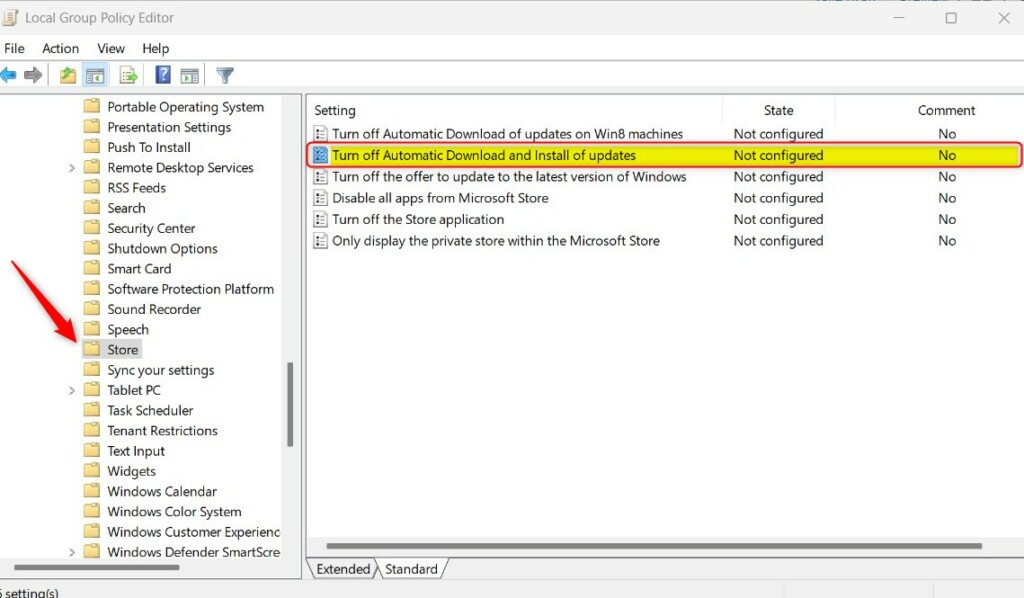
Computer Configuration\Administrative Templates\Windows Components\Store - Find Turn off Automatic Download and Install of updates.
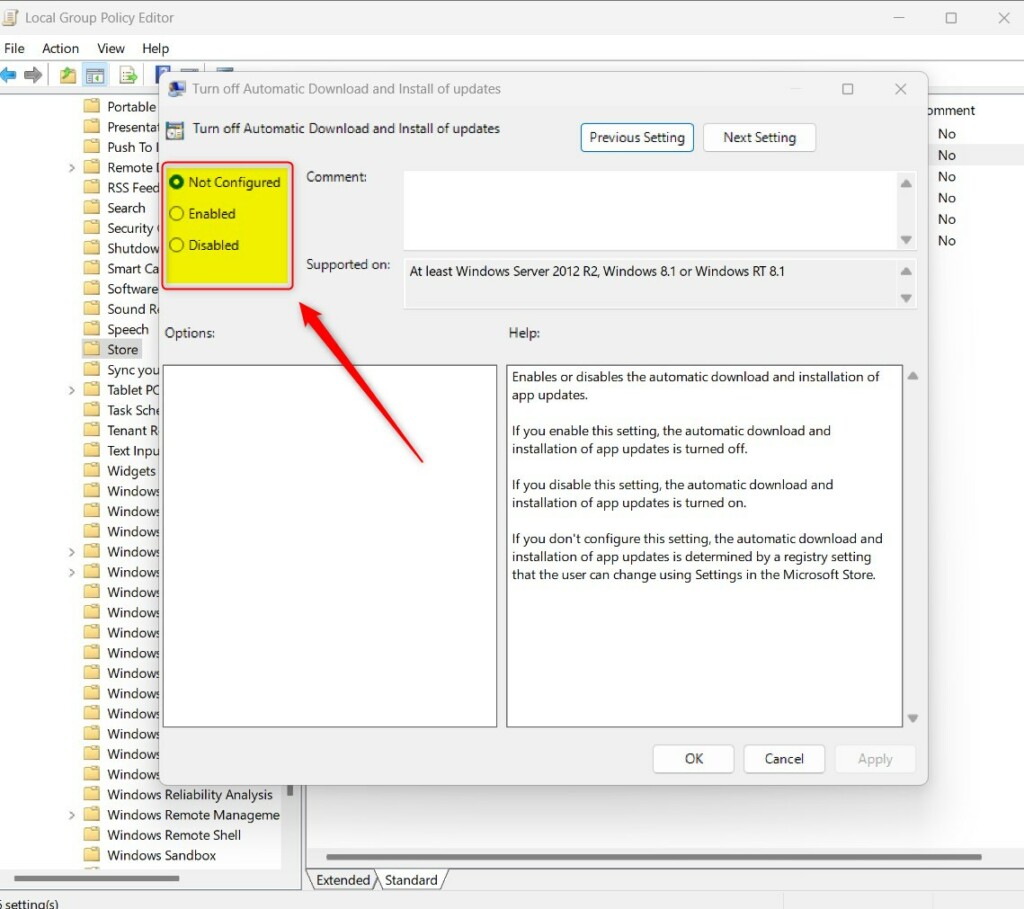
- Set it to Enabled to stop updates or Disabled to allow them.
Method 3Use the Registry Editor (Admin Only)
You can control Microsoft Store app updates using the Registry Editor if your computer doesn’t have the Group Policy Editor, as long as you have admin privileges.
Try this method if the Group Policy Editor isn’t available on your system.
- Press Windows Key + R, type
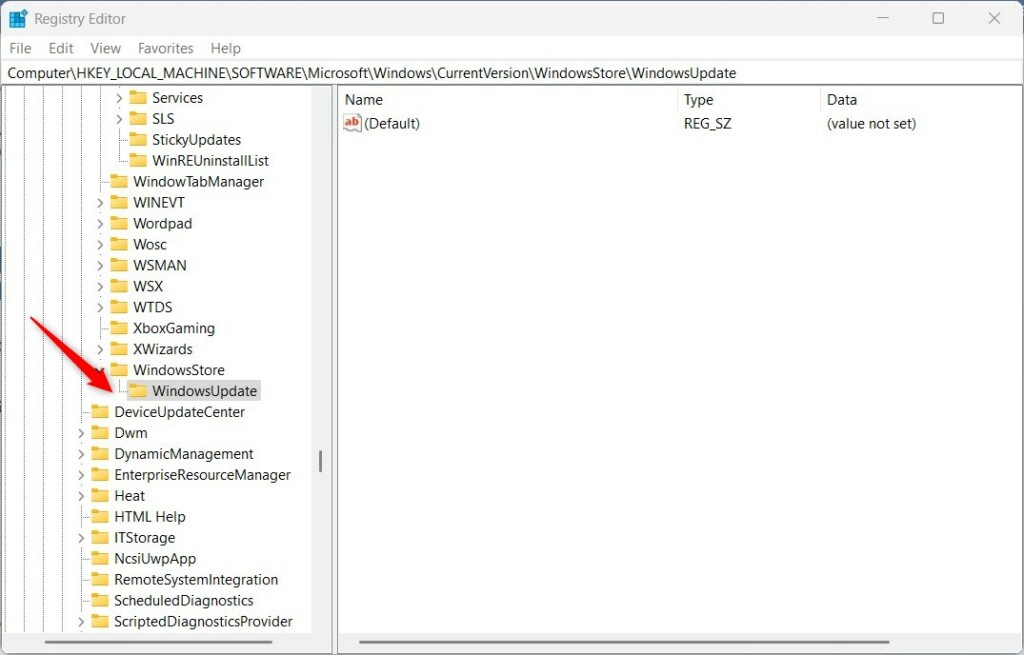
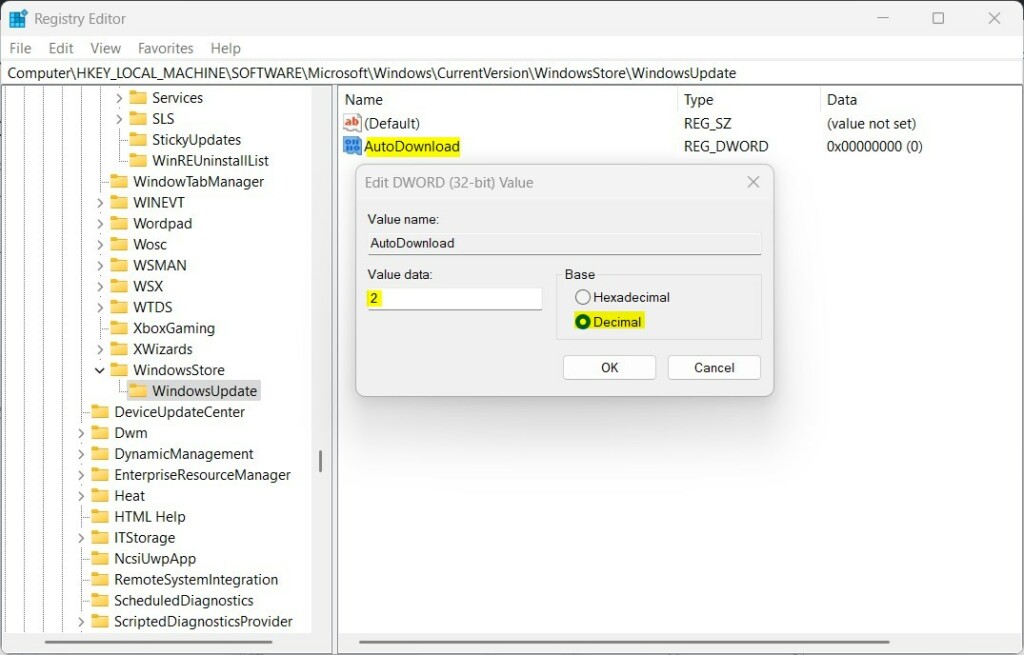
regedit, and press Enter. - Navigate to:
HKEY_LOCAL_MACHINE\SOFTWARE\Microsoft\Windows\CurrentVersion\WindowsStore\WindowsUpdate - Right-click, select New > DWORD (32-bit) Value, and name it
AutoDownload. - Set the value to 4 to stop updates or 2 to allow them.
Summary
Managing your Microsoft Store app updates gives you control over what gets installed and when, helping to keep your computer secure and running smoothly.
Why are my Microsoft Store apps stuck on pending?
Apps often get stuck on pending because of a corrupted cache or a stalled background service. This prevents the store from communicating with update servers. Clearing the store cache or restarting the Background Intelligent Transfer Service (BITS) usually fixes this issue and allows your downloads to resume normally.
How do I clear the Microsoft Store cache to fix update issues?
You can clear the cache by running the WSReset command. Press ⊞ Win+R, type wsreset.exe, and hit Enter. This clears temporary files that might be corrupt. Once the process finishes, the Microsoft Store will launch automatically, and you can try updating your apps again.
Was this guide helpful?

About the Author
Richard
Tech Writer, IT Professional
Richard, a writer for Geek Rewind, is a tech enthusiast who loves breaking down complex IT topics into simple, easy-to-understand ideas. With years of hands-on experience in system administration and enterprise IT operations, he’s developed a knack for offering practical tips and solutions. Richard aims to make technology more accessible and actionable. He's deeply committed to the Geek Rewind community, always ready to answer questions and engage in discussions.


No comments yet — be the first to share your thoughts!