How To Use Windows 11’s Built-in Antivirus (Microsoft Defender)

Microsoft Defender is the built-in antivirus software that protects your Windows 11 PC.
This powerful security solution comes pre-installed with Windows 11, offering real-time protection against viruses, malware, and other online threats without requiring any additional purchases.
You can easily manage and configure Microsoft Defender directly through the Windows Security app. This ensures you’re always aware of your system’s security status and can take action if needed.
Starting with Windows 11, Microsoft Defender benefits from continuous updates, providing robust defense against the latest cyber dangers.
Open Windows Security by searching for it in the Start Menu or accessing it via Settings > Privacy & security. Click “Virus & threat protection” to view your PC’s security status and manage scans. Defender protects your computer automatically in the background.
What is Microsoft Defender Antivirus?
Microsoft Defender Antivirus is your first line of defense against online threats. Think of it as a digital security guard for your computer. It’s included with Windows 11, so you don’t need to download or buy anything extra. Defender works quietly in the background, scanning files, detecting threats, and removing them. This helps keep your personal information safe and prevents your computer from slowing down or becoming unusable due to viruses.
Why Use Built-in Antivirus?
Why should you rely on Microsoft Defender? It’s already there and designed by Microsoft, the creators of Windows. This means it integrates perfectly with your operating system and gets automatic updates through Windows Update, ensuring it always has the latest information on new threats. Plus, it’s free, so you don’t have to pay a subscription fee. Many paid antivirus programs offer similar features, but Defender provides solid protection for most users and is efficient, meaning your PC can still run smoothly.
What Happens When Microsoft Defender is Active?
When Microsoft Defender is active, it’s constantly working to protect you. Here’s what it does:
- Real-time Protection: It scans files as you open them. It checks downloads before they save. It monitors applications as they run. If it finds anything suspicious, it stops it immediately.
- Scheduled Scans: Defender can be set to scan your entire computer regularly. This catches anything that might have slipped through.
- Virus & Threat Protection: This is the core. It identifies and removes viruses, malware, ransomware, spyware, and other malicious software.
- Firewall Protection: Defender works with the Windows Firewall. This controls network traffic. It blocks unauthorized access to your computer.
- Account Protection: It helps secure your Microsoft account login.
- Device Security: It can check for hardware security features.
- App & Browser Control: It adds an extra layer of security for apps and your web browsing.
Essentially, when Defender is active, your computer has a dedicated security system working 24/7, giving you peace of mind while you work, play, or browse online.
Accessing Microsoft Defender Antivirus
Microsoft Defender is part of the Windows Security app, where you manage all your security settings. It’s available to find and use.
Opening Windows Security
There are several ways to open the Windows Security app:
- From the Start Menu: Click the Start button. Type “Windows Security” in the search bar. Click on the “Windows Security” app when it appears in the results.
- From Settings: Click the Start button. Click on “Settings”. In the Settings window, click on “Privacy & security” in the left-hand menu. Then, click on “Windows Security”.
- Using the System Tray: Look for a shield icon in the system tray (the area near the clock on your taskbar). If you see it, click on it. If you don’t see it, you might need to click the small upward arrow to show hidden icons.
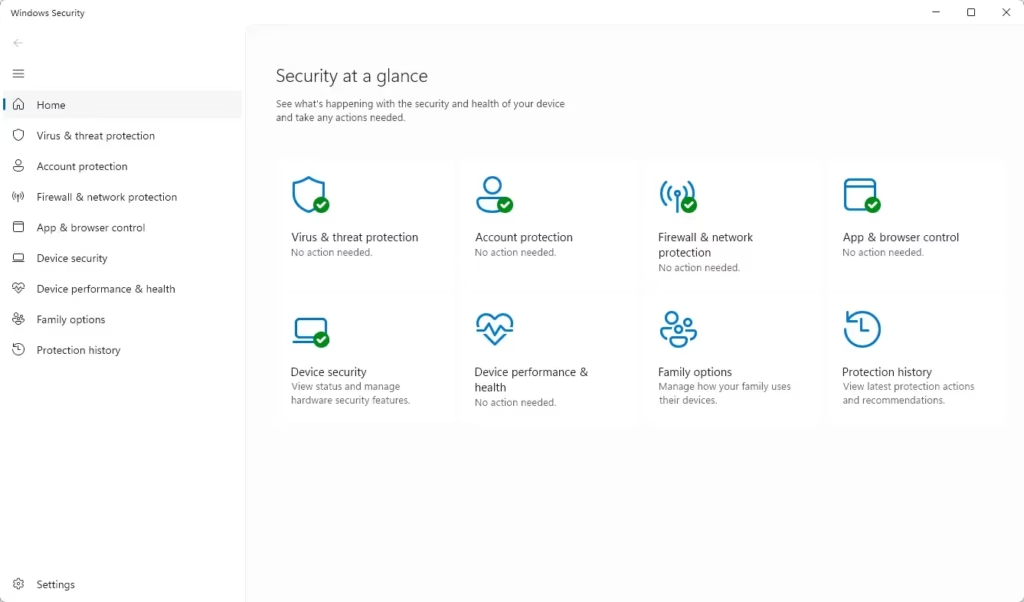
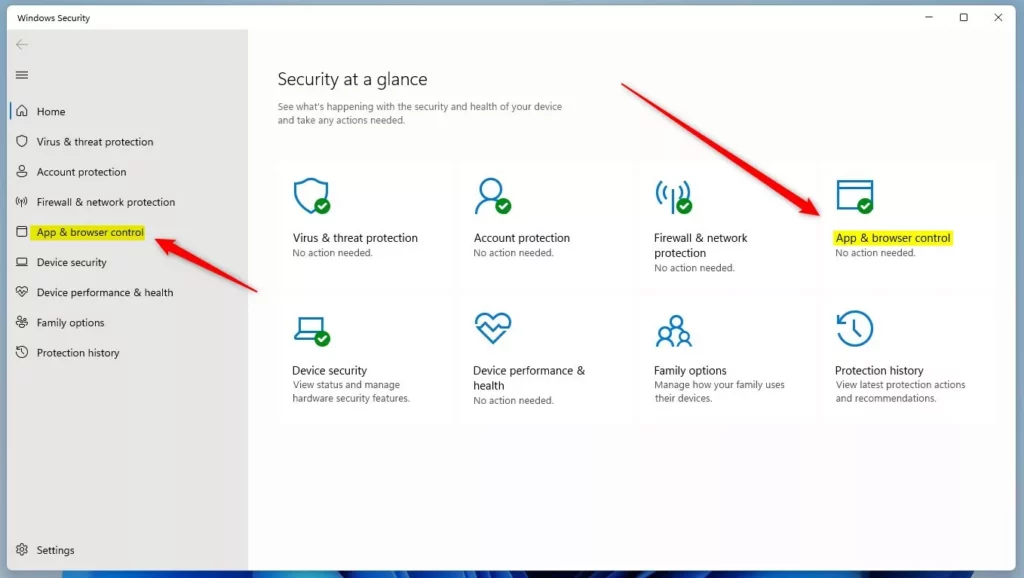
Once you open Windows Security, you’ll see a dashboard. This dashboard gives you an overview of your PC’s security status. You’ll see sections like “Virus & threat protection,” “Firewall & network protection,” and others.
Understanding the Windows Security Dashboard
The main dashboard of Windows Security is your control center. It uses green checkmarks to show that everything is okay. If there’s an issue, you’ll see a yellow triangle or a red circle with an X, which immediately tells you where to look for problems.
- Virus & threat protection: This is the most important section for antivirus.
- Firewall & network protection: Manages your network security.
- Account protection: Helps secure your sign-in options.
- App & browser control: Protects against potentially unwanted apps and malicious sites.
- Device security: Checks for advanced security hardware.
- Device performance & health: Looks for issues with your PC’s performance and storage.
- Family options: Links to Microsoft Family Safety features.
For antivirus, you will focus mainly on the “Virus & threat protection” area.
Using Microsoft Defender’s Virus & Threat Protection
This is where the real action happens. Microsoft Defender Antivirus actively scans for and removes threats. Here’s how to use it.
Checking Your Protection Status
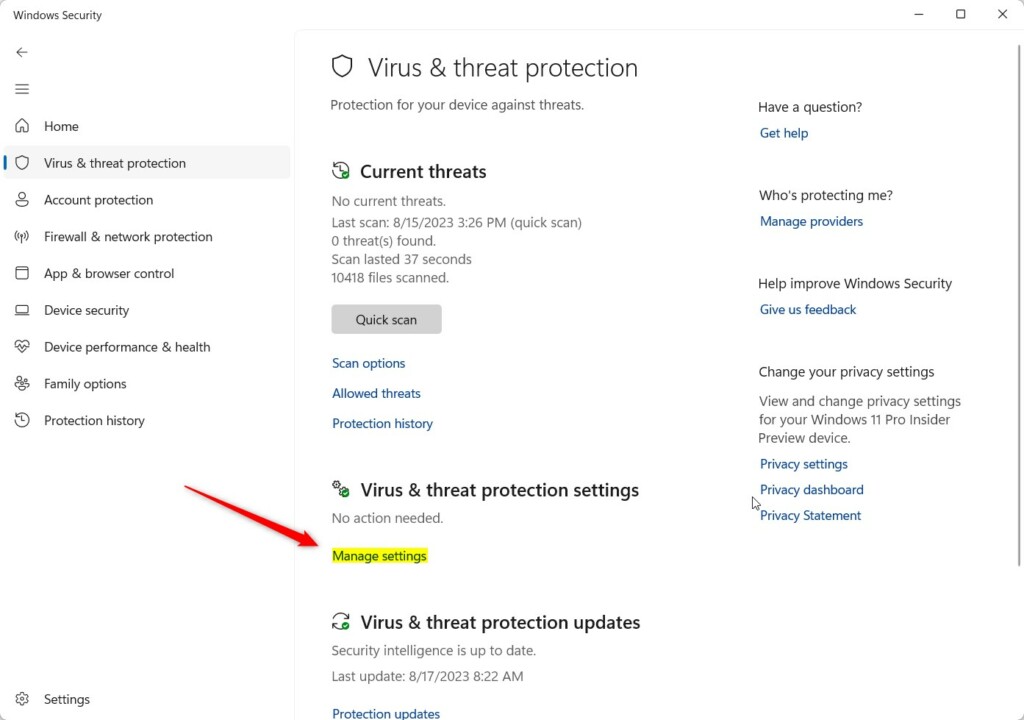
When you click on “Virus & threat protection” in the Windows Security dashboard, you’ll see the status of your antivirus.
- Open Windows Security.
- Click on Virus & threat protection.
You will see a section called “Virus & threat protection settings”. Underneath this, you’ll see “Current threats” (if any) and “Manage settings”.
Managing Protection Settings
Clicking “Manage settings” under “Virus & threat protection settings” opens up the controls for Microsoft Defender Antivirus.
- Go to Virus & threat protection.
- Click Manage settings.
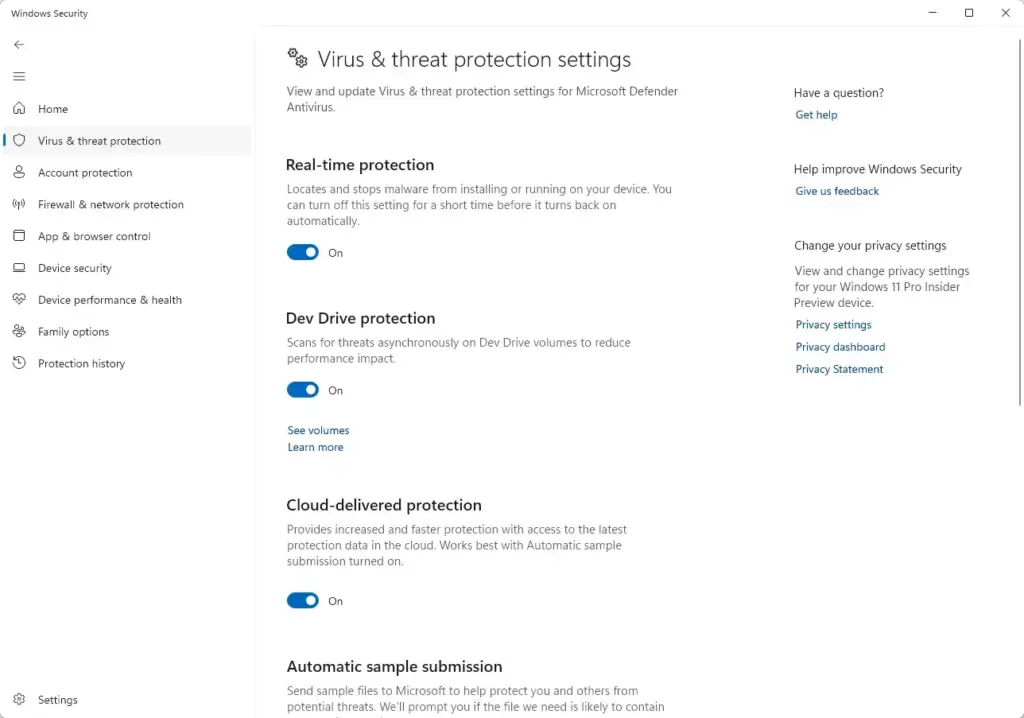
Here you can turn various protection features on or off. These settings include:
- Real-time protection: This is crucial. It scans files as they are accessed. Keep this ON.
- Cloud-delivered protection: This sends threat information to Microsoft’s cloud. It helps Defender identify new threats faster. Keep this ON.
- Automatic sample submission: If Defender finds a suspicious file, it can send a copy to Microsoft for analysis. This helps improve Defender for everyone. You can choose to turn this ON or OFF.
- Tamper protection: This prevents malware from changing or disabling your security settings. It’s highly recommended to keep this ON.
Note: If you have another antivirus program installed, Windows might disable Microsoft Defender automatically to avoid conflicts. If you want to use Defender, you may need to uninstall the other antivirus software first.
Performing Scans
Microsoft Defender doesn’t just work in the background. You can also initiate scans yourself.
Quick Scan
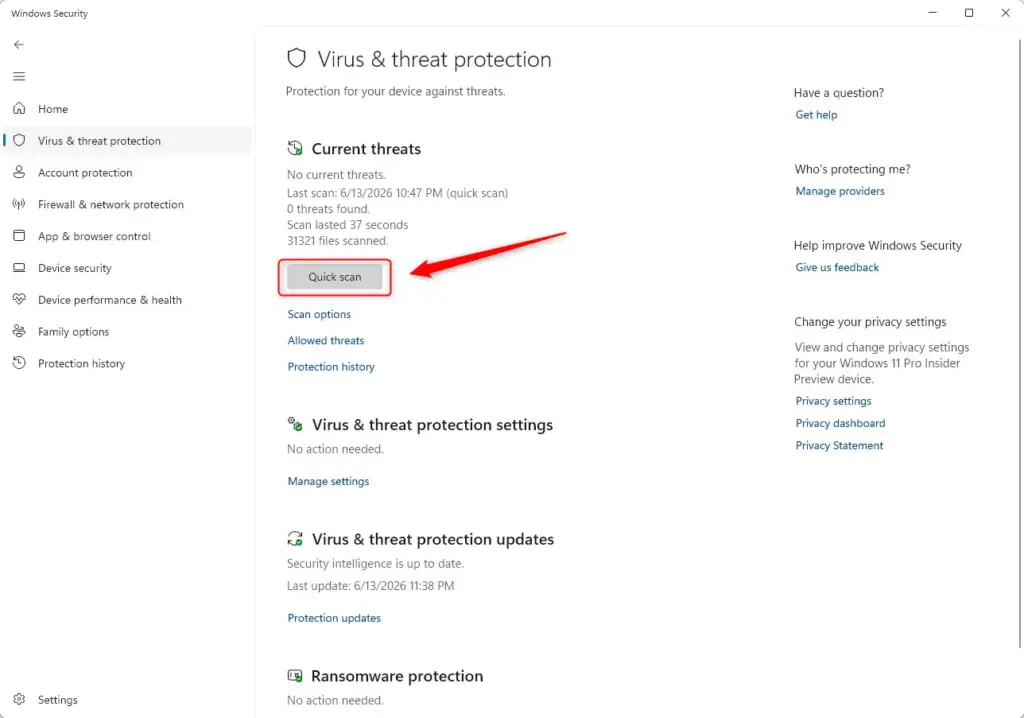
Quick Scan: A Quick Scan checks the most common areas where malware hides. It’s fast and catches most immediate threats.
- Open Windows Security.
- Click on Virus & threat protection.
- Under “Current threats,” click on Quick Scan.
Full Scan
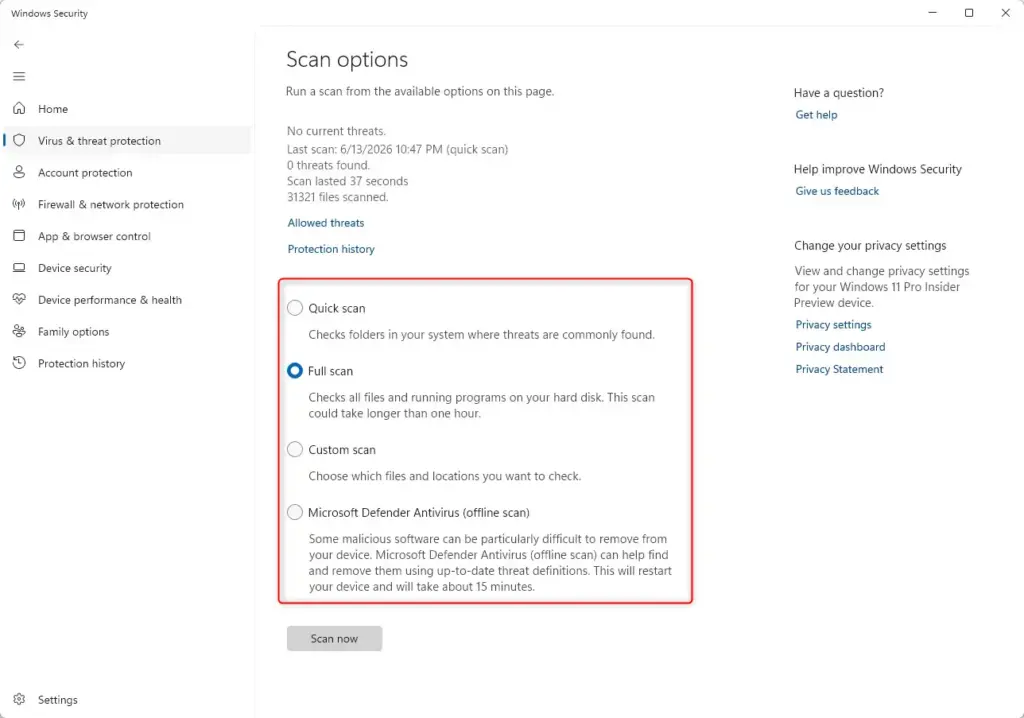
A Full Scan checks every file on your hard drive. This takes much longer but is more thorough. It’s good to run this periodically, perhaps once a week or month.
- Open Windows Security.
- Click on Virus & threat protection.
- Under “Scan options,” click the dropdown arrow next to Scan now.
- Select Full Scan.
- Click Scan now.
Custom Scan
A Custom Scan lets you choose specific files or folders to scan. This is useful if you suspect a particular download or drive might be infected.
- Open Windows Security.
- Click on Virus & threat protection.
- Under “Scan options,” click the dropdown arrow next to Scan now.
- Select Custom Scan.
- Click Scan now.
A new window will appear. Click ‘Select folder’ to choose which folders to scan, or click ‘This PC’ to select entire drives.
Click Select Folder or OK.
Microsoft Defender Offline Scan
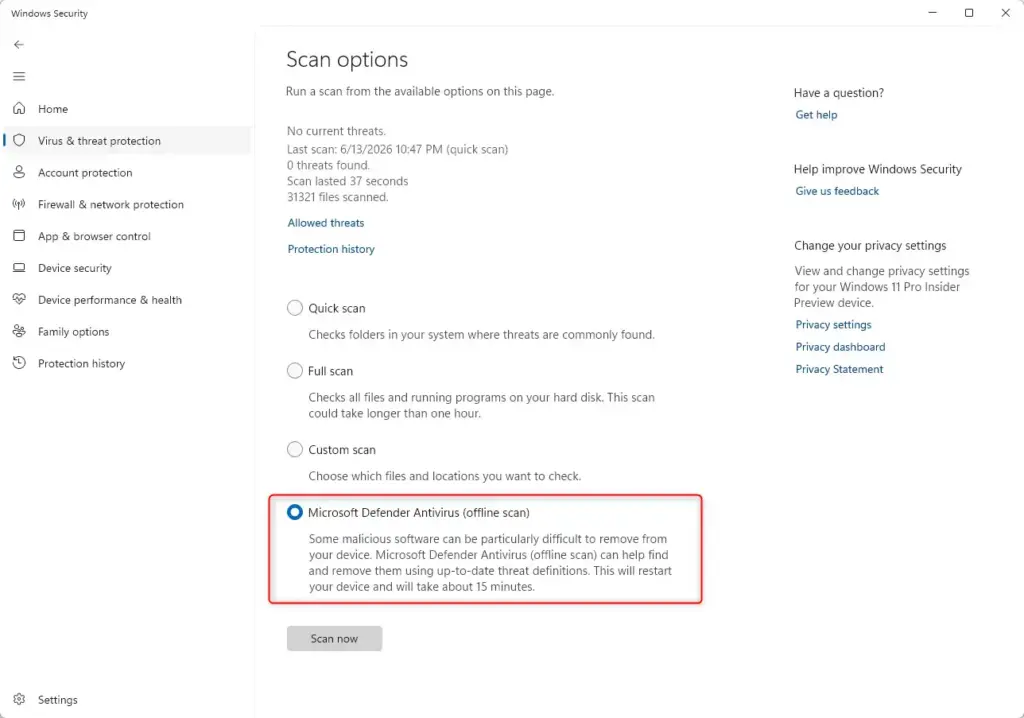
This is a powerful scan. It runs outside of Windows. This means it can find and remove threats that might be hiding from regular scans. It’s especially useful if you suspect your PC is already infected and Defender is having trouble running. It requires a restart.
- Open Windows Security.
- Click on Virus & threat protection.
- Under “Scan options,” click the dropdown arrow next to Scan now.
- Select Microsoft Defender Offline Scan.
- Click Scan now.
Your PC will restart. The scan will begin automatically. This scan can take about 15 minutes.
Your PC will restart again when the scan is complete.
What to Do If a Threat is Found
If Microsoft Defender finds a threat, it will notify you. Usually, it will recommend an action like “Quarantine” or “Remove”.
- Quarantine: This moves the threat to a safe, isolated location on your PC. It can’t harm your system while it’s quarantined. You can choose to restore it later if you believe it was a false alarm.
- Remove: This deletes the threat from your computer.
Microsoft Defender typically handles threats automatically by quarantining them. If you see a notification, click on it to go to the “Protection history” within Virus & threat protection. Here, you can see what was detected and what action was taken. You can also manually choose actions like “Quarantine all” or “Remove all” if multiple threats are found.
Admin Privilege Required: Some actions, like removing certain threats or changing core settings, might require administrator privileges.
Viewing Protection History
The “Protection history” section shows you all the threats that Microsoft Defender has detected, along with any actions taken, like quarantining or removing them. This is useful for tracking security events.
- Open Windows Security.
- Click on Virus & threat protection.
- Scroll down and click on Protection history.
You’ll see a list of detected threats. Click on “Filter” to see actions like “All,” “Quarantined,” “Detected,” or “Cleaned.”
Advanced Microsoft Defender Settings
Microsoft Defender offers more than basic scanning. You can fine-tune its behavior.
Exclusions
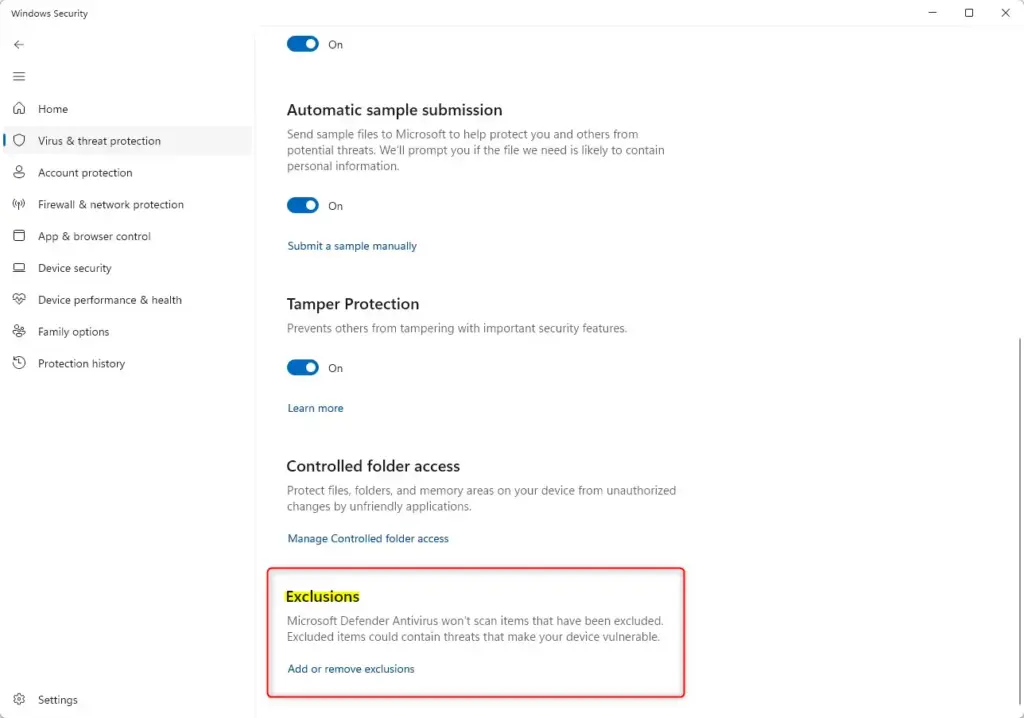
Sometimes, Microsoft Defender might mistakenly flag a file or program as a threat, which is called a false positive (when Defender incorrectly flags a safe file as a threat). If you’re absolutely sure a file is safe, you can add it to an exclusion list, and Defender will then ignore it.
Warning: Only add exclusions if you are 100% certain the file is safe. Adding important system files to exclusions can compromise your security.
- Open Windows Security.
- Click on Virus & threat protection.
- Under “Virus & threat protection settings,” click Manage settings.
- Scroll down to the bottom. Click Add or remove exclusions.
- Click the + Add an exclusion button.
- Choose whether to exclude a File, Folder, File type, or Process.
- Browse to and select the item you want to exclude.
Admin Privilege Required: Adding or removing exclusions requires administrator privileges.
Ransomware Protection (Controlled Folder Access)
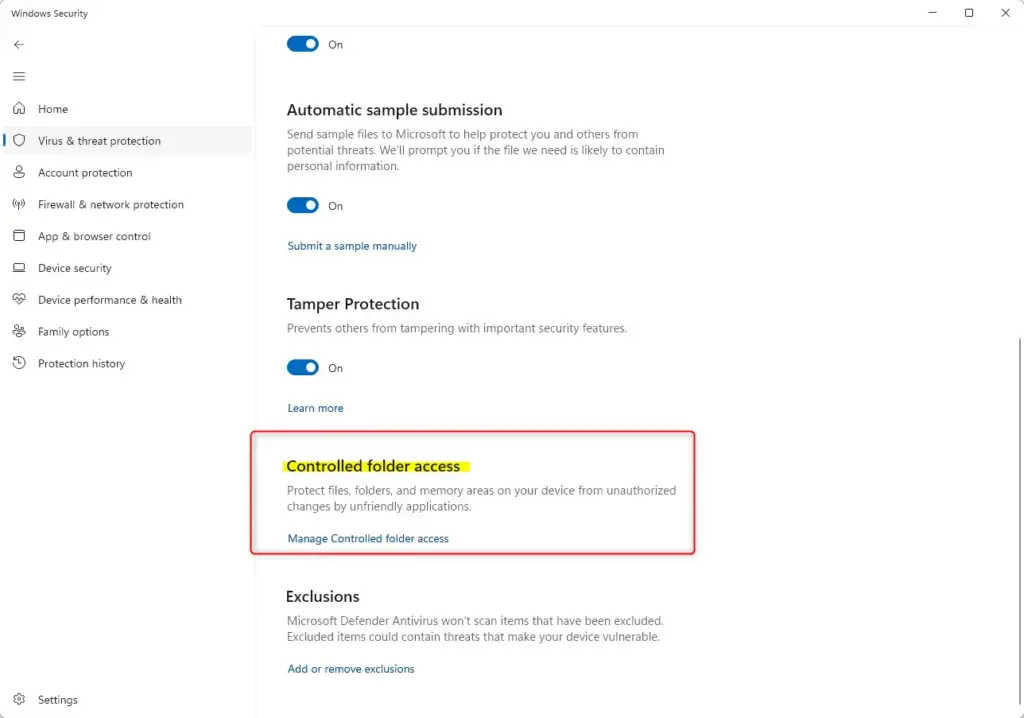
Ransomware is a type of malware that locks your files and demands money. Microsoft Defender has Controlled Folder Access (a feature that protects specific folders from unauthorized changes). When this is on, only trusted apps can make changes to files in protected folders.
- Open Windows Security.
- Click on Virus & threat protection.
- Under “Ransomware protection,” click Manage ransomware protection.
- Toggle Controlled folder access to On.
You will be prompted if an app tries to access these folders. You can also click “Allow an app through Controlled folder access” to add specific programs to a safe list.
Admin Privilege Required: Turning on Controlled Folder Access and managing its exceptions requires administrator privileges.
Scheduling Scans
You can schedule Microsoft Defender to perform scans automatically, ensuring your PC is regularly checked without you having to remember.
This is done using the Task Scheduler, which is a bit more advanced but very useful.
- Press the Windows key + R to open the Run dialog.
- Type
taskschd.mscand press Enter. This opens the Task Scheduler. - In the Task Scheduler library, look for a task named Microsoft. Expand it.
- Expand Windows.
- Expand Microsoft Defender.
- Right-click on Microsoft Defender Antivirus and select Properties.
- In the Properties window, go to the Triggers tab.
- Click New… to create a new trigger.
- Set a schedule (e.g., “On a schedule” and choose daily, weekly, etc.).
- Go to the Actions tab.
- Click New….
- In the “Program/script” box, type
MpCmdRun.exe. - In the “Add arguments (optional)” box, type
-Scan -ScanType 1. (-Scan -ScanType 2is for a full scan). - Click OK on all windows to save the scheduled task.
Admin Privilege Required: Accessing and modifying the Task Scheduler requires administrator privileges.
Additional Security Features in Windows Security
Microsoft Defender is part of a larger security suite in Windows Security. Other features enhance your overall protection.
Firewall & Network Protection
The Windows Firewall is essential for network security, controlling what traffic is allowed in and out of your computer. Microsoft Defender integrates with this.
- Open Windows Security.
- Click on Firewall & network protection.
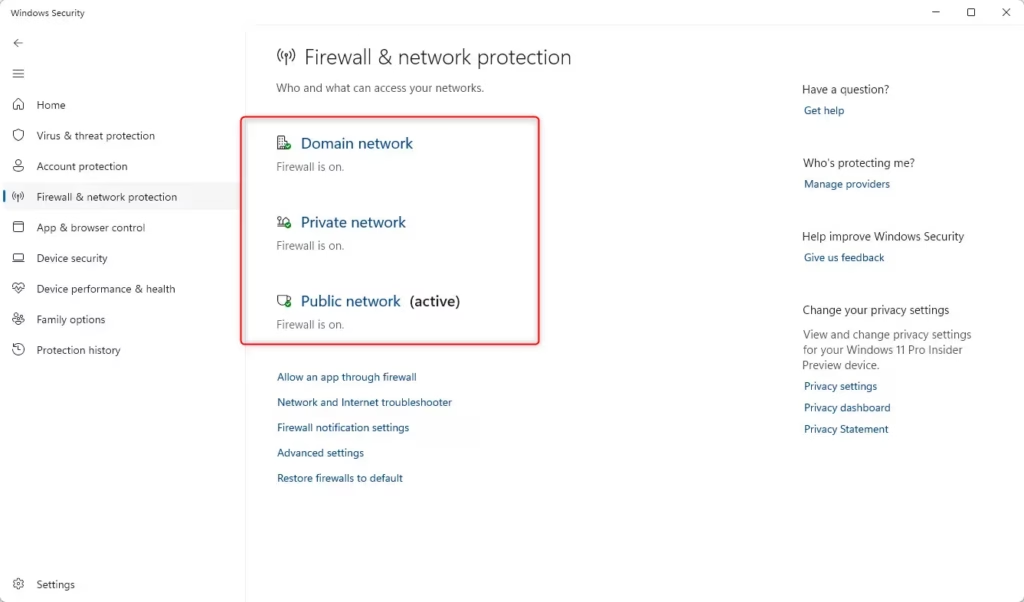
You’ll see settings for Domain network (for work networks), Private network (for home networks), and Public network (for Wi-Fi hotspots). Click on each type to see its status and manage specific settings, like allowing an app through the firewall.
Allowing an app through the firewall: If a program isn’t working correctly because the firewall is blocking it, you can allow it. Click “Allow an app through firewall,” then click “Change settings.” Find the app in the list and check the boxes for Private and/or Public networks. Click OK. This is a common troubleshooting step.
Admin Privilege Required: Changing firewall settings requires administrator privileges.
Account Protection
This section helps secure your login to Windows and your Microsoft account. It might prompt you to set up Windows Hello (facial recognition or fingerprint login) or a PIN, which are more secure than passwords.
- Open Windows Security.
- Click on Account protection.
- Follow the prompts to set up or review your sign-in options.
App & Browser Control
This feature provides additional protection against malicious websites and apps. It includes:
- Reputation-based protection: This checks apps, files, and Microsoft Edge links for suspicious behavior. It includes features like SmartScreen for apps and devices, and SmartScreen for Microsoft Edge.
- Exploit protection: This helps protect against attacks that exploit vulnerabilities in software.
You can click on “Reputation-based protection settings” and “Exploit protection settings” to manage these features.
Device Security
If your PC has specific hardware security features, like a Trusted Platform Module (TPM) (a security chip on your hardware), this section will show you their status. It might also offer options for Core isolation (an advanced security feature that adds another layer of protection) which adds an extra layer of protection against malware.
- Open Windows Security.
- Click on Device security.
- If available, click on Core isolation details to manage settings like Memory integrity.
Admin Privilege Required: Accessing and enabling core security features might require administrator privileges.
When Does Microsoft Defender Automatically Disable?
Microsoft Defender is designed to be always on. However, there are specific situations where it might be temporarily or permanently disabled:
- When another antivirus is installed: Windows automatically disables Microsoft Defender Antivirus if it detects that you have installed another antivirus program. This is to prevent conflicts, as running two antivirus programs simultaneously can cause system instability and performance issues.
Conclusion
By following the steps outlined in this guide, you can easily access and configure Microsoft Defender to meet your security needs. Regularly monitoring your protection status, performing scans, and utilizing advanced settings like ransomware protection and exclusions will enhance your defense against potential threats.
Remember that staying vigilant and informed about emerging threats is key to maintaining your digital security. With Microsoft Defender, you have a reliable partner in safeguarding your PC, allowing you to browse, work, and play online with confidence.
Was this guide helpful?

About the Author
Richard
Tech Writer, IT Professional
Richard, a writer for Geek Rewind, is a tech enthusiast who loves breaking down complex IT topics into simple, easy-to-understand ideas. With years of hands-on experience in system administration and enterprise IT operations, he’s developed a knack for offering practical tips and solutions. Richard aims to make technology more accessible and actionable. He's deeply committed to the Geek Rewind community, always ready to answer questions and engage in discussions.




No comments yet — be the first to share your thoughts!