How to Change your Microsoft Account Password

You can change your Microsoft account password directly from the Windows Settings app or through a web browser on the Microsoft account website.
Your Microsoft account is how you log into Windows 10 and 11. It also syncs your settings, OneDrive files, and Xbox services across all your devices. Keeping this password secure is vital for protecting your digital life.
This guide explains how to update your Microsoft account password when you already know your current one. For instance, you might want to change it after a security alert or as part of your regular password hygiene (a routine of keeping your passwords secure), especially if you haven’t changed it in over six months.
Go to account.microsoft.com and sign in. Navigate to Security, then select Change password. Enter your current password, then your new password twice, and click Save.
Getting Started: Signing In
You can change your Microsoft password by first signing in to your account online at account.microsoft.com. Open any web browser you like, such as Chrome, Firefox, or Edge, and go to the official Microsoft account website. Just type account.microsoft.com into the address bar and press Enter to get started.
Open your web browser – any browser works, like Chrome, Firefox, Edge, or Safari. Then, go to the Microsoft account website. Type account.microsoft.com into your browser’s address bar and press Enter. This is the official site for managing your account.
Sign in. You’ll be asked for your Microsoft account email address (like your Outlook.com, Hotmail.com, or Live.com address) and your current password. Make sure you type this correctly. Check for any mistakes!
Navigating to the Security Settings
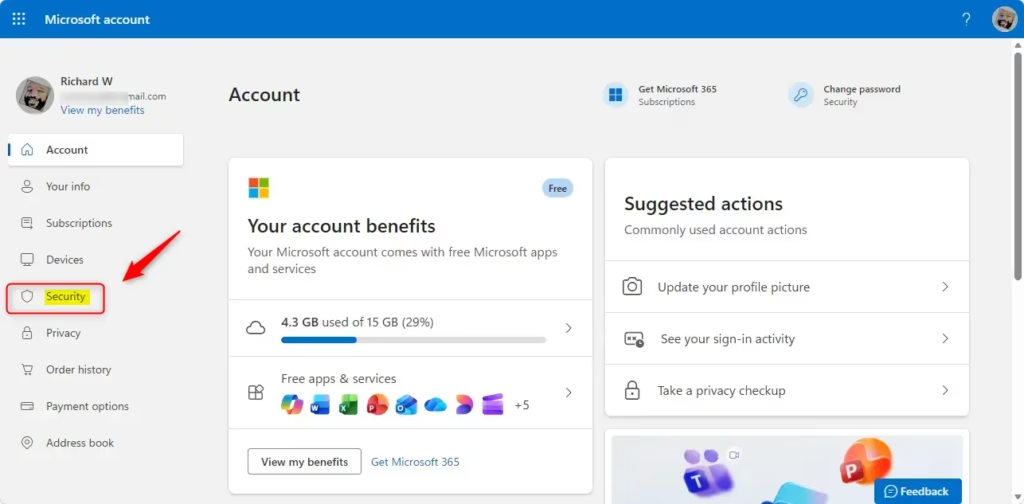
Once you’re signed in, find the ‘Security’ tab or link on your Microsoft account’s main page to access the password change option. Look for the menu, usually at the top or on the left side, and click on ‘Security.’ Inside this section, you’ll see various options to keep your account safe.
Find the “Security” tab or link. On the main account page, look for the menu. It’s usually at the top or on the left side. Then, find the option called “Security” and click it.
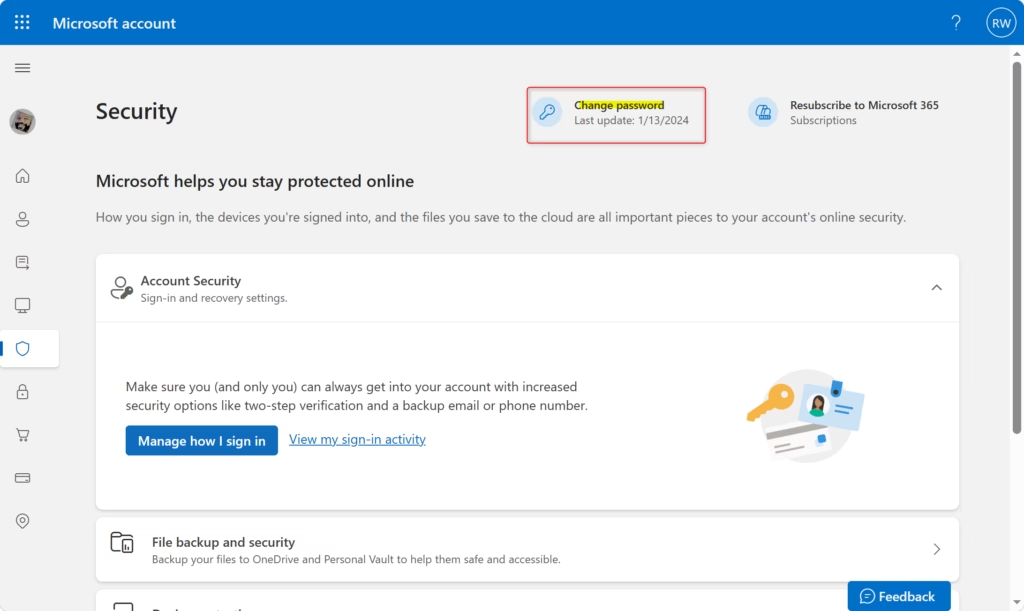
Find the “Change password” option. Inside the security section, you’ll find several options to keep your account safe. Look for a link or button that says “Change password” or something similar.
Creating Your New Password
To create your new Microsoft password, you’ll first enter your current password to verify it’s really you. Then, you’ll type in the new password you’ve chosen. It’s a good idea to use a mix of uppercase and lowercase letters, numbers, and symbols to make it strong.
Enter your current password. For safety, Microsoft asks you to confirm your current password again. This confirms you’re the one making the changes.
Type in your new password. Now, enter the new password you’ve chosen. Try to use a mix of uppercase and lowercase letters, numbers, and symbols. Don’t use information that’s easy to guess, like your name, birthday, or common words.
Re-enter your new password. To ensure you haven’t made any typing mistakes, you’ll be asked to type your new password again. This helps prevent you from accidentally locking yourself out with a wrong password.
Saving Your Changes
To finish changing your Microsoft password, click the ‘Save’ button to update it. After you click ‘Save,’ your password will be updated, and you’ll likely be signed out of your Microsoft account on most devices and services. This step confirms all your changes.
Click “Save”. Look for a button that says “Save” or “Confirm.” Clicking this will finish the password change.
What Happens Next? Once you click ‘Save,’ your password updates. You’ll probably be signed out of your Microsoft account on most devices and services. Next time you sign in to Windows, Outlook, OneDrive, Xbox, or any other service tied to your Microsoft account, you’ll need your new password.
Important Warning: Make sure you have a way to remember your new password! If you forget it, you’ll have to go through the password reset process, which can be more complicated. Think about using a good password manager to keep your passwords safe.
Summary
Changing your Microsoft password involves signing in online, going to security settings, entering your old password, and then your new password twice before saving.
How do I change my Microsoft account password?
You can change your Microsoft account password by visiting account.microsoft.com and signing in with your current credentials (your current email and password). Navigate to the 'Security' section, then select 'Change my password'. Follow the on-screen prompts to enter your old password and then your new password twice.
How do I reset my Microsoft password if I forgot my password?
If you forgot your Microsoft password, go to the sign-in page and click ‘Forgot my password’ to start the reset process using your email, phone, or Skype name.
Why can't I change my Microsoft password?
You may not be able to change your Microsoft password if you’re not logged in properly, if Microsoft’s servers have a temporary issue, or if your account is locked for security reasons.
How to change Microsoft password without logging in?
You cannot change your Microsoft password without logging in; you must use your current password or the ‘Forgot my password’ option to verify your identity.
Was this guide helpful?

About the Author
Richard
Tech Writer, IT Professional
Richard, a writer for Geek Rewind, is a tech enthusiast who loves breaking down complex IT topics into simple, easy-to-understand ideas. With years of hands-on experience in system administration and enterprise IT operations, he’s developed a knack for offering practical tips and solutions. Richard aims to make technology more accessible and actionable. He's deeply committed to the Geek Rewind community, always ready to answer questions and engage in discussions.



No comments yet — be the first to share your thoughts!