How to Unlink Devices from Your Microsoft Account

You unlink devices from your Microsoft account through the Devices page in your account settings.
This action removes a specific PC, Xbox, or other gadget, preventing it from accessing Microsoft services like the Microsoft Store.
Microsoft allows you to link up to 10 devices, such as PCs, Xbox consoles, and phones, to a single account. Keeping this list current ensures you stay within the limit and effectively manage your digital footprint.
For example, if you’ve upgraded your laptop or sold a tablet, unlinking it frees up a slot for a new device.
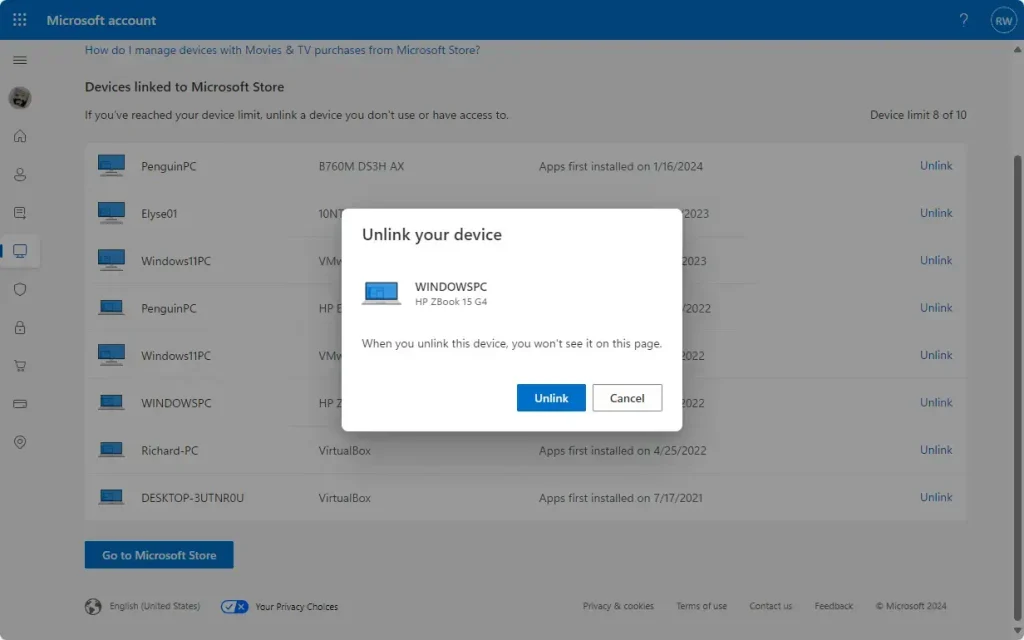
Visit the Microsoft Store device management page and sign in. Locate the device you want to remove and click “Unlink,” then confirm the action. This process severs the connection for app store licenses but does not factory reset the device.
Why Unlink Microsoft Account Devices?
Why do this? Microsoft limits your account to 10 devices for app downloads and digital content. Hit this limit, and you won’t be able to install new software. Unlinking old devices clears space. It also helps you manage security by ensuring only devices you currently own have access to your account data.
What Happens When You Unlink a Device?
When you unlink a device, it loses its connection to your Microsoft Store licenses. It does not factory reset the computer. The new owner can still use the machine, but your account is no longer tied to it for app updates. If you want to wipe your data, you must perform a factory reset in Windows settings first.
Before You Begin: Back Up Your Data
Before you unlink Microsoft account devices, ensure your files are safe. If you are selling or donating your computer, back up your important documents to an external drive or cloud storage. Just so you know, removing a device from your account won’t automatically wipe your personal data from its hard drive.
Removing vs. Signing Out
Signing out of Windows removes your account from your current session. Meanwhile, removing a device from the Microsoft account security dashboard deletes that device’s record from Microsoft’s servers. Always remember to sign out of Windows Settings before you remove a device from the online portal.
How to Unlink Microsoft Account Devices
- Visit the Microsoft Store device management page.
- Sign in with your credentials.
- Locate the device you wish to remove.
- Click Unlink.
- Confirm the action by clicking Unlink again.
Note: If you are managing a work or school computer, you may need admin privileges to remove the device from the local directory. Check your settings at 📁C:\Windows\System32 if you encounter permission errors.
Security Implications: Selling or Losing Devices
If you lose your device, use the Remote Lock or Find My Device feature before unlinking. Unlinking does not stop someone from using a lost laptop if they have your password. If you’ve sold your device, make sure you’ve removed your account from its settings. This stops the new owner from accessing your synced files.
Troubleshooting Device Removal
If you see an error, try these steps:
- Clear your browser cache and cookies.
- Use a different web browser.
- Check the Microsoft support page for service outages.
- Ensure you are not trying to remove the device you are currently using.
Summary
Unlinking devices helps you stay under the 10-device limit and keeps your account secure. Remember to back up your data and sign out of your account locally before removing a device from the Microsoft dashboard. This ensures your personal information stays private when you sell or lose a computer.
Does removing a device from my account factory reset it?
Does removing a device from my account factory reset it?
No, removing a device from your Microsoft account does not factory reset it. It only removes the link between your account and the device for app store licenses. To erase your personal data, you must perform a full factory reset through the Windows Settings menu before handing the device to someone else.
Can the new owner of my laptop access my Microsoft account after I remove it?
Can the new owner of my laptop access my Microsoft account after I remove it?
Removing the device from your online dashboard does not automatically sign you out of the local Windows user profile. To prevent access, you must manually remove your user account from the Windows settings or perform a factory reset. Always ensure your account is fully removed from the device before transferring ownership.
Will removing a device stop it from syncing my files?
Will removing a device stop it from syncing my files?
Removing a device from the Microsoft account portal primarily affects store licenses and device tracking. It may eventually stop OneDrive syncing if the account token expires, but it is not a secure way to wipe data. Always sign out of your account in Windows to stop all syncing processes immediately.
Was this guide helpful?

About the Author
Richard
Tech Writer, IT Professional
Richard, a writer for Geek Rewind, is a tech enthusiast who loves breaking down complex IT topics into simple, easy-to-understand ideas. With years of hands-on experience in system administration and enterprise IT operations, he’s developed a knack for offering practical tips and solutions. Richard aims to make technology more accessible and actionable. He's deeply committed to the Geek Rewind community, always ready to answer questions and engage in discussions.



No comments yet — be the first to share your thoughts!