How to Remove a Passkey from Your Microsoft Account

You remove a passkey from your Microsoft account by deleting it from your security key settings within your Microsoft account security page.
A passkey is a passwordless credential that replaces your traditional password, offering enhanced security by using cryptographic keys instead of something you remember.
For example, you can use a passkey to sign in to Microsoft 365 and Copilot on both desktop and mobile browsers, opting for options like face, fingerprint, or a security key from the sign-in screen.
If your security key is lost, stolen, or compromised, you can easily remove its associated passkey from your Microsoft account to maintain security.
Visit your Microsoft account’s Advanced Security Options page. Under “Ways to prove who you are,” expand “Use a passkey,” select the passkey, and click “Remove.” This prevents unauthorized access if your security key is lost or stolen.
Why Remove a Passkey?
You should remove a passkey from your Microsoft account if your security key is lost or stolen, or if you think someone else might have it.
If you suspect your passkey has been compromised, remove it immediately. Doing so protects your accounts from unauthorized access.
How to Remove a Passkey from Your Microsoft Account
Here’s how to remove a passkey from your Microsoft account.
- Visit the Advanced Security Options page.
- Look for “Ways to prove who you are.”
- Find and expand the “Use a passkey” tile.
- Select the passkey you want to remove.
- Click Remove.
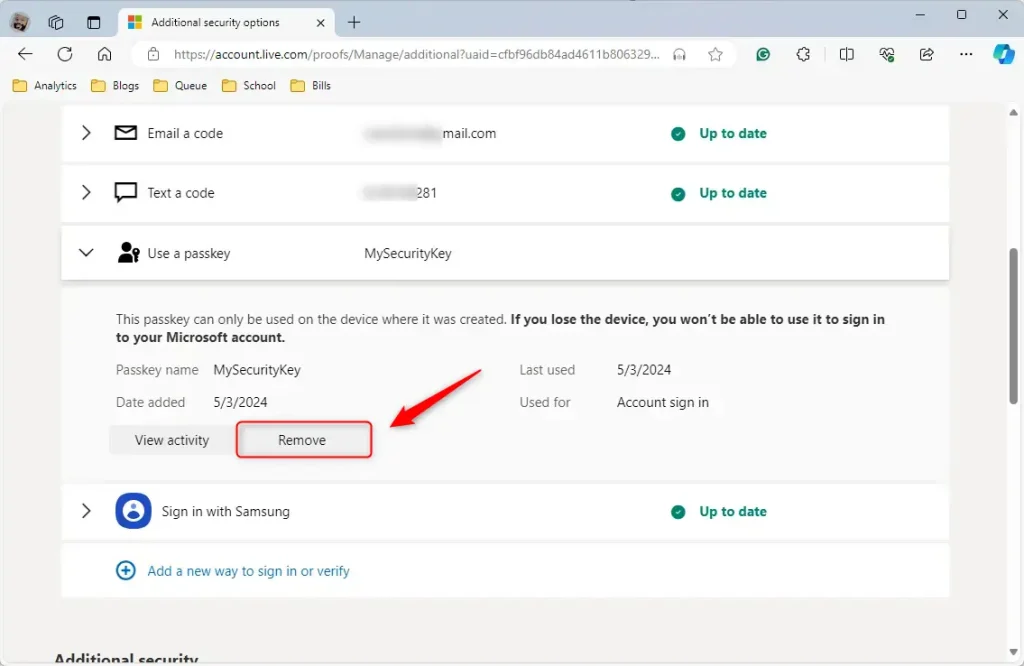
And that’s it! Your passkey is now removed.
What Happens When You Remove a Passkey?
Once you remove a passkey, it can no longer be used to sign in to your Microsoft accounts. You will need to use a different sign-in method going forward.
Summary
Removing a passkey from your Microsoft account is simple and important for security, especially if your key is lost, stolen, or compromised.
Was this guide helpful?

About the Author
Richard
Tech Writer, IT Professional
Richard, a writer for Geek Rewind, is a tech enthusiast who loves breaking down complex IT topics into simple, easy-to-understand ideas. With years of hands-on experience in system administration and enterprise IT operations, he’s developed a knack for offering practical tips and solutions. Richard aims to make technology more accessible and actionable. He's deeply committed to the Geek Rewind community, always ready to answer questions and engage in discussions.



I’ve heard people remove their passkeys then can’t get into their own accounts. Removing the passkey does not stop them from requiring authentication.