How to disable the Bluetooth Power Saving feature in Windows 11

Disabling the Bluetooth power saving feature in Windows 11 stops your Bluetooth devices from disconnecting unexpectedly.
Windows sometimes turns off your Bluetooth adapter to save battery power, but this can cause connection issues for wireless headphones, mice, and other devices. This power saving setting is a frequent culprit behind frustrating drops in connection.
You can fix this by changing a specific setting within Device Manager. This adjustment tells Windows to keep your Bluetooth adapter powered on, ensuring a more stable connection.
Disable the Bluetooth power saving feature by opening Device Manager, finding your Bluetooth adapter, right-clicking to select Properties, and unchecking “Allow the computer to turn off this device to save power” on the Power Management tab. This prevents Windows from turning off your adapter to save energy.
Stop Bluetooth Dropouts by Changing Power Settings
Windows 11 might be turning off your Bluetooth adapter to save power, causing your devices to disconnect frequently.
Think of Device Manager as the control center for your computer’s hardware. You can see what’s installed, check if it’s working, and update or disable drivers. We’ll use Device Manager to find your Bluetooth adapter and adjust its power settings. Let’s start by opening it.
Step 1Open Device Manager
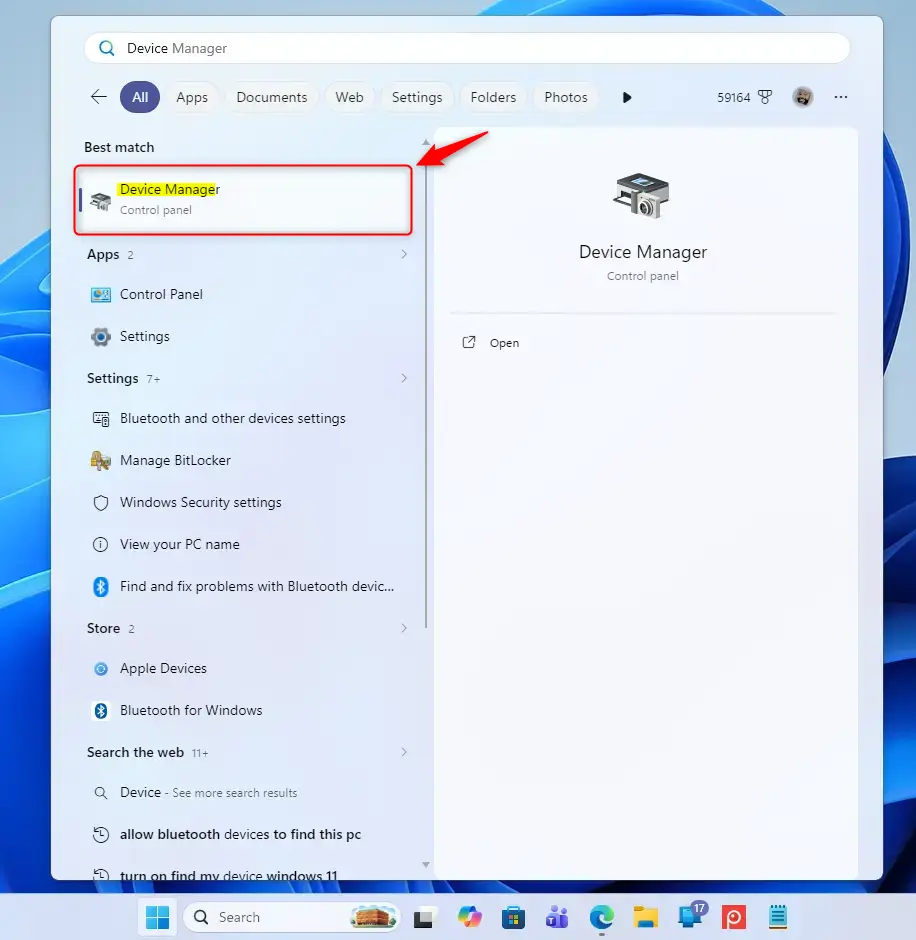
To begin fixing Bluetooth connection problems, you need to open Device Manager on your Windows 11 computer.
Click the Start button. It’s usually in the bottom-left corner of your screen.
In the search bar, type Device Manager. You don’t need to press Enter yet.
As you type, Windows will show results. Click on Device Manager when it appears in the list.
Step 2Find Your Bluetooth Device
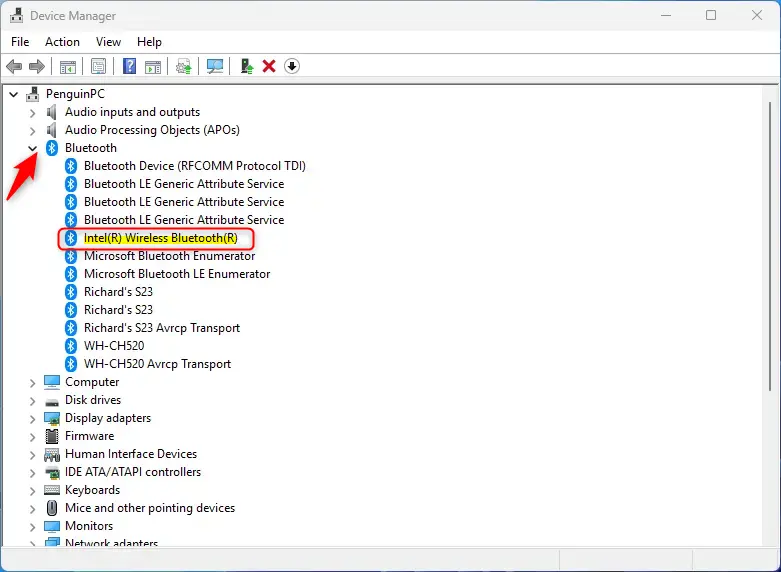
With Device Manager open, locate your computer’s Bluetooth device within the hardware list.
Scroll down the list until you see Bluetooth. It might be called ‘Bluetooth radios’ or something similar.
Click the small arrow next to Bluetooth to open it. This will show your computer’s Bluetooth adapter.
Step 3Access Power Management Settings
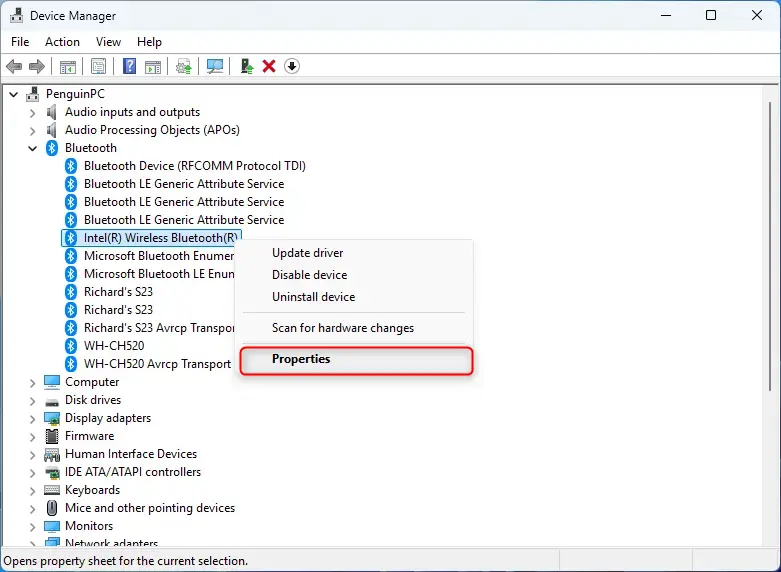
Now that you found your Bluetooth adapter, right-click on its name. A menu will appear.
In the menu, select Properties. A new window will open with tabs.
Find and click the Power Management tab.
Step 4Turn Off Energy Saving
The key to stopping Bluetooth dropouts is to prevent Windows from turning off your Bluetooth adapter to save energy.
Look for a checkbox that says “Allow the computer to turn off this device to save power”.
Uncheck this box. This tells Windows not to turn off your Bluetooth adapter to save energy.
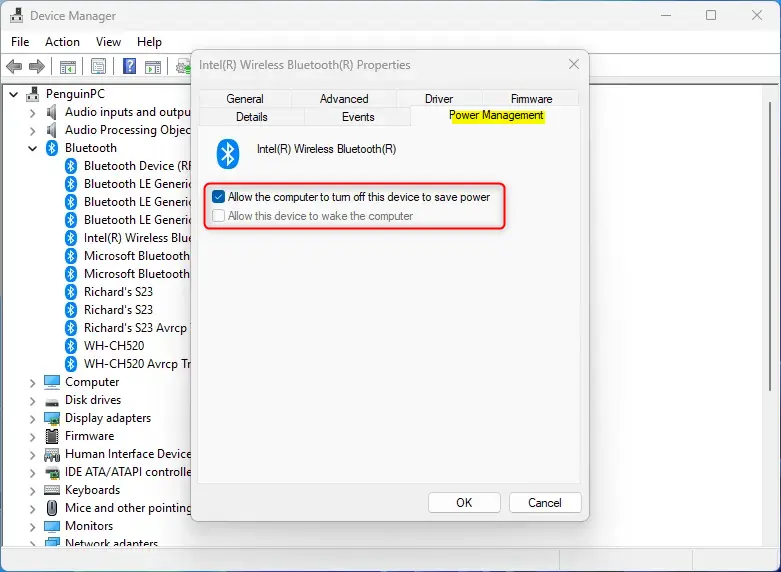
Click the OK button at the bottom of the Properties window to save your changes.
Reference:
Summary
You can stop Windows 11 from turning off your Bluetooth adapter to save power by changing a setting in Device Manager.
Was this guide helpful?

About the Author
Richard
Tech Writer, IT Professional
Richard, a writer for Geek Rewind, is a tech enthusiast who loves breaking down complex IT topics into simple, easy-to-understand ideas. With years of hands-on experience in system administration and enterprise IT operations, he’s developed a knack for offering practical tips and solutions. Richard aims to make technology more accessible and actionable. He's deeply committed to the Geek Rewind community, always ready to answer questions and engage in discussions.


No comments yet — be the first to share your thoughts!