How to Update the Bluetooth Driver Using Device Manager in Windows 11

You update your Bluetooth driver in Windows 11 using Device Manager to fix connection issues or improve performance.
Think of a driver as a translator for your Bluetooth hardware, like your adapter. It helps your hardware talk effectively with Windows 11. When this translator gets old or damaged, you might have trouble with things like headphones that won’t pair or a mouse that keeps disconnecting.
This guide focuses on using the built-in Windows 11 Device Manager, a powerful tool that lets you manage and update your hardware drivers.
Updating your Bluetooth driver is usually the first thing you’ll want to try when wireless connections aren’t working.
Open Device Manager by typing ‘devmgmt.msc’ in the Start menu search. Expand ‘Bluetooth,’ right-click your adapter, select ‘Update driver,’ and choose ‘Search automatically for drivers.’ Follow any on-screen prompts and restart your PC.
Update Your Bluetooth Driver Using Device Manager
When your Bluetooth devices aren’t working, check their “brains” – the drivers. Device Manager shows you all the hardware on your computer and lets you manage its drivers. It’s like your computer’s hardware control center.
Here’s how to use it and update your Bluetooth driver:
1Open Device Manager
Here’s how to open Device Manager. Click the Start button – that’s usually the Windows icon down in the bottom-left corner. Then, type ‘devmgmt.msc’ (this command opens Device Manager). You’ll see it in the search results. Click on it to open the window.
Tip: You can also right-click the Start button and choose “Device Manager” from the menu. It’s a quick way to get there!
2Find Your Bluetooth Adapter
Device Manager displays a list of hardware categories. Find and click the little arrow next to ‘ Bluetooth’ to see your devices and adapters.
Warning: Be careful not to uninstall or disable devices you don’t recognize. Only make changes within the Bluetooth section.
3Start the Driver Update
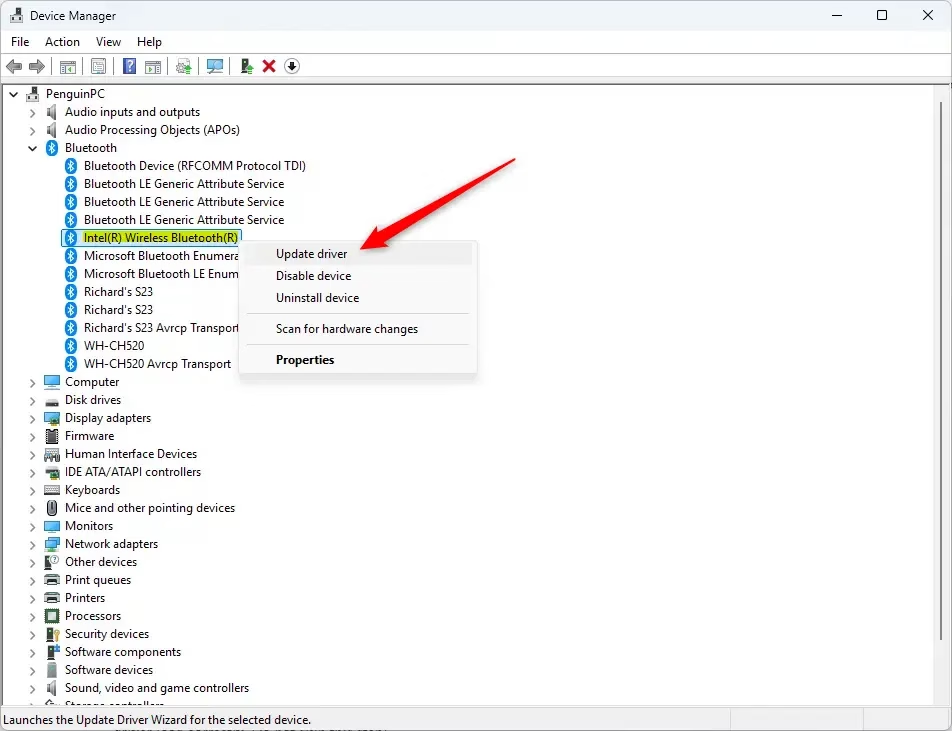
Look for your specific Bluetooth adapter in the list. It might say something like “Intel(R) Wireless Bluetooth(R)”, depending on your computer’s manufacturer. Once you find it, right-click on it. A menu will appear. Choose “Update driver” from that menu.
4Let Windows Search for Drivers
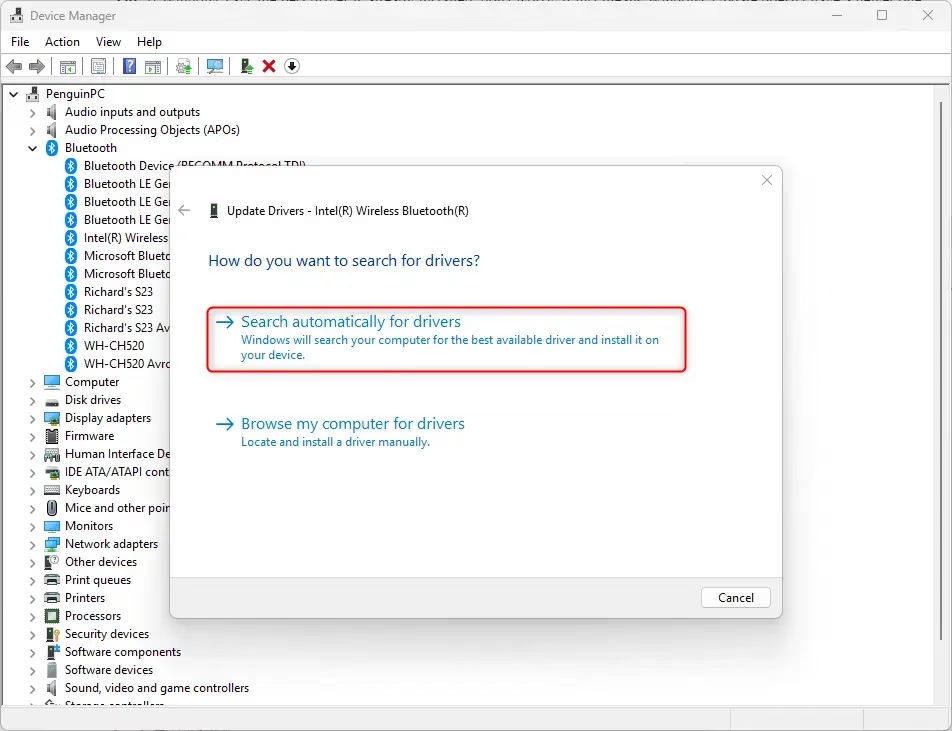
A new window will open, asking how you want to search for drivers. Usually, you’ll want to choose ‘Search automatically for drivers.’ Windows will connect online to see if a newer driver is available for your Bluetooth adapter.
Explanation: Windows Update usually has recent drivers, but not always the very newest ones available. This step tells Windows to try its best to find an update for you.
5Follow the On-Screen Prompts
If Windows finds a newer driver, it will guide you through the installation. Just follow the prompts on your screen. It usually involves a few clicks.
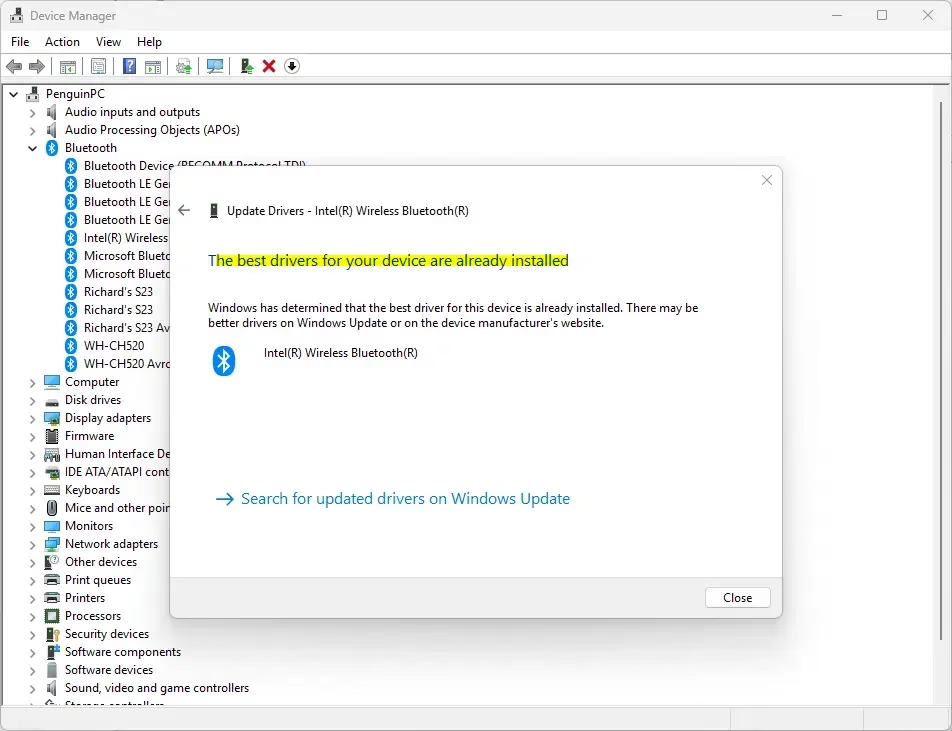
Tip: If Windows tells you the best driver is already installed, that’s okay. It just means Windows Update doesn’t have a newer one available. We’ll explain what to do next.
6 Restart Your PC
After the driver update finishes, Windows will likely ask you to restart your computer. This is important! Restarting helps the new driver load correctly. Don’t skip this!
Action: Click “Restart now” or restart your PC from the Start menu.
Reference:
Summary
Updating your Bluetooth driver through Device Manager is a helpful way to fix connection problems. By following these steps, you can help Windows find and install newer drivers for your Bluetooth adapter. This often resolves issues like devices not connecting or dropping out. Remember to restart your PC after the update for the changes to take effect.
How to update Bluetooth driver from Device Manager?
To update your Bluetooth driver in Windows 11 via Device Manager, open Device Manager by typing ‘devmgmt.msc’ in the Start menu search. Expand the ‘Bluetooth’ section, right-click your Bluetooth adapter, select ‘Update driver,’ and choose ‘Search automatically for drivers.’
How to manually update drivers in Device Manager?
To manually update drivers in Device Manager, open it via ‘devmgmt.msc.’ Locate the hardware, right-click it, and select ‘Update driver.’ Choose ‘Browse my computer for drivers’ and then ‘Let me pick from a list of available drivers’ to select a specific driver.
How to fix Bluetooth driver problems?
Fix Bluetooth driver problems by updating the driver through Device Manager. If updating doesn’t work, try uninstalling the Bluetooth adapter from Device Manager and then restarting your PC to let Windows automatically reinstall it. This often resolves connectivity issues.
Was this guide helpful?

About the Author
Richard
Tech Writer, IT Professional
Richard, a writer for Geek Rewind, is a tech enthusiast who loves breaking down complex IT topics into simple, easy-to-understand ideas. With years of hands-on experience in system administration and enterprise IT operations, he’s developed a knack for offering practical tips and solutions. Richard aims to make technology more accessible and actionable. He's deeply committed to the Geek Rewind community, always ready to answer questions and engage in discussions.


No comments yet — be the first to share your thoughts!