How to Remove Pinned Android Apps from My Windows Taskbar

You remove pinned Android apps from your Windows 11 taskbar by unpinning them just like any other application.
This process applies to apps you’ve pinned from the Phone Link app, which allows you to run Android applications directly on your PC. These pinned apps appear as individual icons on your taskbar for quick access.
To unpin an app, simply right-click its icon on the taskbar and select “Unpin from taskbar.” This action removes the shortcut without affecting the Phone Link app or your ability to access Android apps from the Phone Link interface itself. You can usually perform this action within seconds.
Right-click the app icon on your taskbar and select “Unpin from taskbar.” For the Start menu, go to Settings > Apps > Apps & features, find the Android app, and click “Uninstall.
How to Remove Pinned Android Apps from Your Windows Taskbar
If you want to remove an Android app shortcut from your taskbar, follow these steps:
- Find the App Icon: Look for the icon of the Android app you want to remove. It will be on your Windows taskbar with your other pinned apps and programs.
- Right-Click the Icon: Move your mouse pointer over the app’s icon. Click the right mouse button. A menu will appear with options for that item.
- Select “ Unpin from taskbar”: In the menu that pops up, find and click the option that says “ Unpin from taskbar”.
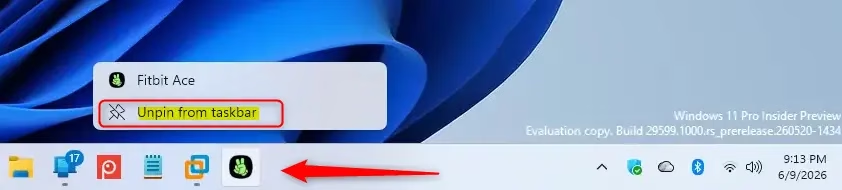
That’s it! The app icon will disappear from your taskbar right away. This is a fast way to manage the apps you use most, keeping your taskbar tidy.
How to Remove Pinned Android Apps from Your Windows Start Menu
Removing Android apps from your Start menu works a bit differently than from the taskbar. When you pin an app to your Start menu, Windows creates a shortcut for it there. To remove it, you need to do something similar to uninstalling a program from your PC.
Follow these steps to remove an Android app from your Start menu:
- Open Windows Settings: Click the Start button and then click the gear icon. Or, press the
Windows key + Ikeys on your keyboard. This opens the Windows Settings app. - Go to Apps: In the Settings window, find and click on the “Apps” section in the left side menu.
- Choose “Apps & features”: Inside the Apps section, click on “Apps & features”. This might also be called “Installed apps” depending on your Windows version.
- Find Your Android App: You will see a list of all the apps installed on your computer. Since Android apps used with Phone Link are treated like installed apps, scroll through this list or use the search bar at the top. Type the name of the Android app you want to remove into the search box.
- Select and Uninstall: Once you find the app, click on its name. An “Uninstall” button will appear. Click this button.
- Confirm Uninstallation: A message will likely ask if you are sure you want to uninstall the app. Click “Uninstall” again to continue.
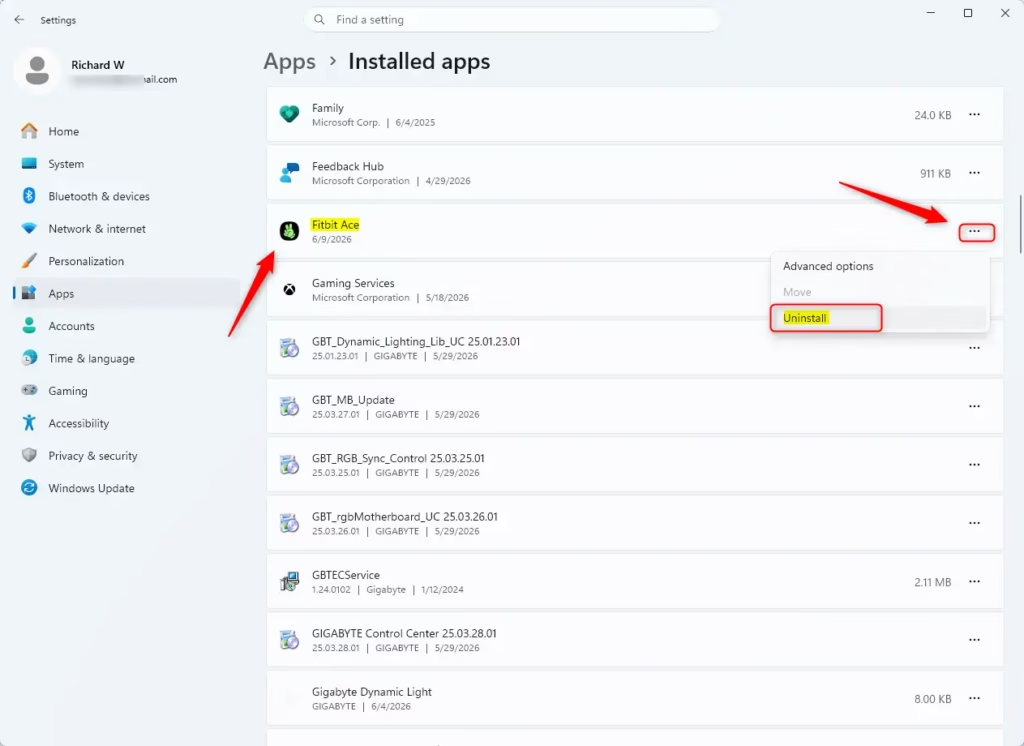
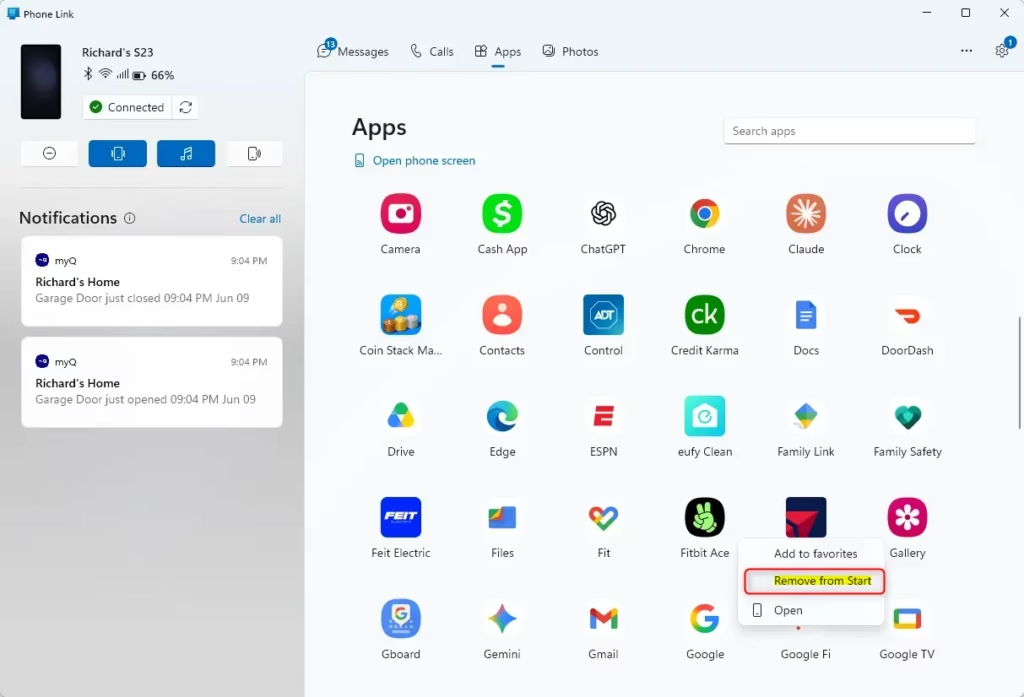
After you confirm, Windows will remove the app’s shortcut from your Start menu. Keep in mind that this does not uninstall the app from your Android phone. It only removes the shortcut and its connection to your Windows Start menu. The app will still be on your phone, and you can open it using the Phone Link app’s main “Apps” section.
Reference:
Summary
Removing pinned Android apps from your Windows 11 taskbar is done by right-clicking the app icon and selecting “Unpin from taskbar”. To remove them from the Start menu, you need to go to Windows Settings > Apps > Apps & features, find the Android app, and click “Uninstall”. These steps only remove the shortcuts from your Windows PC and do not affect the apps on your Android phone.
Was this guide helpful?

About the Author
Richard
Tech Writer, IT Professional
Richard, a writer for Geek Rewind, is a tech enthusiast who loves breaking down complex IT topics into simple, easy-to-understand ideas. With years of hands-on experience in system administration and enterprise IT operations, he’s developed a knack for offering practical tips and solutions. Richard aims to make technology more accessible and actionable. He's deeply committed to the Geek Rewind community, always ready to answer questions and engage in discussions.


No comments yet — be the first to share your thoughts!