How to Automatically Turn Off Your Screen with Presence Sensing in Windows 11

Presence sensing in Windows 11 automatically turns off your screen when you walk away from your PC.
This smart feature uses a presence sensor, a small piece of hardware, to detect if someone is actively using the computer.
When no one is detected for a set time, Windows 11 can lock your screen or even turn it off completely.
This helps save power, keeps your private information secure, and speeds up your return to work without needing to manually lock your PC.
Many newer laptops, like those released in 2023 and later, include this built-in technology.
Go to Settings > System > Power & battery > Screen and sleep. Turn on “Automatically turn off my screen when I leave” if your device has a presence sensor. This feature saves power and enhances security by turning off your display when you step away.
Why Use Presence Sensing?
This feature helps save energy by turning off your screen when you’re not using your computer. It also adds a layer of security by making sure your screen isn’t showing sensitive data when you’re away. When you return, your computer can be ready to go quickly.
What Happens When You Turn It On?
Once enabled, your computer will use its presence sensor to detect your absence. When it senses you’ve stepped away, it will automatically turn off your display. When you return, depending on your settings, it might also wake up your computer.
Step 1Open Your PC’s Settings
To start automatically turning off your screen when you leave, you first need to open your PC’s main Settings app.
- Click the Start button. This is the Windows logo usually found in the bottom-left corner.
- Type
Settingsin the search bar. - Click on Settings when it appears in the search results.
This will open the main Settings window, where you can change how your computer works.
Step 2Go to Power and Battery Settings
Next, you’ll want to find the Power & battery settings, which is where you control how your computer uses energy and when it sleeps.
- In the Settings window, click on System in the list on the left side.
- On the right side, find and click on Power & battery.
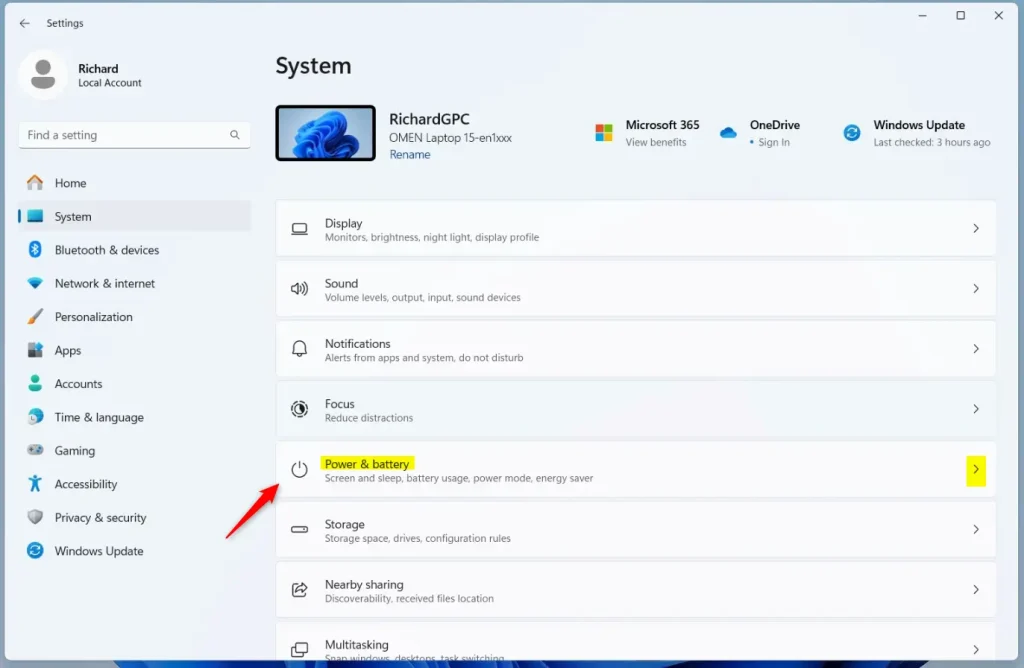
This screen shows you how your computer uses power and lets you adjust settings for energy management, including your screen.
Step 3Find Screen and Sleep Options
Within the Power & battery menu, look for the Screen and sleep options to adjust when your display turns off.
- Within the “Power & battery” settings, click on Screen and sleep.
Here, you will find options for when your screen turns off, both when plugged in and when running on battery. You can also set when your computer goes to sleep.
Step 4Turn On Automatic Screen Off When You Leave
This is where you’ll turn on the automatic screen off feature using your PC’s presence sensor.
- Look for the option that says Automatically turn off my screen when I leave.
- If it’s not already on, click the switch next to it to turn it On.
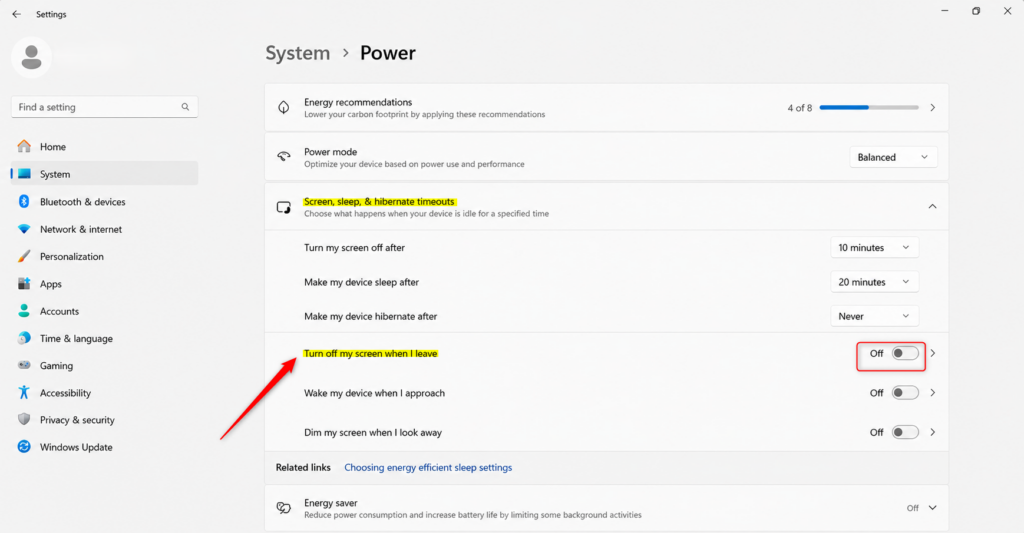
Helpful Tip: You might also find an option to ‘Automatically wake up my device when I approach.’ If your computer has this feature and you want it to wake up when you get close, you can turn this on too! It makes things more convenient and secure.
Important Note: Not all Windows 11 computers have a presence sensor. If you do not see these options, your computer’s hardware might not support this feature. You can usually check your computer’s specifications or look for a small sensor near your webcam.
Reference:
Summary
You’ve learned how to set up Windows 11’s presence sensing to automatically turn off your screen when you leave, saving power and boosting security.
Was this guide helpful?

About the Author
Richard
Tech Writer, IT Professional
Richard, a writer for Geek Rewind, is a tech enthusiast who loves breaking down complex IT topics into simple, easy-to-understand ideas. With years of hands-on experience in system administration and enterprise IT operations, he’s developed a knack for offering practical tips and solutions. Richard aims to make technology more accessible and actionable. He's deeply committed to the Geek Rewind community, always ready to answer questions and engage in discussions.
📚 Related Tutorials

No comments yet — be the first to share your thoughts!