How to Unlink OneDrive Windows 11: A Complete Guide

You unlink OneDrive from Windows 11 by disconnecting your Microsoft account from the OneDrive app.
This action stops OneDrive from syncing your local files with its cloud storage, effectively pausing all automatic backups and updates. It’s a straightforward process to regain control over your file synchronization.
You might unlink OneDrive to switch to a different cloud service, free up local storage space, or ensure your files are managed solely on your PC. The entire process usually takes under a minute to complete.
After unlinking, your files stored on your Windows 11 PC will remain untouched, but they will no longer be accessible or managed through your OneDrive account.
Unlink OneDrive by clicking the OneDrive icon, selecting Settings, then Account, and clicking “Unlink this PC”. Confirm the action to disconnect your computer from the cloud service. Your local files will remain on your PC but will stop syncing.
Why unlink OneDrive?
OneDrive is a cloud storage service that keeps your files synced across all your devices. While useful, you might want to stop using it on a specific computer to save bandwidth, fix sync errors, or switch to a different cloud provider. Unlinking stops the connection between your local files and the cloud.
What happens when you are done?
When you unlink your account, your files remain safe in the cloud. You can still access them via the OneDrive website. Your local files on your computer stay exactly where they are, but they will no longer update or sync with the internet version of your folders.
Steps to unlink your account
Note: You don’t need admin privileges to do this.
- Click the OneDrive cloud icon on your Taskbar.
- Select the gear icon and choose Settings.
Alternatively, open your OneDrive folder in File Explorer, click the OneDrive button at the top, and select the Settings gear.

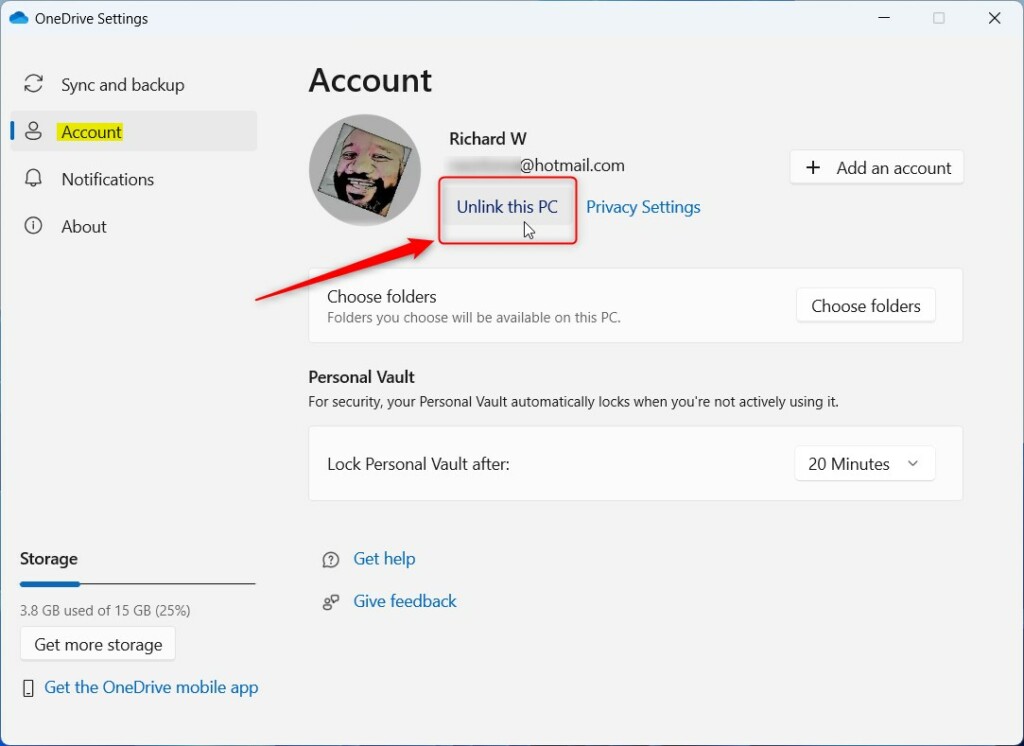
- In the settings window, click Account on the left side.
- Click the Unlink this PC link on the right side.
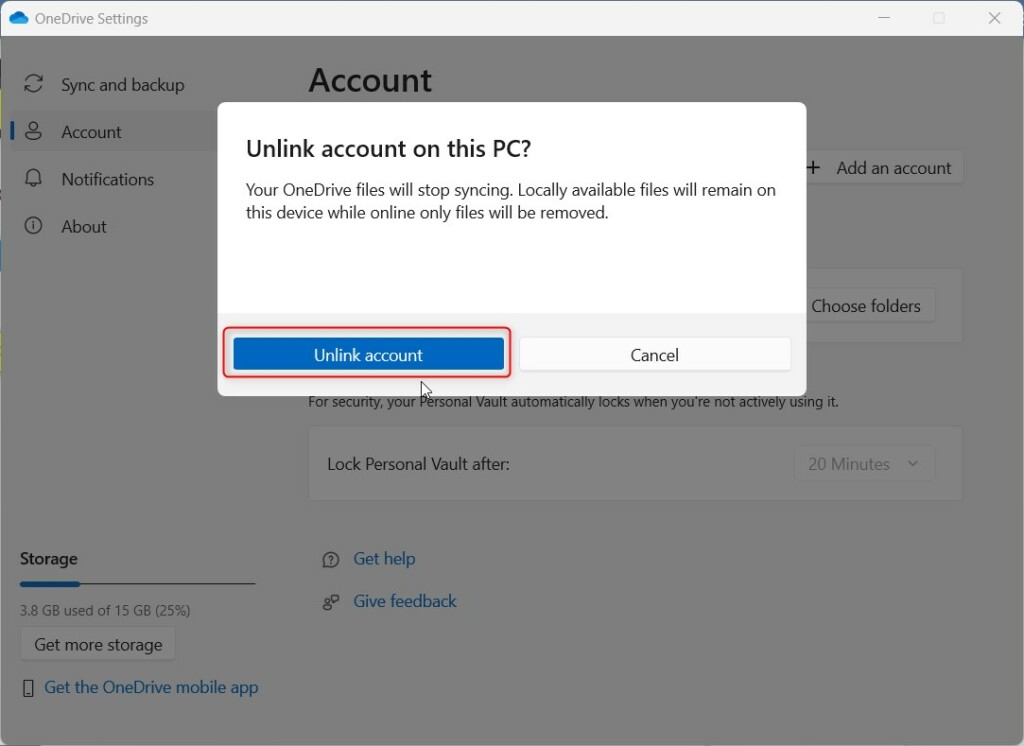
- A new window will appear. Click Unlink account to confirm.
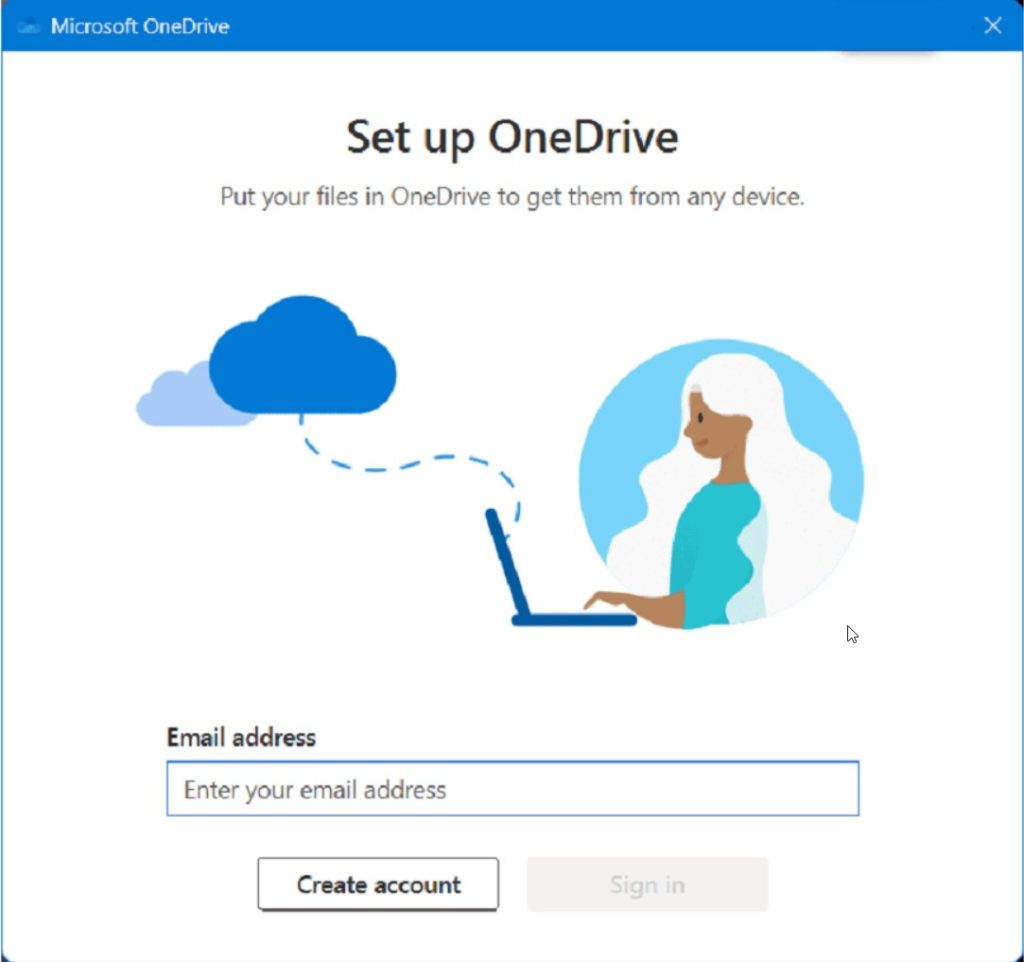
Once finished, your account is removed and the computer is disconnected. You will see a setup screen appear, which you can ignore if you are finished.
How to stop OneDrive from starting automatically
If you want to keep the app installed but stop it from running when you turn on your PC, follow these steps:
- Press Ctrl+Shift+Esc to open Task Manager.
- Click the Startup apps tab.
- Find Microsoft OneDrive in the list.
- Right-click it and select Disable.
Clearing Sign-in Credentials
If you are still seeing login prompts, you may need to clear your saved credentials:
- Search for Credential Manager in the Start menu.
- Select Windows Credentials.
- Find any entries starting with OneDrive Cached Credential.
- Click the arrow next to the entry and select Remove.
Uninstalling vs. Unlinking
Unlinking only stops the sync process. If you want to remove the software entirely, go to Settings > Apps > Installed apps, search for Microsoft OneDrive, and click Uninstall. This is the best way to completely remove OneDrive from File Explorer.
Troubleshooting Sync Errors
If you’re unlinking because of errors, try resetting the app first. Press the Windows key + R on your keyboard, paste the following command, and then press Enter:
C:\Program Files\Microsoft OneDrive\onedrive.exe /reset
Note: This requires admin privileges if the app is installed for all users.
Summary
Unlinking OneDrive is a straightforward way to stop syncing files. Your data stays safe in the cloud, and your local files remain on your PC. You can always re-link your account later by signing back into the app. For more help, visit the Microsoft support page.
Will unlinking OneDrive delete my files from the cloud?
No, unlinking your account does not delete your files from the cloud. Your data remains stored on Microsoft servers. You can access your files at any time by logging into the OneDrive website. Unlinking only breaks the connection between your local computer and the cloud storage service.
What happens to my local files after I unlink my account?
Your local files will remain on your computer exactly where they were before you unlinked. They will simply stop syncing with OneDrive. Any changes you make to these files after unlinking will not be reflected in the cloud, and the OneDrive app will no longer manage them.
Was this guide helpful?

About the Author
Richard
Tech Writer, IT Professional
Richard, a writer for Geek Rewind, is a tech enthusiast who loves breaking down complex IT topics into simple, easy-to-understand ideas. With years of hands-on experience in system administration and enterprise IT operations, he’s developed a knack for offering practical tips and solutions. Richard aims to make technology more accessible and actionable. He's deeply committed to the Geek Rewind community, always ready to answer questions and engage in discussions.



No comments yet — be the first to share your thoughts!