Prevent Copilot from using its Memory from previous conversations and Bing activity in Microsoft Edge

You can prevent Microsoft Copilot in Edge from using your previous conversation history and Bing activity by adjusting specific privacy settings.
Copilot is Microsoft’s AI assistant integrated into the Edge browser, designed to help you with tasks like summarizing web pages or drafting content. It learns from your interactions to provide more personalized assistance.
If you want to ensure your Copilot sessions remain private and don’t retain memory from prior chats or Bing searches, you need to disable the “Web assistance” and “Improve Copilot” options within Edge’s Copilot settings.
Turn off “Personalization and memory” in Copilot’s settings to prevent it from using past conversations and Bing activity. Access Copilot settings via the three dots menu within the Copilot sidebar in Edge. This ensures each chat starts fresh, enhancing your privacy.
How to Change Copilot’s Privacy Settings in Edge
Ready to take control of Copilot’s memory? It only takes a few clicks. Follow these steps to adjust what Copilot can access.
Open Copilot in Edge
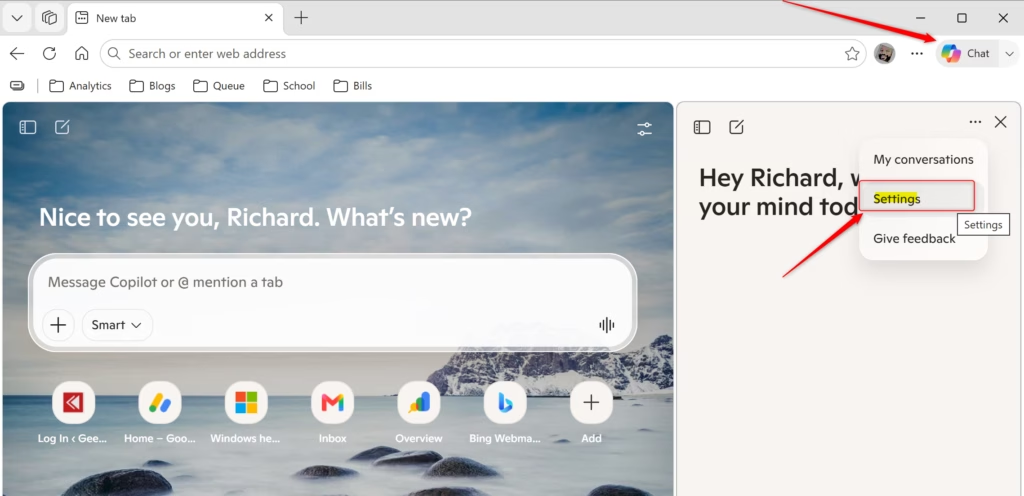
First, you need to open Copilot. You can usually find the Copilot icon in the top-right corner of your Microsoft Edge browser. Click it to open the Copilot sidebar.
Access the Copilot Menu
Once the Copilot sidebar is open, look for a “More menu” icon. It usually looks like three dots .... It is often in the Copilot sidebar itself, near the top or bottom.
Go to Settings
In the “More menu,” you will see an option for “Settings.” Click this to open the Copilot settings inside Edge.
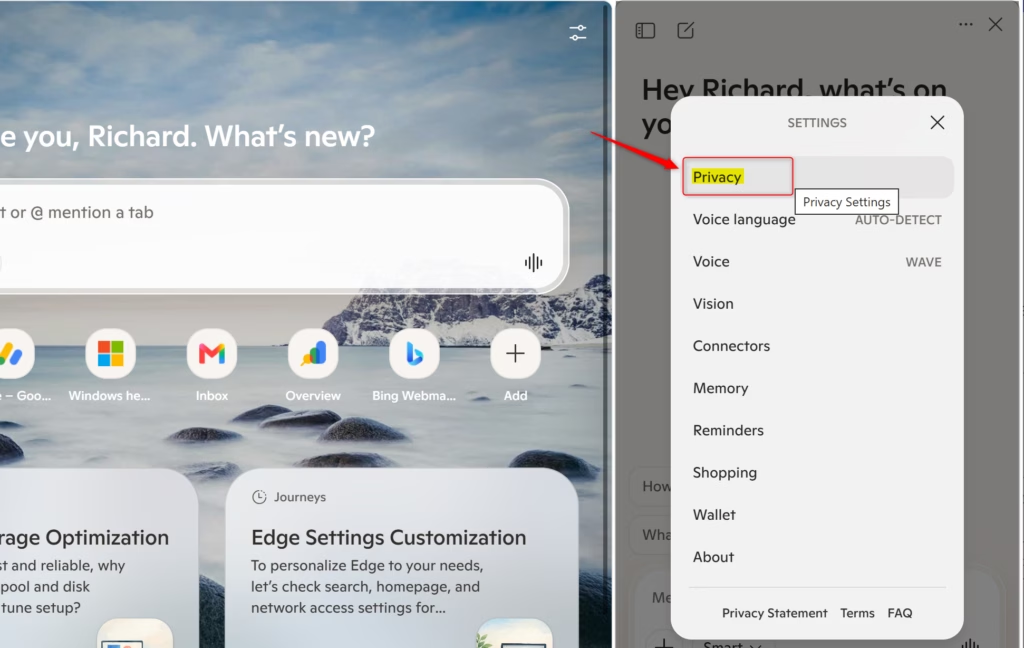
Find the Privacy Section
In the Copilot settings, you should see a “Privacy” section. This is where you will find all the controls we need.
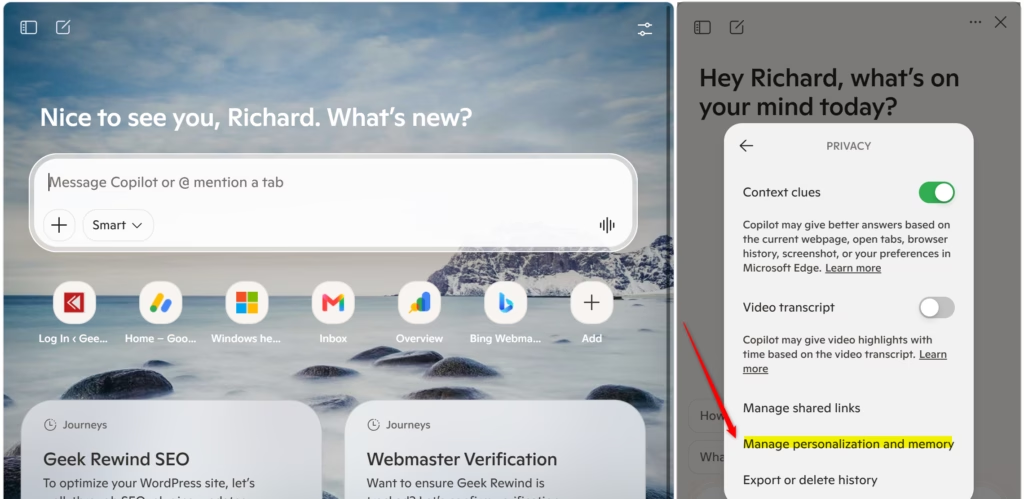
Manage Personalization and Memory
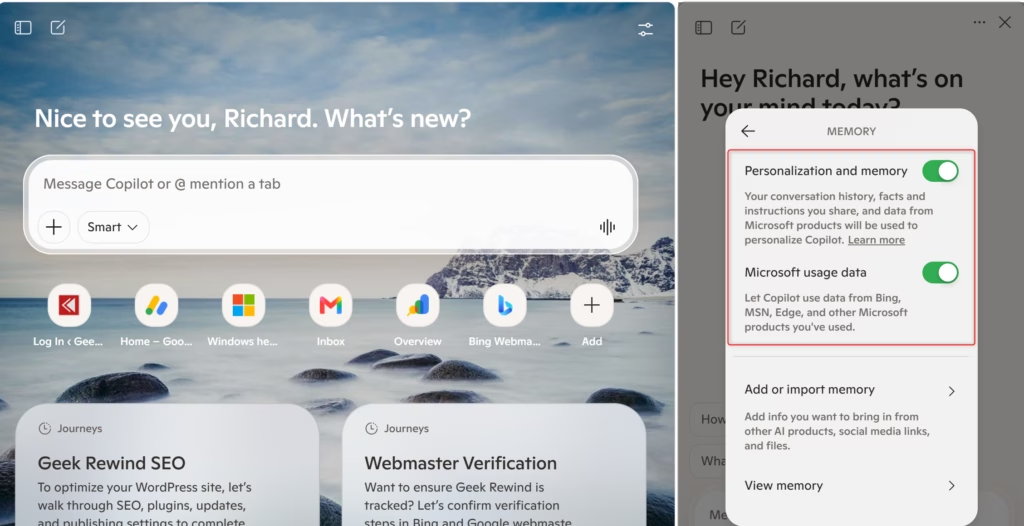
This is where you control Copilot’s memory. Look for a setting like “Personalization and memory.” When it’s on, Copilot remembers past conversations and uses your Bing and MSN activity. It builds a profile to offer better suggestions.
To stop Copilot from remembering past conversations, Bing activity, or other inferred interests, turn off “Personalization and memory.” Turning this off makes sure every chat starts fresh. It will not use your old data or inferred preferences.
Save Your Changes
After you change the switches for “Context clues” and “Personalization and memory,” your changes are usually saved right away. There might not be a button to click. The settings work as soon as you toggle them.
Reference:
https://support.microsoft.com/en-us/microsoft-copilot/getting-started-with-copilot-in-microsoft-edge
Summary
Why do this? You can stop Copilot from remembering your past conversations and using your activity from Bing and MSN. This gives you more control over your privacy.
What happens when done? Copilot will start each new conversation fresh, without using any information from your previous chats or browsing history. This means your interactions will be more private.
Was this guide helpful?

About the Author
Richard
Tech Writer, IT Professional
Richard, a writer for Geek Rewind, is a tech enthusiast who loves breaking down complex IT topics into simple, easy-to-understand ideas. With years of hands-on experience in system administration and enterprise IT operations, he’s developed a knack for offering practical tips and solutions. Richard aims to make technology more accessible and actionable. He's deeply committed to the Geek Rewind community, always ready to answer questions and engage in discussions.
No comments yet — be the first to share your thoughts!