How to Add Your Child’s Microsoft Account to Windows 11

You add your child’s Microsoft account to Windows 11 to manage their digital activity and screen time.
Linking a child’s account allows you to set screen time limits, content restrictions, and even view activity reports directly from your own Microsoft account.
This process is essential for ensuring a safe and productive computing experience for younger users on Windows 11, and requires you to be an administrator on the PC.
Open Settings, go to Accounts, then Family, and click Add family member. Enter your child’s Microsoft account email, choose “Child” as the role, and confirm. Have your child sign out and sign in with their Microsoft account to link the device.
Prepare Your Child’s Account on 🪟 Windows 11
Your child needs their own user account on the PC. Make sure this account is a standard user, not an administrator, which is really important.
Why a Standard Account Matters
An administrator account can do anything on a computer; they can install programs and change settings. A standard user account has fewer permissions. This is beneficial for a child’s account when using family safety features, as it prevents them from altering safety settings or disrupting the system.
Add Your Child’s Microsoft Account to 🪟 Windows 11
First, open Windows Settings. Click the Start button, then click the gear icon. Or, press Windows key + I.
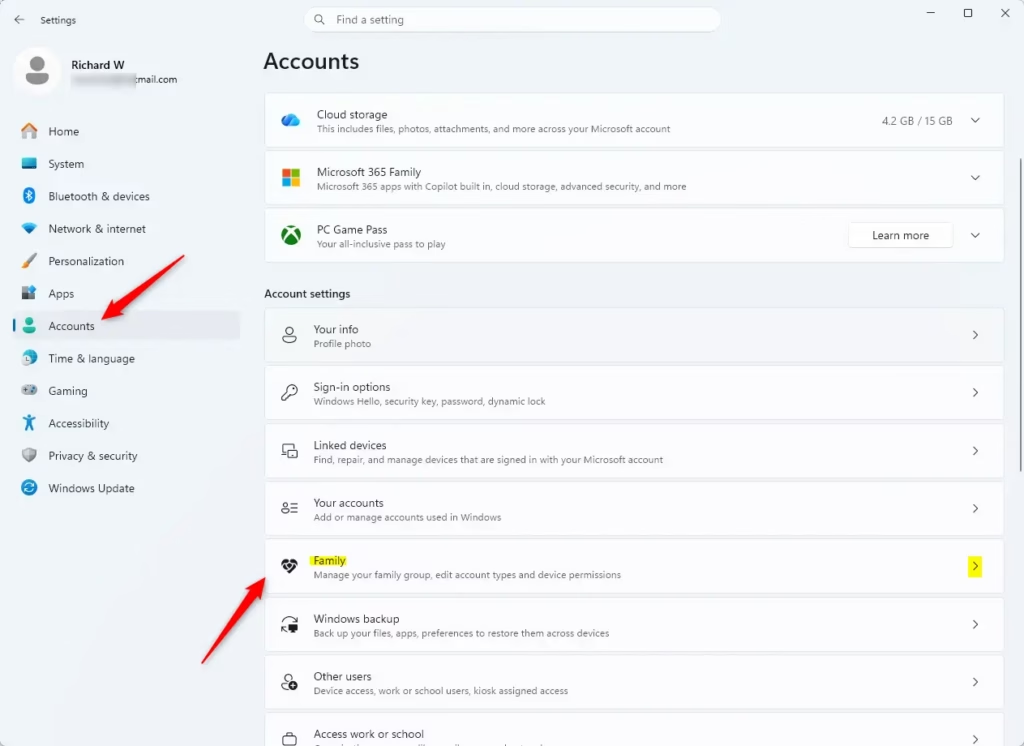
In the Settings window, click on Accounts on the left side.
Next, click on Family.
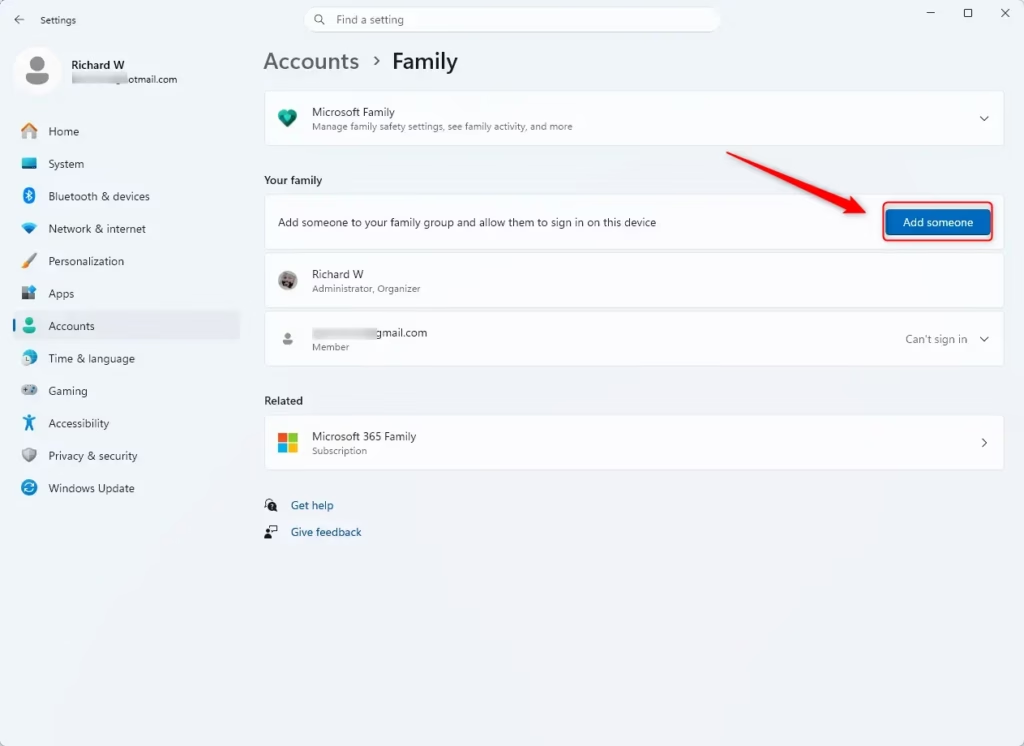
Under the “Your family” section, click Add family member.
A box will appear asking for your child’s email address, which is their Microsoft account email. Type it in and click Next.
Windows will ask for the role. Choose Child. Click Confirm.
Tip: Make Sure It’s a Standard User
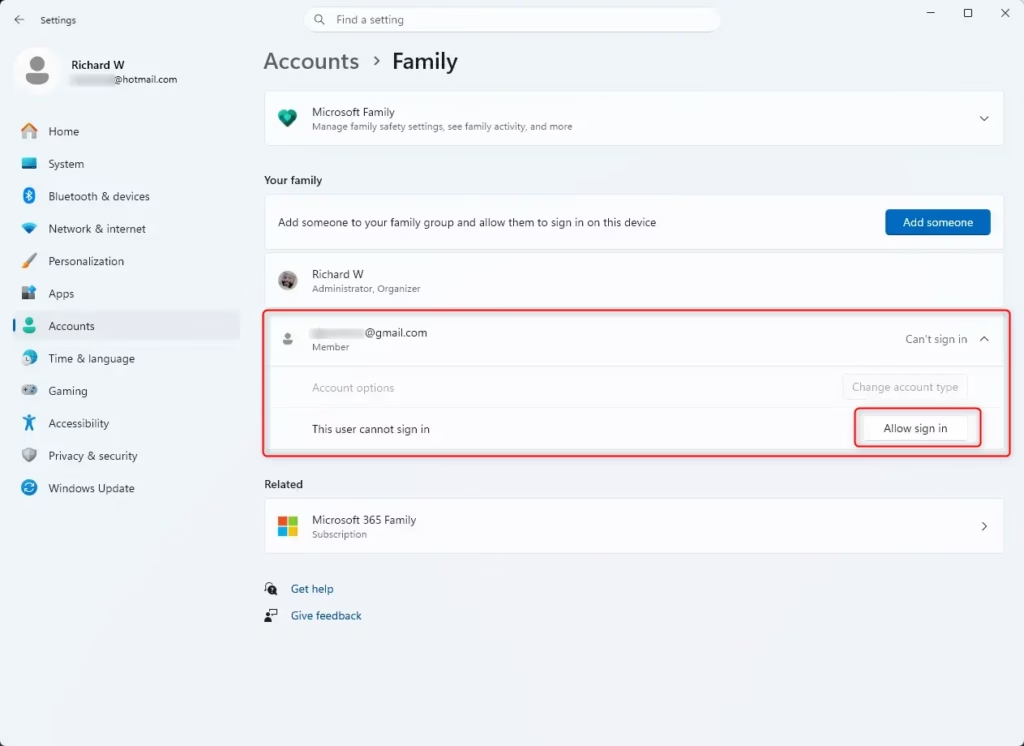
When you add your child’s Microsoft account this way, Windows 11 makes it a standard user account. If you already made a local account for them, check that its type is “Standard user” in the Family settings. If it says “Administrator,” you need to change it.
Warning: Never set a child’s account as an administrator if you want to use Microsoft Family Safety. The safety features will not work, and your child might be able to bypass them.
Have Your Child Sign In to the PC
After adding your child’s Microsoft account, they need to sign in to the computer with it. This links the device to their Microsoft profile.
Why This Sign-In is Important
When your child signs in with their Microsoft account on a PC for the first time, Windows 11 connects that PC to their account. This tells Microsoft’s systems that this computer is now a device connected to their account. Without this sign-in, the PC won’t show up in their connected devices list, and family safety features won’t work.
Action: Sign In to 🪟 Windows 11
- On the Windows 11 PC, click the Start button.
- Click on your current user profile picture or name in the bottom left of the Start menu.
- Select Sign out.
- On the lock screen, select your child’s user account. It should be listed now.
- Enter their Microsoft account password and press Enter.
Once they log in, the device will be linked to their Microsoft account. You can then go back to your account to check that it shows up as a connected device.
Tip: First Sign-In Might Take a Bit
The first time a user signs in with a Microsoft account on a new PC, Windows sets up their profile. This can take a few minutes and might download their settings. Let it finish; it will go to the desktop.
Verify the Device is Connected
After your child signs in, check to make sure it all worked. This confirms the PC is part of your family setup and ready for any rules you set.
How to Confirm the Connection
The best way to check is to go to your Microsoft Family Safety page online. You will see a list of all devices linked to your family members there.
Action: Check Your Family Management Page
- Go to the Microsoft Family Safety website: account.microsoft.com/family/home.
- Sign in with your Microsoft account. This is the account that organizes the family group.
- On your family dashboard, you will see a list of your family members. Click on your child’s name.
- Look for a section that lists their Devices or Connected Devices.
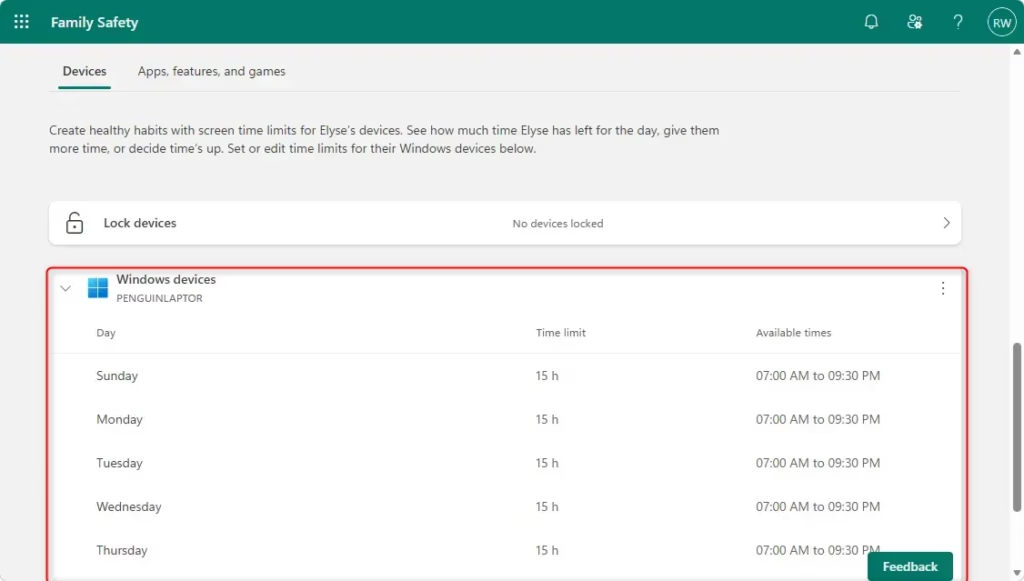
Your Windows 11 PC should appear in this list, perhaps showing the computer’s name. You can change this name in Windows settings if you want something easier to remember.
Reference:
https://support.microsoft.com/en-us/family-safety/how-to-connect-a-device-to-a-microsoft-account
Summary
Adding your child’s Microsoft account to Windows 11 enables family safety features. You’ll need to add them as a family member in Settings and ensure they have a standard user account. Then, your child signs in to the PC with their account, and finally, you check the Microsoft Family Safety website to confirm the device is connected. This setup helps you manage your child’s computer use and online safety effectively.
Should I set up a Microsoft account for my child or a family account?
By setting up child accounts and using Microsoft Family Safety, you can: Set daily limits on device usage. Block inappropriate websites and set age restrictions for apps and games. Keep track of your children's online activities.
How do I add another family member to my Microsoft 365 account?
button to open the guide. Then select Sign in and sign in to your account. > Account > Family settings > Manage family members > Add to family > Add new.
Can my 12 year old have a Microsoft account?
If a person is under statutory age in your region, they will be prompted during registration to request consent by entering an adult's email. In addition to complying with regional regulations, we strive to protect users through our Family Safety features.
Was this guide helpful?

About the Author
Richard
Tech Writer, IT Professional
Richard, a writer for Geek Rewind, is a tech enthusiast who loves breaking down complex IT topics into simple, easy-to-understand ideas. With years of hands-on experience in system administration and enterprise IT operations, he’s developed a knack for offering practical tips and solutions. Richard aims to make technology more accessible and actionable. He's deeply committed to the Geek Rewind community, always ready to answer questions and engage in discussions.




No comments yet — be the first to share your thoughts!