How to Change Your Windows 11 Lock Screen Status

This guide explains how to choose which app displays information on your Windows 11 lock screen.
Open Settings and go to Personalization, then Lock screen. Under Lock screen status, select an app from the dropdown menu to display its information. Choose “None” to remove all status updates.
What Is the Lock Screen?
The Windows 11 lock screen is the first thing you see when you turn on your computer or when it locks.
What’s New With 🪟 Windows 11 25H2 Lock Screen Widgets?
In the Windows 11 25H2 update, Microsoft introduced more interactive lock screen widgets. These widgets provide live, dynamic data. You can now see weather, sports scores, and stock updates directly on the lock screen. If you prefer a clean look, you can easily disable these features.
How to Customize Your Lock Screen Background
You can easily change your Windows 11 lock screen background to show off your personal style.
How to Select Your Lock Screen Status App
- Open the Settings app by pressing
Windows key + I.Windows 11 Settings menu with Personalization highlighted. - Click Personalization on the left menu.
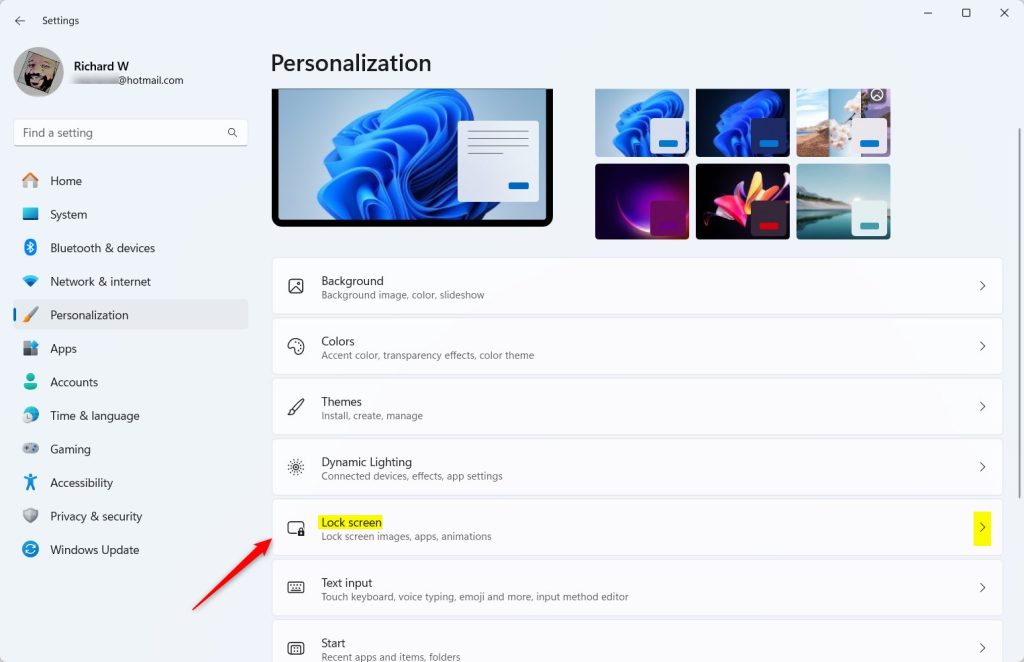
Windows 11 lock screen settings tile for selecting status apps - Select Lock screen on the right.
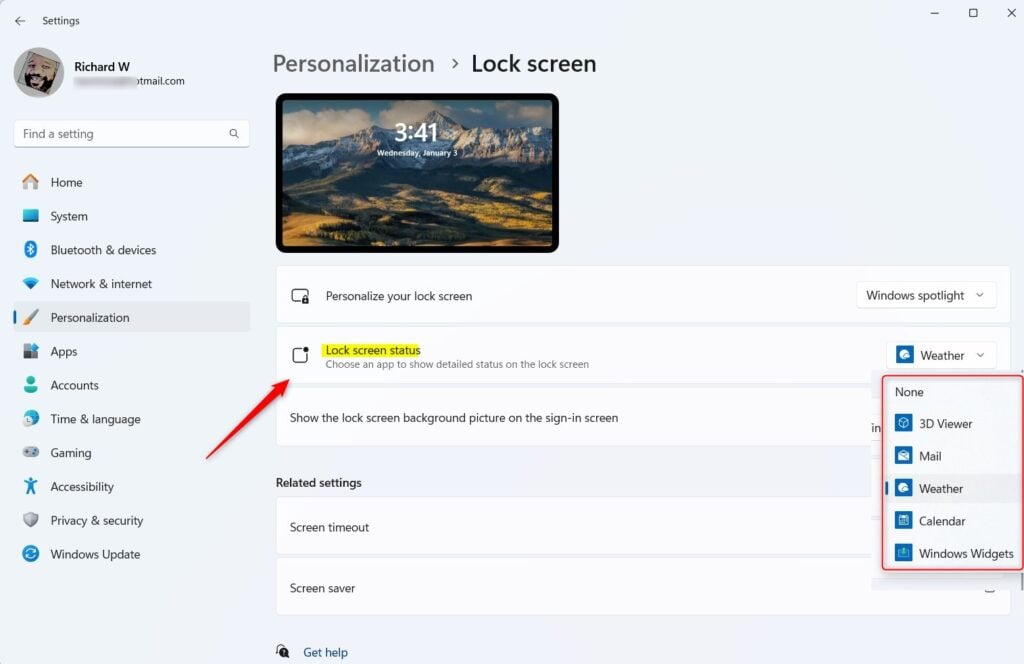
Lock screen status options - Find Lock screen status and pick an app from the list.
- Close the app when finished.
Note: No admin privileges are required for these steps.
Privacy and Security: Hiding Sensitive Info
You may want to hide your email address or notifications for privacy. Go to Settings > Accounts > Sign-in options. Toggle off Show account details such as my email address on the sign-in screen. This prevents others from seeing your personal info when the PC is locked.
Advanced Settings: Dynamic Lighting and Screen Savers
Windows 11 supports Dynamic Lighting for compatible keyboards and mice. You can manage these under Personalization > Dynamic lighting. For classic users, you can still access Screen saver settings by searching for “Change screen saver” in the Start menu. This opens the legacy C:\Windows\System32\control.exe window.
Summary
Customizing your Windows 11 lock screen helps you see important info at a glance. By adjusting your background, disabling sensitive email displays, and managing widgets, you create a personalized and secure experience. Follow the steps in Settings to toggle these features on or off as needed.
How do I remove widgets from the 🪟 Windows 11 lock screen?
To remove widgets, go to Settings, select Personalization, and click on Lock screen. Under the Lock screen status section, change the setting to None. This will stop all interactive widgets from appearing on your lock screen, providing a cleaner and more private experience for your Windows 11 device.
Why don’t my lock screen widgets appear?
If widgets are missing, ensure your Windows 11 is updated to the latest 25H2 version. Check that you have selected a widget-compatible app in the Lock screen status settings. Also, ensure your internet connection is active, as these widgets require a live data feed to display information correctly.
Can I use third-party apps on the lock screen?
You can’t use just any app on your Windows 11 lock screen; only specific Microsoft apps like Weather and Mail are supported.
Was this guide helpful?

About the Author
Richard
Tech Writer, IT Professional
Richard, a writer for Geek Rewind, is a tech enthusiast who loves breaking down complex IT topics into simple, easy-to-understand ideas. With years of hands-on experience in system administration and enterprise IT operations, he’s developed a knack for offering practical tips and solutions. Richard aims to make technology more accessible and actionable. He's deeply committed to the Geek Rewind community, always ready to answer questions and engage in discussions.


No comments yet — be the first to share your thoughts!