How to Disable Lock Screen Notifications in Windows 11

You disable lock screen notifications in Windows 11 by changing a single toggle in the Settings app.
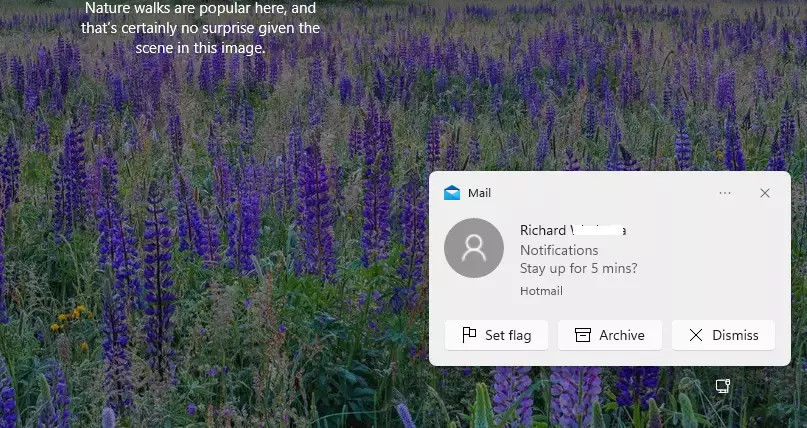
Lock screen notifications are the alerts that appear on your Windows 11 login screen, giving you a heads-up about new emails, messages, or app updates before you even sign in.
Disabling these notifications stops sensitive information, like the subject line of a personal email, from being visible to anyone glancing at your screen. This is particularly useful if you share your PC or work in a busy environment.
Starting with Windows 11 version 22H2, this setting is easily accessible through the Notifications page within the Settings app.
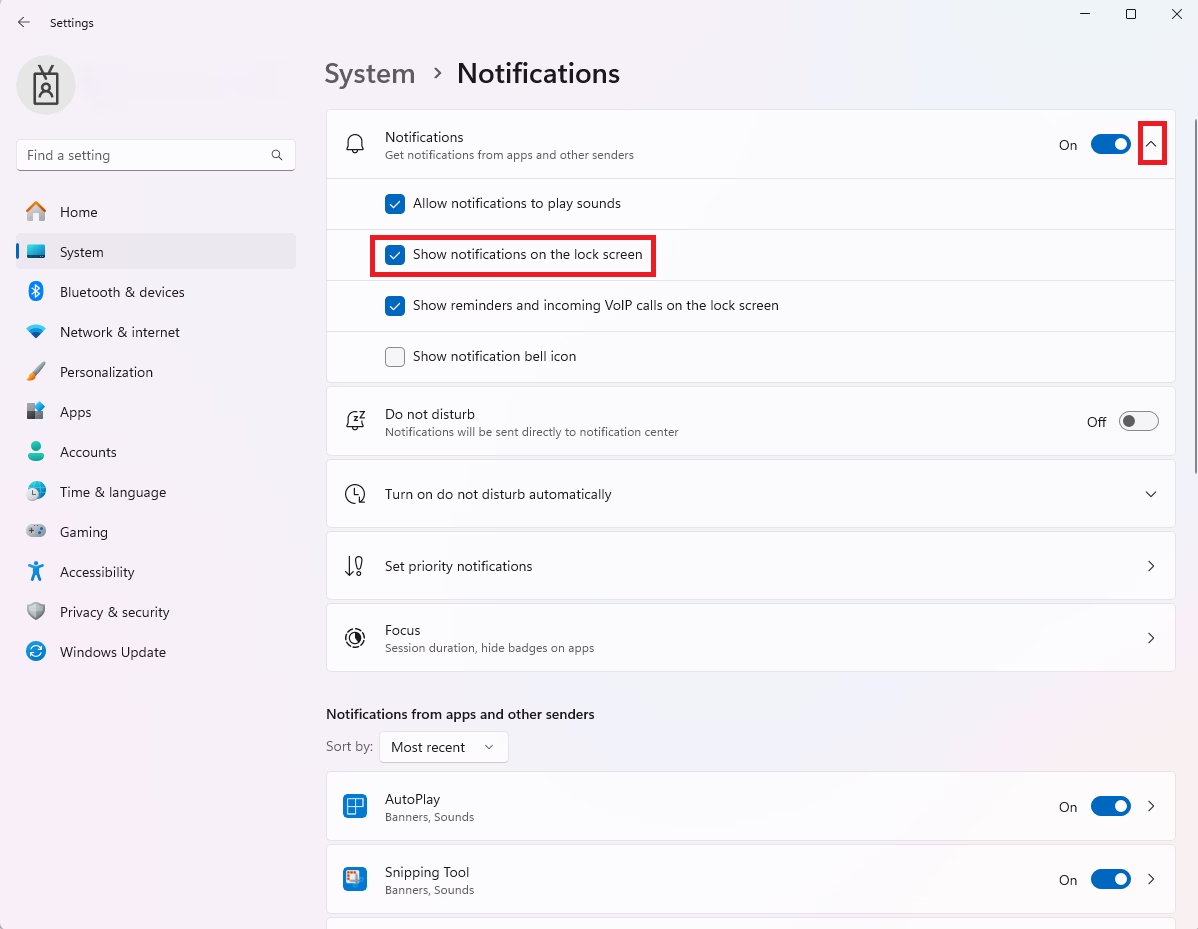
Go to Settings > System > Notifications and uncheck “Show notifications on the lock screen”. This prevents alerts from appearing before you sign in.
Disable Lock Screen Notifications on 🪟 Windows 11
You can manage these settings in the Windows Settings menu; no admin privileges are needed.
- Open Settings by pressing Windows key + I.
- Click the arrow next to Notifications to expand options.
- Click System then Notifications.
- Uncheck Show notifications on the lock screen.

Can I hide notification content but keep the app icon visible?
You can hide notification content on your Windows 11 lock screen while still seeing which apps sent alerts.
Disable Lock Screen Notifications on Android
Android settings vary by device, but the process is similar for most phones including Samsung One UI.
- Open Settings and tap Notifications.
- Select Lock screen notifications.
- Choose Don’t show notifications or Hide content to keep the alert but hide the text.
Disable Lock Screen Notifications on iPhone
Apple makes it easy to control your privacy on iOS.
- Go to Settings and tap Notifications.
- Select Show Previews.
- Choose When Unlocked or Never to hide content until you use FaceID or your passcode.
Disable Lock Screen Notifications on macOS
To disable lock screen notifications on your Mac, open System Settings and go to Notifications.
Does disabling lock screen notifications affect my alarm clock?
No. Disabling lock screen notifications only hides text previews and alerts from apps like email or messaging. Your system alarm clock is a core function and will continue to ring and display its interface regardless of your notification privacy settings. You will not miss your wake-up call.
Summary
Managing your lock screen privacy helps keep your data safe and reduces distractions by preventing sensitive information from appearing when your device is locked.
Was this guide helpful?

About the Author
Richard
Tech Writer, IT Professional
Richard, a writer for Geek Rewind, is a tech enthusiast who loves breaking down complex IT topics into simple, easy-to-understand ideas. With years of hands-on experience in system administration and enterprise IT operations, he’s developed a knack for offering practical tips and solutions. Richard aims to make technology more accessible and actionable. He's deeply committed to the Geek Rewind community, always ready to answer questions and engage in discussions.


[…] lock screen also allows you to display notifications and beautiful photos from around the world via Windows […]
[…] design, Windows will show you notifications on the device’s lock screen, the notification Center, and pop-up notification banners at the lower-right corner […]
[…] allows users to enable or disable local screen notifications, change the background, and […]
[…] computer without signing into Windows. All Windows computers have a button on the sign-in screen that allows you to put your computer to sleep, hibernate, shut down, […]