How to Enable Windows 11 Lock Screen Fun Facts

You enable Windows 11 lock screen fun facts by toggling a setting in the Personalization options.
This feature displays helpful tips, trivia, and interesting facts directly on your Windows 11 lock screen, making it more engaging than a static image.
To activate it, you navigate to Settings > Personalization > Lock screen and select “Windows Spotlight” from the Personalize your lock screen dropdown. This option uses Windows Spotlight’s curated content, which often includes these fun facts.
For this to work, ensure your PC has an active internet connection, as Windows Spotlight needs to download the latest content from Microsoft servers.
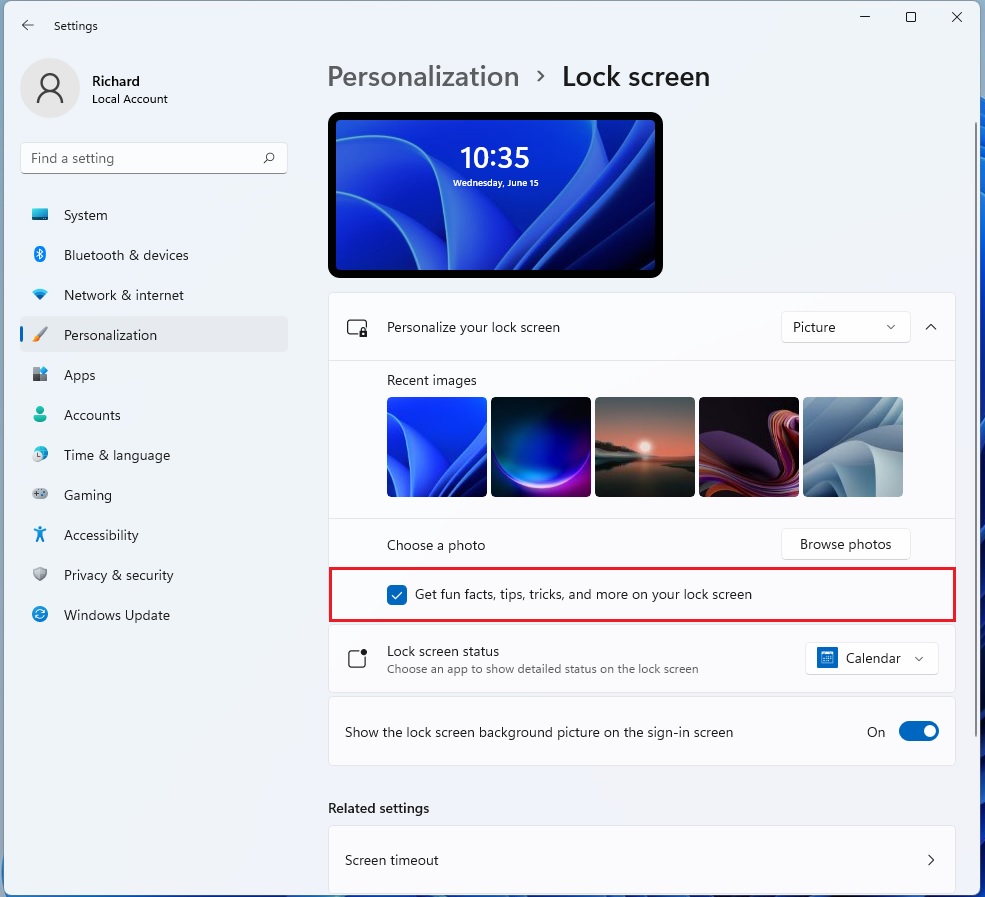
Go to Settings > Personalization > Lock screen. Select “Windows Spotlight” from the dropdown menu to automatically enable fun facts. If using “Picture” or “Slideshow,” check the box labeled “Get fun facts, tips, tricks, and more on your lock screen.
How to change your lock screen settings
Changing your Windows 11 lock screen settings is simple and lets you control what you see when your computer is locked, including fun facts.
Once you are in the Settings menu:
Tech tutorial subscription
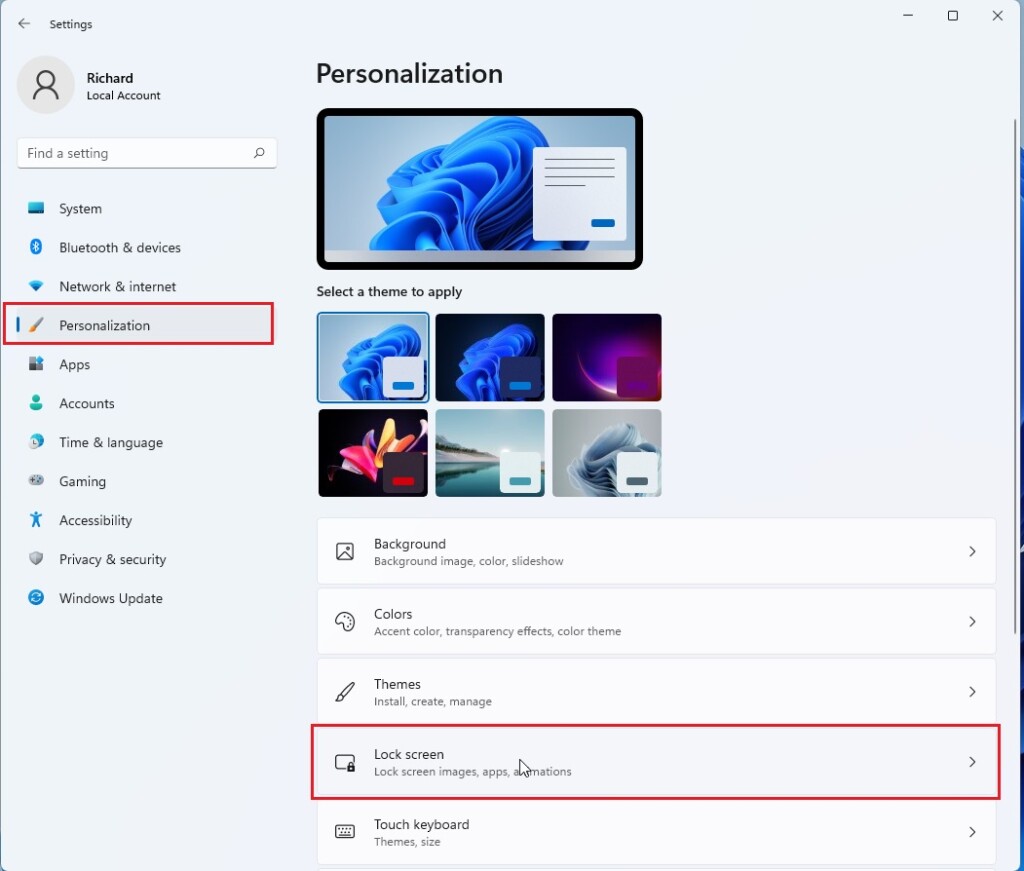
- Click on Personalization in the left menu.
- Select the Lock screen box on the right side.
Look for Personalize your lock screen. You must select Windows Spotlight, Picture, or Slideshow. If you choose Windows Spotlight, the system automatically shows fun facts. For Picture or Slideshow, check the box labeled Get fun facts, tips, tricks, and more on your lock screen.
How to reset Windows Spotlight (Admin Required)
If your Windows 11 lock screen isn’t showing fun facts, resetting the Windows Spotlight cache can often fix it, but you’ll need administrator rights to do this.
Tech tutorial subscription
- Open the Start menu, type CMD, right-click it, and select Run as administrator.
- Run the following commands one by one:
⬛Command PromptCopy
DEL /F /S /Q /A %USERPROFILE%\AppData\Local\Packages\Microsoft.Windows.ContentDeliveryManager_cw5n1h2txyewy\LocalState\Assets\*.*
⬛Command PromptCopy
DEL /F /S /Q /A %USERPROFILE%\AppData\Local\Packages\Microsoft.Windows.ContentDeliveryManager_cw5n1h2txyewy\Settings\*.*
After running these, restart your computer. Windows will rebuild the cache automatically.
Advanced Troubleshooting: Registry Fix (Admin Required)
If the checkbox is greyed out, you may need to check the registry. Warning: Incorrect changes can harm your system.
- Press ⊞ Win+R, type regedit, and press Enter.
- Navigate to: 🗝️HKEY_CURRENT_USER\Software\Microsoft\Windows\CurrentVersion\ContentDeliveryManager
- Look for RotatingLockScreenEnabled and ensure it is set to 1.
Summary
You can control Windows 11 lock screen fun facts by adjusting settings in Personalization, and reset the feature if needed by clearing the Spotlight cache.
How to remove fun facts from lock screen 🪟 Windows 11?
Let's get started click the search icon on the taskbar. And type settings. Click select personalization from the left panel. Click on lock. Screen.
What is the secret God mode in 🪟 Windows 11?
Windows 11 hides a surprisingly powerful shortcut: create a single specially named folder and you unlock a master list of system controls, administrative tools, and rarely-used settings that normally live buried across Settings, the legacy Control Panel, and assorted management consoles — a trick commonly called God …
What does screen lock do in 🪟 Windows 11?
The lock screen in Windows serves as the initial interface you encounter when you start your device or wake it from sleep. It provides a layer of security by requiring a biometric gesture, PIN, or password to access your desktop.
Was this guide helpful?

About the Author
Richard
Tech Writer, IT Professional
Richard, a writer for Geek Rewind, is a tech enthusiast who loves breaking down complex IT topics into simple, easy-to-understand ideas. With years of hands-on experience in system administration and enterprise IT operations, he’s developed a knack for offering practical tips and solutions. Richard aims to make technology more accessible and actionable. He's deeply committed to the Geek Rewind community, always ready to answer questions and engage in discussions.

No comments yet — be the first to share your thoughts!