How to Windows 11 Setup Without Internet Connection

You can set up Windows 11 without an internet connection by using a command prompt during the Out-of-Box Experience (OOBE) to bypass the requirement for a Microsoft account.
This method allows you to create a local user account on Windows 11, even if Microsoft has made online setup mandatory for recent versions like Home and Pro.
Many users prefer a local account for increased privacy or when a stable internet connection isn’t available during the initial installation process.
Simply press Shift+F10 during the network setup screen to open Command Prompt and enter a specific command to proceed with a local setup.
Press Shift+F10 at the network screen to open Command Prompt. Type OOBE\BYPASSNRO and press Enter. Your PC will restart, and you can then select “I don’t have internet” to continue with a local account.
Why perform a 🪟 Windows 11 offline setup?
Performing a Windows 11 offline setup lets you create a local account instead of using a Microsoft account, which is great for privacy or if you don’t have internet when you start.
What happens when you bypass the internet requirement?
When you bypass the internet requirement during Windows 11 setup, the installer lets you create a local account right away, skipping the need to connect online.
Steps to Install 🪟 Windows 11 Offline
Setting up Windows 11 without an internet connection is possible by using a specific command during the installation process. You’ll proceed with the usual setup steps until you reach the screen asking you to connect to a network, at which point you’ll use a keyboard shortcut to bypass it.
1. Go through the usual setup steps until you see the screen that asks you to connect to the internet.
2. At the screen that asks you to connect to a network, press Shift+F10 on your keyboard. This opens the Command Prompt. Note: This step requires admin privileges.
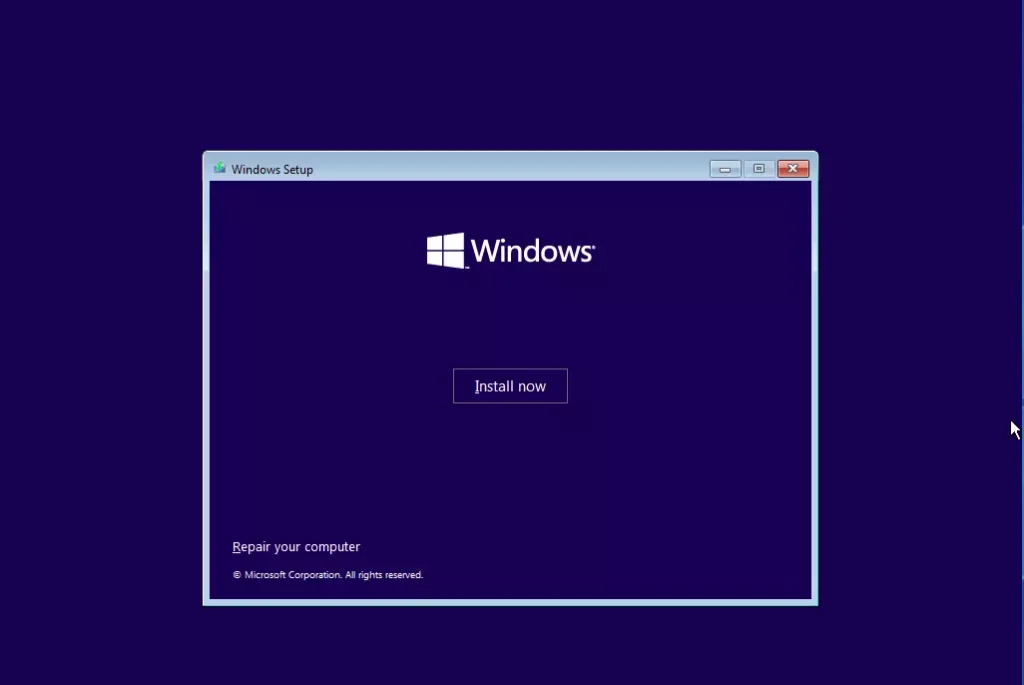
3. In the black window, type the following command exactly as shown and press Enter:
OOBE\BYPASSNRO
4. Your computer will restart. Once it’s back on the setup screen, you’ll notice a new option: I don’t have internet.

5. Click Continue with the limited setup to proceed without an internet connection.

6. Follow the remaining prompts to name your computer and create a local account.

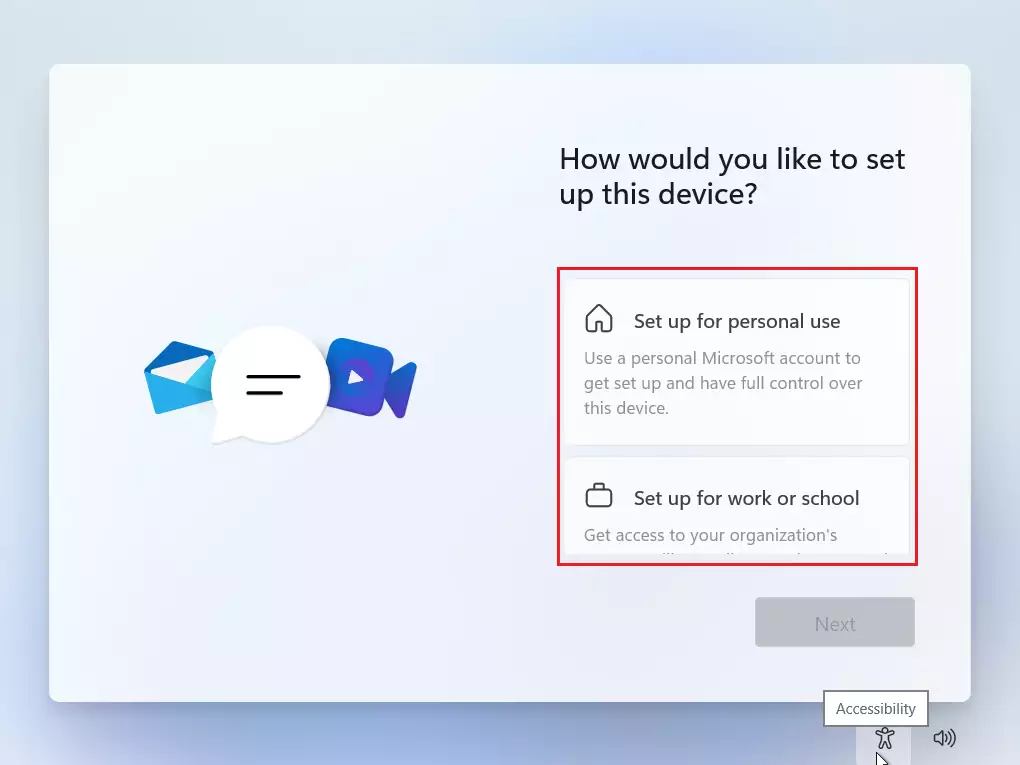
Choose if you are setting this up for personal use or for work/school.
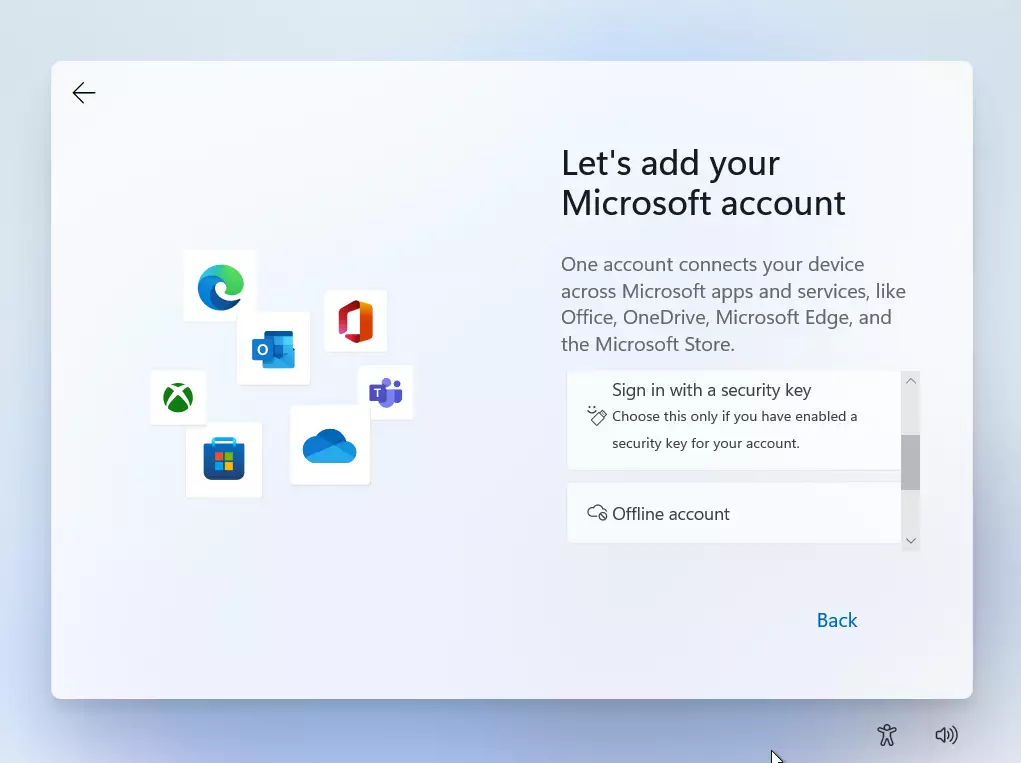
Select Offline account to create a local profile without a Microsoft online account.
Create your password and set up your security questions.

Windows will finish the setup and restart. You can now log in with your new local account.

Version-Specific Changes: Build 26120 and Beyond
For newer Windows 11 builds like 26120 and later, the network setup is stricter, but the OOBE\BYPASSNRO command is still the best way to do an offline setup.
Troubleshooting ‘No Internet’ Errors
Experiencing ‘no internet’ errors during your Windows 11 offline setup can be frustrating, but usually, it’s a simple fix. Most often, the issue is a small typo in the command you entered, or you might need to install your network drivers after the setup is complete to get online.
- Check the Command: Ensure you typed
OOBE\BYPASSNROwithout spaces. - Task Manager: If the setup hangs, press Shift+F10 and type
taskmgrto end non-essential processes. - Drivers: If you have no internet after setup, you must download network drivers on another PC and transfer them via USB.
Summary
Setting up Windows 11 offline is a great way to keep more control over your privacy. The command lets you skip the mandatory Microsoft account requirement and set up a local account instead. This approach works for most recent builds, including 26120+, ensuring a smooth installation even if you’re not online.
Can I install 🪟 Windows 11 Pro without an internet connection?
Yes, you can install Windows 11 Pro offline. By using the OOBE\BYPASSNRO command during the initial setup, you can skip the mandatory network connection requirement and create a local account instead of a Microsoft account.
Does bypassing the internet connection affect Windows Updates?
Bypassing the internet during setup does not permanently disable Windows Updates. Once you connect your computer to the internet after the initial setup is complete, Windows will automatically check for and install the necessary updates and security patches.
Was this guide helpful?

About the Author
Richard
Tech Writer, IT Professional
Richard, a writer for Geek Rewind, is a tech enthusiast who loves breaking down complex IT topics into simple, easy-to-understand ideas. With years of hands-on experience in system administration and enterprise IT operations, he’s developed a knack for offering practical tips and solutions. Richard aims to make technology more accessible and actionable. He's deeply committed to the Geek Rewind community, always ready to answer questions and engage in discussions.



No comments yet — be the first to share your thoughts!