How to List User Profiles and Accounts in Windows 11

You can list user profiles and accounts in Windows 11 to identify which folder belongs to which user, especially when names don’t match.
A user profile is essentially a set of personalized settings and files for each individual using your PC. These profiles store everything from your desktop background to application data, making your Windows experience unique.
Windows typically saves these profiles within the 📁C:\Users directory, creating a dedicated folder for each account. This is particularly handy in Windows 11 because renaming a user account doesn’t automatically rename its corresponding profile folder, which can cause confusion.
View profile folders in File Explorer by navigating to C:Users and enabling hidden items. Use the Command Prompt with `net user` or `wmic useraccount get name,SID` for a technical list. The Registry Editor at 🗝️HKEY_LOCAL_MACHINESOFTWAREMicrosoftWindows NTCurrentVersionProfileList also links accounts to their paths.
Step 1View Profile Folders in File Explorer
To see all profile folders currently on your computer, open File Explorer and navigate to:
C:\Users
Note that some folders might be hidden. To see them, click the View menu in File Explorer, select Show, and check Hidden items.
Step 2Using the Command Line to List Accounts
You can easily list all user accounts on your Windows 11 computer using the Command Prompt or PowerShell.
Open the Windows Terminal as an administrator. To list all local user accounts, type the following command and press Enter:
net user
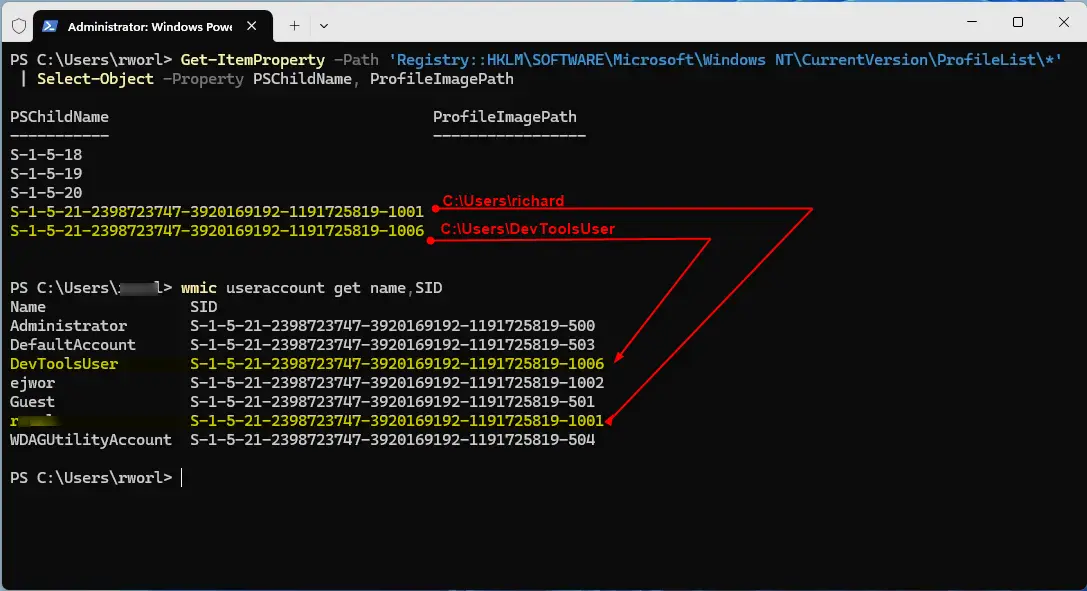
This command will show you a list of account names. To see more detail, including the Security Identifier (SID), use this command:
wmic useraccount get name,SID
Step 3Matching Profiles via Registry Editor
Windows connects each user account to its specific profile folder through the system’s registry, and you can find this link by checking a particular location.
1. Press Win + R, type regedit, and press Enter.
2. Navigate to: HKEY_LOCAL_MACHINE\SOFTWARE\Microsoft\Windows NT\CurrentVersion\ProfileList
3. Click through the folders starting with S-1-5 to see the ProfileImagePath value.
Step 4Using Advanced Management Tools
If you are using Windows 11 Pro or Enterprise, you can use the Local Users and Groups tool. Press Win + R, type lusrmgr.msc, and press Enter. This provides a visual interface to manage accounts, disable users, or reset passwords without needing command-line knowledge.
Summary
Managing user profiles is vital for system health. Using the command line, Registry Editor, or Local Users and Groups tool lets you accurately map user accounts to their folders. This ensures you know exactly where your data is stored and helps maintain a clean, organized Windows 11 environment.
Why are some user profiles hidden in 🪟 Windows 11?
Windows hides certain profiles, such as the Default or Public accounts, to prevent users from accidentally deleting critical system files. These folders are essential for the operating system to function correctly. You can view them by enabling the ‘Hidden items’ option in the File Explorer View menu settings.
What is the difference between a local user and a Microsoft account profile?
A local user account is only on your PC, but a Microsoft account uses your email to keep settings the same on different devices.
Warning: Never manually rename or delete folders inside C:\Users. Doing so will corrupt the user profile and cause Windows to create a temporary profile, leading to potential data loss. Always use the official Settings app to delete user accounts.
Can I see when a user profile was last accessed?
Yes, you can see when a user profile was last accessed by checking the ‘Date modified’ time on the NTUSER.DAT file within that user’s folder.
Was this guide helpful?

About the Author
Richard
Tech Writer, IT Professional
Richard, a writer for Geek Rewind, is a tech enthusiast who loves breaking down complex IT topics into simple, easy-to-understand ideas. With years of hands-on experience in system administration and enterprise IT operations, he’s developed a knack for offering practical tips and solutions. Richard aims to make technology more accessible and actionable. He's deeply committed to the Geek Rewind community, always ready to answer questions and engage in discussions.


[…] account name, the profile folder will not reflect the account’s new name. You may want to list and match the profile folder to the account name to ensure you’re not deleting the wrong […]