How to Enable or Disable Window Preloading in File Explorer on Windows 11

You can enable or disable File Explorer window preloading on Windows 11 to speed up how quickly folders open.
File Explorer window preloading is an experimental feature. It keeps a background process running, which makes your folders appear almost instantly when you click to open them.
Microsoft introduced this feature, first seen in Windows 11 build 26220.7271, to reduce the startup delay when opening File Explorer, especially after your PC has been idle.
When you enable preloading, your system prepares the necessary metadata (information about files) and thumbnail caches (small previews of files) in RAM (Random Access Memory). This can make your PC feel snappier.
Open File Explorer, click the three-dot menu, select Options, and go to the View tab. Check or uncheck “Enable window preloading” to toggle the feature.
How to Check Your 🪟 Windows 11 Build Version
First, let’s make sure you’re on a compatible Windows 11 version. Press Windows Key + R, type winver, and press Enter. If your build is 26220.7271 or higher, you can use the built-in settings.
Option 1Enable or Disable Preloading via Folder Options
You can turn File Explorer preloading on or off using the Folder Options menu, which is the easiest and safest method.
- Open File Explorer.
- Click the three-dot menu (…) at the top and select Options.
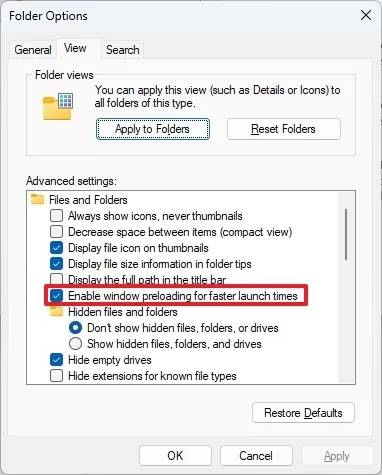
- Click the View tab.
- Look for Enable window preloading for faster launch times.
- Check the box to enable it or uncheck it to disable it .
- Click OK.
Option 2Enable or Disable Preloading via Registry Editor
If you’re comfortable with advanced settings, you can also turn File Explorer preloading on or off using the Registry Editor.
Admin Privilege Required: You must be logged in as an administrator to perform these steps.
- Press Windows Key + R, type regedit, and press Enter.
- Navigate to the following path:
HKEY_CURRENT_USER\Software\Microsoft\Windows\CurrentVersion\Explorer\Advanced - Right-click in the right pane and select New > DWORD (32-bit) Value.
- Name it ShouldPrelaunchFileExplorer.
- Double-click the value. Set it to 1 to enable or 0 to disable.
- Restart your computer to apply changes.
Hardware Impact and Performance Analysis
Turning on File Explorer preloading uses a little bit of your computer’s resources in the background, but the impact is usually very small, especially on newer computers with fast storage.
Summary
File Explorer preloading is a performance-focused feature in Windows 11 designed to reduce launch times. You can toggle this via Folder Options or the Registry. While it is safe for most users, those with limited hardware resources may choose to disable it to keep background activity to a minimum.” }
Does preloading affect SSD lifespan?
No, preloading does not significantly affect SSD lifespan. The feature primarily uses RAM to cache metadata and thumbnails. It does not perform constant heavy write operations that would wear out modern solid-state drives, making it safe for daily use on all standard hardware configurations.
Should gamers disable File Explorer preloading?
Gamers generally do not need to disable this. While it uses a tiny amount of memory, the impact on game performance is non-existent. If you are running on a machine with very limited RAM, disabling it might save a few megabytes, but it is rarely necessary for gaming stability.
Can preloading cause File Explorer to crash?
While rare, any background process can potentially conflict with third-party shell extensions. If you notice File Explorer crashing frequently, try disabling the preloading feature to see if the stability improves. You can always report such issues via the Windows Feedback Hub for Microsoft to investigate.
Was this guide helpful?

About the Author
Richard
Tech Writer, IT Professional
Richard, a writer for Geek Rewind, is a tech enthusiast who loves breaking down complex IT topics into simple, easy-to-understand ideas. With years of hands-on experience in system administration and enterprise IT operations, he’s developed a knack for offering practical tips and solutions. Richard aims to make technology more accessible and actionable. He's deeply committed to the Geek Rewind community, always ready to answer questions and engage in discussions.



No comments yet — be the first to share your thoughts!