How to Change File Explorer Layout in Windows 11

You can change File Explorer’s layout in Windows 11 to customize how your files and folders appear on screen.
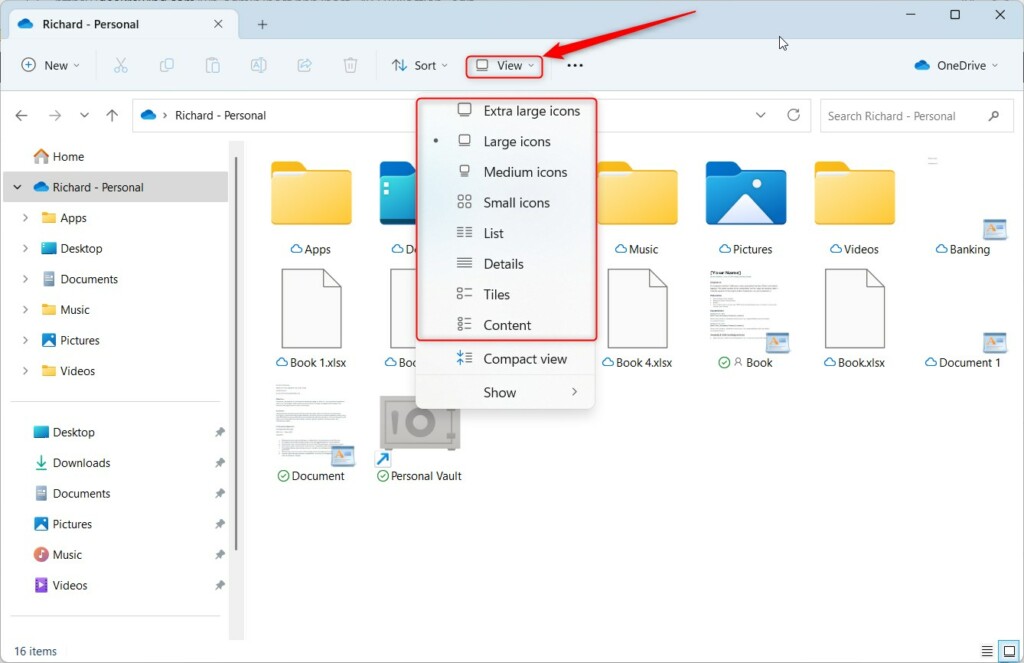
File Explorer layout refers to the visual arrangement of your files, dictating whether you see large icons, a detailed list, or compact previews. Windows 11 offers several view options, including Details, Icons, List, and Compact view.
For instance, switching to the “Details” view immediately shows you essential information like file size and modification date for all your documents, making organization a breeze. Windows 11 smartly remembers your preferred layout for each folder, so your settings stick.
To change File Explorer layout, click the View menu, select Options, then Folder Options, and finally Apply to Folders. This sets your current view as the default for similar folders. You can also reset views via Folder Options or by editing registry keys.
Comparison of File Explorer Layouts
| Layout Type | Best For |
|---|---|
| Extra Large/Large Icons | Photos and Videos |
| Medium Icons | General file browsing |
| List | Quick scanning of many files |
| Details | Sorting by date, size, or type |
| Tiles | Seeing file info with larger icons |
| Content | Detailed file metadata view |
Using the View Menu and Apply to Folders
You can easily change File Explorer layout settings for individual folders or apply them to all similar folders using the View menu and the ‘Apply to Folders’ option.
- Open File Explorer and set your preferred view (e.g., Details).
- Click the View menu in the top command bar.
- Select Options at the bottom of the menu.
- In the Folder Options window, click the View tab.
- Click Apply to Folders.
Pro Tip: This feature forces Windows to adopt your current view settings for all folders that share the same template, effectively solving issues where Windows resets your view preferences.
Troubleshooting: Why Windows Resets Folder Views
Windows sometimes forgets your settings because the BagMRU registry keys (which store your view preferences) have reached their limit. To fix this, you may need to reset your folder views.
How to Reset Folder Views
- Open Folder Options via the View menu.
- Go to the View tab.
- Click Reset Folders.
Advanced Customization via Registry Editor
If you need to reset File Explorer view settings because they aren’t saving correctly, you can manually clear them by editing the Windows Registry.
- Press ⊞ Win+R, type `regedit`, and hit Enter.
- Navigate to: `🗝️HKEY_CURRENT_USER\Software\Classes\Local Settings\Software\Microsoft\Windows\Shell\BagMRU`
- Delete the BagMRU and Bags keys to reset all custom folder views back to their default settings.
Summary
Changing your File Explorer layout helps you manage files better, and you can do this using the View menu, keyboard shortcuts, or the ‘Apply to Folders’ feature.
Why does 🪟 Windows 11 keep resetting my folder view?
Windows 11 might keep resetting your folder view because the temporary storage for your preferences, called BagMRU, has become corrupted or too full.
Was this guide helpful?

About the Author
Richard
Tech Writer, IT Professional
Richard, a writer for Geek Rewind, is a tech enthusiast who loves breaking down complex IT topics into simple, easy-to-understand ideas. With years of hands-on experience in system administration and enterprise IT operations, he’s developed a knack for offering practical tips and solutions. Richard aims to make technology more accessible and actionable. He's deeply committed to the Geek Rewind community, always ready to answer questions and engage in discussions.


No comments yet — be the first to share your thoughts!