How to Apply Folder View to All Folders of Same Template Type in Windows 11

You can apply your custom folder view settings to all folders of the same template type in Windows 11. This feature ensures consistency across similar folders without needing to manually adjust each one.
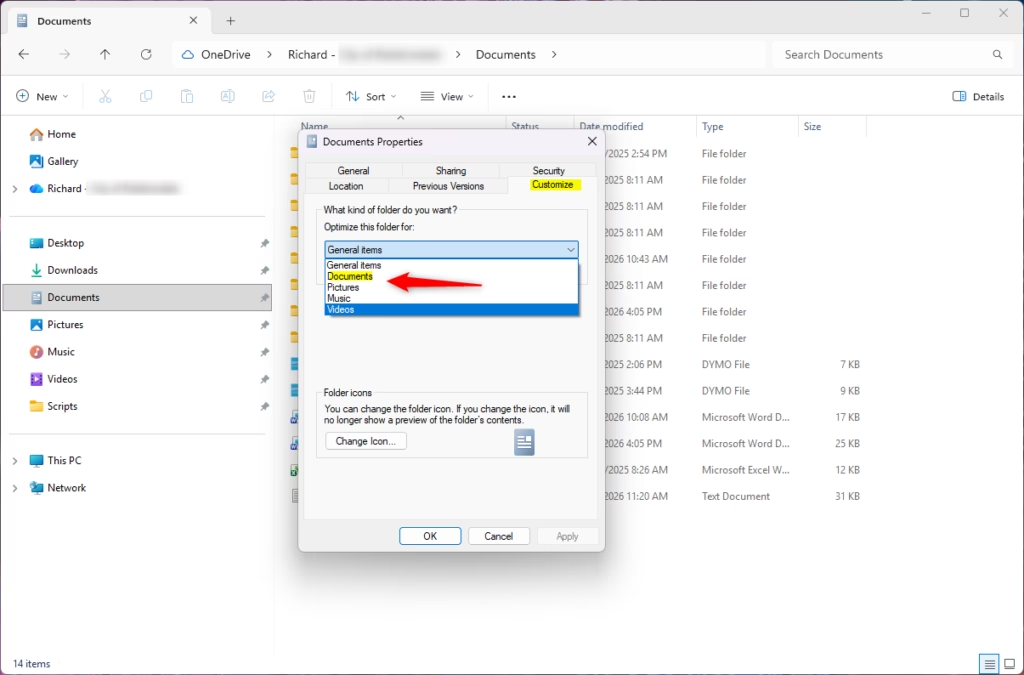
Folder templates in Windows 11 categorize folders based on their content, such as General Items, Documents, Pictures, Music, and Videos. Applying your view preferences to a template means all folders using that specific template will automatically adopt your chosen layout, sort order, and column widths.
For instance, if you prefer large icons for all your picture folders, you can set that once. Windows 11 then saves this preference as the default for the “Pictures” template, making every picture folder display large icons instantly.
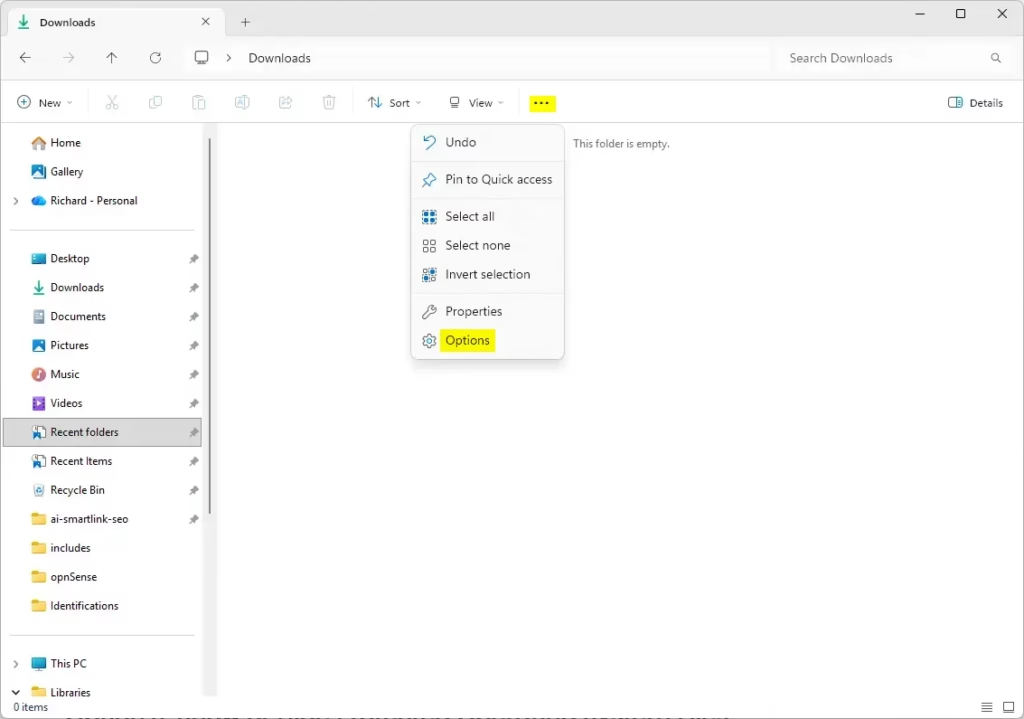
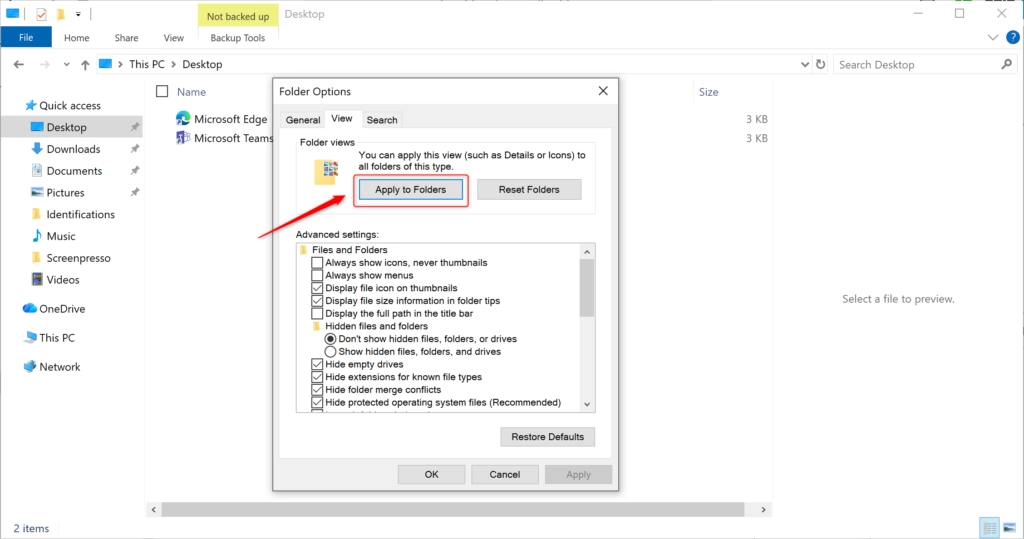
Adjust a folder’s view settings in File Explorer, then click the three dots, select Options, go to the View tab, and click Apply to Folders. This sets the chosen layout, sort order, and column widths for all folders of the same template type.
Step-by-Step: Apply Folder View to All Folders
You can easily set your preferred folder view in Windows 11 and apply it to all similar folders, saving you time and keeping your File Explorer tidy.
- Open File Explorer by pressing ⊞ Win+E.
- Open a folder that uses the template you want to change (e.g., General Items).
- Close all other open folder windows.
- Adjust the Layout, Sort by, Group by, and Column settings to your liking.
Apply Folder View
- Click the See more (three dots) icon in the top toolbar.
- Select Options from the menu.
- In the Folder Options window, click the View tab.
- Click the Apply to Folders button.
- Click OK to close the window.
Understanding Folder Templates vs. Folder Views
Folder templates are pre-defined layouts for different types of content, such as Documents, Pictures, or Music. Folder views are the specific settings you apply to those templates. When you change a view, you are telling Windows how to display that specific template type across your entire system.
Troubleshooting: Why ‘Apply to Folders’ Fails
If the Apply to Folders button is grayed out, you are likely inside a special system folder like This PC or a Library. These locations do not support custom template views. Ensure you are inside a standard folder on your drive to enable this button.
Registry Editor Workaround (Advanced)
For advanced users, you can manually adjust or reset folder view settings in Windows 11 using the Registry Editor, but be careful and back up your registry first.
To manually reset or adjust these settings via the registry:
- Press ⊞ Win+R, type regedit, and press Enter.
- Navigate to 🗝️HKEY_CURRENT_USER\Software\Classes\Local Settings\Software\Microsoft\Windows\Shell\Bags.
- You can delete the Bags and BagMRU keys to reset all folder views to default.
- Restart Windows Explorer via Task Manager to apply changes.
Summary
Keeping your folders organized in Windows 11 is simple when you can set a consistent view for similar folder types using the ‘Apply to Folders’ option.
Why does 🪟 Windows 11 keep resetting my folder view settings?
Windows 11 has a limit on how many folder view settings it can remember. When this limit is reached, it clears older settings to make room for new ones. You can try increasing the cache size in the registry or resetting your folder views to clear out corrupted data.
Does ‘Apply to Folders’ affect subfolders?
Yes, the Apply to Folders feature updates the default view for all folders using that specific template. This includes subfolders that share the same template type. It is a global change for that template, ensuring consistency throughout your File Explorer experience across your user account.
Was this guide helpful?
33% of readers found this helpful (3 votes)

About the Author
Richard
Tech Writer, IT Professional
Richard, a writer for Geek Rewind, is a tech enthusiast who loves breaking down complex IT topics into simple, easy-to-understand ideas. With years of hands-on experience in system administration and enterprise IT operations, he’s developed a knack for offering practical tips and solutions. Richard aims to make technology more accessible and actionable. He's deeply committed to the Geek Rewind community, always ready to answer questions and engage in discussions.


No comments yet — be the first to share your thoughts!