How to Change Folder Layout View in Windows 11 File Explorer

This guide shows you how to change the appearance of files and folders in Windows 11 File Explorer. You can choose from different layouts like icons, lists, or details. Why do this? It helps you find files faster and keeps your workspace organized. What happens when done? Once you’ve made the changes, your folder will display your files exactly how you want them.
You can change folder layouts in Windows 11 File Explorer by using the scroll wheel with Ctrl, keyboard shortcuts, or the View menu on the command bar. Choose from options like List, Details, or Large icons to organize your files.
Change Folder Layout View using a Scroll Wheel
Windows 11 File Explorer lets you quickly change how your folders look using your mouse scroll wheel.
2. Open the folder you want to change.
3. Press and hold the Ctrl key. Roll your mouse scroll wheel up or down to cycle through layouts. Release the key when you see the view you like.
| Layout View | Keyboard Shortcut |
|---|---|
| Extra large icons | Ctrl+ Shift + 1 |
| Large icons | Ctrl+ Shift + 2 |
| Medium icons | Ctrl+ Shift + 3 |
| Small icons | Ctrl+ Shift + 4 |
| List | Ctrl+ Shift + 5 |
| Details | Ctrl+ Shift + 6 |
| Tiles | Ctrl+ Shift + 7 |
| Content | Ctrl+ Shift + 8 |
Change Folder Layout View using Keyboard Shortcut
1. Open File Explorer (⊞ Win+E).
2. Open the folder you want to change.
3. Press Ctrl + Shift along with a number from 1 to 8. This lets you jump instantly between views like Details, List, or Large Icons.
Change Folder Layout View from File Explorer Toolbar
1. Open File Explorer (⊞ Win+E).
2. Open the folder you want to change.
3. Click the Details or Large icons button on the bottom right corner of the window.
Change Folder Layout View from File Explorer Command Bar
1. Open File Explorer (⊞ Win+E).
2. Open the folder you want to change.
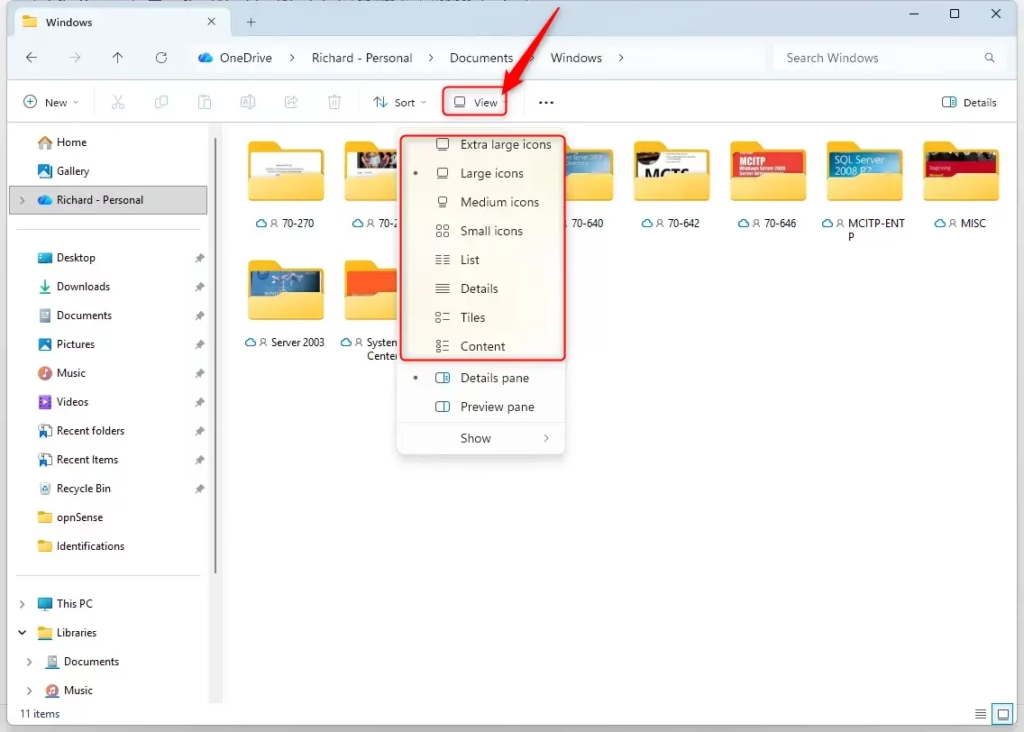
3. Click View on the top command bar. Select your preferred layout from the list.
Change Folder Layout View from Context Menu
1. Open File Explorer (⊞ Win+E).
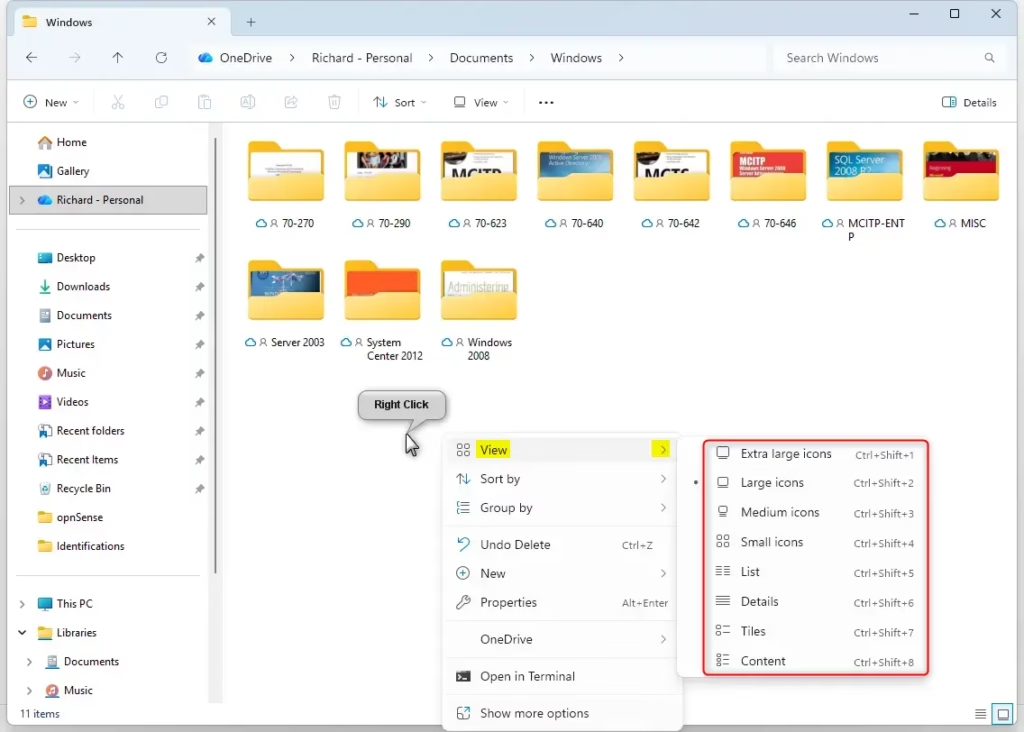
2. Right-click any empty space inside the folder.
3. Hover over View and select your layout.
Setting Default Folder Views
Want all your folders to look the same? Start by clicking the three-dot menu (…) in the top command bar and selecting Options. In the View tab, click Apply to Folders. This action saves your current view as the default for all folders like the one you’re currently viewing.
Customizing Detail Columns
In Details view, right-click any column header to add or remove information like Date Created or File Size. You can drag headers left or right to reorder them. This helps you manage your files better.
Summary
You now know how to change your folder layout using the mouse, keyboard, or menu options. You also learned how to set defaults and customize columns for better organization. If you want to learn more about how these settings stick, check out the official Microsoft support page.
Why does 🪟 Windows 11 keep resetting my folder view?
Your Windows 11 folder view might reset because the temporary file storage, known as the folder cache, is full or damaged.
How do I make all folders look the same in 🪟 Windows 11?
Open File Explorer, set a folder to your desired layout, and click the three-dot menu. Choose Options, go to the View tab, and click Apply to Folders. This forces Windows to use your current layout settings for every folder on your computer.
Was this guide helpful?

About the Author
Richard
Tech Writer, IT Professional
Richard, a writer for Geek Rewind, is a tech enthusiast who loves breaking down complex IT topics into simple, easy-to-understand ideas. With years of hands-on experience in system administration and enterprise IT operations, he’s developed a knack for offering practical tips and solutions. Richard aims to make technology more accessible and actionable. He's deeply committed to the Geek Rewind community, always ready to answer questions and engage in discussions.



No comments yet — be the first to share your thoughts!