How to Enable or Disable AI Actions in Windows 11 Context Menu

This article shows you how to turn AI Actions on or off in the context menu in Windows 11.
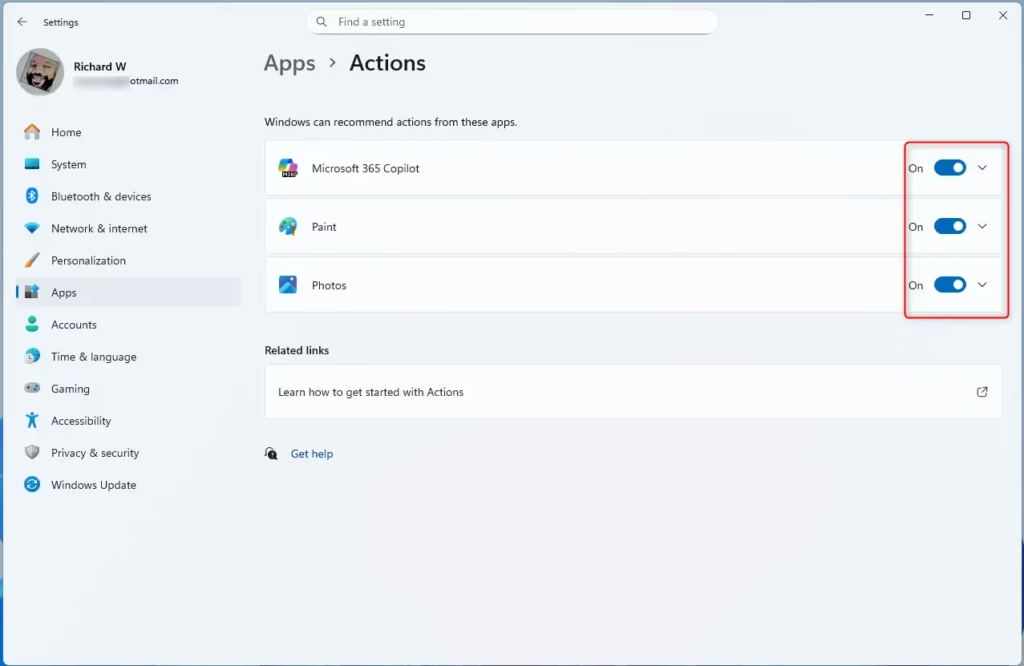
Go to Settings, then Apps, and select Actions. Toggle the switch for each app to enable or disable its AI Actions in the context menu. This allows you to control which AI-powered tasks appear when you right-click files.
What Are AI Actions?
AI Actions in Windows 11 are like smart shortcuts that let you quickly do tasks with your files right from the menu that pops up when you right-click. For example, you can quickly edit a photo or get a summary of a document without even opening the app first.
Why would you want this? It saves you time. Instead of opening an app separately, you can perform tasks directly from the context menu.
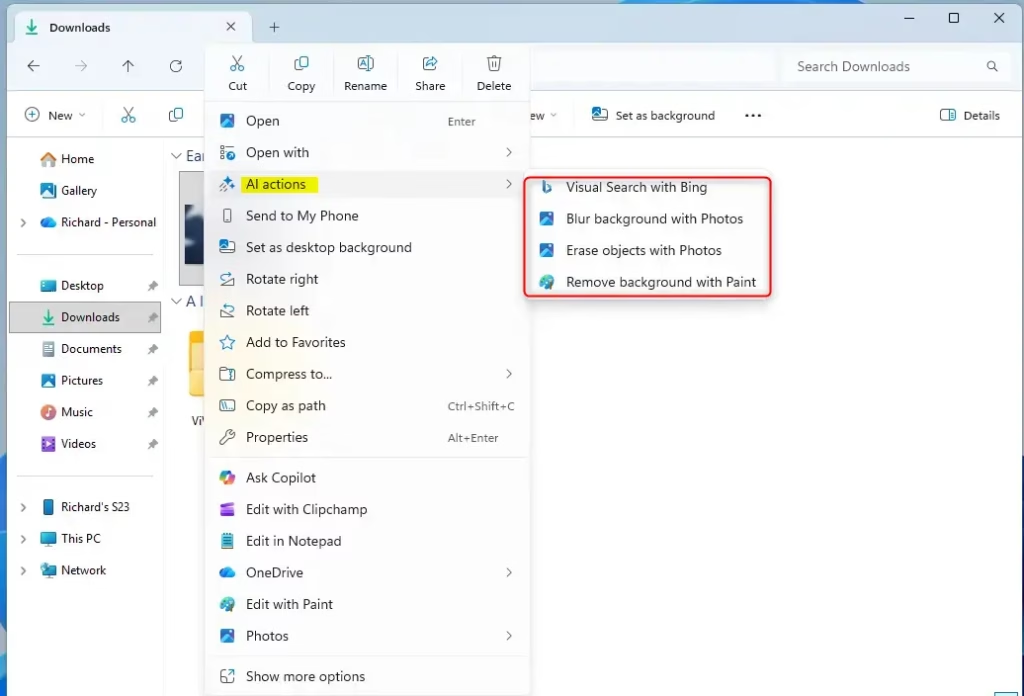
What happens when you enable it? New options appear when you right-click files. You can perform AI-powered tasks without leaving File Explorer.
Note: This feature is rolling out with Windows 11 build 26220.7344. Not all Windows users have it yet. If AI Actions aren’t available or enabled, this section won’t appear in the context menu.
How to Enable or Disable AI Actions
Step 1Open the Settings App
First, open the Windows Settings app.
You can do this in a couple of ways:
- Click the Start menu and select Settings
- Press
Windows key + I
Step 2Go to Apps > Actions
When the Settings app opens, click Apps on the left side. On the right, select the Actions tile to expand it.
Step 3Toggle Actions On or Off
On the Apps > Actions settings pane, you can select the apps for which you want to enable or disable actions. Then, toggle the button to turn them on or off.
Here’s how it looks in the context menu:
That’s all you need to do!
Summary
AI Actions in Windows 11 are helpful shortcuts for common file tasks, and it’s easy to turn them on or off. You can also pick which apps get to use these smart features, all managed through the Windows Settings app.- AI Actions are small tasks that help you interact with files in Windows 11
- This feature is rolling out with the latest Windows 11 builds and may not be available to all users yet
- You can enable or disable AI Actions easily through the Settings app
- Go to Apps > Actions to manage which apps have AI Actions available
- You can customize which apps use AI Actions to match your preferences
- Keep your Windows updated to access the latest features related to AI Actions
How to activate AI in 🪟 Windows 11?
This experience is powered by Microsoft 365 Copilot, which uses Work IQ to understand your work context. With AI, it’s often easier to say what you want, and you can now use your voice with Microsoft.
How do I remove AI actions from the menu?
Open Settings > Apps > Actions and then disable each item in the list.
Was this guide helpful?

About the Author
Richard
Tech Writer, IT Professional
Richard, a writer for Geek Rewind, is a tech enthusiast who loves breaking down complex IT topics into simple, easy-to-understand ideas. With years of hands-on experience in system administration and enterprise IT operations, he’s developed a knack for offering practical tips and solutions. Richard aims to make technology more accessible and actionable. He's deeply committed to the Geek Rewind community, always ready to answer questions and engage in discussions.




No comments yet — be the first to share your thoughts!