How to turn Use AI to improve autofill suggestions on or off in Microsoft Edge

AI autofill suggestions in Microsoft Edge use artificial intelligence to help you fill out online forms faster. These suggestions learn from your past entries and the type of information a form asks for, like email or name fields.
Microsoft Edge’s AI analyzes the webpage’s form fields and compares them to your saved data. This lets it offer much smarter suggestions than just remembering old entries. It helps reduce typing and the chance of mistakes.
You can choose to turn these AI-powered suggestions on or off in Edge’s settings. This feature helps speed up online tasks by making form filling more accurate and efficient.
Taking Control: Enabling and Disabling AI Autofill
These AI suggestions are helpful, but you’re always in control of whether to use them. Microsoft Edge makes it possible to turn this feature on or off, depending on your preference and comfort level.
Step-by-Step: Managing AI Autofill Suggestions
- Open Microsoft Edge: Launch the browser on your computer.
- Access Settings: Click on the three horizontal dots (Settings and more) in the top-right corner of the browser window. From the dropdown menu, select Settings.
- Navigate to Passwords and autofill: In the Settings menu on the left-hand side, find and click on Passwords and autofill. This section is where you manage all your saved form-filling information.
- Find Personal Info: Within the “Passwords and autofill” section, you’ll see an option for Personal info. Click on this.
- Toggle the AI Feature: Here, you’ll find the AI-powered autofill suggestions toggle. If it’s on, Edge will provide these smart suggestions. If you prefer not to use them, simply click the toggle to switch it off.

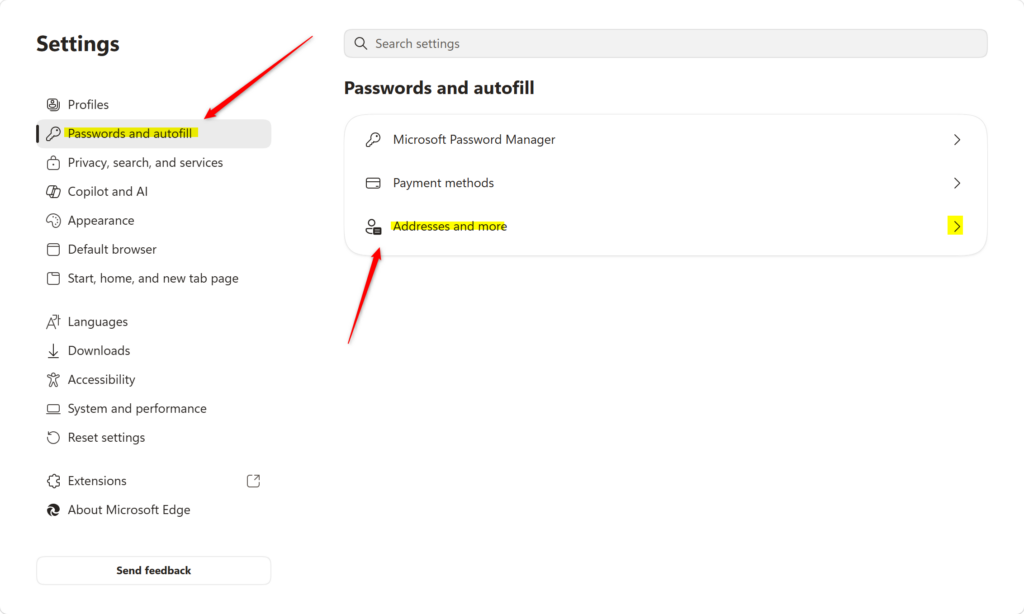
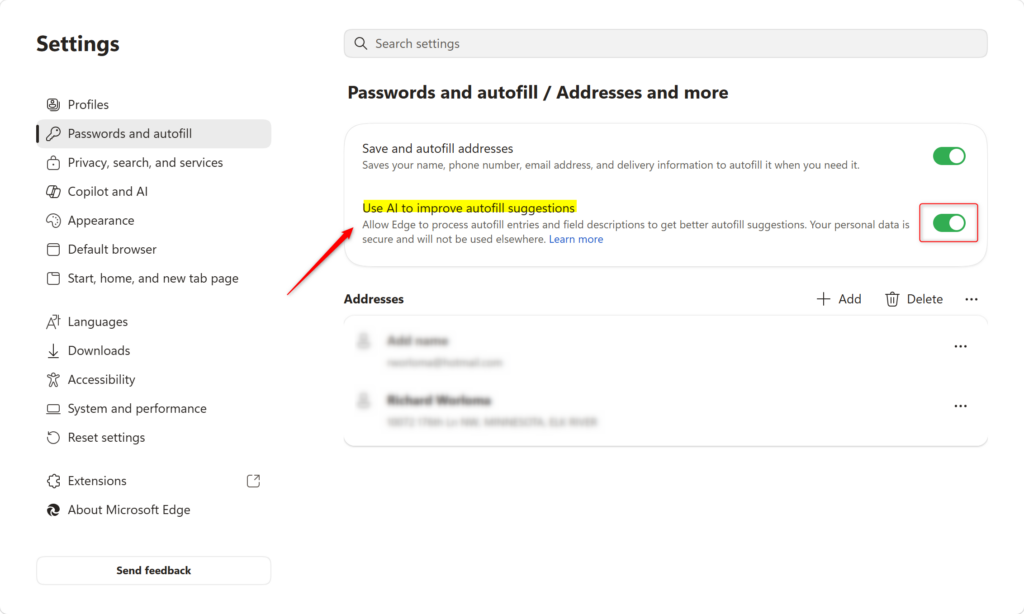
You can easily turn AI autofill suggestions on or off in Microsoft Edge by following a few simple steps within the browser’s settings.
https://learn.microsoft.com/en-us/legal/microsoft-edge/privacy#autofill
Practical Tip: If you find that the AI suggestions are sometimes unhelpful or suggesting the wrong information, toggling this feature off might solve the problem. Conversely, if you want to speed up your form-filling, make sure this toggle is switched on!
Warning: While Edge is designed to handle your data securely, some users prefer to disable AI-driven features to minimize data processing. If you have concerns about how your data might be used, turning off this toggle is a good step towards greater privacy.
Was this guide helpful?

About the Author
Richard
Tech Writer, IT Professional
Richard, a writer for Geek Rewind, is a tech enthusiast who loves breaking down complex IT topics into simple, easy-to-understand ideas. With years of hands-on experience in system administration and enterprise IT operations, he’s developed a knack for offering practical tips and solutions. Richard aims to make technology more accessible and actionable. He's deeply committed to the Geek Rewind community, always ready to answer questions and engage in discussions.
📚 Related Tutorials


No comments yet — be the first to share your thoughts!